KB5127648 Rolls Back After Restart With 0x800f0845
Quick Navigation:
- What the Rollback Records
- Confirm the Package Really Failed
- Remove the Blocking Condition
- Prepare the System Volume
- Frequently Asked Questions
KB5127648 installs, asks for the restart, and then returns to the desktop on the previous build with 0x800f0845 in the update history. The code is raised during the commit phase, which runs before the sign-in screen appears, so the package never reached the point where it changes system files. Nothing in the user folders is lost, but the failed attempt leaves staged data and a partially written servicing folder behind. Reading that sequence correctly separates a retry that will work from one that fails the same way. This guide explains what the code reports, how to confirm the blocking cause, and which disk work to do first.
What the Rollback Records
0x800f0845 belongs to the servicing family of errors, which covers the stage that writes the package into the system. The download finished, the package passed its own check, and the restart was granted. The failure came later, while Windows tried to move the staged files into the component store and register them for the new build.
When that write fails, Windows does not leave a half-updated system in place. It restores the previous build, removes the pending entry, and reports the code in the update history so the next attempt knows what happened. That is why the desktop looks normal afterwards and the build number has not changed.
Only three conditions usually stop the commit. A driver or filter driver still holds a file that the package needs to replace, the system volume does not have enough free space to hold both the old and the new files during the swap, or an earlier failed attempt left staged data that the new run cannot overwrite. The first and the third are software problems; the second is a disk-layout problem, and it is the one that repeats.
Confirm the Package Really Failed
Open Settings, go to Windows Update, and read the update history. A package listed as failed with 0x800f0845 has rolled back completely, and the machine is running the build it had before. A package listed as pending restart has not failed yet, and the next restart decides the outcome.
Compare the current build with the number the package is supposed to reach. If the build has not moved, no part of the update was applied, and there is nothing to uninstall. If the build moved and the code still appears, the failure happened on a later package in the same batch, and the same disk check applies.
Then look at the free space on the system volume. Windows needs room for the new payload, the previous copy it keeps for rollback, and the temporary files that are written during the swap. A volume with less than 15 percent free is a poor candidate, and a volume with less than 8 GB free will fail the commit regardless of what else is fixed.
Device drivers come next. A storage filter, an encryption agent, or an antivirus driver that loads before the desktop can hold a system file open across the restart. Disconnect docks and remove third-party security suites for the duration of one attempt; a single clean restart answers the question faster than any log.
Remove the Blocking Condition
Clear the staged data before the retry. The SoftwareDistribution folder under the Windows directory holds the downloaded package, and the component store holds the staged copy. Windows rebuilds both on demand, so an interrupted attempt that left either in a bad state is worth clearing from the Settings storage page rather than by deleting folders by hand.
Free space is the part that needs a decision. Deleting temporary files and moving media to another disk may recover a few gigabytes, but a system volume that has been under pressure for months will hit the same wall on the next feature update. The durable fix is to give the volume more room, either by shrinking a data partition behind it or by extending it into unallocated space that already exists.
Check the disk before you move partitions. A volume with file system errors can abort a resize halfway, and a drive that reports repeated read errors will fail the commit for a reason that has nothing to do with Windows. Run a file system check first, then confirm the layout, then resize.
Windows ships its own recovery and servicing commands for this state. They are Microsoft tools, not features of Qiling Disk Master, and they belong in a separate diagnostic session with an image already made, because a wrong selection there can leave the machine unbootable.
Prepare the System Volume for the Next Attempt
Qiling Disk Master reads the file system and the free space of every partition on one screen, so the volume that blocks the commit is visible before the restart rather than after it. Check the system volume first, then extend it into space that already exists on the disk.
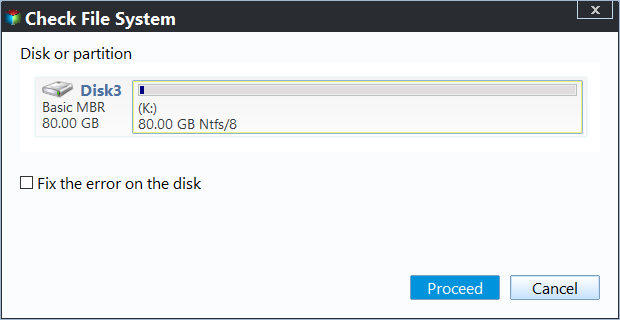
Step 1. Check the System Volume First
Right-click the Windows volume and open the file system check, then tick the option that fixes errors on the disk. Let the scan finish before you change the layout, because a resize on a volume with pending errors can stop halfway and leave the partition smaller than planned.
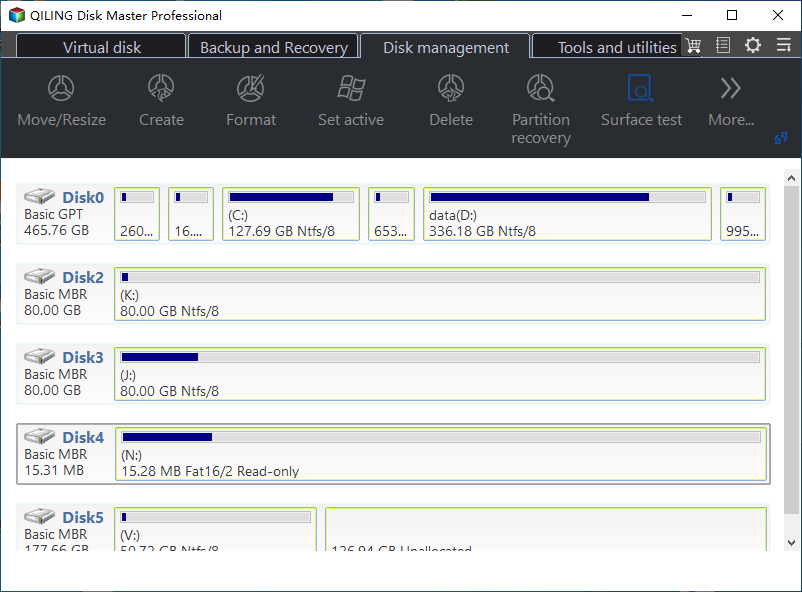
Step 2. Read the Disk Map
Match the system disk by capacity, then compare the free space on the Windows volume with what the package needs. Confirm that the unallocated block sits directly behind the volume you intend to extend; space at the far end of the disk cannot be merged into it in one operation.
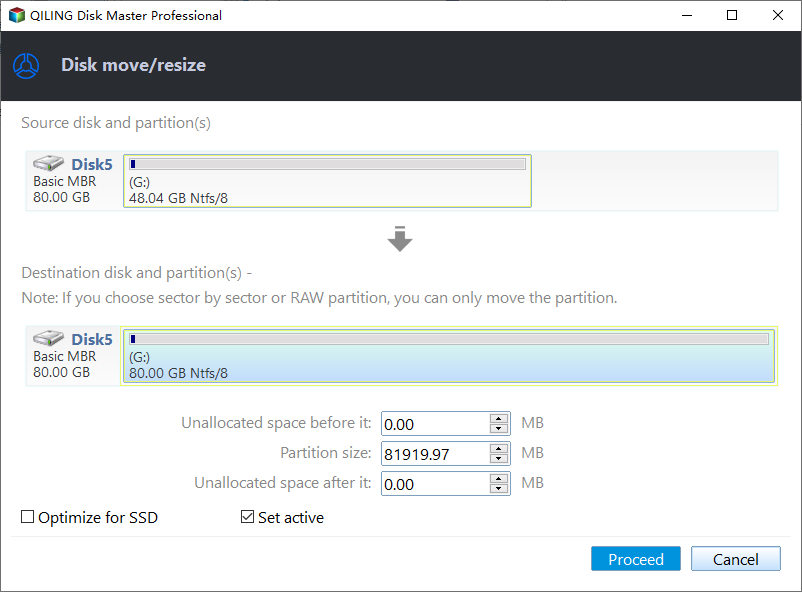
Step 3. Extend the Windows Volume
Right-click the system volume and choose Resize/Move, then drag its right edge into the unallocated space that follows it. Leave the starting offset unchanged so the boot entry keeps pointing at the same location, and leave at least 10 GB free inside the volume after the resize.
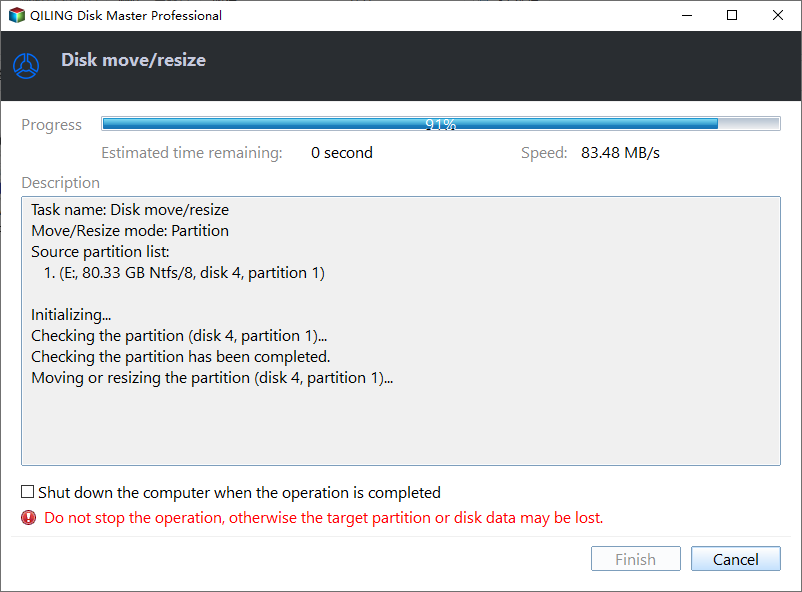
Step 4. Commit the Layout
Read the task list to preview the pending operation and click Proceed. The change is scheduled for a restart when the volume is in use, so plan that reboot, then offer KB5127648 again from Windows Update.
Frequently Asked Questions
Did the rollback damage my installed programs?
No. The rollback restores the previous build files and leaves programs, settings, and documents as they were. Only the package itself is discarded.
Can I just retry KB5127648 without changing anything?
You can, and it sometimes works after a clean restart. When the same code returns twice, the cause is still on the disk, and a third attempt only adds another failed entry to the history.
Will resizing the system volume delete files?
A correct resize keeps the file system and its contents intact, but every partition operation carries risk. Make an image of the disk before the first write, and confirm the disk number on the map.
If the package failed for a different reason, the KB5127648 install and boot loop walkthrough covers the case where the machine never returns to the desktop.
Related Articles
- KB5127648 Install Fails and Causes a Boot Loop
- We Could Not Complete the Updates: Undoing Changes
- Roll Back the Windows 11 26H2 Update
- Windows 11 26H2 Upgrade Failed With 0x800F0922
- KB5132061 Update Won't Boot: Fix the BCD Error
Products
Articles & Tutorials
- Data Recovery
- Data Backup
- File Recovery
- File Backup
- System Backup and Restore
- Disk and Partition Clone
- Technical articles
- Mobile articles
- Disk Master Help
- Windows Data Recovery Tutorials
- Windows Secure Delete Tutorials
- Windows Partition Management Tutorials
- Windows File Backup and Restore Tutorials
- Windows System Backup and Restore Tutorials
- Windows Disk Backup and Restore Tutorials
- Windows Clone Tutorials