Windows 11 26H2 Upgrade Failed With 0x800F0922
Quick Navigation:
- What 0x800F0922 Means in 26H2
- Check the Reserved and Recovery Partitions
- Free the Space the Installer Needs
- Fix the Layout with Qiling
- Frequently Asked Questions
A Windows 11 26H2 upgrade that stops with error 0x800F0922 has usually run out of room in a partition the installer writes to, not on the main C drive. The hidden system reserved, EFI, or recovery partition is full, so setup cannot stage the update files it needs.
What 0x800F0922 Means in 26H2
0x800F0922 is a generic servicing error: the update package downloaded, but the installation phase could not complete. On a machine upgrading to 26H2, the most common cause is insufficient free space in the System Reserved partition on an MBR disk, or in the EFI System Partition on a GPT disk.
The second common cause is a recovery partition that sits between the system volume and the free space, or a recovery partition that is too small for the new Windows Recovery Environment. Setup tries to update WinRE, fails, and rolls the whole feature update back.
Less often, the error comes from a damaged component store, a pending reboot, or a third-party disk filter driver. Those cases show the same code but need different fixes, so confirm the partition layout before you move anything.
Check the Reserved and Recovery Partitions
Open Disk Management and switch to the view that shows capacity in megabytes. On a GPT boot disk you should see an EFI System Partition of about 100 to 300 MB, a Microsoft Reserved Partition of 16 MB, the Windows volume, and possibly a recovery partition of 500 MB to 1 GB at the end of the disk.
Free space inside the EFI partition is what matters, not the size shown in the partition list. Microsoft recommends at least 20 MB free on the EFI partition before a feature update, and some 25H2 and 26H2 repair installs need more. If the partition is nearly full, setup reports the same 0x800F0922 code.
Windows includes command-line tools that can display this detail, but they are part of Windows, not of Qiling Disk Master. Treat any command-line step as a separate diagnostic task and make a full image before you use it, because a wrong partition selection can make the machine unbootable.
Free the Space the Installer Needs
Start with the simple space: delete temporary files, move large media to another disk, and empty the update cache. Windows needs room for the new build, the previous installation, and the rollback data, so a C drive with less than 15 percent free is a poor candidate for a feature update.
If the recovery partition is directly behind the system volume and is no longer needed, back it up and remove it, then extend the system volume into that space. If you want to keep recovery, move it to the end of the disk instead of deleting it, so the system volume can grow.
Do not delete the EFI System Partition on a GPT boot disk. It holds the boot loader; recreating it requires recovery tools and a repair of the boot configuration. When the EFI partition itself is full, the supported fix is to remove obsolete files from it or rebuild it with Windows recovery tools, not to resize it blindly.
Fix the Layout with Qiling Disk Master
Qiling Disk Master can move a recovery partition, resize a data volume, and merge free space without reinstalling Windows. It works on the pending layout, so you can see the result before anything is written.
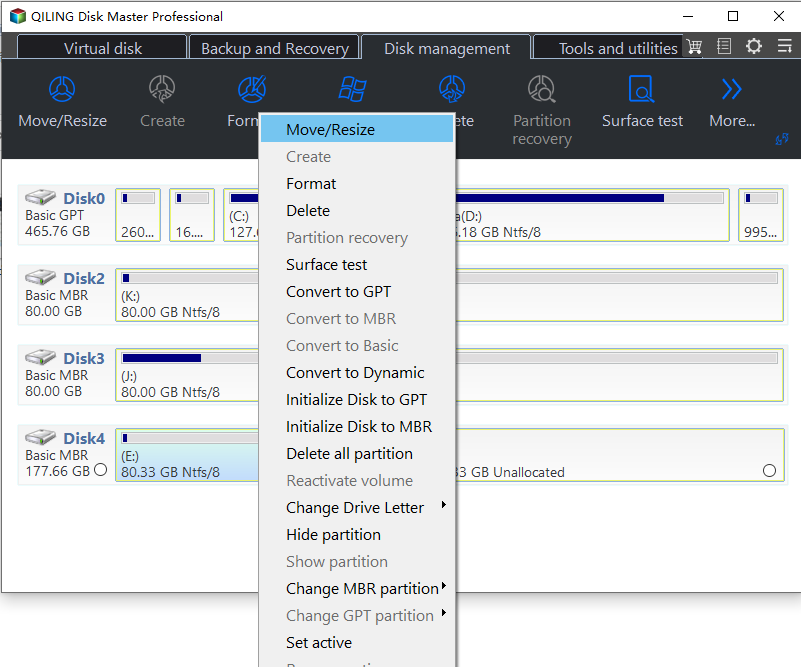
Step 1. Confirm the Blocking Partition
Compare the disk map in the program with Disk Management. Note the disk number, the position of the recovery partition, and the amount of unallocated space. On a server or a machine with several similar drives, match by capacity and model rather than by drive letter.
Step 2. Move or Resize the Partition
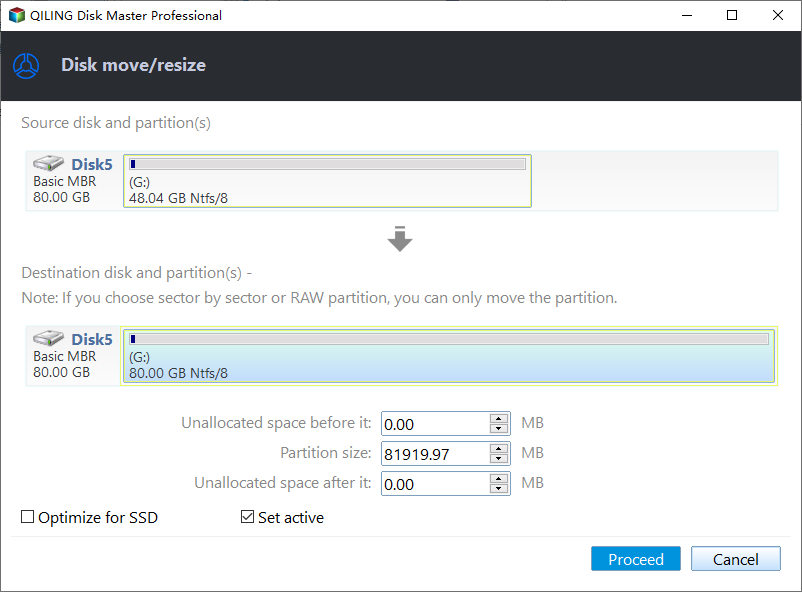
Right-click the partition and choose Resize Partition. Drag the handle to move the recovery partition toward the end of the disk, or shrink a neighbouring data volume to create adjacent free space. Keep at least 20 MB free in the EFI partition and do not touch the boot partition.
Step 3. Preview and Proceed
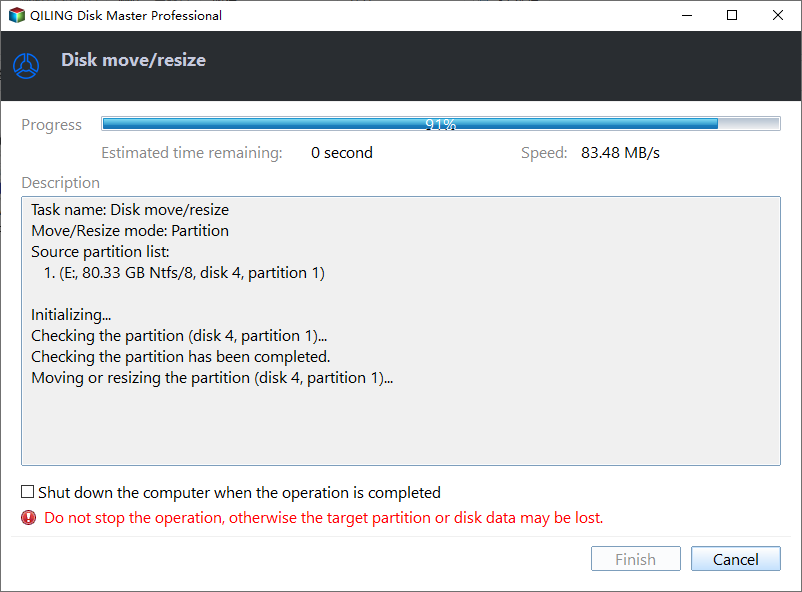
Read the pending operations list before you commit. If the system volume is in use, the program schedules the change for a restart; plan that reboot instead of triggering it during work hours. After the restart, retry the 26H2 upgrade.
Frequently Asked Questions
Does 0x800F0922 always mean a full partition?
No, but on 26H2 it is the most common cause. A pending reboot, a damaged component store, or a disk filter driver can produce the same code.
Can I delete the recovery partition?
You can, but you lose the built-in Windows Recovery Environment until you recreate it. Back it up first, or move it instead of deleting it.
Will resizing a partition delete files?
A correct resize keeps the file system intact, but any partition operation carries risk. Make a system image and confirm the disk number before you start.
How much free space does 26H2 need?
Plan for at least 20 percent of the system drive, plus the free space the installer requires in the EFI and recovery partitions.
For the Windows-side view of the same error, see We Couldn't Update the System Reserved Partition.
Related Articles
- We Couldn't Update the System Reserved Partition Windows 10
- SSD System Reserved: How to Remove the Partition
- Windows 11 24H2 Update Cache Cannot Be Deleted
- Windows Server 2025 Partition Management Guide
Products
Articles & Tutorials
- Data Recovery
- Data Backup
- File Recovery
- File Backup
- System Backup and Restore
- Disk and Partition Clone
- Technical articles
- Mobile articles
- Disk Master Help
- Windows Data Recovery Tutorials
- Windows Secure Delete Tutorials
- Windows Partition Management Tutorials
- Windows File Backup and Restore Tutorials
- Windows System Backup and Restore Tutorials
- Windows Disk Backup and Restore Tutorials
- Windows Clone Tutorials