KB5127648 Install Fails and Causes a Boot Loop
Quick Navigation:
- Why KB5127648 Fails on Some PCs
- Identify the Failing Installs
- Recover the Boot Entry
- Stop the Update From Repeating
- Frequently Asked Questions
KB5127648 is the October 2026 security update, and on most machines it installs quietly. On a small group of older systems the package stages, restarts the PC, and then either rolls back or starts again from the same point. The machine appears stuck between the vendor logo and the recovery screen, and every attempt adds another failed entry to the update history.
Why KB5127648 Fails on Some PCs
The update was released on October 13, 2026 and raises the build number to 26300.9711, 26200.9711, or 26100.9711 depending on the edition. Servicing beyond the desktop session now rewrites boot-time payloads, so a platform that barely passes the hardware check can still fail during the first restart.
Most reports fall into three groups. Firmware or a storage driver that the new payload no longer tolerates, too little free space on the system partition or on the recovery partition that holds the staged files, and a boot configuration that was already damaged before the update arrived.
The visible result is the same in every case: a restart loop, or a return to the desktop with the same package offered again. Neither means the disk is lost, but the recovery order matters, and reinstalling Windows should be the last option rather than the first.
Identify the Failing Installs
Write down what the machine reports before you change anything. The stop code on the blue screen, the line shown under the recovery screen, and the entry in the update history together point to the stage that failed.
If Windows still starts, open Settings and go to Windows Update, then Update history. Note whether KB5127648 is listed as failed, waiting for a restart, or installed with an error code. On a machine that only reaches the recovery environment, boot into Safe Mode once through Startup Settings and read the same page there.
Disconnect external drives, docks, printers, and USB hubs before the next restart. A device that loads its driver during boot is a common reason a package that installs correctly cannot finish the first start.
Copy the user folders to another disk before the next attempt. Repairs that touch the boot files can leave the system unbootable, and a copy made now removes the risk of losing documents while you work.
Recover the Boot Entry
Start the Windows Recovery Environment from the advanced startup menu, or from a Windows installation USB when the local recovery entry cannot be reached. Run Startup Repair first: it fixes the boot files and leaves programs and files in place.
If Startup Repair finishes and the loop returns, open System Restore and pick the restore point created just before the update. This is usually the fastest way back to a working desktop, and it also discards the staged package.
When neither option works, choose Uninstall Updates inside the recovery environment and remove the latest quality update. That step rewrites the boot configuration and should bring the machine back on the previous build.
The boot configuration can also be rebuilt manually with the Windows recovery tools, for example the Bootrec utility run from a command prompt in the recovery environment. That work belongs to the Windows tools rather than to a partition manager, and it is worth doing only after the data has been copied elsewhere.
Stop the Update From Repeating
Many loops begin with a partition that has no room left for servicing, or with a recovery partition that accepted the staged files and never released them. Clearing that cause first is what makes it safe to hold the package back. Qiling Disk Master draws every partition on one disk map, so the shortage is visible before the next restart rather than after it.
Step 1. Read the Disk Map
Open the program and match the disk number with the one shown in the firmware boot menu. Confirm that the EFI or System Reserved partition and the recovery partition are both listed, compare the free space of each, and check that the Windows volume still carries its letter.

Step 2. Resize the Partition That Is Short of Space
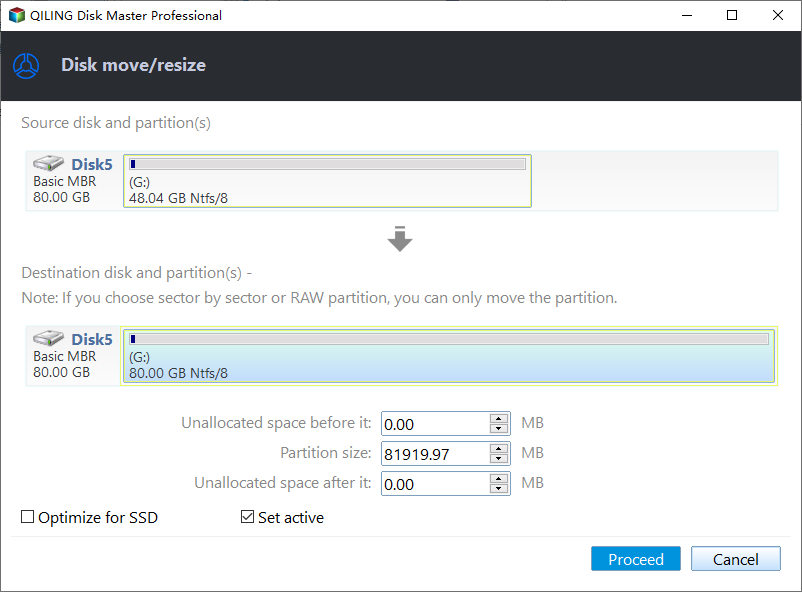
Right-click the volume that is short of space and choose Move/Resize. In the wizard, set the unallocated space after the partition or type a larger partition size until the system and recovery partitions have room for servicing. When the recovery partition sits directly behind the Windows volume, reserve the space for it first and move it, then extend the Windows volume into the gap. Click Proceed in that window to start the change.
Step 3. Let the Operation Finish
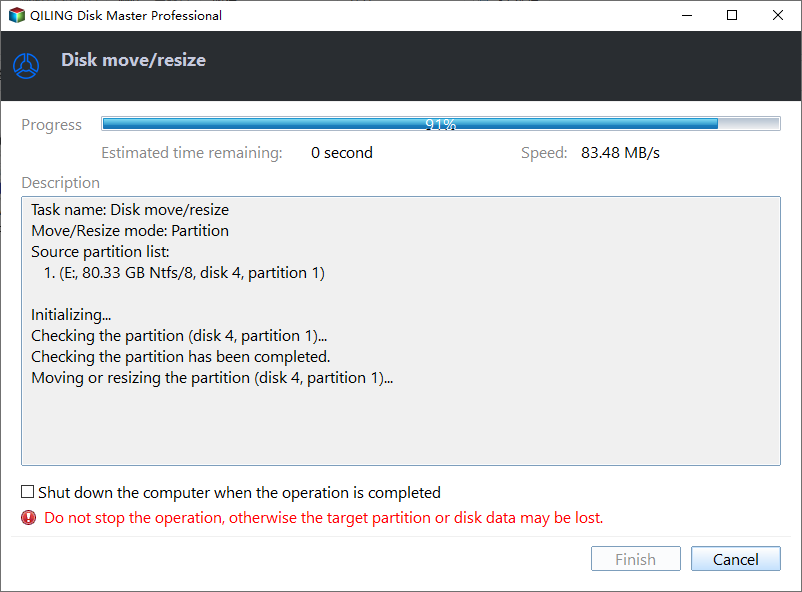
Keep the machine powered until the progress window reports completion, and do not interrupt it while a partition is being moved. After the restart, reopen the disk map and confirm that the free space and the drive letters match what you planned.
Then pause updates for a few weeks before you try the package again. A machine that still fails with free space on every partition needs a driver or firmware update from the vendor instead.
Frequently Asked Questions
Does KB5127648 install on unsupported hardware?
The package can install, but a CPU that is outside the support list or a missing TPM 2.0 often turns the first restart into a rollback. The loop is the symptom, not a supported configuration.
Will removing the update delete my files?
No. Uninstalling a cumulative update returns the system files to the previous build and leaves personal data, installed programs, and partition layout untouched.
How do I stop the same package from installing again?
Pause updates for the maximum period allowed in Settings, keep the machine off the network at the scheduled restart time, and check the vendor page for a revised package before you resume.
If the rollback already damaged a partition, see a partition that turned into unallocated space after an update.
Related Articles
- 26H2 Upgrade Failed With 0x800F0922
- Roll Back the Windows 11 26H2 Update
- Back Up Before a Feature Update
- Recovery Partition Full Blocks WinRE Update
- All Options Grayed Out in Disk Management
Products
Articles & Tutorials
- Data Recovery
- Data Backup
- File Recovery
- File Backup
- System Backup and Restore
- Disk and Partition Clone
- Technical articles
- Mobile articles
- Disk Master Help
- Windows Data Recovery Tutorials
- Windows Secure Delete Tutorials
- Windows Partition Management Tutorials
- Windows File Backup and Restore Tutorials
- Windows System Backup and Restore Tutorials
- Windows Disk Backup and Restore Tutorials
- Windows Clone Tutorials