WinRE Update Failed 0x80070643: Recovery Partition Full
Quick Navigation:
- Why the Update Fails with 0x80070643
- Check the Recovery Partition Size
- Free Space or Relocate the Recovery Image
- Enlarge the Recovery Partition with Qiling Disk Master
- Frequently Asked Questions
A security update for the Windows Recovery Environment can fail on a machine that is otherwise healthy. The usual cause is space: the recovery partition was created years ago at 500 MB, while the current image plus the update needs more than that. Setup cannot grow a partition during an update, so it stops and reports 0x80070643.
Why the Update Fails with 0x80070643
The Windows Recovery Environment lives in its own partition near the end of the system disk, normally between 500 MB and 1 GB. Safety updates replace the image inside that partition, and the replacement needs roughly 250 MB of free space beyond the image that is already there.
On machines installed several releases ago, or upgraded in place more than once, that partition was created smaller than the current image. Setup cannot resize a partition while it installs an update, so it aborts and returns 0x80070643, which is a generic installation failure code rather than a storage error.
The failure itself is not dangerous. The previous recovery image stays in place and Windows continues to run. What it leaves behind is a machine that cannot apply later recovery fixes until the partition has room.
Check the Recovery Partition Size
Open Disk Management and find the partition with no letter that is labelled Recovery. Note its size and, more importantly, how much free space it has inside.
The free space is reported by the recovery configuration tool that ships with Windows. That tool is part of the operating system and is not a feature of this software; its information switch states whether the recovery environment is enabled and how much of the partition the image occupies.
If the partition is 500 MB and the image already fills most of it, retrying the update will not help. The partition has to grow, or the recovery environment has to be moved to a partition with room.
Free Space or Relocate the Recovery Image
Two approaches work. The recovery environment can be moved into the Windows partition, which frees the dedicated partition, or the recovery partition can be enlarged by taking space from the volume in front of it.
Relocating is a command line operation performed with the Windows recovery tool from an administrator prompt. It is reversible, and it leaves the dedicated partition untouched for a later attempt.
Enlarging is more predictable when the recovery partition sits immediately after the system volume, which is the usual layout. Because the free space must come from the volume in front, the system volume shrinks first and the recovery partition is then moved or extended into the gap.
Enlarge the Recovery Partition with Qiling Disk Master
Qiling Disk Master can shrink the system volume, move the recovery partition, and extend it in a single pending operation. That avoids running three separate wizards in the wrong order, and it also covers the case where unallocated space sits before a partition that Windows refuses to extend.
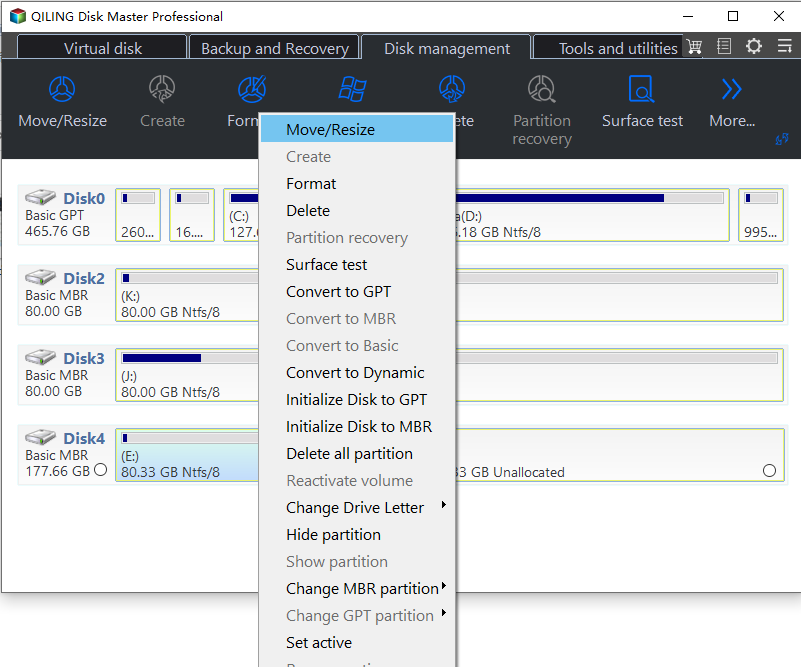
Step 1. Select the System Disk
Open the program and confirm the disk number against Disk Management. The recovery partition has no letter and a small size, so identify it on the map rather than in a drive list.
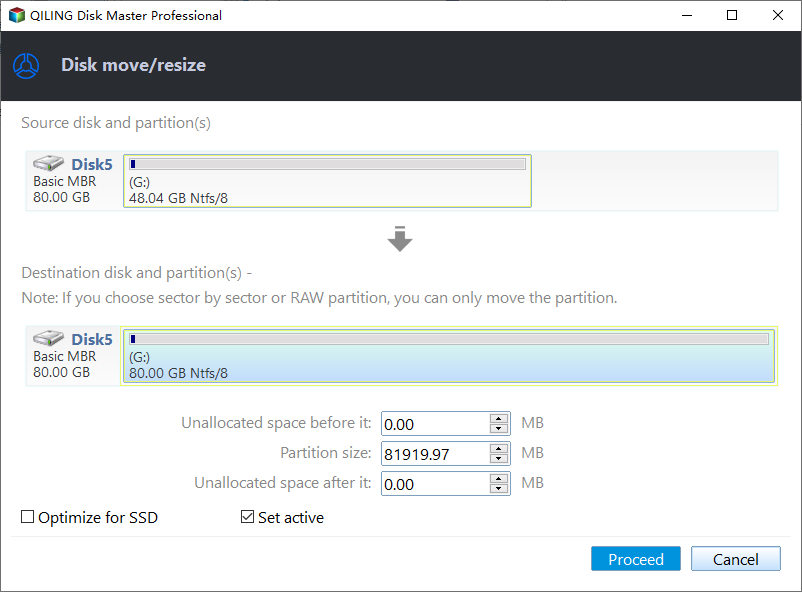
Step 2. Shrink the Volume in Front
Right-click the system volume, choose Resize Partition, and drag its end handle left by about 300 MB. Leave Windows itself with reasonable free space; do not shrink the volume to its minimum, because a full system volume causes its own failures.
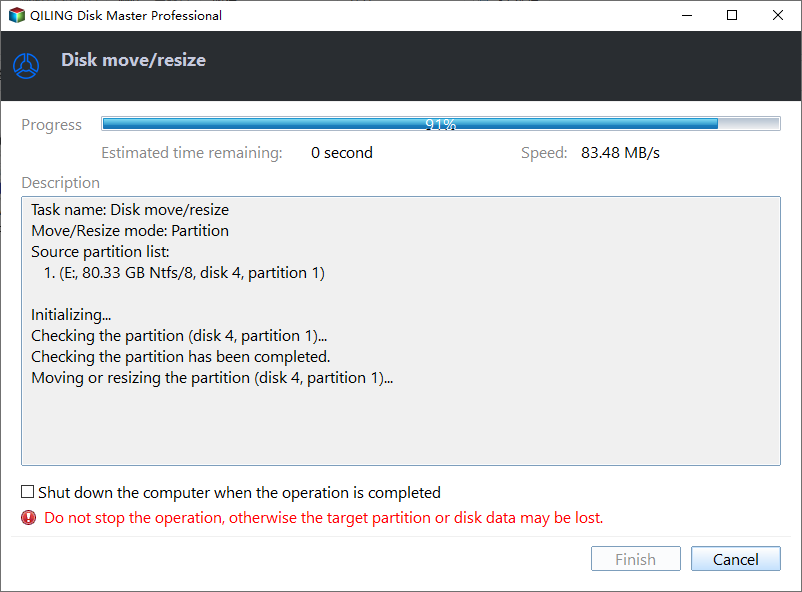
Step 3. Extend the Recovery Partition, then Preview and Proceed
Right-click the recovery partition and extend it into the new unallocated space. Confirm that the pending list shows the shrink before the extend, click Proceed, and allow the restart if the program asks for one.
Step 4. Retry the Update
After the reboot, run Windows Update again. The recovery update now has room to install, and the error should clear on the first attempt. If it returns, check the partition size once more before you look for other causes.
Frequently Asked Questions
Can I delete the recovery partition to fix the error?
You can, and the update will then succeed by creating a new partition, but you lose the built-in recovery environment until Windows recreates it. Enlarging is the safer option.
How much space does the recovery environment need?
Allow about 1 GB for the partition. The image uses several hundred megabytes, and the update needs roughly 250 MB free on top of that.
Will resizing break the recovery environment?
No, as long as the partition keeps its type and contents. Resizing changes boundaries, not files, and the configuration is read from the system volume.
Does this error affect Windows 10 as well?
Yes. The same failure appeared on Windows 10 machines with a small recovery partition, and the fix is identical.
For copying a recovery partition to another disk, see copying the recovery partition to a new hard drive.
Related Articles
- Copy the Recovery Partition to a New Hard Drive
- All Options Grayed Out in Disk Management
- Can I Extend the C Drive From Another Disk
- Add Unallocated Space Without a Dynamic Disk
- Abort Partition Resizing While Moving Data
Products
Articles & Tutorials
- Data Recovery
- Data Backup
- File Recovery
- File Backup
- System Backup and Restore
- Disk and Partition Clone
- Technical articles
- Mobile articles
- Disk Master Help
- Windows Data Recovery Tutorials
- Windows Secure Delete Tutorials
- Windows Partition Management Tutorials
- Windows File Backup and Restore Tutorials
- Windows System Backup and Restore Tutorials
- Windows Disk Backup and Restore Tutorials
- Windows Clone Tutorials