A Recently Serviced Boot Binary Is Corrupt After an Update
Quick Navigation:
- What the Message Means
- Check the Boot Files and Partition
- Rebuild the Boot Configuration
- Repair or Restore the System Partition
- Frequently Asked Questions
After a cumulative update, some Windows 11 26H2 machines stop with a message that a recently serviced boot binary is corrupt. The wording is unusual, but the meaning is narrow: a boot file replaced by the update cannot be validated, so the firmware hands control to nothing and the start sequence ends.
What the Message Means
During servicing, Windows replaces the boot manager, the boot configuration data, and a set of libraries that start before the operating system loads. Each file carries a signature that the firmware checks at every start, and the check is repeated once the loader takes over.
The message appears when one of those replaced files is incomplete, signed incorrectly, or written to a location the loader cannot reach. A power loss during the restart, an antivirus product that intercepted the file write, or a disk that returned a read error are the usual causes.
Because the failure sits in the boot chain rather than in Windows itself, the machine stops before it can log in, roll back, or show the desktop. Data on the partitions is normally intact, and that is the point worth confirming first.
Check the Boot Files and Partition
Open the disk layout from the recovery environment and confirm that the EFI system partition, the Windows partition, and the recovery partition are all present. A missing or letterless partition changes the repair from rebuilding a file to restoring a partition.
Look at free space on the partition that holds the boot files. The EFI system partition is often 100 MB, and an update that needs to stage a larger payload there can leave the copy truncated when the space runs out.
Check the file system as well. The EFI partition must be FAT32, and the Windows volume must be NTFS. If either partition reports an unknown file system, or if the volume list under it is empty, stop and copy the disk before you attempt a rebuild.
Compare what you see with a working machine of the same model. The order of the partitions and the flags on them are as important as their sizes, because the firmware follows the layout it is given.
Rebuild the Boot Configuration
Boot from Windows installation media or from the recovery partition, open a command prompt in the recovery environment, and rebuild the boot files and the boot configuration store. This is a Windows repair task and it runs outside the installed system, so no files are removed from the Windows volume.
The rebuild writes a fresh boot manager and a new configuration entry that points at the Windows installation. If the entry is created without the firmware entry, add that entry as well, then restart and confirm that the boot menu shows the expected installation.
When the rebuild reports that the system partition cannot be found, the problem is the partition rather than the file. In that case go back to the layout check, assign the correct identifiers, and run the rebuild again.
The tools for this work are part of Windows: the Bootrec utility and the boot configuration commands in the recovery environment. They should be kept separate from any partition-manager step, and they are safe to repeat as long as the partitions themselves are not reformatted.
Repair or Restore the System Partition
A boot rebuild only succeeds when the target partition is healthy and large enough to hold the new files. Qiling Disk Master shows the partition type, size, and free space of every volume on the disk map, so the space check happens before the rebuild rather than after it fails.
Step 1. Check the Partition Layout
Start the program from the working system or from a bootable media, then compare the disk number with the entry in the firmware boot menu. Note the size and free space of the system partition, and confirm that the Windows volume still carries its letter.

Step 2. Shrink the Volume Behind the System Partition
Right-click the volume immediately to the right of the system partition and choose Move/Resize. Raise the unallocated space before that volume, or lower its partition size, so the free space ends up between the two partitions. Click Proceed in that window; the change runs at once, and this product has no separate apply page to confirm afterwards.
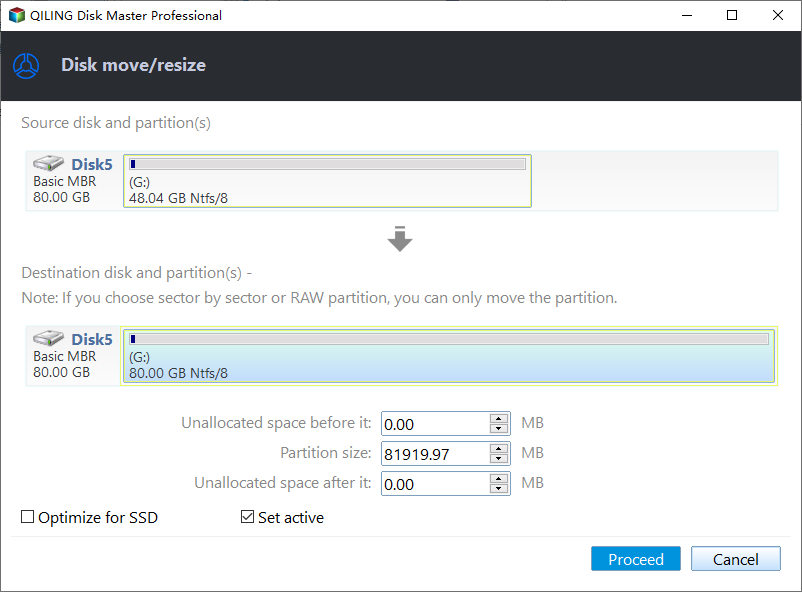
Step 3. Extend the System Partition and Restart
Right-click the system partition and choose Move/Resize again, then set the unallocated space after it to 0 so the gap is absorbed into that volume. Click Proceed and leave the machine powered until the progress window reports completion. Restart when it finishes.
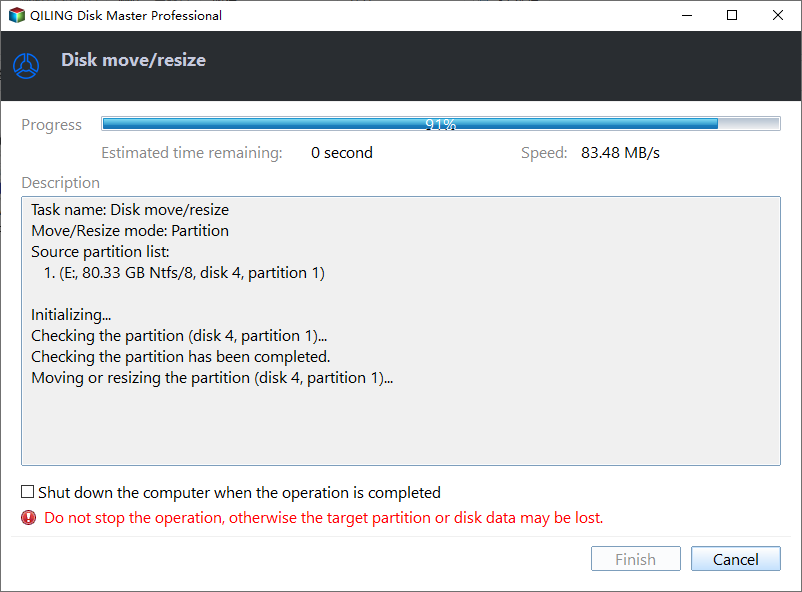
Run the boot rebuild again after the restart. With space available and the layout unchanged, the replaced boot files should now be written and verified at the next start.
Frequently Asked Questions
Is my data lost when this message appears?
No. The failure happens before Windows loads, so the partitions and their contents are normally untouched. Copy the important folders to another disk before you rebuild anything.
Can I skip the rebuild and wait for the next update?
No. The machine cannot start, and a later package cannot install while the boot chain is broken. The configuration has to be rebuilt first.
Why does the error return after a successful repair?
Either the partition is still too small for the payload or a driver keeps intercepting the file write. Check the free space again, then remove third-party filter drivers before the next update.
If the repair left the recovery partition unusable, see removing a recovery partition that no longer works.
Related Articles
- 26H2 Upgrade Failed With 0x800F0922
- Roll Back the Windows 11 26H2 Update
- Partition Lost After the 25H2 Update
- Move the Recovery Partition Safely
- Remove a Recovery Partition
Products
Articles & Tutorials
- Data Recovery
- Data Backup
- File Recovery
- File Backup
- System Backup and Restore
- Disk and Partition Clone
- Technical articles
- Mobile articles
- Disk Master Help
- Windows Data Recovery Tutorials
- Windows Secure Delete Tutorials
- Windows Partition Management Tutorials
- Windows File Backup and Restore Tutorials
- Windows System Backup and Restore Tutorials
- Windows Disk Backup and Restore Tutorials
- Windows Clone Tutorials