SD Card Write Protected Format Software: Remove Protection and Format
An SD card may become write-protected because the lock switch is enabled, the card reader is faulty, Windows marks the card as read-only, or the card is damaged. When this happens, you cannot save new files or format the card normally.
If the SD card contains photos, videos, or documents, recover or copy them first. Formatting should be the last step after write protection is removed.
Quick Checks Before Formatting
- Move the physical lock switch on the SD card adapter to the unlock position.
- Try another card reader or USB port.
- Scan the card for errors if Windows can still read it.
- Recover important files before formatting a corrupted card.
Format the SD Card with Qiling Partition Manager
After the write protection is cleared, Qiling Partition Manager can format the SD card to FAT32, exFAT, or NTFS. It is helpful when Windows formatting fails or the card shows an unsupported file system.
Step 1. Connect the SD card to your PC with a card reader. If you use a full-size SD adapter, slide the lock tab to the unlocked position and try another reader if Windows still shows the card as read-only.
Step 2. Copy or recover important photos and videos first. If the card is readable but files are missing, recover the files before formatting.
Step 3. Open Qiling Partition Manager and identify the SD card by capacity and device name. Avoid selecting an internal disk or another removable drive.
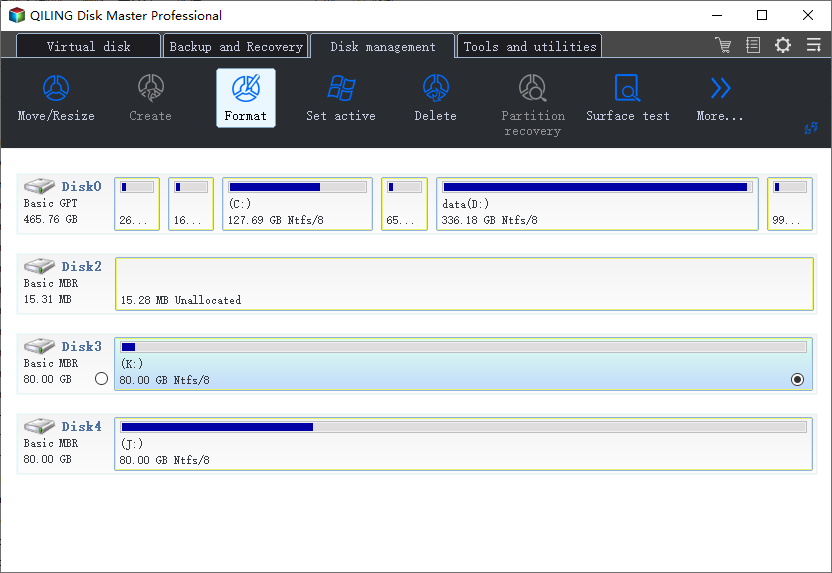
Step 4. Choose Format and set a file system that fits your device. FAT32 is common for smaller cards and older devices, while exFAT is usually better for larger SD cards and large video files.
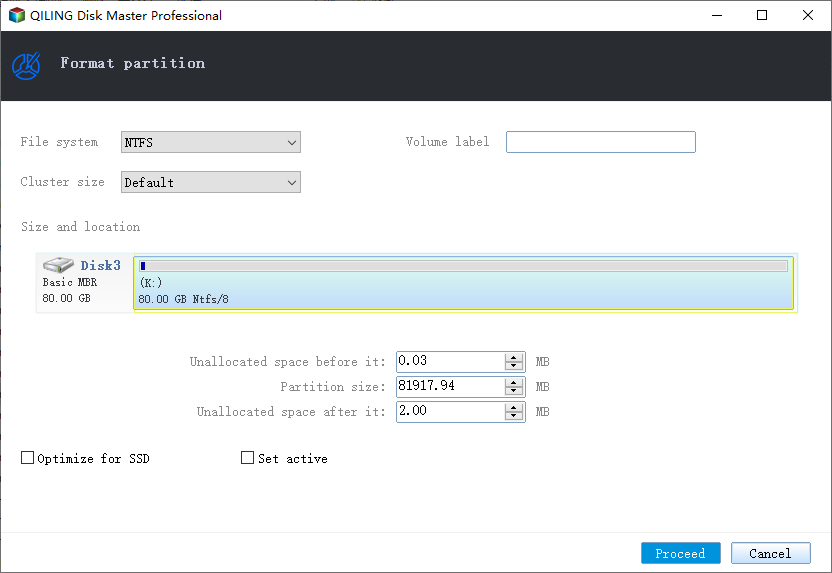
Step 5. Confirm the warning, then click Proceed. After formatting, insert the SD card back into the camera, phone, or device and test whether it can save new files.
What If the SD Card Still Cannot Be Formatted?
If the card keeps returning to write-protected status, it may be physically failing. Try to recover data first with SD card recovery or another suitable recovery guide, then replace the card if errors continue.
Conclusion
SD card write protection is usually fixable, but do not rush to format the card if it stores important files. Unlock it, recover data when needed, and then format it with a reliable tool.
Related Articles
- Write Protected USB Format Tool for Windows 11
- Write Protected SD Card Format Software Free Download
- SD Card Not Working or Showing Up
Products
Articles & Tutorials
- Data Recovery
- Data Backup
- File Recovery
- File Backup
- System Backup and Restore
- Disk and Partition Clone
- Technical articles
- Mobile articles
- Disk Master Help
- Windows Data Recovery Tutorials
- Windows Secure Delete Tutorials
- Windows Partition Management Tutorials
- Windows File Backup and Restore Tutorials
- Windows System Backup and Restore Tutorials
- Windows Disk Backup and Restore Tutorials
- Windows Clone Tutorials