SSD Slow Boot Windows 11 | Boot Windows 11 from SSD
If you're using an SSD as your system drive to load and boot Windows operating systems, you might be experiencing slower-than-expected speeds, such as taking a few minutes to start Windows 11. you're not alone in this issue, and there are potential solutions to explore. Let's take a look at what you can do about slow SSD in Windows 11.
Main Content:
Windows 11 boots quickly from an SSD, typically taking around 10-15 seconds to start up. This is because SSDs (solid-state drives) store data in flash memory, which allows for much faster access times compared to traditional hard disk drives (HDDs). As a result, Windows 11 can load its operating system and start up quickly, making it ideal for users who need a fast and responsive computing experience.
Why Does the SSD Become Slow in Windows 11?
If Windows 11 is booting slowly on an SSD, there are several things you can do to improve its performance. First, ensure that your SSD is properly configured and that the Windows 11 installation is optimized for it. You can also try disabling any unnecessary startup programs, checking for and removing malware, and updating your drivers.
How Long Does It Take to Boot Windows 11 from an SSD?
Many users have reported that their Windows PC has become slow or sluggish, despite using a Solid-State Drive (SSD) which is typically known for fast booting times of around 20 seconds. Despite setting up the SSD as the boot drive, some users are still experiencing long wait times, leaving them wondering why their Windows 11 PC is taking so long to boot.
To overcome slow boot issues on your SSD in Windows 11, start by identifying the cause of the problem. Once you've determined the root cause, you can refer to our compiled list of easy solutions to get your SSD booting quickly again.
Why Does the SSD Become Slow in Windows 11?
There are several reasons that can cause your Windows 11 to slow down during startup, including outdated drivers, corrupted system files, malware infections, and excessive startup programs. Additionally, a full disk or low disk space can also contribute to slow startup times.
- Virus or malware issue
- Corrupted files
- You might have enabled some unwanted notifications.
- You might have enabled some extra visual effects.
- An outdated graphic driver.
- Extensive space utilized by miscellaneous files like programs, games, etc.
What to Do If Windows 11 Boots Slow on an SSD?
Windows 11 offers various productivity features, but updates can sometimes lead to errors, such as the 100 disk usage error. To boost the performance of your slow boot SSD on Windows 11, consider these solutions.
Solution 1. Run a Complete System Clean Up
To avoid running out of space on your SSD, consider not installing games and programs that take up a lot of disk space. This can help prevent your SSD from becoming too full, which can slow down your computer. You can install these programs on a separate hard drive or external storage device instead.
To resolve the issue of your computer taking a long time to start up, check the Task Manager to see if there are any unnecessary services running on startup. Open the Task Manager by pressing Ctrl + Shift + Esc or by right-clicking on the taskbar and selecting Task Manager. In the Startup tab, look for any services that you don't need or use frequently, and disable them by clicking on the Disable button.
Solution 4. Turn on Fast Startup
Solution 5. Update AHCI Driver in Windows 11 Device Manager
Solution 6. Increase System and Boot Drive Space
Solution 7. Align SSD Partition
Solution 1. Run a Complete System Clean Up
To maintain optimal performance of your SSD, it's essential to avoid storing large personal files on it, as this can slow down read/write speeds. A simple solution to this issue is to run a system cleanup and remove any unnecessary junk files, allowing your SSD to efficiently manage its data and maintain its speed.
Qiling CleanGenius is the best software to help clear junk from your system and speed up your SSD without any hassle. With this software, you can easily remove unwanted files and data to free up space and improve your system's performance.
- Clear browser cache.
- Keep your system safe by encrypting important files
- Remove seldom used large files.
- Repair and optimize your system
To use this software, you can follow these easy steps:
Step 1. To get started, download and install Qiling Partition Master Suite for free, then launch it on your Windows PC.
To download and install Qiling CleanGenius, hover your mouse on the "PC Cleaner" option on the suite, click the download icon to install, and then launch the software.
Step 2. To clean up your computer with Qiling CleanGenius, select "Cleanup" on the main screen and click "Scan" to initiate the scanning process.
Step 3. When the scanning process is complete, select the unnecessary large files and click "Clean" to remove them.
Step 4. When Qiling CleanGenius finishes cleaning the files you selected, click "Done" to complete the process.
Solution 2. Do Not Install Games and Programs that Take Huge Disk Space on SSD
To optimize your SSD, avoid installing large games on it, and if you have large games or programs, consider transferring them to an external hard drive to free up space on your SSD.
Cleaning up your SSD from system files can help it run faster and show better performance.
Solution 3. Check Task Manager and Disable Unnecessary Services on Startup
If your SSD is taking forever to boot, you can try turning off unnecessary services from your Task Manager to speed up the process.
To disable unnecessary services follow the steps below:
Step 1. Select "Task Manager" from the Windows search bar.
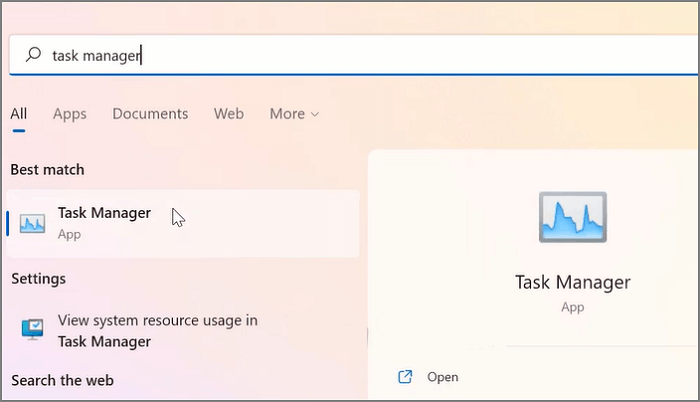
Step 2. You can now select "disable" from the "startup" tab.
By following these two simple steps, you can improve your SSD speed and disable unnecessary services that are running in the background, making it easier to manage them through the Task Manager.
Solution 4. Turn on Fast Startup
Windows 11's fast startup feature works like a hybrid sleep mode, allowing your computer to boot faster and save time by turning it on on your SSD.
To turn on this feature, below are the steps:
Step 1.To access the "Hardware and sounds" section in the Control Panel, follow these steps: From your desktop, click on the Start menu, and then navigate to the Control Panel. Within the Control Panel, select the option labeled "Hardware and sounds".
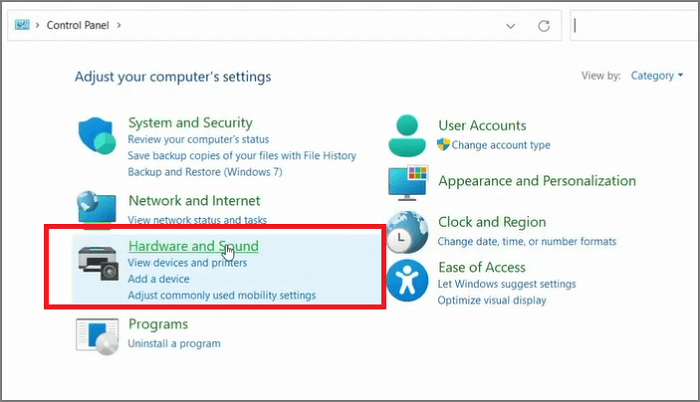
Step 2. Select the "Power Option".
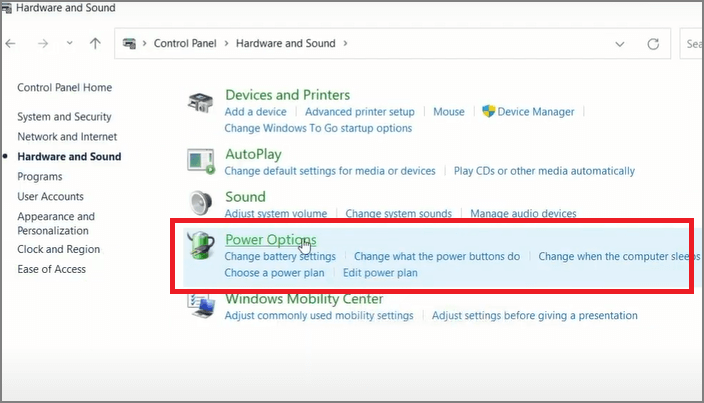
Step 3. To change the power button settings, select "Choose what the power buttons do" from the menu on the left.
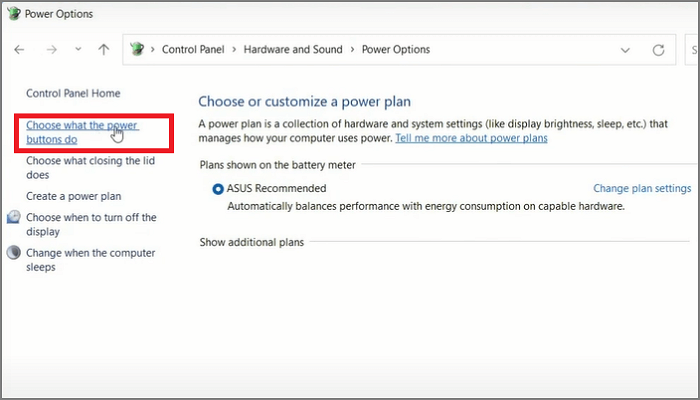
Step 4. Now, select "change settings that are currently unavailable."
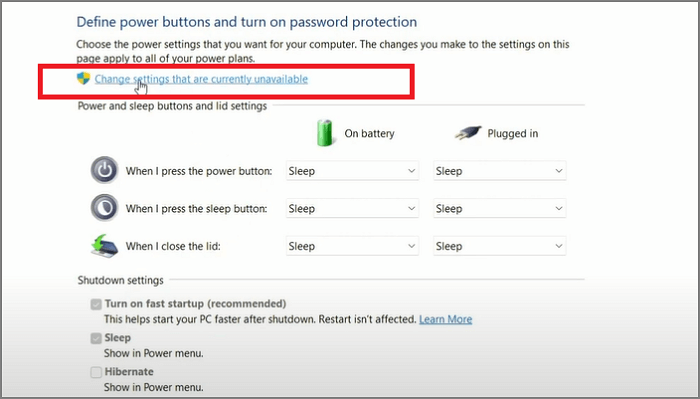
Step 5. To turn on fast startup, go to the "Settings" menu, then select "Update & Security," and from there, choose "Recovery" from the options. Next, click on "Restart now" under the "Advanced startup" section. Once your computer has restarted, select "Troubleshoot" and then "Advanced options.
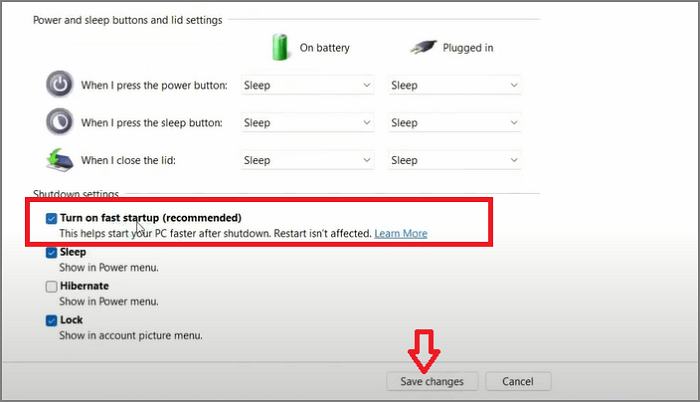
To run your SSD smoothly, follow these three simple steps to turn on fast startup. First, click on the Start button and select Settings.
Solution 5. Update AHCI Driver in Windows 11 Device Manager
The AHCI driver is a crucial component for maintaining SSD performance. If it's disabled, it may lead to crashes on your computer.
Step 1. Click open your device manager.
Step 2. Expand the IDE/ ATA / ATAPI controllers.
Step 3. Select the drive and right click. Now choose "update driver".
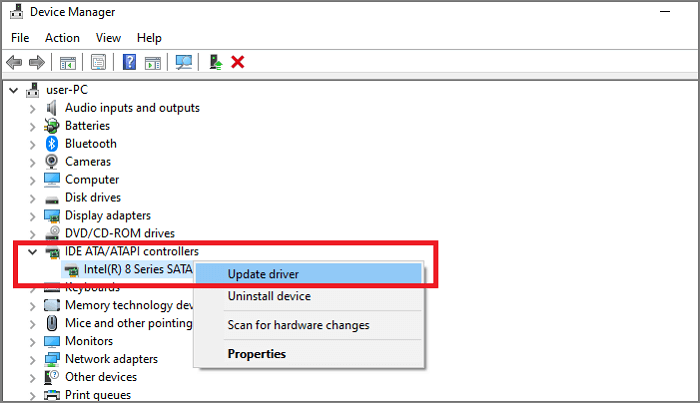
Step 4. Click on the search automatically for drivers option, which will check for updates. If any new updates are available, it will show them to you.
If the AHCI driver is mentioned, it means it's already enabled. However, if you see ATA/IDE instead, it means AHCI is not allowed, indicating that your system is not set up to use AHCI.
Solution 6. Increase System and Boot Drive Space
If you don't have an extra hard drive to install programs or games, you may need to expand your system space. A great option is the Qiling Partition Master software, which is a top choice for extending system and boot drive space.
This software offers several best features that make it a top choice when disk space is slow or running low. It provides a comprehensive solution to manage and free up disk space, ensuring a smooth and efficient computer experience.
- A simple interface suitable for all levels of Windows users.
- To free up space on your computer, consider merging your partitions and allocating the space correctly. This will provide a more prominent space for your files and programs, allowing you to work more efficiently. By merging your partitions, you can combine smaller spaces into a larger one, eliminating the need for multiple partitions and reducing clutter.
- Clone a disk to a new one.
- Reduces the risk of data loss.
The Qiling Partition Master allows you to partition SSDs, resize them, transfer data between drives, convert primary partitions to logical partitions, and convert FAT32 to NTFS, while securely erasing data on hard disks to prevent unauthorized access.
Qiling Partition Manager allows you to allocate space to the C drive by choosing a destination partition, which expands the available disc space.
Solution 7. Align SSD Partition
If you cloned Windows 11 to an SSD or frequently resized the SSD partition, the partitions may not be properly aligned, which can impact system performance.
To align the SSD partition, we recommend using Qiling Partition Master, a software that allows you to correctly align your SSD partitions. It offers 4k alignment functions to align 4k partitions on your SSD, checks for errors, and corrects them for faster SSD performance.
Conclusion
If you're experiencing slow SSD boot times on Windows 11, try one of these seven convenient solutions. Hopefully, they'll improve your SSD performance. Alternatively, you can download Qiling Partition Master for free from their official website, which can help maximize disk capacity usage and organize your partitions, resolving slow-down issues.
Related Articles
- Do I need EFI System Partition? Can I Delete the EFI Partition?
- Fixes for Windows Cannot Be Installed to Disk 0 Partition 1 Error
- How to Format SD Card to NTFS on PC and Android
- Solved 2022: Desktop Window Manager High Memory Windows 11/10
- Top 5 Best USB FAT32 Formatter [Free Download]
If you're a USB user, this page is for you. It recommends the best USB FAT32 Formatter to help you format your USB drives to any file system format for different purposes, making it a useful guide for those who need to format their USB drives. - USB Flash Benchmark Download with Complete Review in 2024
Briefly introduce the goal of this page, and call people to follow this guide to get official and secure USB flash benchmark download access, learn its pros and cons, and how to make use of this software for benchmarking USB flash drive.
Products
Articles & Tutorials
- Data Recovery
- Data Backup
- File Recovery
- File Backup
- System Backup and Restore
- Disk and Partition Clone
- Technical articles
- Mobile articles
- Disk Master Help
- Windows Data Recovery Tutorials
- Windows Secure Delete Tutorials
- Windows Partition Management Tutorials
- Windows File Backup and Restore Tutorials
- Windows System Backup and Restore Tutorials
- Windows Disk Backup and Restore Tutorials
- Windows Clone Tutorials