26H2 Disk Cleanup Removed Windows.old
Quick Navigation:
- What Is Lost When Windows.old Goes
- Check What Still Exists
- Stop Writing to the Disk
- Scan for the Deleted Folder
- Frequently Asked Questions
Windows.old holds the entire previous installation for a short period after a feature upgrade. Disk Cleanup and Storage Sense both list it as a large item to remove, and a single click removes the rollback path along with anything that had not been copied out of it.
What Is Lost When Windows.old Goes
The folder contains the previous Windows installation and, inside it, the user profiles as they existed before the upgrade. Files that were not migrated, application data stored outside the user folders, and saved settings all live there.
Deleting it also removes the Go back option in Settings. Without the folder, the previous build cannot be restored by any built-in command.
The space is not gone from the disk immediately, but the file records are. What a scan can find depends on how much has been written since.
Check What Still Exists
Look for C:Windows.old first. On some systems cleanup removes only part of it, leaving the user folder tree behind.
Check the Recycle Bin, which does not receive files deleted by Disk Cleanup but does receive files the user deleted manually.
Look at File History and any backup that ran before the upgrade. Those copies are independent of Windows.old and are the fastest route back.
Stop Writing to the Disk
Do not install programs, download large files, or run another cleanup. Every write reduces what remains of the deleted folder.
Do not run a check or repair on the volume. A repair writes metadata across the space where the old file records sit.
Move the drive to another machine if you need to keep using this one for work. The less the disk is touched, the better the scan result.
Scan for the Deleted Folder
Qiling Deep Data Recovery scans the volume for the folder records that cleanup removed, and it can rebuild the directory tree when enough of it survives.
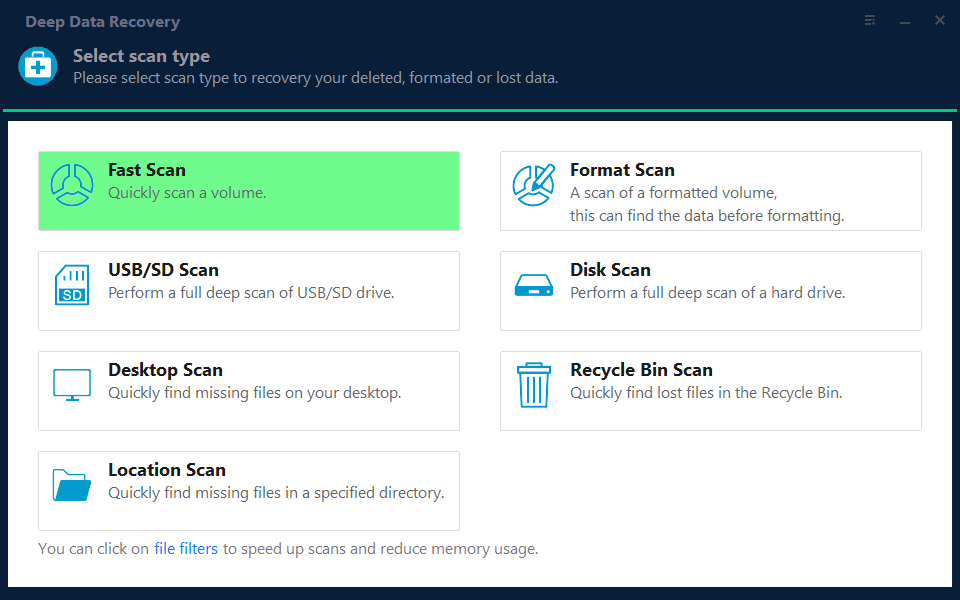
Step 1. Choose the Recovery Mode
Use Fast Scan first. Choose Format Scan when the cleanup also removed the volume structure.
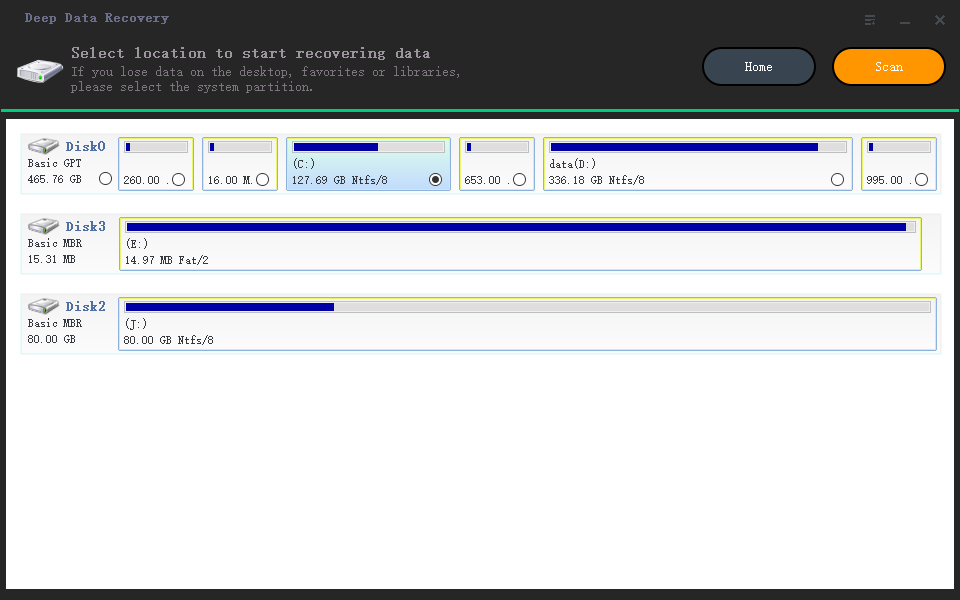
Step 2. Select the System Disk
Select the disk that held Windows.old and confirm its capacity. Keep the destination disk out of the selection.
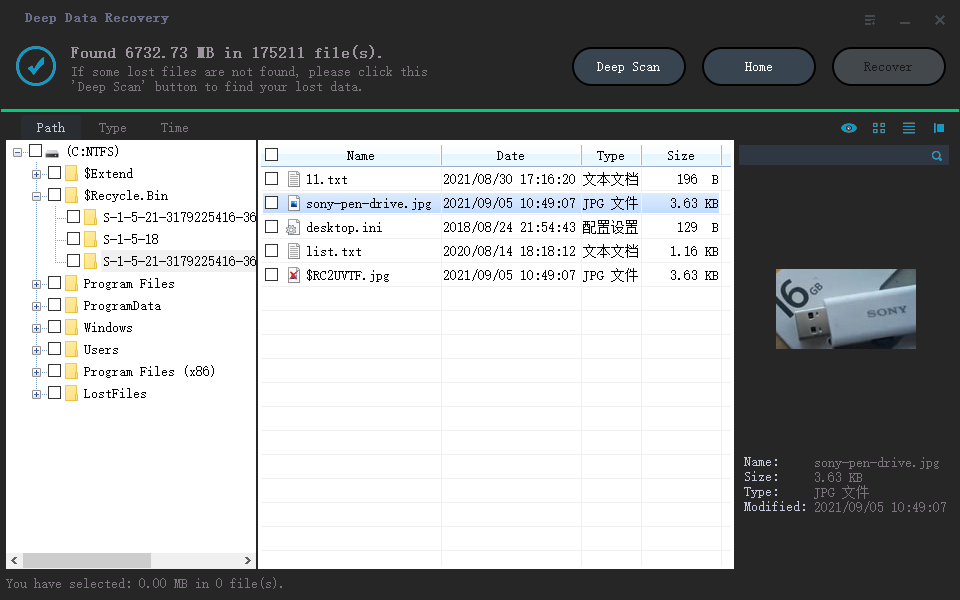
Step 3. Search for the Old Profile
Switch to folder view and look for the previous account name. Files keep their original path structure when the records survive.
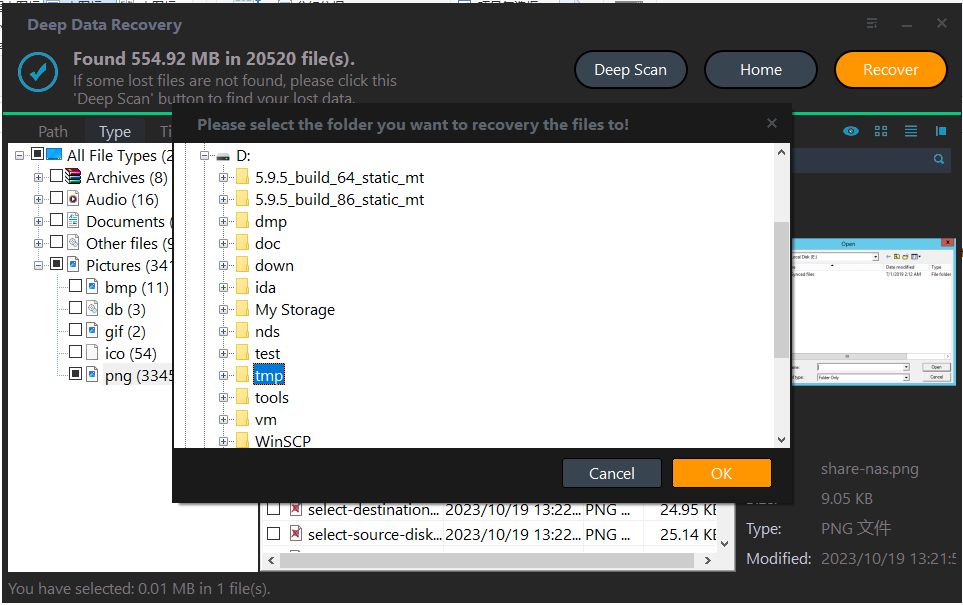
Step 4. Recover to Another Disk
Write the files to an external drive, then rebuild the applications you lost rather than restoring the old installation.
Frequently Asked Questions
Does Disk Cleanup send Windows.old to the Recycle Bin?
No. It deletes the folder directly, which is why the Recycle Bin does not help here.
How long does Windows.old normally stay?
About ten days after the upgrade. After that Windows removes it automatically whether or not you have finished with it.
Can I rebuild Windows.old?
No. It is a copy of the previous installation. If it is gone, the previous build cannot be restored.
Is recovery still possible after cleanup?
Often yes for recently deleted folders, provided little has been written to the disk since.
For the upgrade scenario that leaves this folder behind, see recovering files after a failed 26H2 upgrade.
Related Articles
- Recover Files After a Failed 26H2 Upgrade
- Recover Files Lost After a Windows 11 Update
- Windows 11 Storage Sense
- Back Up Before the 26H2 Update
- Perform a RAW Drive Recovery
Products
Articles & Tutorials
- Data Recovery
- Data Backup
- File Recovery
- File Backup
- System Backup and Restore
- Disk and Partition Clone
- Technical articles
- Mobile articles
- Disk Master Help
- Windows Data Recovery Tutorials
- Windows Secure Delete Tutorials
- Windows Partition Management Tutorials
- Windows File Backup and Restore Tutorials
- Windows System Backup and Restore Tutorials
- Windows Disk Backup and Restore Tutorials
- Windows Clone Tutorials