Windows 11 26H2 Says There Is Not Enough Disk Space
Windows 11 26H2 is being offered gradually to eligible devices. If setup reports insufficient space, begin with the Windows system volume, usually C:. Do not format a partition or delete Recovery files just to make the update continue. The right fix depends on whether space is occupied by files or exists as unallocated space on the same disk.
Check C: before changing partitions
Open Settings > System > Storage and inspect the free space and storage categories on C:. Then open Disk Management to identify the physical disk containing C:, other partitions on that disk, and any black-bar unallocated space. Drive letters are not enough: D: might be a partition on the same drive or a separate physical drive.
Microsoft says some eligible PCs receive 26H2 as a small enablement package, but the installer can still need working space for servicing and recovery. Avoid promising a fixed number of gigabytes for every PC. Follow the space estimate shown by Windows Update for your device.
First free space without repartitioning
Review Temporary files in Storage settings and remove only categories you understand. Empty Recycle Bin after checking its contents; move large personal files to another drive and verify the copies before deleting the originals. Uninstall applications you no longer need. If cloud files are stored offline, review whether you still need each local copy.
Do not manually delete Windows, EFI, or Recovery folders. If an update has already failed, restart Windows and recheck the free space before retrying. If File History or a backup job is running, confirm that its destination is not the nearly full C: drive.
When changing partitions may help
If unallocated space lies immediately after C: on the same physical disk, Windows Disk Management may be able to extend C:. If a Recovery or data partition sits between them, Disk Management cannot simply extend across it. Space on another physical disk is not a normal extension of the Windows system volume.
Moving a partition is more involved than deleting temporary files. Make a verified system image first, save your BitLocker recovery key, check disk health, and allow time for the operation. Do not remove a Recovery or EFI partition because it appears to block C:; determine its purpose before making a change.
Use Qiling Disk Master to inspect the partition map
Qiling Disk Master shows the disk order and includes Move/Resize for supported layouts. Open Disk management, compare disk number and capacity with Windows Disk Management, and note whether free space is adjacent to C:. Only after a separate backup should you plan a move or resize. The exact sequence depends on the visible partition order, so there is no safe one-click recipe for every 26H2 PC.
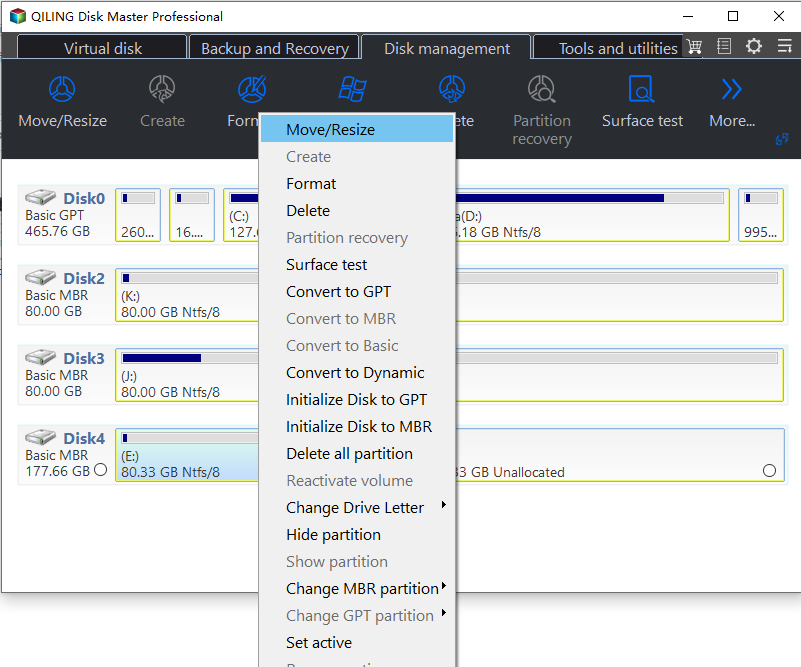
For a disk with an intervening Recovery partition, see moving a Recovery partition to extend C:. If Extend Volume is unavailable, see why Extend Volume is grayed out before editing the layout.
Before retrying the 26H2 update
Confirm the required free space is available, reconnect power, check that the external backup exists, and keep the BitLocker recovery key accessible. Windows Update may not offer 26H2 yet because the rollout is controlled or a compatibility safeguard is in place; low disk space is only one possible reason. If Windows Update shows a specific error code, diagnose that code rather than repeatedly repartitioning.
Related Articles
- Back Up Before Windows 11 26H2
Create a restorable system image before an update or partition change. - Extend Volume Grayed Out in Windows 11
Check adjacency and file-system requirements before resizing C:.
Products
Articles & Tutorials
- Data Recovery
- Data Backup
- File Recovery
- File Backup
- System Backup and Restore
- Disk and Partition Clone
- Technical articles
- Mobile articles
- Disk Master Help
- Windows Data Recovery Tutorials
- Windows Secure Delete Tutorials
- Windows Partition Management Tutorials
- Windows File Backup and Restore Tutorials
- Windows System Backup and Restore Tutorials
- Windows Disk Backup and Restore Tutorials
- Windows Clone Tutorials