Windows 11 26H2 Upgrade Error 0x8007001F: Device Failure
Quick Navigation:
- What 0x8007001F Records
- Remove Devices and Update the Driver
- Verify the Disk Before Retrying
- Prepare the Disk and a Rescue Route
- Frequently Asked Questions
A Windows 11 26H2 upgrade reaches the device stage, restarts, and returns with 0x8007001F and a note that the device is not functioning, after which the machine rolls back to the previous build. The code is not a license or space problem; it means a driver or a piece of hardware stopped responding while the new build was being prepared. Because the failing component is often external, the first fixes are physical and cost nothing. This guide works through them, then protects the disk before another attempt.
What 0x8007001F Records
0x8007001F converts to the Windows status for a device that is not functioning. During an upgrade it is written to the log when a driver returns an error, when a device drops off the bus, or when a read from the target disk fails while setup is copying files. The upgrade then aborts and restores the old build, so the machine usually comes back running the version it started with.
Three groups produce it. Storage controller drivers that are out of date or mismatched with the new build are the most common, especially on laptops running a RAID or Intel RST mode. USB peripherals, card readers, and docks left attached through the restart come next. A disk with bad sectors or a failing cable is the third, and it is the one that keeps returning after everything external has been removed.
The code does not name the device, so the work is a process of elimination. Strip the machine back to keyboard, mouse, and the disk, take one upgrade attempt, then add components back after the new build is running. Each component that returns without a repeat of the code is cleared, and the one that brings the error back is the culprit.
Remove Devices and Update the Driver
Disconnect everything that is not needed to install: printers, external drives, card readers, webcams, docks, and USB hubs. Leave a wired keyboard and mouse, because the upgrade needs input at the restart screens. A wireless receiver can stay only if the machine cannot be driven without it, and it should be moved to a rear port so it is not sharing a hub with other devices.
Update the storage controller driver from the laptop or motherboard vendor before retrying, and prefer the package published for Windows 11 26H2 when one exists. The generic driver that Windows supplies may work, but a vendor package matched to the new build removes the most common trigger for this code. Install it, restart, and confirm the version changed before starting the upgrade again.
Device Manager is a Microsoft tool and is not part of Qiling Disk Master. It is mentioned only because that is where the controller and its driver version can be read; the product steps in Part 4 do not use it and do not depend on it. Its only purpose here is to make the check possible without leaving the reader guessing where the version is displayed.
Verify the Disk Before Retrying
Bad sectors on the target disk look like a device failure when setup reads them. Run a surface or health check on the drive, read the SMART attributes if the tool exposes them, and replace the drive when the reallocated sector count is climbing. An upgrade written onto a failing disk fails in ways that look random and move from one stage to the next.
Check the cable and the port as well. A SATA cable that drops a link under load, or an M.2 drive seated loosely in its slot, produces the same rollback. Reseat the drive, try another cable if the chassis allows it, and note whether the error moves to a different stage of the upgrade after the change. One change at a time keeps the result readable, and it tells you which change actually mattered.
Free space matters too. 26H2 needs room for the new build, the old build, and the rollback data at the same time. Clear at least 20 GB on the system volume before retrying, because a volume that fills during the copy surfaces as a device error rather than a clean out-of-space message. That figure is not generous once the rollback data is counted.
Prepare the Disk and a Rescue Route
Qiling Disk Master covers the checks that make a second attempt safe: verifying the file system of the volumes the upgrade will touch, imaging the whole system disk, and building a bootable rescue device. The order matters, because the image must be taken before a repair changes anything on the disk, and the rescue media must exist before the upgrade can leave the machine without a boot entry.
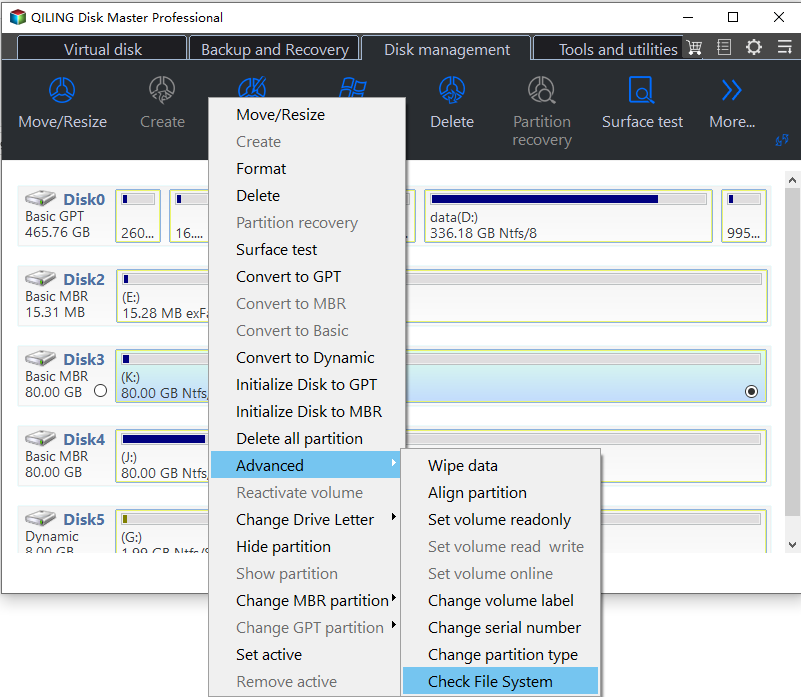
Step 1. Check the Partition and File System
Right-click the system volume, start Check File System with the repair option enabled, and read the result. A clean report means the upgrade failed for a device reason rather than a file system one; a repaired error may have been the cause itself. Repeat the check on any other volume that holds system files before moving on. If the report is clean, move on without changing anything else on the disk.
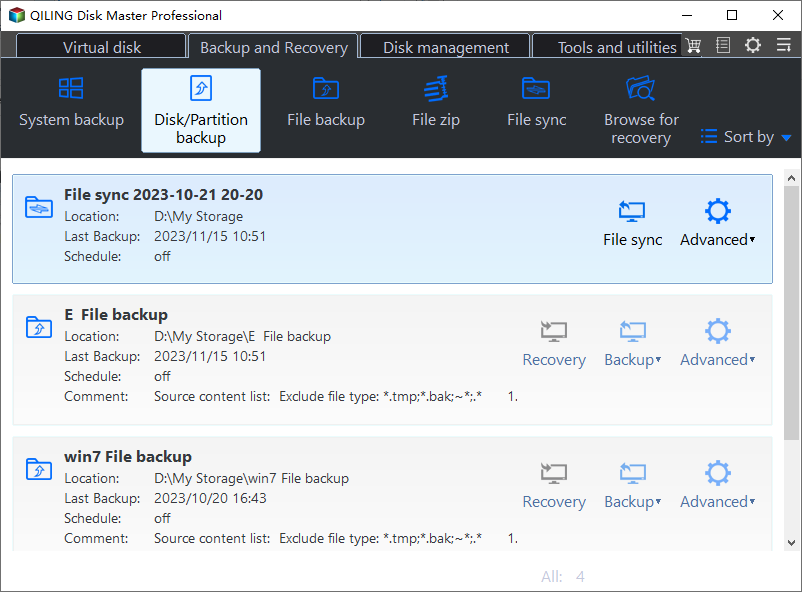
Step 2. Back Up the Whole System Disk
On the Backup and Recovery tab, open Disk/Partition Backup, tick the whole disk that carries Windows, and pick a destination on another drive. Review the task in the preview, click Proceed, and wait for the finished message. This image is the fastest route back if a later attempt leaves the boot files half rewritten. Restore it from the rescue media if Windows will not start after the next attempt.
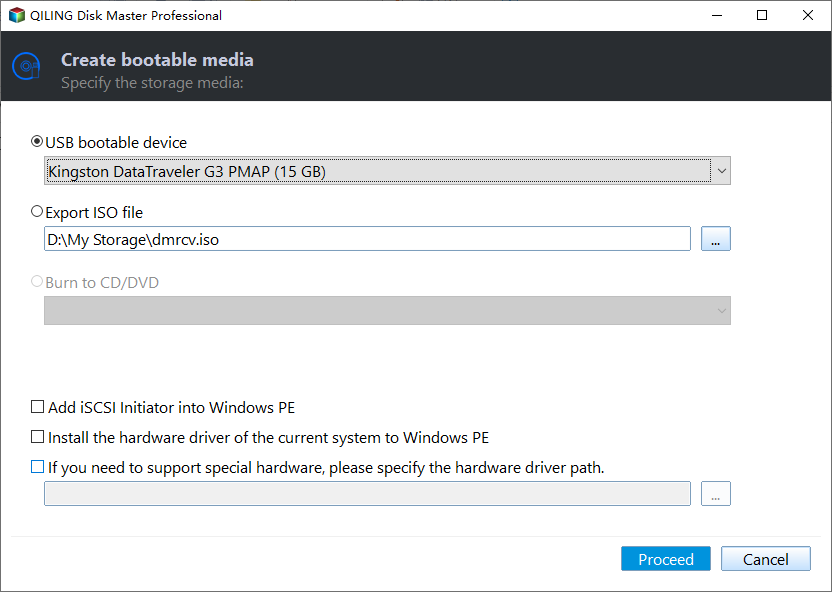
Step 3. Create Bootable Rescue Media
Open Tools and utilities, choose Create bootable media, and select a spare USB device that is not the install stick. Confirm the capacity in the preview, click Proceed, and wait for the ready message. Test that the stick boots on this machine before the next attempt, so the recovery route is known to work rather than assumed. A stick that fails to boot here would fail at the worst possible moment.
Frequently Asked Questions
Will the rollback have damaged my files?
Rarely. The rollback restores the previous build and leaves personal files in place. Documents written during the failed session may be missing, and the disk image from Step 2 covers exactly that case without a long recovery process.
Can I skip the storage driver update?
You can, but the same code usually returns within the same stage. The storage controller driver is the single most common trigger, so update it and confirm the new version is active before spending another hour on an attempt.
Does the error come from the USB install stick?
It can, if setup reads files from the stick during the device stage. Rewrite the stick, move it to a rear USB 2 port, and try again. If the code persists with a freshly written stick, the cause is inside the machine rather than on the media.
Related Articles
- 0xC1900101 Error During a Windows Upgrade
- Windows 11 26H2 Upgrade Failed With 0x800F0922
- How to Check Disk Health on Windows
- Windows Has Detected File System Corruption
- Windows 11 26H2 Upgrade Needs 20 GB Free
Products
Articles & Tutorials
- Data Recovery
- Data Backup
- File Recovery
- File Backup
- System Backup and Restore
- Disk and Partition Clone
- Technical articles
- Mobile articles
- Disk Master Help
- Windows Data Recovery Tutorials
- Windows Secure Delete Tutorials
- Windows Partition Management Tutorials
- Windows File Backup and Restore Tutorials
- Windows System Backup and Restore Tutorials
- Windows Disk Backup and Restore Tutorials
- Windows Clone Tutorials