Windows 11 Install: Windows Cannot be Installed To This Disk GPT
If you're trying to install Windows 11 using a bootable USB Windows Installation Media and get an error saying "Windows cannot be installed to this disk. The selected disk is of the GPT partition style," this post provides a solution to help you fix the issue.
| Workable Solutions | Step-by-step Troubleshooting |
|---|---|
| Fix 1. Boot to UEFI Mode | Step 1: Turn off your computer and restart it...Full steps |
| Fix 2. Convert MBR to GPT with Qiling Partition Master | Unlike Windows tools, it allows you to convert from MBR to GPT without any loss...Full steps |
| Fix 3. Convert to GPT via Command Prompt | Step 1. ...into the computer to install Windows.Full steps |
Be aware that this error appears; you cannot continue installing Windows 11 until fixing it. This guide will show to how to fix this error without converting MBR to GPT.
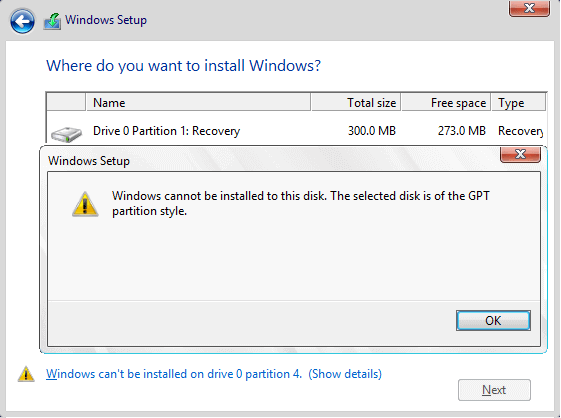
Reasons of "The selected disk is of the GPT partition style"
When encountering this error, some tutorials may suggest converting the Master Boot Record (MBR) to GUID Partition Table (GPT), but this solution is specific to Windows 10 and not applicable to Windows 11, which uses GPT by default. The issue arises from the boot mode used by the USB installation media, not from the operating system itself.
To install Windows 11 on a GPT disk, your USB drive must boot in UEFI mode, otherwise, you will encounter an error.
- UEFI - GPT
- Legacy BIOS - MBR
How to Fix "The selected disk is of the GPT partition style"
To change the boot mode during Windows 11 setup, you can simply continue the setup process. You can press the Windows key + R to open the Run dialog box, type "msconfig," and press Enter. In the System Configuration window, navigate to the "Boot" tab and select the desired boot mode from the dropdown menu.
Boot to UEFI Mode
One way to fix the problem is to change from BIOS to UEFI, but this is only applicable to computers that support both, and may not work if you've previously used Legacy BIOS mode.
When you get the error "Windows Cannot be installed on this disk. The selected disk is of the GPT partition style", you can enter BIOS settings and see if it allows you to switch to UEFI mode.
Step 1: Turn off your computer and then restart it.
Step 2: Before you get into the OS, you should see a boot logo showing which key you can use to boot into the BIOS. It is usually the DEL or the F2 key.
Step 3: To enable UEFI in the BIOS, go to the Boot Tab and switch it to UEFI, then save the changes and exit.
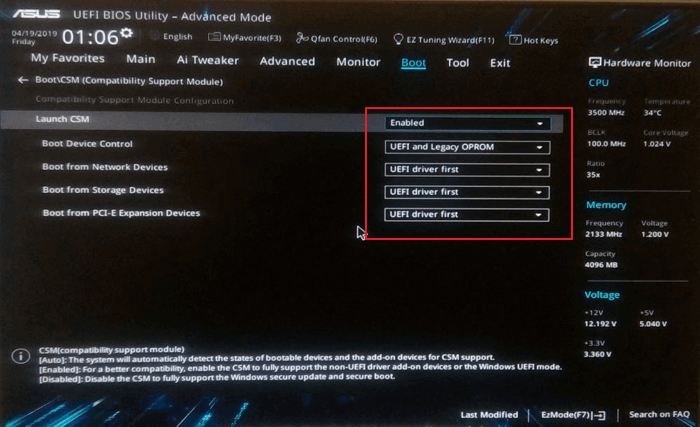
The option to change from BIOS to UEFI will differ from manufacturer to manufacturer.
If your computer only offers BIOS mode and not UEFI, you'll need to convert your disk from GPT to MBR format if it's not already in MBR format.
Bonus Tip - How to Fix "Windows can only be installed on GPT Disks"
To fix the problem, you need to enable UEFI on your firmware and convert MBR disks to GPT. Many firmware support both MBR and UEFI, so you can switch to UEFI. Additionally, you can convert your MBR disks to GPT, which is the recommended partition table for UEFI systems. This should resolve the issue.
To clarify, Windows no longer supports the use of legacy BIOS and MBR style for booting, instead requiring UEFI and GPT for secure booting.
To convert MBR to GPT without data loss, create a backup of your data, boot from a live USB, and use a tool like GPT fdisk or Qiling Disk Master to convert the disk. Be cautious as this process can be irreversible and may require manual partition adjustments. It's also recommended to use a tool like Qiling to clone the disk first, then convert it to GPT, to ensure data safety.
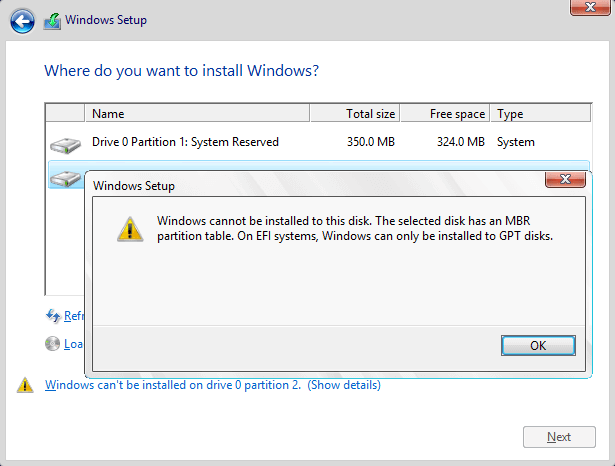
Fix 1: Convert MBR to GPT with Qiling Partition Master
Qiling Partition Master is a disk management software that provides a wide range of functions for managing storage. It offers various features, including disk partitioning, formatting, and resizing, as well as disk cloning, backup, and recovery. The software also supports data migration, wiping, and other operations, making it a comprehensive tool for managing storage devices.
- Resize/Delete/Merge/Create partitions
- Convert MBR to GPT and vice versa
- Create WinPE disks for recovery
- Convert to other disk formats
- Wipe data to make them irrecoverable
Unlike Windows tools, this tool allows you to convert from MBR to GPT without any data loss, making it possible to convert to GPT from MBR, restart, and successfully install Windows 11.
Fix 2. Convert to GPT via Command Prompt
To convert your Windows installation media to GPT using the command prompt, you can follow these steps:
Step 1.To start the installation process, turn off the computer and insert your Windows installation USB or DVD. This will allow you to boot from the installation media and begin the setup process.
Step 2. To boot a device from USB or DVD, follow these steps: Boot the device from the USB or DVD, then navigate to the Windows setup. Press the key combination "Shift + F10" to open the command prompt.
Step 3. Enter the command line as follows:
- diskpart
- list disk
- select disk
- clean
- convert gpt
- exit
Step 3: Once you're done with the command prompt, you can close it and proceed with the Windows 11 installation.
Once the conversion is complete, note that the unallocated space will appear as one large unallocated space. You will need to create new partitions, specifically one for Windows installation. The rest of the partitions should be created using the graphical user interface (GUI) as it is user-friendly.
Concluding Thoughts
This article highlights two common errors that occur during the Windows setup process. To resolve the issue of "the selected disk is of the GPT partition style", it's essential to boot the USB installation media in UEFI mode. Additionally, another error is presented with two possible solutions, allowing users to choose the method that best suits their needs.
Related Articles
- Don't Miss Best FAT32 Formatter: How to Choose A Free FAT32 Format Tool
- CHKDSK Cannot Continue in Read-only Mode: Get 5 Fixes for CHKDSK Read Only Mode
- How to Fix Windows 11 Slow Startup? Your Complete Guide
- Windows Server 2003 Extend C Drive: Two Ways to Extend System Partition
- How to Format Write-Protected USB with Virus, Help
How to format a hard drive write-protected by virus? This short article provides a detailed guide on this issue. Dive into it and find the answer you want. - How Can I Remove Write Protection From USB, Help
Sometimes the USB will be write-protected, and this article provides a beginner's guide on how to remove write protection from USB so that you can format or modify it again.
Products
Articles & Tutorials
- Data Recovery
- Data Backup
- File Recovery
- File Backup
- System Backup and Restore
- Disk and Partition Clone
- Technical articles
- Mobile articles
- Disk Master Help
- Windows Data Recovery Tutorials
- Windows Secure Delete Tutorials
- Windows Partition Management Tutorials
- Windows File Backup and Restore Tutorials
- Windows System Backup and Restore Tutorials
- Windows Disk Backup and Restore Tutorials
- Windows Clone Tutorials