How to Backup Computer to External Hard Drive in Windows 10
Quick Navigation:
- Part 1: How to Backup Windows 10 to External Hard Drive Manually
- Part 2: How to Backup Computer to External Hard Drive on Windows 10 Automatically
- How to Backup Computer to External Hard Drive in Windows 10
- Step 1: Choose Backup Types
- Step 2: Set up Preferences
- Part 3: Comparison between the First and the Second Windows 10 Backup to External Drive Way
Windows 10 is a GUI-based operating system developed by Microsoft, the 10th series of Windows operating systems. Sometimes, users of Windows computers lose their important data due to hardware failure. In hardware failure, there is a chance of data loss. If anyone loses their data in Windows, there is no need to worry, because the backup feature in Windows 10 is used to create a full backup of the system including the OS, applications, and your personal files. Still, if you have faced data loss and you do not know how to backup your computer to an external hard drive on Windows 10, then you have found a helpful guide. With the help of this article, you will learn everything about Windows 10 automatic backup to an external drive and how to backup Windows 10 to an external hard drive easily. There are 2 ways to backup Windows 10 to an external hard drive. You will learn everything about them here.
Part 1: How to Backup Windows 10 to External Hard Drive Manually
In Windows 10 operating system, you can easily back it up by using Windows 10 external backup process. Windows 10 has built-in features that can be used to backup Windows 10 to external hard drive. It helps to create windows 10 system image backup or file backup. The worst thing is, you can't restore single files by using this feature, you have to do a full system restore if any software bug or hardware failure causes the problem. Here is how to backup computer to external hard drive Windows 10.
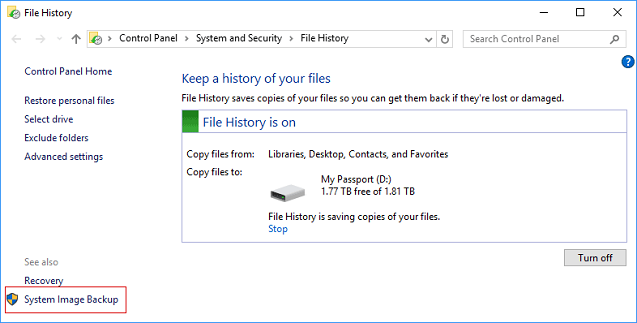
Step 1: First, you need to type "Control Panel" in the search bar then select the "Control Panel" option from the search results. Then from the "System and Security" option, you need to select "save backup copies of you file with File History".
Step 2: Next you need to click on the "System Image Backup" option from the bottom left corner of your screen.
Step 3: Now you need to select "Create a system image" option from the next window. Next, you have to select your hard drive and click on the "next" button to backup Windows 10 to external hard drive.
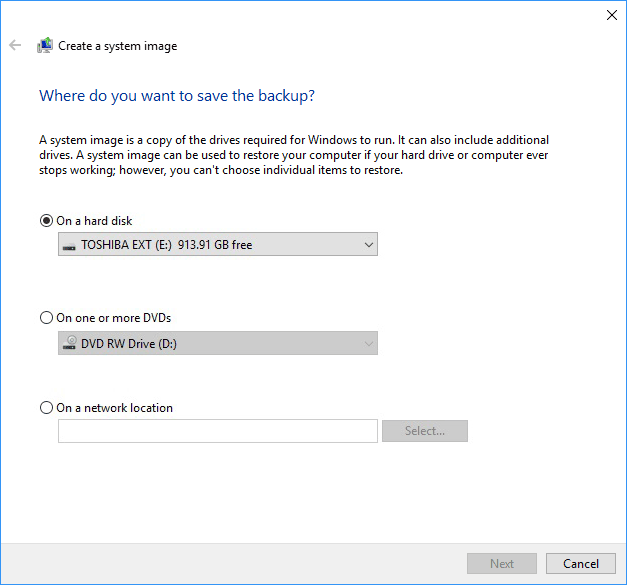
Step 4: Finally, you need to click on the "Start Backup" button to begin the Windows 10 backup to external drive process. It can take from 10 minutes to a couple of hours to back up your data.
Part 2: How to Backup Computer to External Hard Drive on Windows 10 Automatically
When we use the Windows 10 built-in feature to backup data, there are more chances of errors, and it is also a very time-consuming process. This is the reason why QILING Disk Master is the right tool for you to backup data quickly. QILING Disk Master is one of the most powerful tools which can backup data from hard disk drives, SD cards, external hard disk drives, raw devices, USB devices, and backup Windows 10 itself. It is a fast and reliable tool that empowers you to backup files on Windows 10 from the storage media of your computer system as well as external devices. The Windows 10 backup tool uses the automatic backup technique to make it easier, more efficient, and faster. To get a clear picture of QILING Disk Master, the following are some features of this software.
Your Backup Windows 10 to External Drive Software
- It offers multiple backup modes to the user so that they can customize their backup types as per their requirements.
- It works in the background to backup the computer to an external hard drive, and it also allows you to schedule backups as per your requirement.
- It can back up all the files which are selected by the user without any interruption or issues.
- The backup Windows 10 to external hard drive tool is capable of cloning or copying the disk to protect data from any kind of loss.
How to Backup Computer to External Hard Drive in Windows 10
First, you need to download and install the backup external hard drive Windows 10 program and connect your external disk to the computer.
Step 1: Choose Backup Types
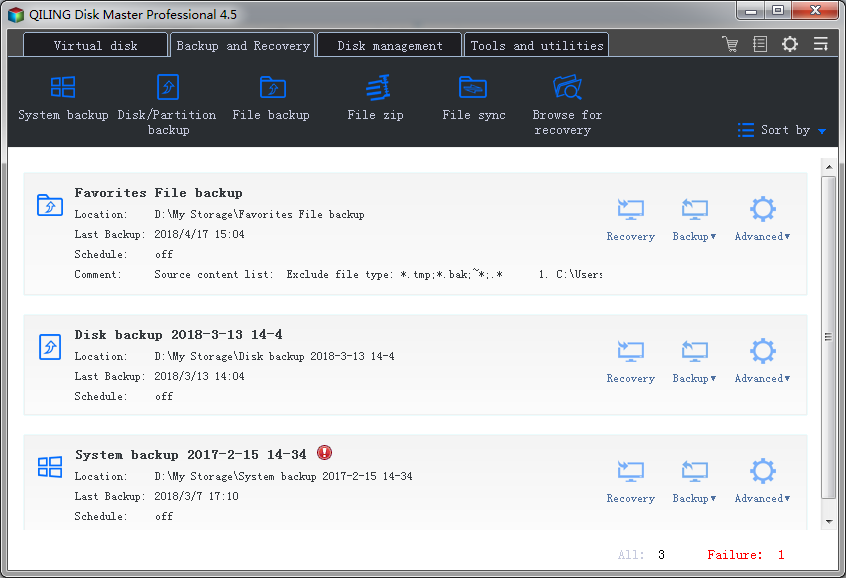
Then you need to launch the backup system software and you can find the "Backup and Recovery" tab page of the program. You will find a list of backup types, including File Backup, File zip, File sync, Drive Backup, and System Backup. Choose the type you need.
Step 2: Set up Preferences
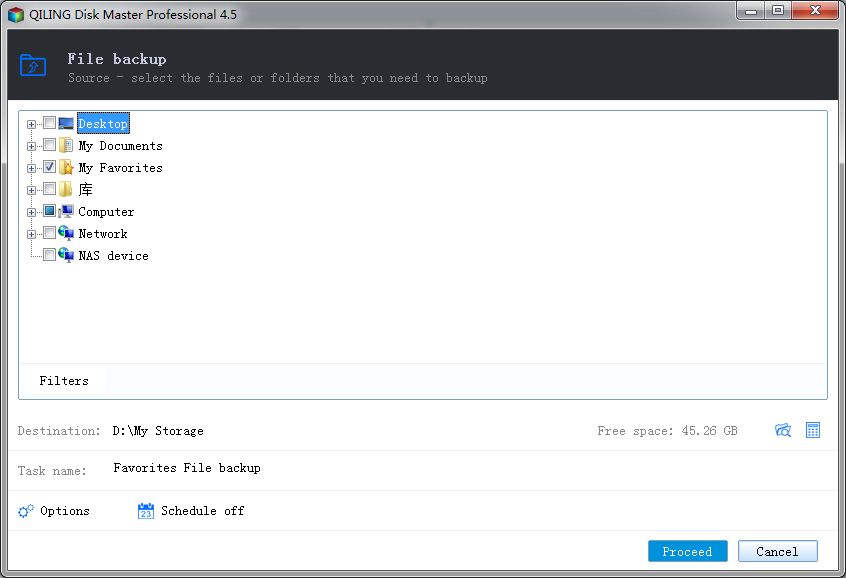
No matter if you backup Windows 10 files or system to the external hard drive, you can set up the schedule, location, as well as backup names in the next window. Make it the way you need and click "Proceed", letting the software backup your computer to the external hard drive. My suggestion is enabling the scheduled backup. It will do the backup in the background for you.
Part 3: Comparison between the First and the Second Windows 10 Backup to External Drive Way
| Windows 10 Built-in Feature | QILING Disk Master | |
|---|---|---|
| Advantages |
|
|
| Disadvantages |
|
|
Both ways stated above are useful to backup Windows 10 to the external hard drive and they are efficient at doing their jobs. But QILING Disk Master is much better compared to the Windows 10 built-in features for backing up your computer to an external hard drive in Windows 10. The reason behind this is that with the help of this amazing software, there are no chances of error. If you want relevant and accurate results, then we recommend you start using this tool.
Related Articles
- How to Backup PC/Computer to OneDrive
- Windows 10 Backup - How to Backup Windows 10 to OneDrive
- Disk Clone - How to Clone Hard Drive in Windows 10
- Call of Duty Warzone File Location [All You Want to Know]
As a free first-person shooting game, COD: Warzone continues to attract countless new players. However, due to its unique game platform limitations, many players cannot find the file location on their PC. - Call of Duty Warzone Save Files (Everything You Need to Know)
Call of Duty: Warzone is a popular battle royale game. But do you know how to save your Call of Duty Warzone progress and files? In this article, we'll explain exactly what Call of Duty Warzone Save Files are and how players can store or back up their Call of Duty Warzone game data. - Computer Shuts Down When Playing Games [Here's What to Do]
Do you know how to fix the computer shuts down when playing games issue? This article will explain the causes of a computer shutting down while gaming and offer 7 solutions to fix this problem. After reading this post, you can pick any method to help you fix this problem. - Hard Drive Recognized in BIOS But Not in Windows
If your hard drive is detected in BIOS but not in Windows 10. You'll find easy and effective solutions to fix the issue. If you've lost data on the hard drive, you can try Deep Data Recovery, which restores data in just a few simple steps.
Products
Articles & Tutorials
- Data Recovery
- Data Backup
- File Recovery
- File Backup
- System Backup and Restore
- Disk and Partition Clone
- Technical articles
- Mobile articles
- Disk Master Help
- Windows Data Recovery Tutorials
- Windows Secure Delete Tutorials
- Windows Partition Management Tutorials
- Windows File Backup and Restore Tutorials
- Windows System Backup and Restore Tutorials
- Windows Disk Backup and Restore Tutorials
- Windows Clone Tutorials