Computer Shuts Down When Playing Games [Here's What to Do]
Why your Computer Shuts Down When Gaming
If your computer shuts down while playing games, it's often a sign that your Power Supply Unit (PSU) needs to be fixed. This is because a faulty PSU can't provide stable or sufficient power, causing your computer to malfunction or even suffer hardware damage. However, a shutdown during gaming can be caused by factors beyond a PSU issue, so it's essential to investigate other possible reasons as well.
If your computer shuts down automatically, it could be due to a hardware or software issue. Check the power supply to ensure it's properly plugged in and the cord isn't damaged. If that's fine, inspect the motherboard for loose connections, and tighten them if necessary. If the problem persists, the motherboard might need to be replaced.
If your computer restarts when playing games, try running a virus scan and uninstalling recently installed programs. If that doesn't resolve the issue, you may need to update or reinstall Windows.
Solutions to Computer Shuts Down While Playing Games
Issues with shutting down and restarting a PC can be caused by various factors, including software glitches, hardware conflicts, and power supply problems. To resolve these issues, it's essential to identify the root cause, which can be achieved by troubleshooting the system, checking for software updates, and monitoring system logs. By addressing these underlying problems, users can prevent untimely shutdowns and restarts, ensuring a more stable and efficient computing experience.
A computer that shuts down by itself or restarts automatically can be a frustrating issue. To solve this problem, we'll explore the possible causes and solutions.
- Way 1. Fix Computer Overheating
- Way 2. Check for PSU Problems
- Way 3. Check for Hardware Issues
- Way 4. Run Virus or Malware Check
- Way 5. Update Drivers
- Way 6. Update Windows
- Way 7. Downgrade Windows to an Earlier Version
Way 1. Fix Computer Overheating
One of the general problems with a PC that shuts down for no particular reason is often related to internal temperature issues, likely due to poor ventilation, which causes the computer to overheat.
If the temperature exceeds 100°C, the integrated thermal protection system will activate and shut down the computer to prevent damage.
If your computer's fans are whirring loudly and it's noisy, it's likely that the internal temperature is too high, possibly due to running resource-intensive programs or games, or poor ventilation.
So, please solve this problem by following the steps:
Step 1. Remove the dust: High temperatures on a desktop PC can be resolved by removing the side panel and using a vacuum cleaner, cloth, or cotton swabs to remove dust. For laptops, compressed air can be used to clean out dust and debris.
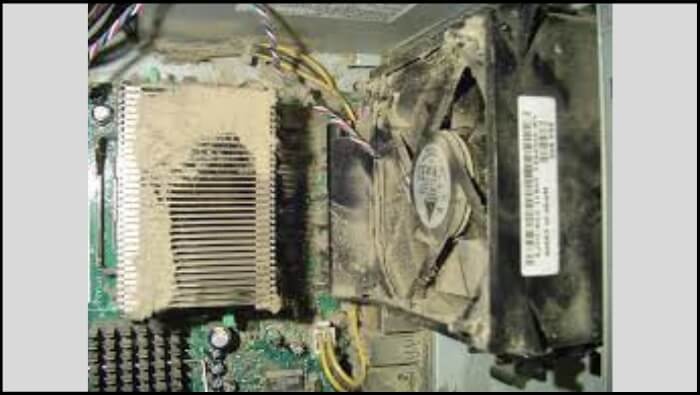
Step 2. Ensure optimal ventilation:To prevent overheating, avoid placing your desktop PC in a confined space and your laptop on a soft surface that may block ventilation slots. If necessary, consider upgrading to more powerful case fans for your desktop PC or investing in a cooling pad for your laptop.
Way 2. Check for PSU Problems
A faulty PSU can cause a computer to shut down suddenly during gaming, so it's worth checking if the issue persists after trying other troubleshooting steps.
Step 1. Try using a different power supply unit (PSU) on your computer to see if it's functioning properly. This can help determine if the issue is with the PSU itself or another component.
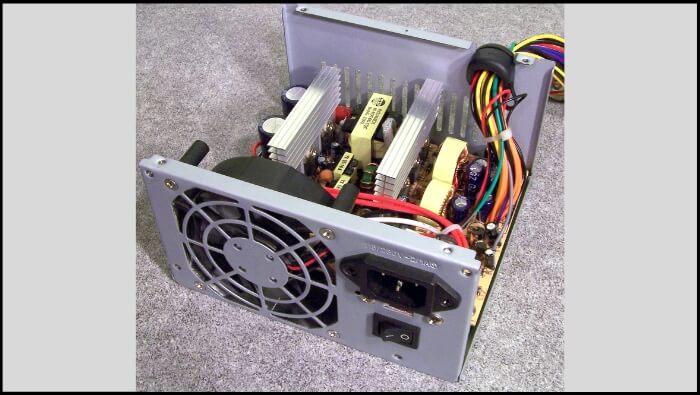
Step 2. If you have a multimeter/power supply tester available, you can check the power supply with it, which is a more accurate method.
To troubleshoot if a faulty power supply unit (PSU) is causing the computer to automatically shut down, you can perform a simple test. If the PSU is faulty, it will not be able to provide enough power to the computer, leading to a shutdown. By removing all peripherals and components from the computer, you can isolate the issue and determine if the PSU is the culprit.
Way 3. Check for Hardware Issues
You likely installed new hardware, such as a Wi-Fi card, Bluetooth adapter, or GPU, which could be causing the automatic shutdown issue. Incompatible drivers for this new hardware might also be the culprit. To resolve this, you can try troubleshooting by following a series of steps.
Step 1. It's recommended to remove any unnecessary hardware, such as a modem, network card, sound card, or other additional cards, to optimize performance.
Step 2. Then operate your computer without that card to analyze the problem.
To fix your PC from automatically shutting down, you can try the following solution. This method can resolve the issue and prevent your computer from shutting down unexpectedly.
Way 4. Run Virus or Malware Check
Run a virus or malware check using authentic antivirus software to ensure your computer is free from viruses and malware, which could cause incidental damage and shut down your system.
Windows has a built-in security feature that allows you to scan your PC for viruses and malware, and remove them. You can follow these steps to use it.
Step 1. Go to Windows settings, and click "Update & Security".
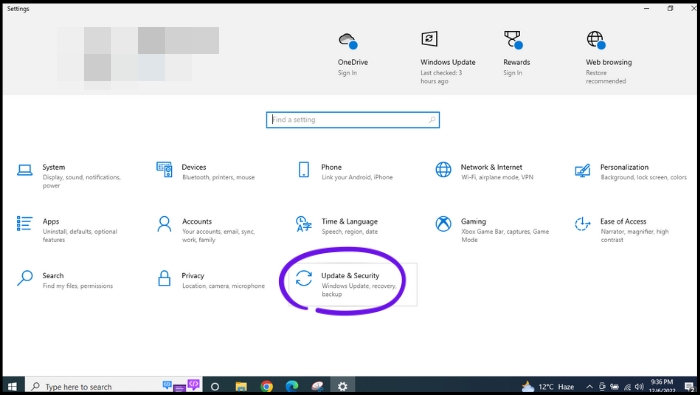
Step 2. Click "Windows Security" from the left menu.
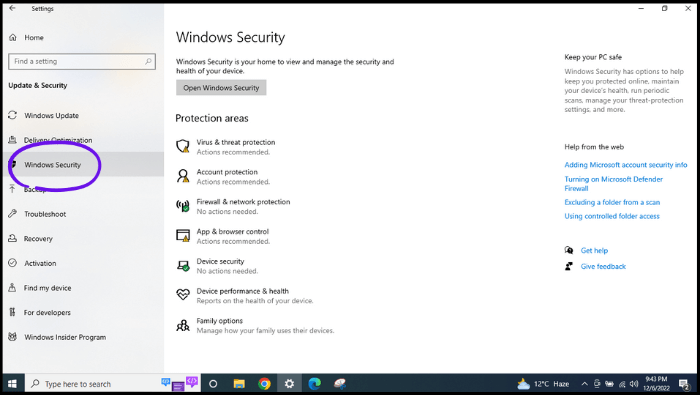
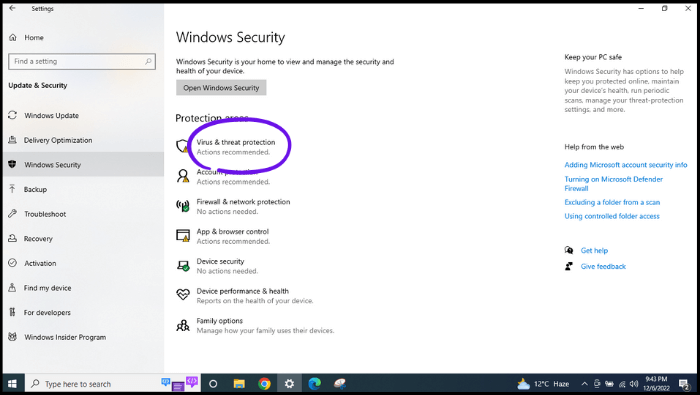
Step 3. Click "Virus & threat protection".
Step 4. Click "Scan options".
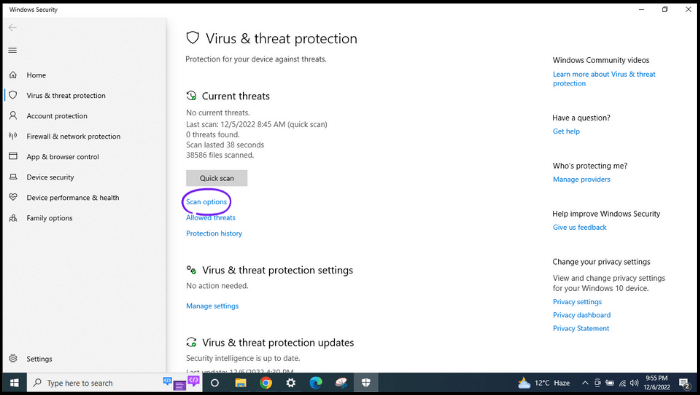
Step 5. Click on "Full scan" and then click on "Scan now". Wait for a few minutes for the processing to complete.
Way 5. Update Drivers
Outdated drivers can cause a range of issues, including sudden computer shutdowns, making it essential for drivers to be kept up to date. As drivers are a crucial part of computer machines, ensuring they are current can prevent problems and maintain system stability.
You can update drivers manually or automatically. To update drivers manually, follow the steps below. Alternatively, you can also update drivers automatically, which is a more convenient option.
1. Manually
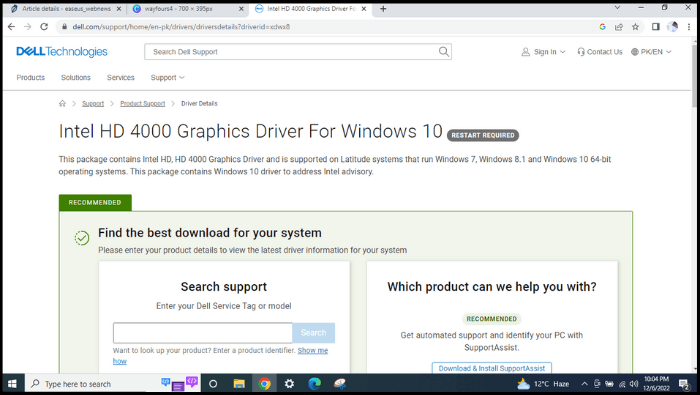
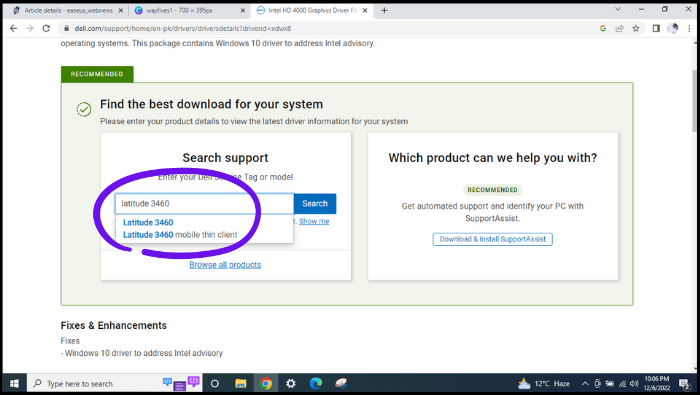
Step 1. Visit the manufacturer's website, download and install the correct graphic drivers for your Dell laptop (Latitude 3460).
Step 2. Write your device model number in the search bar.
Step 3. Download drivers manually and install them in your system.
2. Automatically
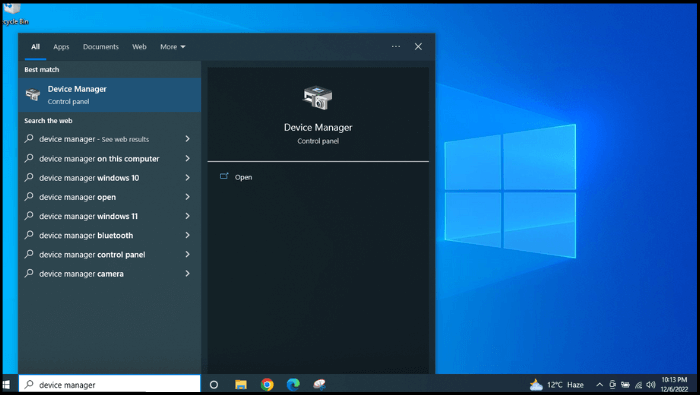
Step 1. To access the Device Manager, click on the search box from the taskbar, type "Device manager" and press Enter.
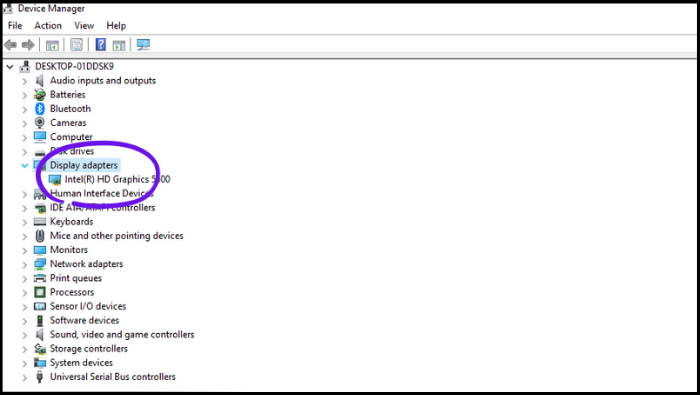
Step 2. Select and expand "Display adaptors" and right-click on "Graphics".
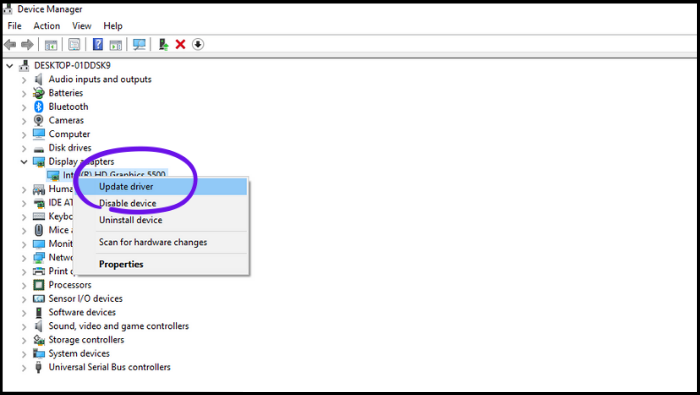
Step 3. Click "Update driver".
Note: If your drivers are already up-to-date and the issue persists, you'll need to uninstall the device by following the steps and then reinstall it.
Way 6. Update Windows
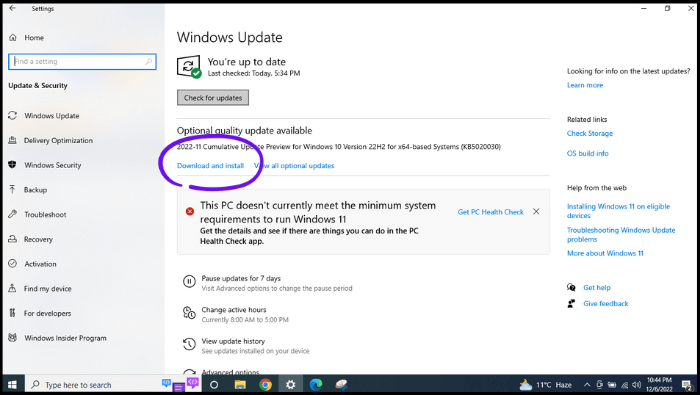
To update Windows, go to Settings > Update & Security > Windows Update, and click on Check for updates. It will automatically search for and download any available updates. You can also manually search for updates by clicking on the Start button and typing 'Windows Update' in the search bar.
Step 1. Go to Windows settings, and click "Update & Security".
Step 2. Click "Check for updates" and wait a few minutes.
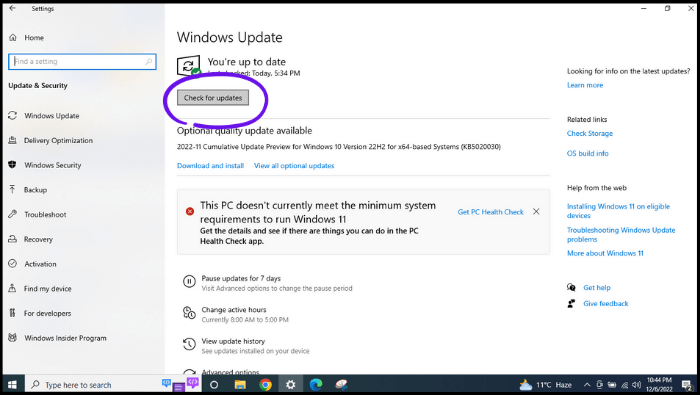
Step 3. Click "Download and install". Wait a few minutes; it'll take time.
Way 7. Downgrade Windows to an Earlier Version
To resolve the issue, you can try downgrading Windows to an earlier version, as newer system updates may not be compatible with the game, leading to sudden shutdowns. Alternatively, you can check for compatibility issues between the game and your system, or consider downgrading Windows to an earlier version.
Step 1. To access the recovery settings in Windows, open the Settings app, click on the "Update & security" tab, and then select the "Recovery" option from the left-hand menu.
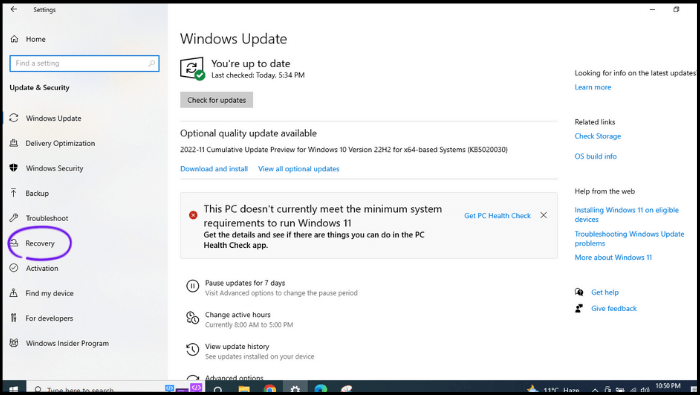
Step 2. To go back to Windows 7, click on "Go back to Windows 7" and then click on "Get started". Follow the subsequent process as prompted.
Note: If you update Windows, you can only downgrade within ten days. After that, you won't be able to downgrade.
Bonus Tip: How to Backup Games on PC
If you're a game fan, you may worry about losing your game saves due to updates, system issues, viruses, or hardware failures. To avoid this, backing up your PC game saves in advance is the best solution. A professional backup utility like Qiling Disk Master can help you with this.
Qiling Disk Master Pro is a tool that securely backs up systems, disks, partitions, files, and games, including Minecraft worlds, with features like full, incremental, and differential backups, creating iso images, and compressing backups, also allowing for Windows reinstallation without losing games and providing 250G free cloud storage.
The following are the detailed steps:
Step 1. To initiate the backup process, click the "Select backup contents" button.

Step 2. There are four categories of data backup: File, Disk, OS, and Mail.

Step 3. The left-hand side of the screen displays lists of both local and network files, allowing you to expand the directory and choose the specific files to back up.

Step 4. Please follow the on-screen instructions to select the desired location for storing the backup.

To set up a backup, ensure it's encrypted and schedule it by clicking "Options" under "Backup Options" or "Backup Scheme". This allows you to customize the backup process.

Step 5. You can store the backup file either on your computer, in Qiling's cloud service, or on a network-attached storage device (NAS).

Step 6. Qiling Disk Master allows users to store backup copies of their files on either a third-party cloud drive or Qiling's own cloud storage service.
To back up your data on a third-party cloud drive, select Local Drive, scroll down to add Cloud Device, and fill in your account information.
Click Qiling Cloud, sign up and log in with your Qiling account to store backup files in Qiling's cloud storage service.
Step 7. To start a backup, click on "Proceed" and the backup process will begin. Once complete, the backup will be displayed as a card on the left-hand side of the screen, and a right-click on the card will allow you to view more details about the backup job.
The Bottom Line
If your computer shuts down when playing games, you can try various methods to resolve the issue. This includes checking for overheating, dust buildup, and power supply issues, as well as updating drivers and adjusting game settings. Additionally, you can try using a different power source or adjusting the power plan to see if it makes a difference. We hope this helps resolve the problem.
If you want to protect your games on your computer, you can use Qiling Disk Master Pro to create a backup of your favorite games. This tool also allows you to back up your SSD to an image and create an iso image from your hard drive, making it an incredible backup tool that you should consider trying.
FAQs
1. How do I know if my PSU is failing?
To check the condition of your power supply unit (PSU), try swapping it with another one to see if your computer functions properly. If you have a multimeter or power supply tester, use it to check the PSU's voltage output and overall health. This provides a clear indication of whether your PSU is working correctly or not.
2. What temp is hot for a gaming PC?
During a gaming session, a safe CPU temperature is below 60°C (140°F), but temperatures up to 70-80°C (158-175°F) are generally secure. However, temperatures above 90°C (194°F) enter the danger zone, and while occasional spikes above 85°C (185°F) may be tolerated, prolonged usage at these temperatures is not recommended, even with an optimized gaming system.
3. How do I stop my gaming PC from overheating?
When playing games on your PC, heat is generated by the internal components. To keep your PC running smoothly, ensure the internal fans are working properly to regulate the temperature. Place your PC on a flat, hard surface, with no obstructions on all sides, to allow for good airflow. This will help keep your gaming PC at a comfortable temperature.
4. Why does my PC keep turning off not overheating?
If your computer is not turning on, it's likely due to a hardware or software issue. Besides overheating, other possible causes include a faulty motherboard, loose connections, or a software problem. Check the power supply first, ensuring it's properly plugged in and the cord is not damaged. If the power supply is working correctly, inspect the motherboard for loose connections. If tightening the connection doesn't resolve the issue, you may need to replace the motherboard or explore other solutions.
Related Articles
- Windows 10 System Interrupts 100 CPU - How to Fix?
- How to Use CMD Delete File/Folder [Windows 11 Applicable]
- 5 Best SSD For Long Term Storage Recommendations in 2023
- How to Fix Mac/MacBook Pink Screen? Here Are Reasons and Solutions
- How to Fix "Unable to Connect to Virtual Disk Service" Windows 10/11
If your Windows 10 system is experiencing high CPU usage due to system interrupts, this guide can help. It explains what system interrupts are, their causes, and provide solutions to fix the issue. - Fix Unallocated Space Cannot Create Partition in Disk Management [Windows 7/8/10/11]
Are you trying to create a partition in your hard drive with unallocated space and getting the 'Unallocated Space Cannot Create Partition' error? Learn more about this error, its causes, and the possible solutions in the article below.
Products
Articles & Tutorials
- Data Recovery
- Data Backup
- File Recovery
- File Backup
- System Backup and Restore
- Disk and Partition Clone
- Technical articles
- Mobile articles
- Disk Master Help
- Windows Data Recovery Tutorials
- Windows Secure Delete Tutorials
- Windows Partition Management Tutorials
- Windows File Backup and Restore Tutorials
- Windows System Backup and Restore Tutorials
- Windows Disk Backup and Restore Tutorials
- Windows Clone Tutorials