How to Delete Files That Won't Delete
Quick Navigation:
- Part 1: Delete Files That Cannot Be Deleted with Command Prompt
- Part 2: Delete Files That Can't Be Deleted by Entering Safe Mode to Unlock and Delete Files
- Step-by-step Guide to Delete Files That Won't Delete
It happens that when you want to delete some files, you just fail to do so. This is a normal situation because sometimes the files are being used by software, are locked, or are protected. If you are sure you do not need the files anymore, try the three methods mentioned in this article to learn how to delete files that cannot be deleted. You can also try QILING File Shredder to delete files permanently.
You decide to empty your disk space by deleting some unnecessary files, but the files cannot be deleted no matter how frequently you press the Delete key or drag them to the Recycle Bin. The screen pops up errors telling you it is unable to delete files. The aftermath is frustrating, but this can happen for various reasons. It is most likely because another program is still using the file.
At that point, Windows places the folder into a locked state, and you cannot delete or modify it. You can try pressing "Ctrl + Alt + Delete", opening the Task Manager, and ending unnecessary programs, then try to delete the files again. If you still cannot delete the files, here are three effective methods that should allow you to delete files that will not be deleted. In this article, we have presented the best three ways for how to delete files that cannot be deleted.
Part 1: Delete Files That Cannot Be Deleted with Command Prompt
Deleting files that won't delete can be a frustrating experience. However, using the Command Prompt can be a simple and effective solution. Here's how to delete files that can't be deleted using the Command Prompt:
Step 1: Try pressing Windows + R keys, or clicking the search box. Once it's open, type cmd.
Step 2: The Command Prompt window would appear on the screen. Press ctrl + shift + enter to run cmd, as an administrator.
Step 3: Now you need to type the command code that is – "del c:\users\chrise\desktop\file.txt". You need to replace "c:\users\chrise\desktop\file.txt" with the path of the target file that you want to delete.
Step 4: To delete a file using the Command Prompt, you need to type the `del` command followed by the path of the file you want to delete.
When deleting files using the Command Prompt, you can utilize wildcards to specify multiple files at once. Wildcards are symbols that can be used to represent one or more characters in a file name.
Part 2: Delete Files That Can't Be Deleted by Entering Safe Mode to Unlock and Delete Files
If the first option to delete files using the Command Prompt fails, you can try deleting them in Safe Mode. This method involves restarting your Windows in Safe Mode, which temporarily disables all non-essential drivers and services, allowing you to delete locked or undeletable files.
Step 1: You can use the START option on the desktop, click on it, and then select the Settings option from the bottom left side.
Step 2: Select the Update & Security option, then go to Recovery option and select the Advanced Startup option. Then click the Restart Now button.
Step 3: You can see the Troubleshoot option so click on it. Go to Advanced options and then select the Startup Settings.
Step 4: Lastly, click on the Restart button.
Step 5: At the end, when there are Startup Settings. Press F4/F5 to enter the Safe Mode.
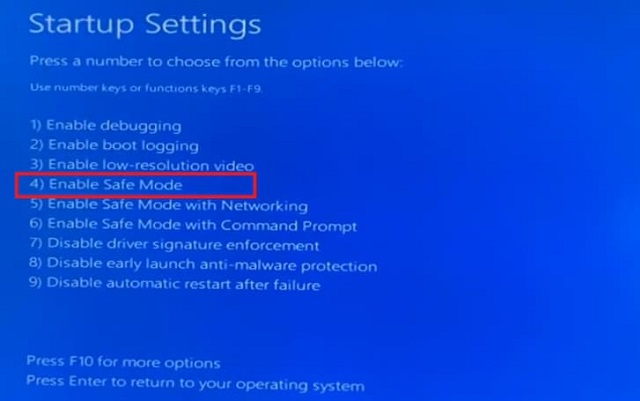
Step 6: Once your PC starts in the Safe Mode, then start deleting the files and folders that you desire.
Step 7: If you want to Exit the Safe Mode, Restart your computer again.
Safe Mode is a troubleshooting feature in Windows that allows the computer to start in a minimal state, with only the most essential drivers and services loaded. This mode is designed to help identify and resolve problems that are preventing the computer from functioning normally.
Part 3: How to Permanently Delete Files That Can't Be Deleted with Best Program
If in any case, both of the above-mentioned options don't work out then we always have a third and the most effective way to delete files that won't delete by using QILING File Shredder. Now what is this software and how does it work for erasing permanent files or folders? We have all your answers!
The best file eraser tool provides simple and secure data deletion solutions to permanently wipe disks or shred files. It irreversibly deletes data securely, effectively, and adequately. It offers incredible privacy protection for your sensitive data. One of its best features is the ability to permanently eradicate any file from your computer and other drives. It will permanently destroy and erase selected data, leaving no way for data recovery, without affecting the service life of the device.
Your Safe & Permanently Delete File Program
- The File Shredder is a powerful tool designed to securely delete files and shred unnecessary data from your computer. This software ensures that deleted files cannot be recovered, providing a high level of data security. Here's how the File Shredder works:
- The Hard Drive Wiper is a powerful tool designed to optimize your storage devices, including Hard Disk Drives (HDD) and Solid-State Drives (SSD). By wiping all present and past information on these devices, the Hard Drive Wiper can improve their reading speed and capability.
- The Volume Wiper is a powerful tool designed to optimize your system's performance by wiping the chosen segment and volume. By doing so, the Volume Wiper can improve the execution's performance and prevent any potential issues that may arise from the reuse of the wiped volume.
- The External Drives Wiper is a reliable tool designed to delete unwanted information from external devices, such as memory cards, USB drives, SD cards, cameras, and other devices. This tool ensures that the erased data is completely deleted and cannot be recovered, providing a secure way to dispose of sensitive information.
Step-by-step Guide to Delete Files That Won't Delete
The software you're referring to is designed to help users delete files that cannot be deleted normally. This can be due to various reasons such as file system corruption, permissions issues, or other system-related problems.
Step 1. Once the program is installed and opened, click the "Tools and utilities" tab, and then click "File shredder".
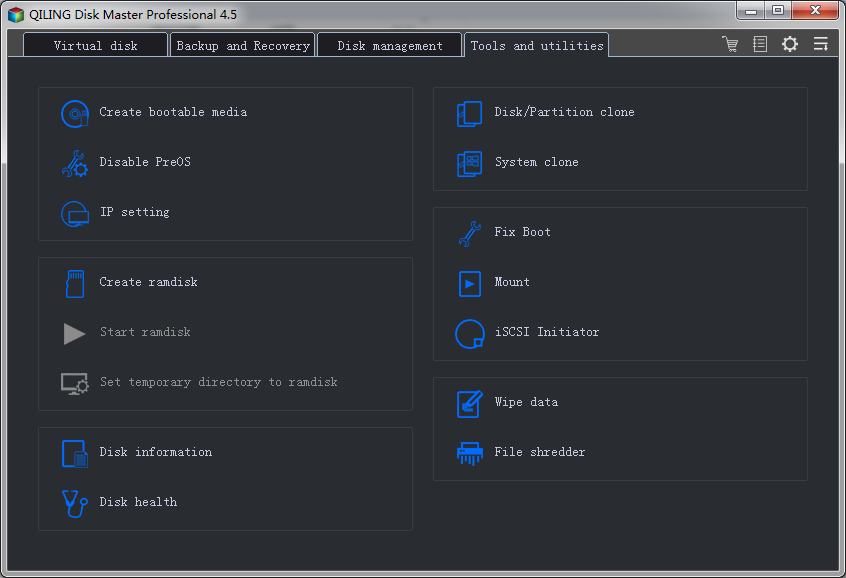
Step 2. After launching the software, you will be presented with a window where you can configure the deletion process. This is a crucial step to ensure that the software deletes the file or folder as intended.
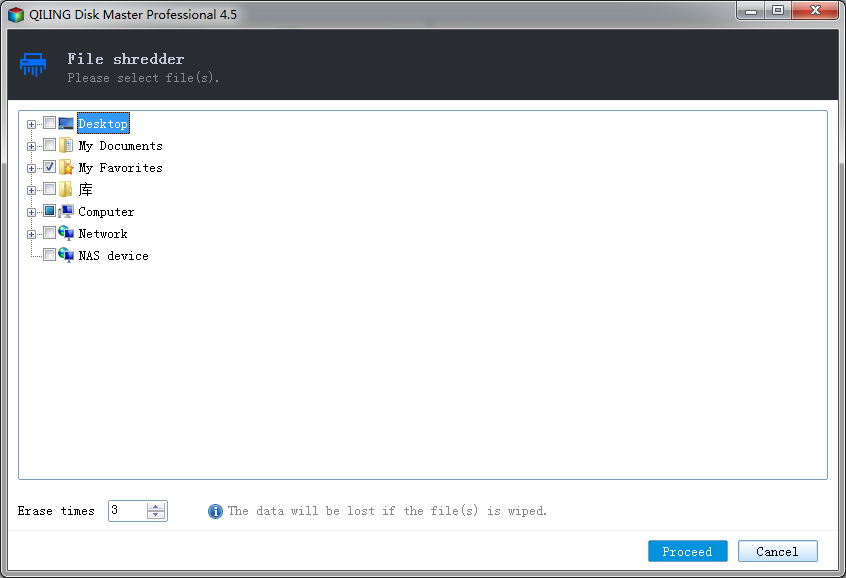
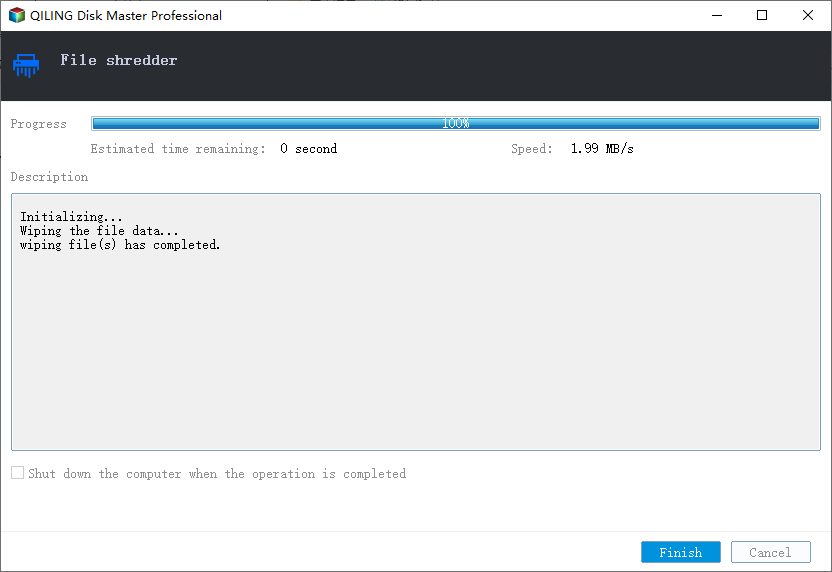
Step 3. Once you have configured the deletion options, you will need to confirm the deletion process. This is the final step before the software deletes the file or folder.
Are you struggling to delete files that won't budge? This article will walk you through two effective methods to unlock and delete files that are stubbornly refusing to be deleted. Plus, we'll introduce you to a powerful tool that will make file shredding simple.
Related Articles
- Top 10 File Deleter to Permanently Deleted Files in Windows 10
- How to Unformat SD Card on Mac/Windows
- How to Permanently Delete Files from Computer without Recovery
- Call of Duty Warzone File Location [All You Want to Know]
- Call of Duty Warzone Save Files (Everything You Need to Know)
Call of Duty: Warzone is a popular battle royale game. But do you know how to save your Call of Duty Warzone progress and files? In this article, we'll explain exactly what Call of Duty Warzone Save Files are and how players can store or back up their Call of Duty Warzone game data. - Computer Shuts Down When Playing Games [Here's What to Do]
Do you know how to fix the computer shuts down when playing games issue? This article will explain the causes of a computer shutting down while gaming and offer 7 solutions to fix this problem. After reading this post, you can pick any method to help you fix this problem. - What to Do When Computer Says Invalid System Disk Replace the Disk Windows 10/8/7
This guide provides solutions to fix the “invalid system disk” error on Windows 10, which can be caused by a faulty hard drive. Before attempting to fix the issue, it's recommended to use Qiling data recovery software to restore data from the hard drive to prevent data loss.
Products
Articles & Tutorials
- Data Recovery
- Data Backup
- File Recovery
- File Backup
- System Backup and Restore
- Disk and Partition Clone
- Technical articles
- Mobile articles
- Disk Master Help
- Windows Data Recovery Tutorials
- Windows Secure Delete Tutorials
- Windows Partition Management Tutorials
- Windows File Backup and Restore Tutorials
- Windows System Backup and Restore Tutorials
- Windows Disk Backup and Restore Tutorials
- Windows Clone Tutorials