Recover Files From a BitLocker Drive That Won't Unlock
Quick Navigation:
- What BitLocker Encrypts and What Survives
- Stop Writing and Save the Recovery Key
- Read the Volume State With Windows Tools
- Unlock, Then Scan With Qiling Data Recovery
- Frequently Asked Questions
A BitLocker drive that refuses to mount looks like a dead end. Explorer shows a padlock and no files, the unlock box asks for a password you never set, or the disk demands a 48-digit recovery key that nobody wrote down. The files are still there. BitLocker encrypts sectors in place, so the ciphertext sits exactly where the data was written, and one working key protector is enough to turn it back into readable files.
This guide covers the key chain behind a locked volume, what to back up before you touch anything, and how to scan the volume once it opens again.
What BitLocker Encrypts and What Survives
BitLocker encrypts the whole volume with AES. The key that actually protects your data is a volume master key, stored in a small metadata block in the volume header together with several key protectors. Each protector wraps that master key in a different way: a TPM measurement, a recovery password, a startup key on a USB stick, or a plain password on a data drive.
A drive that stops unlocking has usually lost the match between a protector and the current machine. After a reinstall or a motherboard change, the TPM no longer holds the same measurements, so the automatic protector fails and Windows asks for the recovery password instead. Nothing was decrypted and nothing was erased in the process; the same ciphertext is read by a different machine that simply cannot prove who it is.
The one thing that decides the outcome is the volume header. If the header is intact, any protector you can supply unlocks it, and the data is as good as it was the day the drive was encrypted. If the volume was formatted, initialized, or encrypted again with a new key, the new metadata replaced the old key material, and the previous ciphertext can no longer be opened by any key you own, even though the bytes still sit on the platters.
That is why the recovery key and the original header have to be protected before anything writes to the disk. A key found after the volume was re-encrypted is worthless, and a header overwritten by a fresh format cannot be rebuilt from a scan, because the lock and the key were both stored in it.
Stop Writing and Save the Recovery Key
Power the machine down and stop using the drive. Do not format it, do not initialize it, do not create a new volume in its space, and do not set up BitLocker again to see whether that helps. Every one of those actions writes new metadata where the old header lives. Clearing the TPM is just as destructive: it removes a protector and can force other volumes protected by the same TPM into recovery mode.
Then find the 48-digit recovery password, and write it down in full before you type it anywhere. The usual places are the Microsoft account device page, a work or school account in Entra ID, a text file or printout saved during BitLocker setup, a .bek startup key on a USB stick, or Active Directory if the machine was domain joined. The recovery screen shows a key ID in eight groups of six digits; compare that ID with the ID stored next to the key, because a nearby volume has a different one.
With the key in hand, unlock the volume and copy the data out, or suspend protection for this session so the volume stays open while you work. If the drive is failing or the volume will not unlock even with the correct key, take a sector-level image of the whole disk with the encryption intact, and work from the image. Attach the drive through a read-only adapter when you can, and keep the original untouched until the copy has been mounted and checked.
Read the Volume State With Windows Tools
Before any scan, confirm what BitLocker itself thinks of the volume. Open an elevated prompt and run manage-bde -status D: to read the conversion status, the protection status, the lock status, and the encryption percentage. Run manage-bde -protectors -get D: to list the protector IDs, then compare them with the ID on the screen or on your printout so you know which key belongs to this volume.
Note: manage-bde, cipher, chkdsk, and PowerShell are tools that ship with Microsoft Windows. They are not features of Qiling Disk Master, and the recovery steps later on this page do not use them; they appear here only so you can read the drive's state before you decide what to do. Qiling Disk Master is covered separately with its own graphical steps.
The status tells you which problem you have. Fully Decrypted means encryption is off and the volume should mount anywhere, so if it still does not appear the damage is in the file system rather than in BitLocker. Fully Encrypted with protection off means the volume opens without a key, which is the simplest state to recover from. Locked, with a key ID on screen, means the header is intact and waiting for the right protector.
Pay attention to the conversion percentage as well. A volume stuck partway through encryption or decryption has sectors in both states, and a scan started while BitLocker is still converting will read a shifting target. Pause the conversion, let it settle, and scan after the volume is fully in one state.
Unlock, Then Scan With Qiling Data Recovery
Qiling Disk Master includes a disk-level scan engine that reads file records below the file system, so a volume that Windows mounts but that has lost its folder tree can still be listed with its original structure. The tool stays read-only until you press the recovery button, and the files must go to a third disk. The operations below assume the volume is unlocked, because no scanner can read a locked BitLocker volume.
Operation 1: Unlock the Volume and Choose the Source
Unlock first, scan second. The wizard sees only what Windows can mount, so a locked volume appears as an encrypted disk with no folders inside it.
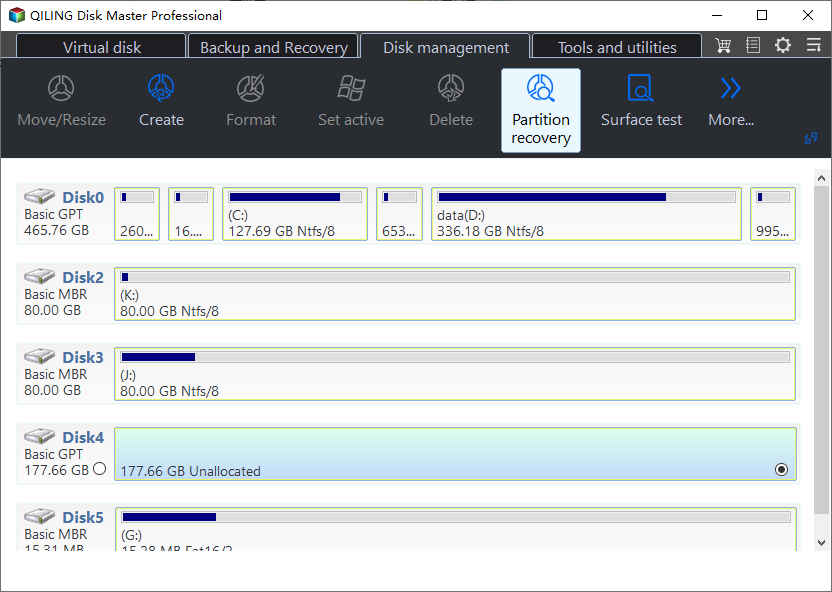
Step 1. Open the drive with the recovery password and select it in the wizard. Type the 48-digit key into the BitLocker prompt, wait until the volume gets a drive letter, then start the program and pick that volume by label and capacity. If you made an image of the disk, choose the image file instead, so the original can stay disconnected while you work.
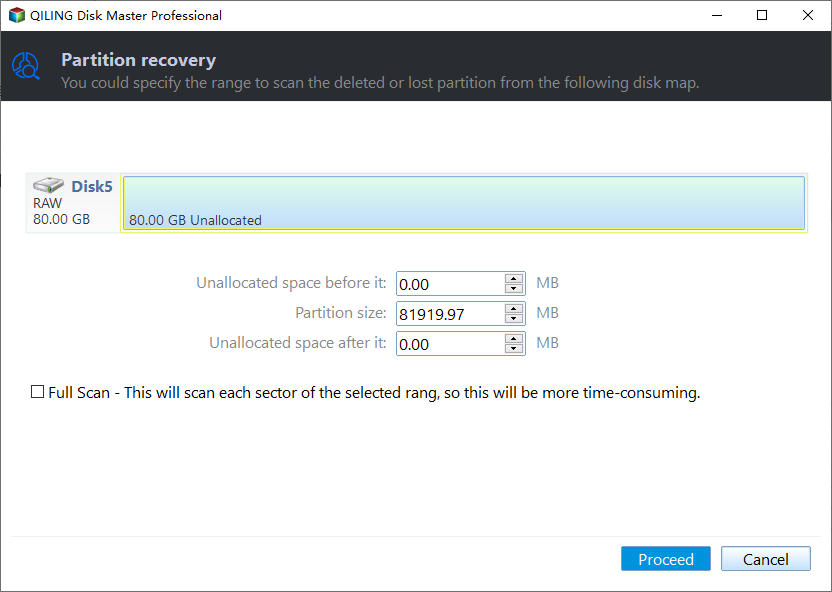
Step 2. Choose the scan mode and let the pass finish. A quick scan reads the file records and returns deleted entries within minutes, which is enough when the files were removed recently from a healthy volume. Choose the deep scan when the quick pass finds nothing, when the volume was repaired, or when the loss dates back weeks; it reads every sector and takes far longer, so leave it running to the end instead of stopping at the first results.
Operation 2: Review the Results and Recover
The results screen is where an encrypted volume behaves like any other: the folder tree comes from recovered records, and files that still have content preview normally.
Step 3. Preview the files, tick the ones you need, and click Recover. Filter by type and sort by date to find the batch you lost, open a few documents and photos to confirm they are readable, then set the destination to a different physical disk and click Recover. Never write the files back to the BitLocker volume, because the restored data would overwrite the space the scan just read, and keep the image until every file opens without an error.
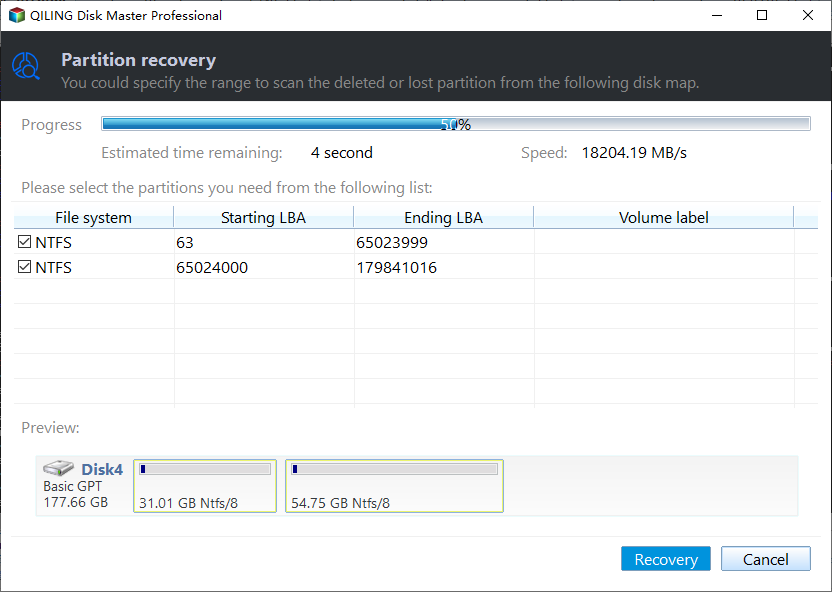
If the volume still will not unlock with the correct key, stop and image the disk before trying anything else. A header that has been damaged by a failed conversion or a firmware problem needs a copy taken first, so that each attempt starts from the same state.
Frequently Asked Questions
Do I need the recovery key to read files from a BitLocker drive?
Yes, unless a password or startup key protector is available and still valid on that machine. The recovery password is the fallback that works anywhere, which is why it should be saved outside the encrypted machine. Without any protector, the volume master key cannot be unwrapped and the ciphertext stays closed.
Can a data recovery scan open an encrypted disk without the key?
No. A scanner reads file system records and file content; BitLocker hides both behind encryption, so a locked volume shows an encrypted blob and nothing else. Unlock the volume first, or restore the key protector, and scan the decrypted result.
Does reinstalling Windows destroy the data on a BitLocker drive?
Not by itself. A reinstall that only touches the system volume leaves a data volume and its header intact, and the drive opens again once the recovery password is entered. The data is lost only when the setup was allowed to format or delete that volume, which replaces the header and the key material with it.
Related Articles
- Recover Files After a Reinstall With BitLocker
- Recover Files From a BitLocker USB Drive After Unlocking It
- BitLocker Drive Shows RAW After a Windows 11 Update
- Unlock BitLocker To Go and Recover Files on Windows
- BitLocker Decryption Stuck at 0x803100d6
Products
Articles & Tutorials
- Data Recovery
- Data Backup
- File Recovery
- File Backup
- System Backup and Restore
- Disk and Partition Clone
- Technical articles
- Mobile articles
- Disk Master Help
- Windows Data Recovery Tutorials
- Windows Secure Delete Tutorials
- Windows Partition Management Tutorials
- Windows File Backup and Restore Tutorials
- Windows System Backup and Restore Tutorials
- Windows Disk Backup and Restore Tutorials
- Windows Clone Tutorials