Recovered Video Only Plays a Few Seconds: What It Means
Quick Navigation:
- Understand the Problem
- Check Before Another Recovery Attempt
- Recover With Qiling Deep Data Recovery
- Verify the Recovered Files
- Frequently Asked Questions
A recovered MP4 or MOV that starts playing is not necessarily complete. It may contain only a readable opening section, damaged indexing information or missing media fragments. Check the full recording before treating it as a successful recovery.
Understand the Problem
Video containers combine media data with timing and structural information. A recovered candidate may have a valid beginning without the expected remaining content. Some camera recordings also depend on companion clips or were split into several files during recording.
Repair and recovery solve different problems. A repair tool may help with certain structural faults in a copy, but cannot recreate scenes whose bytes were overwritten. Do not promise a complete recording just because another player opens the first frames.
Check Before Another Recovery Attempt
Check 1. Compare expected length and size
Use another export, the camera's recording settings or a backup listing as a reference. A short low-resolution clip might be a proxy, not the original recording.
Check 2. Test more than the beginning
Play the recovered copy near the middle and near the expected end. Check audio synchronization and seeking. Record where it fails so alternate candidates can be compared consistently.
Check 3. Look for companion candidates
Inspect the scan for related clips, differently named candidates and files from the same recording period. Recover these separately. Do not concatenate files or overwrite the first output merely because their dates look close.
Check 4. Keep repair separate from recovery
Preserve the untouched recovered files. Test any format-specific repair on duplicates saved on healthy storage, and use only features confirmed for that tool and format. If important content is missing from every candidate, consider professional assessment.
Recover With Qiling Deep Data Recovery
Qiling Deep Data Recovery offers a visual mode chooser, a source-location screen, file results with supported previews and a separate recovery destination dialog. Use this workflow only when Windows can read the source reliably. It does not bypass encryption or guarantee recovery of overwritten data.
The screenshots are examples from the product interface. Their drive letters, file counts and sample selections are not instructions to choose the same disks on your computer. The download is not a promise of unlimited free recovery; check the current edition and license terms.
Step 1. Prepare the Source and a Separate Destination
Stop routine use of the affected device. Check independent backups first, then connect a healthy destination with adequate free space. Download and install Qiling on healthy storage, not the volume holding the missing files. If the system disk is affected, consider another suitable computer or specialist assistance to limit background writes.
Step 2. Choose the Scan Mode for the Original Loss
Use the mode for the original loss: USB/SD Scan for camera-card loss or Format Scan if the card was formatted. A mode choice does not guarantee reconstruction of fragmented recordings.

Step 3. Select the Original Source and Start the Scan
Select the original card or disk by its actual capacity and click Scan. Do not record new footage, copy tests or run camera repair on the original media first.

Step 4. Inspect Results and Preview Suitable Candidates
Inspect available previews and compare plausible candidate sizes. Keep both likely originals and relevant companion files rather than selecting only the first playable item.

Step 5. Recover to Healthy Independent Storage
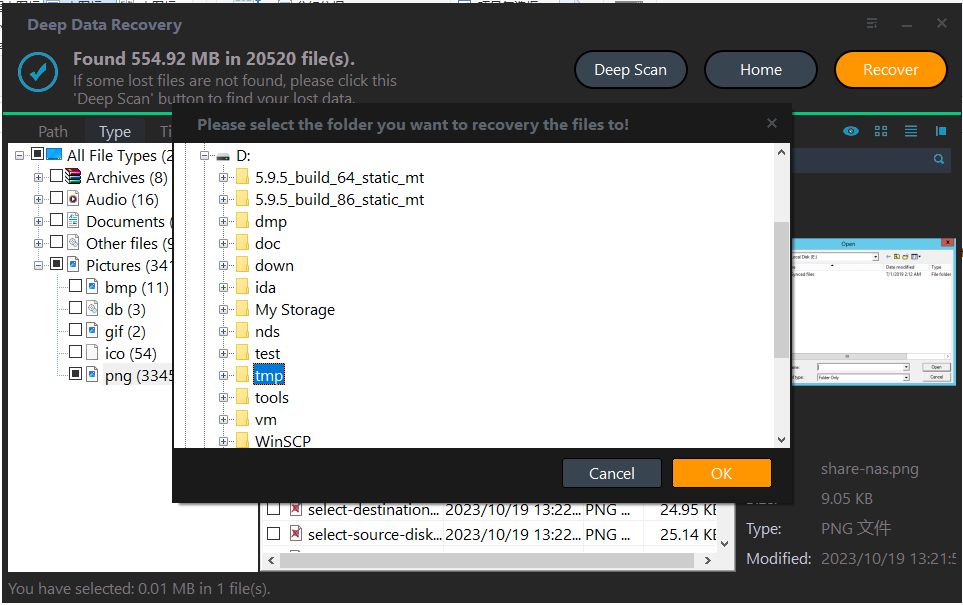
Click Recover and save the selected group to another physical disk. Use a fresh folder for each scan's results so alternate versions remain available.
In the destination dialog, choose the intended folder and confirm with OK. Wait for the selected export to finish without disconnecting either device. If an error occurs, record it and keep any incomplete output separate rather than assuming the batch succeeded.
Verify the Recovered Files
Check multiple positions throughout each clip, full duration, audio and the important scenes themselves. A correct file extension or thumbnail is not enough.
Once a usable clip is found, make a second copy before editing, transcoding or repair. Keep source media unchanged until the whole recording set is verified.
Stop condition: Do not edit the only recovered video in place or record new footage to the source card. Missing scenes may not be repairable.
Frequently Asked Questions
Will converting the video restore the missing end?
No. Conversion can repackage readable content, but does not create missing original scenes.
Why is a tiny recovered video playable?
It may be a proxy, preview or fragment rather than the full recording. Compare resolution, duration and content.
Does Deep Data Recovery guarantee fragmented video reconstruction?
No such guarantee is made here. Inspect actual scan results and validate copies before relying on them.
Related Articles
- Cannot Preview Files in Data Recovery Software: Next Steps
A missing preview does not always mean a file is lost. Check file type, size and a recovered sample before judging Qiling recovery results. - Recovered Files Have the Wrong Size: How to Check Them
Learn why recovery results can show zero-byte, oversized or truncated files. Compare candidates and validate safe copies before trusting a size label. - Solutions to Recovered Files Not Opening - Qiling
Products
Articles & Tutorials
- Data Recovery
- Data Backup
- File Recovery
- File Backup
- System Backup and Restore
- Disk and Partition Clone
- Technical articles
- Mobile articles
- Disk Master Help
- Windows Data Recovery Tutorials
- Windows Secure Delete Tutorials
- Windows Partition Management Tutorials
- Windows File Backup and Restore Tutorials
- Windows System Backup and Restore Tutorials
- Windows Disk Backup and Restore Tutorials
- Windows Clone Tutorials