Can VLC Repair MP4? Look How to Repair Corrupted MP4 Video Files Using VLC
VLC Media Player is a free and open-source media player that can play a wide variety of video and audio formats. While it does not have a dedicated video repair feature, it can attempt to fix minor corruption in video files, particularly AVI files, by using its built-in repair function.
VLC Media Player is a free and open-source media player that can play a wide variety of video and audio formats, including DVDs, CDs, and streaming media. It is available for multiple platforms, including Windows, macOS, and Linux.
VLC Media Player can play a wide range of multimedia formats, but it does not have a built-in repair feature for corrupted files. However, it can still attempt to play the file, and if it fails, it may display an error message. In some cases, VLC may be able to recover some data from a corrupted file, but this is not a guarantee. If a file is severely corrupted, VLC may not be able to play it at all. In such cases, the file may be beyond repair, and specialized software or professional help may be needed to recover or repair the file.
If you're a VLC user looking for free methods to repair corrupt MP4 video files, you're in luck. Instead of searching for other video repair tools and spending money, you can try using VLC's built-in "repair" feature, which gives you a great chance to fully reconstruct a broken MP4 video.
How to Repair A Corrupted MP4 Video File Using VLC
Video corruption can arise from various situations, making a file unplayable or unreadable. When encountering a corrupt video, the primary concern is often to recover and save the file as a new backup. To address this, it's essential to be familiar with common corruption issues in video files. Fortunately, VLC Media Player has recognized the need for repairing corrupt videos and provides a solution for users.
For old VLC customers, you might be surprised to find that there is no specific entry for "File Repair" or MP4 repair. However, this doesn't mean VLC can't repair MP4 files. The truth is, the video repair feature is only available for AVI files. But, you can still use the AVI repair solution on an MP4 video file by simply changing its format to AVI.
Follow the below step-by-step guide so you can easily fix a corrupt MP4 video file in VLC.
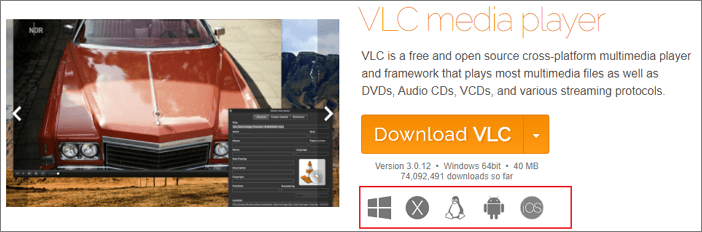
Step 1. On your PC or Mac, download and install the VLC Media Player at https://www.videolan.org/vlc/. Existed VLC users can skip this step.
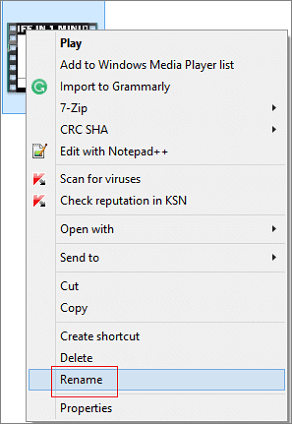
Step 2. Locate your currently corrupted MP4 media file and right-click on it. From the drop-down list, choose "Rename".
Step 3. To change the MP4 to AVI, delete the .mp4 file extension and replace it with .avi, then hit Enter. This will allow you to start the MP4 repair process in VLC.
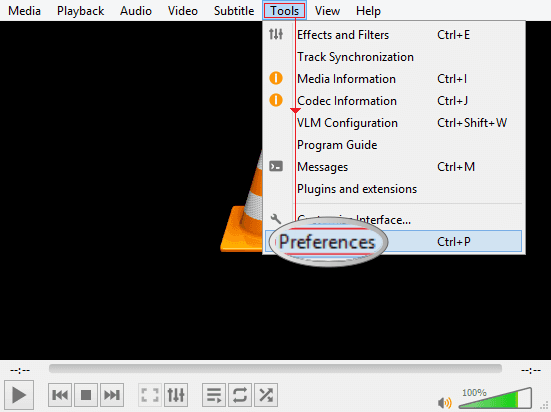
Step 4. Launch VLC. First of all, on the navigation menu, click on "Tools" and then select "Preferences".
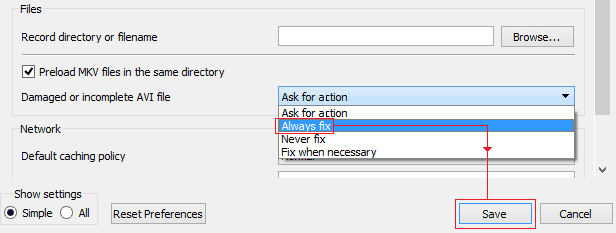
Step 5. In the "Files" section on the new window, select "Always fix" for the "Damaged or incomplete AVI file" option and click the "Save" button.
Step 6. After manually setting the file format back to MP4, go back to the video and choose to "Open with" VLC. This time, the video should run smoothly because VLC will automatically repair a corrupt or damaged AVI file.
To save the repaired video file as an MP4 file, select "Media" and then choose "Convert/Save..." from the menu. Follow the on-screen wizard to complete the conversion.
Solutions to recovered Files Won't Open
If you're struggling to open recovered files after using third-party data recovery tools, don't worry! The issue often lies in the file format or corruption during the recovery process. To successfully open recovered files, try converting them to a compatible format using software like Stellar Converter for NTFS or Deep Data Recovery. Additionally, check if the recovered files are in a compressed or archived state, as some tools may extract them incorrectly.
How to Repair A Corrupted MP4 Video File After Recovery
Unfortunately, if video files get corrupted after recovery, repairing them using VLC is not a reliable option. The repair function is limited to AVI video format, and for other formats, you need to convert them, which is not the same as repairing. Additionally, VLC is primarily a multimedia file editing and conversion software, and its repair capabilities for video files are not as robust as those of specialized video repair tools.
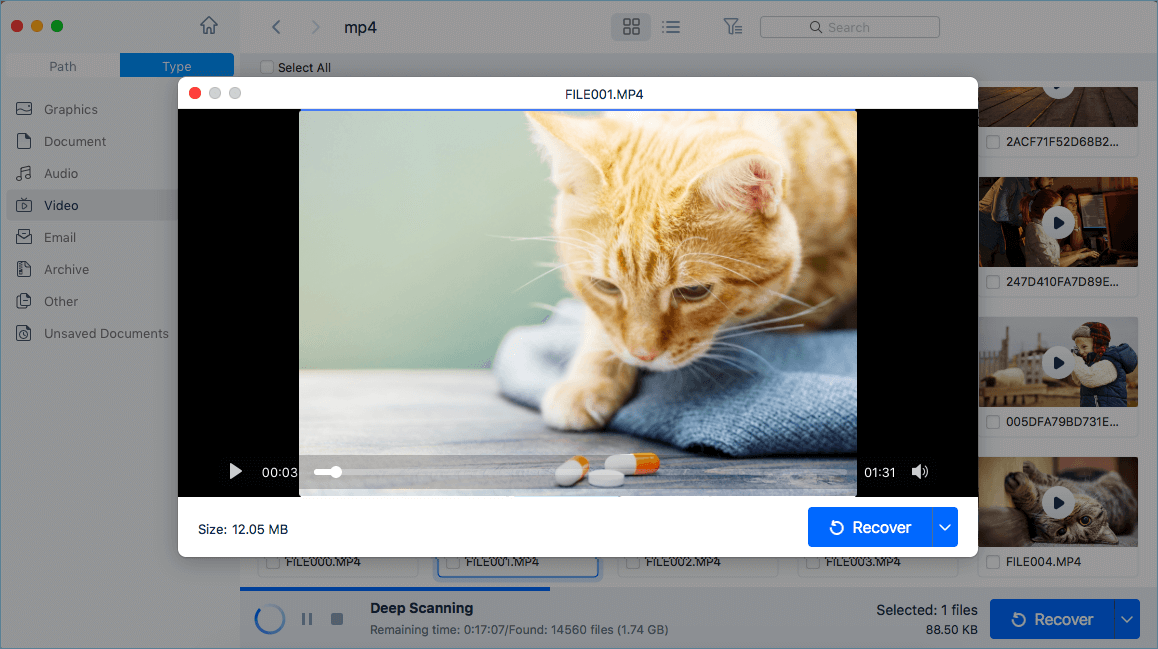
Unfortunately, over 50% of video corruption issues are associated with video file recovery. When a video file is recovered using Windows or Mac data recovery software, it often cannot be read, opened, or played, or breaks in half. In such cases, to repair a lost and corrupted MP4 video file, a specialized video repair solution like Deep Data Recovery is often the only reliable option.
Deep Data Recovery
- Utilize data recovery software or services to recover lost or deleted files, documents, photos, audio, music, and emails. These tools can scan storage devices, memory cards, and other media to locate and retrieve deleted data, even if it has been overwritten.
- Repair damaged MP4/MOV videos from various digital cameras, including Canon, GoPro, DJI, and dash cams, with a software solution. The software can fix corrupted videos, recover deleted footage, and even salvage video files from formatted or corrupted memory cards.
- After recovering your data, you may still encounter issues with certain files that won't open, read, or play properly. In such cases, you can use specialized software to repair and recover these files.
The following guide shows how to recover and repair corrupted videos using Deep Data Recovery.
Step 1. Launch Deep Data Recovery on your PC, and click "Fast Scan" to begin the process.
Launch Deep Data Recovery and quickly filter scanned files by category, such as Pictures, Videos, Documents, Audio.

Note: You can choose different search modes based on where and why the data was lost.
Step 2. To recover corrupted videos, select the drive containing the damaged videos, whether it's a removable disk or a local drive, and then click the "Scan" button to initiate the recovery process.

Step 3. This program scans the selected drive, displaying all files, including lost and existing ones. It allows users to narrow down the search by selecting specific file types, such as Videos, and then further filtering by format (e.g., MP4, MOV, GIF).

Step 4. When you can preview the video, the software has fixed it for you. To save the fixed video, click "Recover" to restore it to a different location, avoiding data overwriting.
How to Repair Corrupted MP4 Online
Some people who don't want to install a desktop video repair application find a reliable online video repair tool, such as Qiling RepairVideo, to be a suitable alternative.
Video repair online is a reliable application that allows you to repair corrupted video files such as MP4, MOV, AVI, and more for free.
You can repair your corrupted or unplayable MP4 video online using a video repair tool. These tools use advanced algorithms to scan the video file and identify the corrupted or damaged sections, allowing you to recover and play the video again.
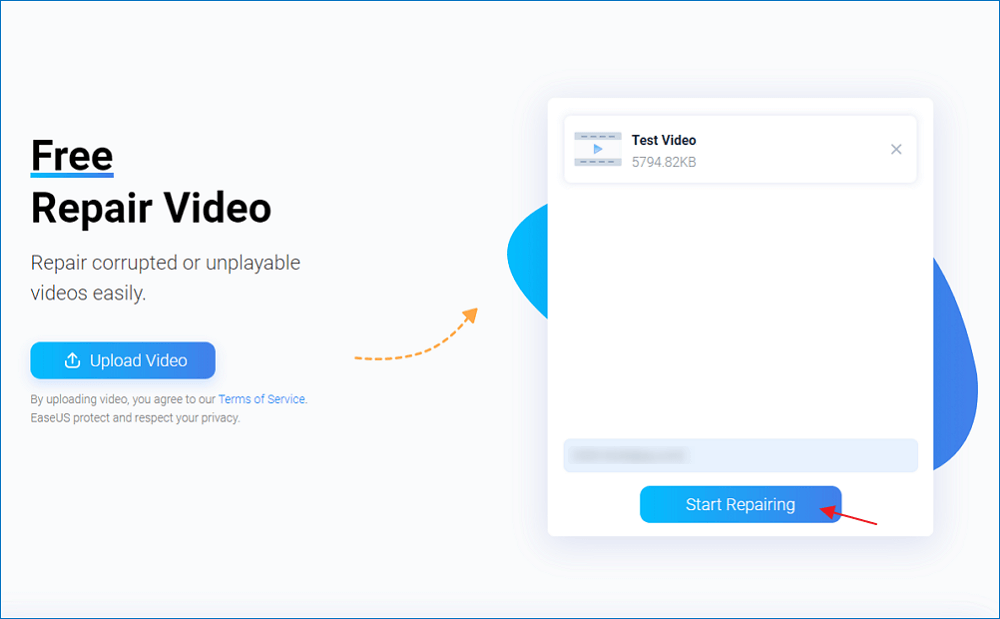
Step 1. Add Damaged MP4 Video
Step 2. Enter the Email Adress
To confirm your email address and receive the extraction code, enter the correct email address. After that, click on "Start Repairing".
Step 3. Repair Damaged MP4 Video
Qiling RepaiVideo automatically starts the repairing process. Large MP4 files may take time, but you can close the site and Qiling will notify you via email.

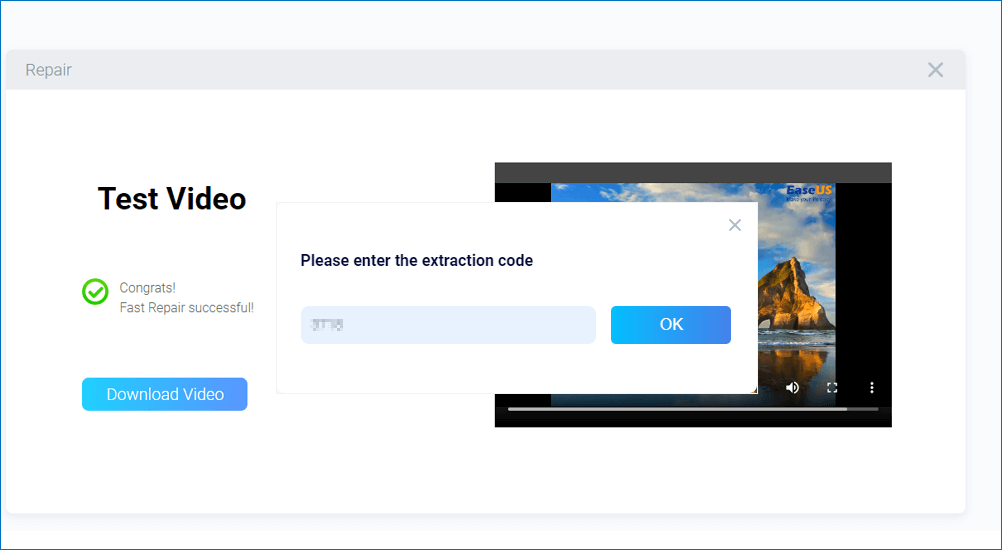
Step 4. Download the MP4 Video
After the repairing process is finished, click the "Download Video" button and enter the extraction code from your email to obtain the repaired MP4 video.
Choose A Preferred Way to Repair A Corrupted or Damaged Video File, Not Limited to MP4...
As a free and open-source video editing software, VLC may not prioritize user experience, making it challenging even for experienced users to find the path to repair a damaged video. However, despite the inconvenience, VLC can still be a hassle-free choice for repairing slightly damaged videos, and can even be used to convert an MP4 video to an AVI one.
Compared to VLC, Deep Data Recovery is more helpful when files become lost and corrupted. It not only functions as sophisticated data recovery software but also as file repair software for nearly all file formats, making it a suitable replacement for VLC in cases where recovered files won't open or need instant repair.
Related Articles
- 2022 Guide: How to Recover Deleted Files from Pen Drive in 3 Ways
- Solutions to Fix EAC3 Audio Not Supported
- Top 6 Best Data Recovery Services
- USB Flash Drive & External Hard Drive - Everything You Should Know
- How to Recover Deleted/Overwritten/Unsaved CSV Files [Solved]
CSV files can be lost due to various reasons such as accidental deletion, formatting, virus infection, or unknown hidden errors. If you encounter a lost or corrupted CSV file, there are approaches you can take to recover it, including recovering deleted, overwritten, and unsaved CSV files. - How to Recover Deleted Photos from SD Card on Android Phone
You can learn effective ways here to recover deleted photos from SD card on Android phone with SD card recovery software. Besides, you can also leran how to recover deleted photos from SD card on Android phone without computer by using Android data recovery app.
Products
Articles & Tutorials
- Data Recovery
- Data Backup
- File Recovery
- File Backup
- System Backup and Restore
- Disk and Partition Clone
- Technical articles
- Mobile articles
- Disk Master Help
- Windows Data Recovery Tutorials
- Windows Secure Delete Tutorials
- Windows Partition Management Tutorials
- Windows File Backup and Restore Tutorials
- Windows System Backup and Restore Tutorials
- Windows Disk Backup and Restore Tutorials
- Windows Clone Tutorials