Help! Mac Trash Bin Won't Let Me Empty it, How to Fix?
| Workable Solutions | Step-by-step Troubleshooting |
|---|---|
| 1. Empty Mac Trash Alternatives |
|
| 2. Can't Empty Trash Files in Use | If you see a pop-up message informing you that the system can't empty the Trash...Full steps |
On a Mac, deleted files are initially moved to the Trash, where they still occupy storage space, and can be easily restored. This means that files are not actually deleted until the Trash is emptied. Additionally, anyone with access to the Mac can view and restore files that are intended for deletion, which may be a concern for users who share their computer or have sensitive information.
Regularly emptying the Trash on your Mac is a good habit for saving space and protecting your personal privacy, but sometimes system or hardware errors can prevent you from doing so. If you're experiencing issues emptying the Trash on your Mac, keep reading to find out the exact reason and how to fix it.
Am I Doing Something Wrong? Why Mac Trash Won't Empty
The cause of the problem is complex, but it's likely due to a glitch on your Mac, which prevents the Trash from being emptied properly. You didn't do anything wrong. Luckily, there are alternative ways to empty the Trash, which will be discussed in the next part.
Recover Deleted Files After Emptying Trash Bin on Mac
If you're looking for free ways to recover deleted files from Trash on Mac, there are two methods you can follow to undo empty trash on your Mac. This guide provides a step-by-step approach to recovering deleted files from the Trash on your Mac.
Fixes Are Here! Try Empty Mac Trash Alternatives
If you're having trouble emptying the Trash on your Mac, try using the Finder, the Terminal, or the Command Line to delete files. You can also try using a third-party app or resetting the System Management Controller (SMC) if the problem persists. If none of these methods work, you may need to seek further assistance from a Mac support specialist.
Fix 1. Basic Try - Delete Files Directly from Mac
This method only needs two steps, it's very simple and works most of the time. Here are what you need to do.
Step 1. To empty the Trash, click on the Trash icon in the Dock, hold down the Command key and press the Empty key. This will delete all files currently in the Trash.
Step 2. To delete multiple files on a Mac, select them all, then press Command + Option + Delete to delete them all at once.
This shortcut will completely delete the selected file directly from the Mac without putting the it in the Trash.
Fix 2. Restart the Mac
If your Mac is experiencing issues due to a glitch, restarting it can often resolve the problem quickly by clearing out any corrupted data and refreshing the system.
How to restart Mac:
To restart your Mac, click the Apple icon on the menu bar and select the Restart option. This will initiate the reboot process.
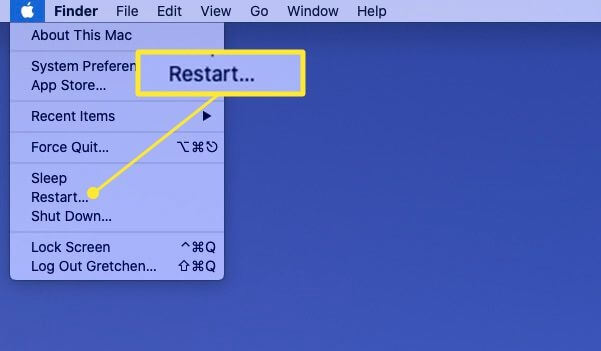
After restarting the Mac, try to empty the Trash again.
Fix 3. Force Empty Mac Trash with Terminal
If you're having trouble emptying the Trash in the normal way, you can use Mac Terminal to take control of your operating system and make changes quickly using a command line interface. By entering Terminal, you can use the command line to force empty Trash, giving you an alternative solution when the usual method isn't working.
Step 1. You can access Terminal by using Spotlight to search for it, or by going to Utilities > Terminal and opening it, then entering it.
Step 2. Type `sudo rm -R` with a space in Terminal, but don't press Enter yet. This means the command is waiting for further input. If you press Enter now, the command will be executed with the space included, which would result in an error.
Step 3. Open the Trash, and drag the files you want to delete into the Terminal window.
Step 4. To empty the Trash on a Mac, press the Return key. Mac will prompt you to enter the administrator password. Enter it and press Return again, then see if the Trash is emptied.
Can't Empty Trash Because File in Use? Fix it Now
When you try to empty the Trash, a pop-up message may appear saying that the system can't empty the Trash now because the selected item is in use.
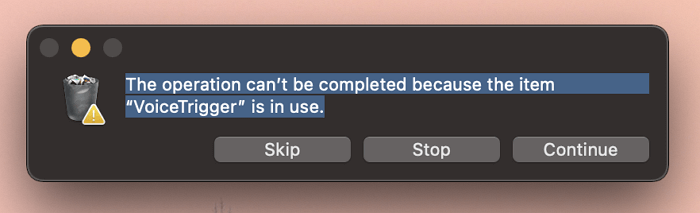
This problem often occurs when the system or some software is using the files you want to delete. Closing all running programs or restarting Mac can resolve the issue.
Facts You Need to Know About Mac Trash
1. You can easily recover files from the Trash before emptying it, but once the Trash is emptied, you'll need to use third-party data recovery software to retrieve permanently deleted files.
Deep Data Recovery for Mac
- Recover lost or deleted files, including Office documents, media files, and emails, with ease and effectiveness.
- Recover files from various devices and storage media, including the emptied Recycle Bin, camera SD cards, flash drives, and camcorders, using specialized software and techniques to retrieve deleted or lost data.
- Data recovery is crucial for situations like sudden deletion, formatting, or hard drive corruption. In the event of accidental file deletion, a reliable data recovery tool can help restore lost files.
2. In macOS Big Sur and Monterey, the Trash has been renamed to Bin, a change that occurred in 2020.
3. When deleting files, you can use the shortcut Command + Option + Delete to permanently delete them without moving them to the Trash.
Related Articles
- Recover Deleted iPhoto Library and Photos on Mac 2022
- 2022 Fixed: Time Machine Won't Complete First Backup
- Multiple Choices - Fix macOS Can't Repair the Disk
- APFS Data Recovery: How to Recover APFS Files on Mac/Windows
- How to Recover Illustrator File After Crash
If Illustrator crashes, you may lose your work. To recover Illustrator after a crash, you can try two optional ways: save your work on Illustrator and get lost Illustrator files back with ease. - How to Recover Deleted Line Chat History & Messages
Download the best Line data recovery tool to recover deleted Line chat history, messages, contacts, video calls, photo sharings, stickers, and voice messages, as well as cache data, on both Android and iPhone devices.
Products
Articles & Tutorials
- Data Recovery
- Data Backup
- File Recovery
- File Backup
- System Backup and Restore
- Disk and Partition Clone
- Technical articles
- Mobile articles
- Disk Master Help
- Windows Data Recovery Tutorials
- Windows Secure Delete Tutorials
- Windows Partition Management Tutorials
- Windows File Backup and Restore Tutorials
- Windows System Backup and Restore Tutorials
- Windows Disk Backup and Restore Tutorials
- Windows Clone Tutorials