Recover Deleted iPhoto Library and Photos on Mac 2022
| Workable Solutions | Step-by-step Troubleshooting |
|---|---|
| Fix 1. Recover deleted iPhoto Library | Method 1. Recover without Time Machine...Full steps Method 2. Recover from Time Machine...Full steps |
| Fix 2. Rebuild iPhoto Library on Mac | Press and hold Command and Option keys and click on the iPhoto icon, When a dialog appears...Full steps |
How can I recover accidentally deleted iPhoto Library on Mac?
Don't worry, it's an easy mistake to make! If you've already emptied the Trash, the chances of recovering your iPhoto Library are slim, but not impossible. You can try using data recovery software like Deep Data Recovery or Qiling file recovery software, which can scan your Mac's hard drive for deleted files. If these tools can't recover your iPhoto Library, you might want to check if you have any backups, such as Time Machine backups or iCloud backups. If you don't have backups, you might consider seeking professional help from a data recovery service. However, if you're comfortable with using Terminal, you can try running a command to scan your Mac's disk for deleted files, but this is a more advanced process and requires some technical expertise.
To restore your deleted iPhoto Library from Time Machine, first, make sure Time Machine is enabled on your Mac. To do this, go to System Preferences > Time Machine and select the backup disk and the frequency of backups. Next, go to the Time Machine folder in your Applications folder and open the Time Machine app. Click on "Enter Time Machine" and select the date and time when the iPhoto Library was deleted. Then, click on "Restore" and select the iPhoto Library you want to restore. This will restore the iPhoto Library to its original location.
According to Apple's support community, if you've accidentally deleted your iPhoto Library, there's still hope to recover your lost photos and even restore the app itself. Follow the solutions provided and you'll see how to effectively restore your lost photos. These methods can also be applied to restore deleted photos and Photos Library on the latest Mac computers running the new macOS.
Part 1. Recover deleted iPhoto Library on Mac
After deleting the iPhoto Library on Mac, your first priority should be to restore the lost photos, as they are more valuable than the apps and hardware. However, instead of restoring from the Trash, which may not be the most effective method, you should explore other options to recover your precious photos.
According to Apple's support community, when you delete the iPhoto Library from Mac, the chance to restore photos from the Trash is very small. However, there are two methods that can be followed to potentially restore deleted iPhoto Library with photos on Mac.
Method 1. Recover deleted iPhoto Library photos on Mac without Time Machine
If Time Machine wasn't running and you securely deleted the iPhoto Library by emptying the trash, it's impossible to recover the deleted library from Time Machine. In this case, you can try using Deep Data Recovery for Mac to help recover the deleted iPhoto Library.
Qiling Mac data recovery software allows users to recover multiple types of files, including deleted iPhoto Libraries, with simple steps, offering robust recovery capacity in all data loss cases.
Keep Noted:
- 1. This software offers a trial version that allows users to scan and preview lost photos without any payment required. The trial version serves as a proof-of-concept, enabling users to verify the software's effectiveness before deciding to pay for the actual restoration of the lost photos.
- To avoid unexpected data loss, start using Time Machine and backing up important files immediately after following the photo recovery process.
Step 1. Launch Deep Data Recovery for Mac, select the desired file types, and click "Fast Scan" to initiate the recovery process.

Note: You can choose different search modes based on where and why the data was lost.
Step 2. To scan the Photos Library on the system drive, hover the mouse over the system drive, and click "Scan" when the mouse is over it.

Step 3. After scanning, click on "Photos" in Quick Access to view all your recovered photos. They will be listed in this section.

Step 4. Double-click to preview the photos, select the correct one and click "Recover" to save them to a secure location on Mac.
After restoring, you've restored the deleted iPhoto Library. One more thing that you should do to view your restored photos, which is to import the restored iPhoto Library into iPhoto Library folder on Mac:
To relaunch iPhoto, go to "File" and select "Switch to Library", then choose the restored iPhoto Library and click "OK".
There, you can view and reuse your photos again.
Method 2. Recover deleted iPhoto Library photos on Mac from Time Machine
If you deleted the iPhoto Library on your Mac, Time Machine, the backup program, can help you recover your photos. Since Time Machine was running, it created a backup of the deleted iPhoto Library, allowing you to go back in time and restore the deleted photos. Simply launch Time Machine, navigate to the time before the deletion, and you'll be able to restore the iPhoto Library and recover your pictures.
(This also works to restore lost Photo Library.)
Step 1. Connect your Time Machine drive to your Mac and run Time Machine from the System Preferences menu.
Step 2. Scroll through the timeline on the right side, select the desired backup (the date of your last backup), and click it.
Step 3. To restore your iPhoto library, navigate to the backup of your iPhoto library, which is usually located in the "Home/Pictures/iPhoto Library" folder, select it, and click "Restore" to retrieve your data.
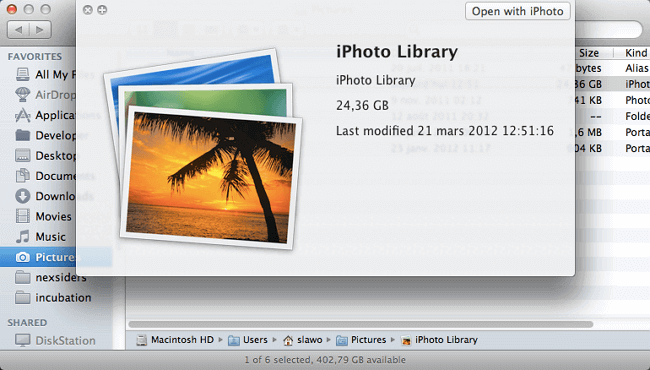
The time of restoring iPhoto Library depends on its size.
Part 2. Rebuild iPhoto Library on Mac
If the photo recovery process is complete, but the restored photos don't appear in iPhoto or the program is unresponsive on your Mac, don't panic. The solution is to simply rebuild the iPhoto Library.
To rebuild your iPhoto Library on a Mac computer, you can try the following steps: First, quit iPhoto if it's running. Then, locate your iPhoto Library, which is usually found in the Pictures folder, and rename it to something like "iPhoto Library Old". Next, restart iPhoto and it will automatically rebuild the library.
- Warning
- Be aware that rebuilding your iPhoto Library may lead to data loss, so ensure you've recovered any lost photos using the methods in Part 1 and saved your data to an external storage device.
Steps to rebuild iPhoto Library:
Step 1. Press and hold Command and Option keys and click on the iPhoto icon.
Step 2. When a dialog appears with rebuild options, select the option to rebuild the iPhoto Library and confirm the selection by clicking "Rebuild".
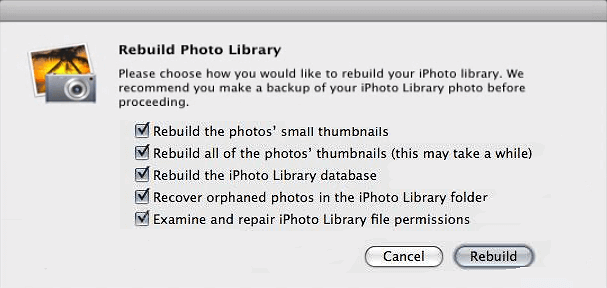
Steps to repair Photo Library:
On new Mac computers with the latest macOS versions like Catalina and Mojave, you can repair the Photos Library and get the Photos app working again on your Mac.
Conclusion
Deep Data Recovery for Mac is a simple and effective solution for recovering lost photos from an accidentally deleted iPhoto Library, making it accessible to all Mac users. It can also be used to restore data on Mac without Time Machine backups.
The two methods provided for restoring deleted iPhoto Library will effectively restore your lost iPhoto Library. If you have further file recovery issues on Mac computers, follow our Mac file recovery resource page for further help.
Related Articles
- How to Recover Deleted Safari History on Mac
- MacOS Update VS. Clean Install: Which One to Choose
- A Quick Answer: How Much Does Mac Data Recovery Cost
- (Easy!) How to Delete Apps on Mac
- 2022 Unformat Freeware | Unformat Hard Disks/USB Drives with Ease
If you've mistakenly formatted a hard drive partition, external hard drive, USB, or other storage device, we've can help. - Unlock Hard Drive | Fix Drive Where Windows Installed Is Locked
When trying to install or restore Windows from recovery media or start your PC, you may encounter the error “The drive where Windows is installed is locked.
Products
Articles & Tutorials
- Data Recovery
- Data Backup
- File Recovery
- File Backup
- System Backup and Restore
- Disk and Partition Clone
- Technical articles
- Mobile articles
- Disk Master Help
- Windows Data Recovery Tutorials
- Windows Secure Delete Tutorials
- Windows Partition Management Tutorials
- Windows File Backup and Restore Tutorials
- Windows System Backup and Restore Tutorials
- Windows Disk Backup and Restore Tutorials
- Windows Clone Tutorials