Unlock Hard Drive | Fix Drive Where Windows Installed Is Locked
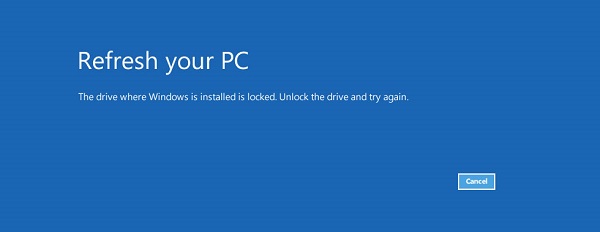
If you're getting the error message "The drive where Windows is installed is locked. Unlock the drive and try again", you can try a practical fix. To unlock your Windows hard drive, you can try one of the five fixes provided, or use a reliable data recovery software to recover your data. This will help you access your hard drive and resolve the issue.
| Workable Solutions | Step-by-step Troubleshooting |
|---|---|
| Fix 1. Run CHKDSK | Boot PC from Windows installation media...Full steps |
| Fix 2. Use SFC Command | Open Command Prompt by booting PC...Full steps |
| Fix 3. Run bootrec Command | Type bootrec /RebuildBcd...Full steps |
| Fix 4. Refresh PC | Restart PC from Windows installation media...Full steps |
| Extra Help. Recover Data for Free | For the lost data after unlocking Windows drive...Full steps |
Error Explanation
About "The drive where Windows is installed is locked" error:
Windows 10/8.1/8/7 system recovery often occurs when a critical system file is missing or corrupted, the System Boot Configuration Data (BCD) is damaged, or some required information is missing.
Data Backup
If your hard drive is locked, you won't be able to start your computer normally. To access your data and create a copy of the hard drive, you'll need to back up your data without booting into Windows, and a third-party software like Qiling backup and recovery can help.
To create a bootable recovery disk for a 30-day free trial, download and install Qiling Backup on a working computer, then prepare a USB flash drive or CD/DVD disc to create the disk. Boot the problematic computer from the recovery disk and start the disk/partition backup process.
Troubleshooting
To unlock a hard drive and refresh your PC, you can use one of the four widely used methods, which are applicable to Windows 10/8.1/8/7 operating systems. These methods can help you get rid of the problem of "the drive where Windows is installed is locked" and allow you to start fresh.
Fix 1. Check disk errors with CHKDSK
The CHKDSK utility is built-in Windows, aiming to check the integrity of your hard disk and fix bad sectors if any were found.
Caution:The CHKDSK command can erase all saved files on the target device while fixing the disk error, so it's essential to recover all data first using reliable data recovery software.
1. Boot the computer using the Windows installation media, which can be a USB stick or a DVD, and select the option to proceed to the next step.
2. To access the Command Prompt in Windows 10, click on "Start" and then select "Power" and hold it for 10 seconds, or long press the power button on your laptop. This will open the "Choose an option" menu.
3. To run a command prompt window, navigate to the directory where your Windows is installed, typically C:, and input the command line.
- chkdsk C: /f /x /r
4. Press "Enter" on the keyboard for the check to start.
5. To resolve the issue, you can try running the System File Checker (SFC) tool, which scans and replaces corrupted system files. Run the command "sfc /scannow" in the Command Prompt as an administrator, then restart your computer and check if the error persists.
If the command line isn't your preference, you can use a command-line alternative tool, Qiling CleanGenius, to fix file system errors on your hard drive. This one-click tool makes the process easy and convenient.
Step 1. Download Qiling CleanGenius on your computer for free.
Step 2. To proceed, run the software and navigate to the left panel, where you will find the "Optimization" option. Clicking on this will lead you to the "File Showing" choice.
Step 3. To resolve a file system error on a drive, go to the "Choose drive" section, select the drive with the error, and check the "Check and fix file system error" option. Then, click the "Execute" button to initiate the file system check and repair process.
Step 4. Once the Qiling CleanGenius has completed the repair process, you can click on the "here" link to view the results of the repair.
Fix 2. Use the SFC command
The SFC command is a Command Prompt command that verifies and replaces important Windows system files, often recommended in troubleshooting steps to resolve issues.
1. Open the command prompt window as you did in [Fix 1].
2. Type the following command in the command prompt window:
- sfc /scannow
3. Press "Enter" on the keyboard.
4. Let the scan finish and fix any potential errors.
5. Rebooting your Windows computer is the first step to troubleshoot the issue. Simply shut down your computer, wait for a few seconds, and then turn it back on.
Fix 3. Perform the bootrec command
1. To troubleshoot the issue, go to the "Troubleshoot" feature in Windows. This feature is available in the Settings app, and it can help identify and fix common problems with your computer.
2. Type "Advanced options" > "Automatic repair" > "Command prompt".
3. Type the command line and press "Enter" on the keyboard:
- bootrec /RebuildBcd
4. Type the command line and press "Enter" on the keyboard:
- bootrec /fixMbr
5. Type the command line and press "Enter" on the keyboard:
- bootrec /fixboot
6. Type the command line: exit, and press "Enter" on the keyboard. This will close the current terminal session.
7. Rebooting your Windows computer is a simple troubleshooting step that can resolve many issues, including the error message you're experiencing. To reboot your computer, click on the Start button, then select the Power icon, and finally click on Restart.
Fix 4. Refresh the PC
1. Restart your computer and boot from the USB drive or DVD installation media.
2. Click "Repair your computer".
3. Click "Troubleshoot" and then click "Refresh your PC".
4. Follow the wizard instructions to complete the process.
Extra help: How to Recover Data Without Backup for Free
If you're experiencing the 'drive where Windows is installed is locked' error, refreshing Windows or unlocking the hard drive might be helpful solutions. However, these methods come with a risk of losing precious data on the hard drive. To provide additional assistance, we can offer some extra help if data loss occurs.
If you accidentally erase Windows data, system files, personal files, or other information using command line, refreshing, or system restoring methods, Qiling data recovery software can help you recover your data with a hard disk recovery. It can also assist with recovering deleted files, and is user-friendly, safe, and efficient. You can download it whenever you need it.
People Also Ask
If you have further questions related to how to unlock the drive where Windows is installed, check the questions and answers below. You may find a satisfying answer:
1. How do I unlock the drive where Windows 10 is installed?
When the hard drive where you installed Windows 10 is locked, you can try running the command "chkdsk /f" in the Command Prompt to unlock it. This command checks the hard drive for errors and fixes them, which may resolve the issue.
- In Windows, click the Start button and enter "cmd" in the Search field, then press the Enter key.
- Type bootrec /RebuildBcd and press Enter.
- Type bootrec /fixMbr and press Enter.
- Type bootrec /fixboot and press Enter.
- Type exit to close the command prompt and restart Windows computer.
2. How do you unlock a computer drive?
If your computer hard drive gets locked, you can try unlocking it by following these steps: first, try restarting your computer and see if it resolves the issue; if not, try booting in safe mode and see if the lock is still present; if the lock persists, try running a system file checker to scan for corrupted system files; if none of these steps work, you may need to seek further assistance from a professional or the manufacturer's support team.
- Step 1. Run a disk check using CHKDSK command.
- Step 2. Run a system file check with sfc /scannow command.
- Step 3. Complete a startup repair with "bootrec /RebuildBcd", "bootrec /fixMbr", and "bootrec /fixboot" commands.
- Step 4. Try a system restore.
- Step 5. Refresh your PC.
3. Why is my drive locked?
For OS drive:
The error "The drive where Windows is installed is locked" typically occurs when a critical file system is missing or corrupted.
The System Boot Configuration data may get damaged or some required information may be missing, causing the system to lock.
For data drive:
A data hard drive can become locked due to various reasons such as a write-protected disk, password setting, encryption software, malware or virus infection, etc.
Related Articles
- What Is an SD Card and What Is It Used For
- [Fixed] Drive Is Not Accessible, Access Is Denied in Windows 10/8/7
- How to Fix 'Photos Disappeared from Camera SD Card' Efficiently
- Recover Deleted Recordings/Shows on DirecTV
- Accidentally Closed Word Without Saving in MS Word 2003/2007/2010/2013/2016
If you accidentally closed Microsoft Word without saving your document. You can recover unsaved Word files from Recent Documents, Manage Version, or Temporary Files in Microsoft Office. - Adata Flash Drive Recovery Tool Free Download for 2025
If the Adata flash drive is damaged or inaccessible, the best thing you must do is to retrieve the data trapped there. This article tell you how to retrieve the data.
Products
Articles & Tutorials
- Data Recovery
- Data Backup
- File Recovery
- File Backup
- System Backup and Restore
- Disk and Partition Clone
- Technical articles
- Mobile articles
- Disk Master Help
- Windows Data Recovery Tutorials
- Windows Secure Delete Tutorials
- Windows Partition Management Tutorials
- Windows File Backup and Restore Tutorials
- Windows System Backup and Restore Tutorials
- Windows Disk Backup and Restore Tutorials
- Windows Clone Tutorials