(Easy!) How to Delete Apps on Mac
| Workable Solutions | Step-by-step Troubleshooting |
|---|---|
| 1. Delete Apps on Mac |
|
| 2. Remove Related App Files |
|
Macs can be great Jobs-To-Be-Done machines, but this is often not the case when they come preloaded with outdated software, such as the DVD Player app, which is unnecessary given the lack of DVD drives in many recent Macs.
To start making your Mac more personalized, begin by replacing the native apps with your preferred ones. This will help you take advantage of the Mac App Store and third-party developers, which aim to improve on Apple's default apps or create new possibilities.
Uninstall vs. Delete, Are They the Same?
To uninstall an app on a Mac, simply drag the application icon from the Applications folder to the Trash, then empty the Trash. This process will remove the app and all its associated files from your Mac. No additional steps are required.
Related Articles:
How to Delete Apps on Mac
When you wish to delete apps on your Mac, you can try the three methods listed below.
1. Uninstall apps on Mac from the Applications folder
To uninstall a program on a Mac using Finder, follow these steps:
Step 1. To open the Applications folder, you can click on the Applications icon in the Dock, select "Applications" from the Finder sidebar, or use the keyboard shortcut Command + Shift + A.
Step 2. To select the software to be uninstalled, right-click on the program you want to remove or hold down the Control key while clicking on it. This will allow you to choose the program you wish to uninstall.
Step 3. From the context menu, select Move to Trash.
Step 4. If prompted, enter your system password in a pop-up window, and the program will be deleted from your device's Trash afterwards.
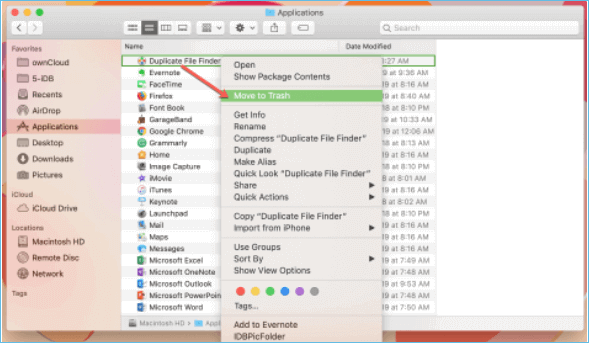
You can delete a program by dragging it to the Trash, where you can then choose to delete it immediately or wait until the Trash is emptied.
2. Delete apps from Launchpad
To delete programs from Launchpad on a Mac without using the Trash, open Launchpad, find the program you want to delete, click and hold on its icon until it jiggles, and then click the X in the top left corner to permanently delete it. Alternatively, you can delete programs from the Applications folder, which will move them to the Trash, allowing you to recover the program if you change your mind.
Step 1. Launch Launchpad from the Dock, Finder, or four-finger trackpad gesture.
Step 2. To enter "Jiggle Mode", keep the Option key pressed, or click and hold any app. The apps should start to jiggle.
Step 3. To delete an app, click the X in the top left corner of the app.
Step 4. To confirm the app's removal, click Delete in the pop-up.
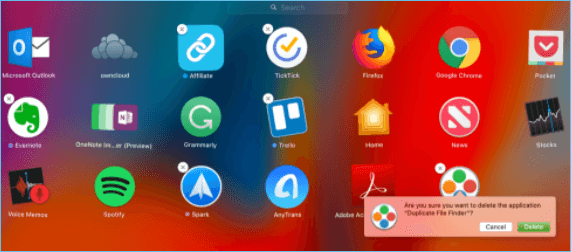
Apps that don't have an X in the corner are either essential to your Mac, such as Mail or Messages, or were not downloaded through the Mac App Store.
3. Use AppCleaner to remove Mac apps cleanly.
To delete a program and its data using AppCleaner, first download and install the program. Then, launch AppCleaner and select the program you want to delete. Click "Delete" to remove the program and its associated data. If you're deleting a Mac app or shortcut, AppCleaner should be able to find and remove it, even if it doesn't have a delete option. Alternatively, you can also use the built-in "Move to Trash" feature on your Mac to delete a program, but this may not remove all associated data.
Step 1. Install AppCleaner on your Mac and start using it.
Step 2. To see all of your apps, click the bullet list symbol at the top right.
Step 3. Choose the program you wish to delete, and AppCleaner will look for that app's directories and files for a few seconds.
Step 4. Please confirm that you have reviewed the list and ensured all necessary items are removed before proceeding.
Step 5. If prompted, authenticate with your Mac's password.
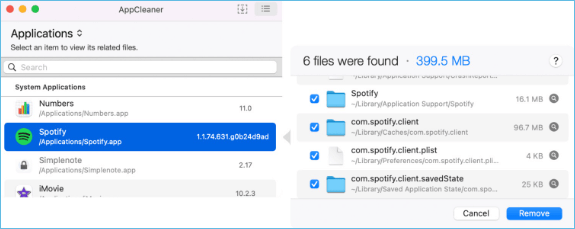
An app with a lock icon can't be removed, as it's either built-in or open, and macOS prevents its removal.
If you've accidentally deleted an app on your Mac, don't worry - there are free and proved ways to recover it. Start by checking the Trash folder, as deleted apps are usually stored there.
After a major macOS update or a clean install, Mac users may find that certain applications have suddenly disappeared from their computer. This issue has been known to occur in the past, with a previous update bug causing Mac desktop files and icons, including some installed programs, to become lost.
How to Remove Related App Files
To remove app leftovers from your Mac, first locate them in the Library folder, which contains saved remnants of installed apps.
To access the Library folder on a Mac running macOS 10.7 or earlier, you can hold down the Option (⌥) key while selecting "Go" from the Finder menu. This will reveal the Library folder in the Go menu. On a Mac running macOS 10.
Locate leftover files
Before deleting related app files, you can follow these steps to precisely locate those leftover files.
Step 1. To access the Go section in the Finder menu, simply open Finder and click on the Go option located in the upper menu bar.

Step 2. Select the "Go to Folder" option from the drop-down menu.
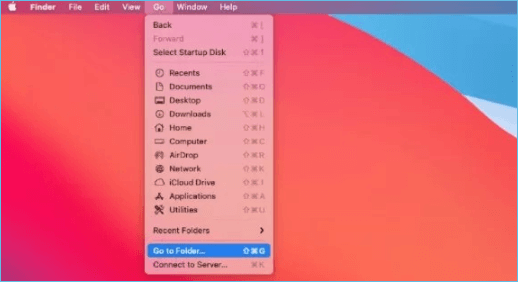
Step 3. In the pop-up box, type /Library and press Go.
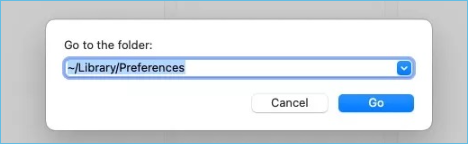
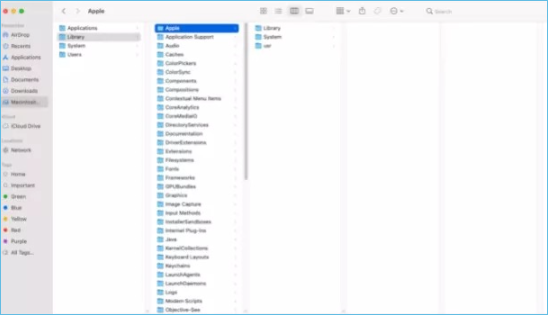
If you carefully follow the instructions, the Library folder will appear.
The company's new policy aims to promote a healthier work-life balance by providing employees with flexible working hours and a generous parental leave policy. This move is expected to improve employee satisfaction and reduce turnover rates, ultimately benefiting the company's bottom line. By prioritizing employee well-being, the company demonstrates its commitment to creating a positive and productive work environment.
Now you must locate any remaining remnants of apps that you want to be removed.
Here's how you can do this:
Step 1. To search for leftovers of an app, type the app's name in the Search field, and you'll see all the files and folders that contain the name of the app.
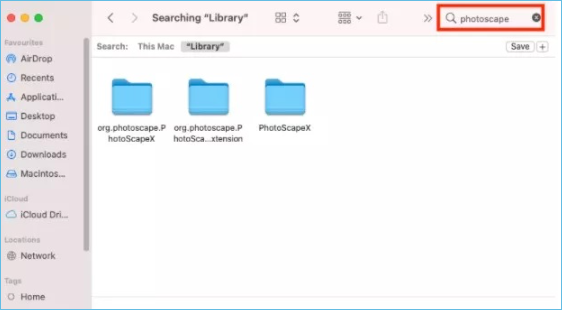
Step 2. To find hidden files on a Mac, navigate to the Library folder, which can be accessed by clicking "Go" in the top menu bar, then selecting "Go to Folder" and typing "/Library". From there, you can search for specific files or folders, or use the "Command + Shift + .
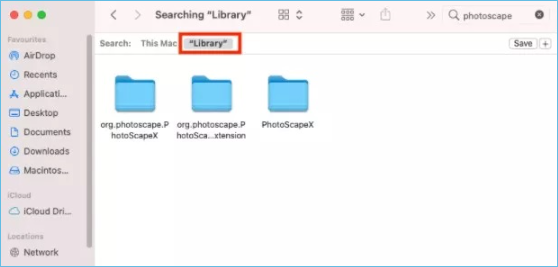
Step 3. The files you see are the remnants of what you were looking for.
How to Delete Software Leftovers on a Mac
After locating the remaining remnants, select all the folders and files and drag them to the Trash, and the app will be completely uninstalled.
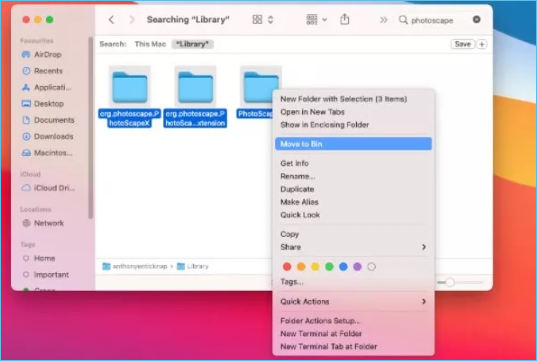
If you accidentally delete significant files and documents on your Mac while clearing app leftovers, you can try Deep Data Recovery for Mac to recover lost files.
Deep Data Recovery for Mac
- Recover lost or deleted files, documents, photos, audio, music, effectively.
- Recover files from formatted hard drives, partitions, and other data storage devices on Mac with ease.
- Support Mac data recovery for sudden deletion, formatting, system crash, and other unexpected situations.
To recover mistakenly deleted files and documents on your Mac, use Deep Data Recovery. This software can help you retrieve lost data from your computer's hard drive, external drives, or other storage devices.
Step 1. Launch Deep Data Recovery, select file types, and click "Fast Scan" to initiate the process.

Note: You can choose different search modes based on where and why the data was lost.
Step 2. Select the disk location where you lost data and files, and click the "Scan" button.

Step 3. Deep Data Recovery for Mac will immediately scan your selected disk volume and display the scanning results on the left pane.

Step 4. Select the desired file(s) from the scan results and click the "Recover" button to restore them.
Conclusion
Clearing old program files and programs from your Mac is essential for its smooth operation. You can easily free up space and make your Mac run faster by emptying the Trash and clearing the cache using various methods. If you've accidentally deleted important files and documents, you can recover them with Deep Data Recovery for Mac.
Related Articles
- Mac Raw Recovery: How to Recover Data from Raw Hard Drive/Partition
- PDF File Recovery: How to Recover Deleted/Unsaved PDF Files Mac
- How to Recover a Replaced File on Mac
- Does Updating macOS Delete Everything? No...but Yes!
- 6 Best Free Disk Drill Alternatives for Mac Data Recovery in 2022
If you're looking for alternatives to Disk Drill, there are six free options available to help you recover deleted, formatted, or lost files from various storage devices, including hard drives, memory cards, USB drives, and digital cameras, on your Mac. - Qiling Free Trial Code: Free Get Deep Data Recovery License Code & Serial Key
Free get Deep Data Recovery with license code, serial number, keygen, torrent to restore deleted, formatted, virus attacked data under all Windows OS. Genuine license code with Deep Data Recovery is available here to help you restore unlimited lost data with ease.
Products
Articles & Tutorials
- Data Recovery
- Data Backup
- File Recovery
- File Backup
- System Backup and Restore
- Disk and Partition Clone
- Technical articles
- Mobile articles
- Disk Master Help
- Windows Data Recovery Tutorials
- Windows Secure Delete Tutorials
- Windows Partition Management Tutorials
- Windows File Backup and Restore Tutorials
- Windows System Backup and Restore Tutorials
- Windows Disk Backup and Restore Tutorials
- Windows Clone Tutorials