Fix Corrupted Data and Recover Files from PSP Memory Stick
The PlayStation Portable (PSP) is a handheld game and multimedia console that stores game files on Memory Stick Micro or Memory Stick Pro Duo. However, gamers often experience data loss due to accidental deletion or corruption of the media, resulting in lost saved data. Fortunately, there are two methods to fix the corrupted data and recover PSP files.
1. Manually Fix Corrupted PSP Memory Stick Data
If your game data becomes corrupted, you can manually fix it and restore the game data.
Step 1: Wait for the PSP to boot up and display the XMB (XrossMediaBar) menu.
Step 2: To connect your PSP to your computer, plug a USB cable into the PSP and turn on the USB connection on the device. This will prompt a window on your computer, granting you access to the PSP's memory stick.
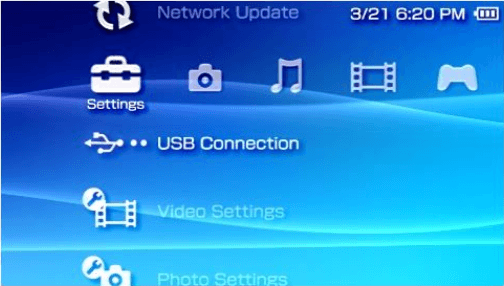
Step 3: To access a previously placed game on your Sony PSP memory stick, look for the game in the "GAME" folder, "GAME150" folder, or the "GAME5XX" folder, as it will be stored in one of these locations.
Step 4: Move the game to a different folder, such as GAME150, and disconnect the PSP from the computer to resolve the corrupted data error.
To fix the corrupted data issue with your PSP game, start by running the game from the PSP's XMB (XrossMediaBar). This should now display it as a playable game instead of corrupted data. If the issue persists, reconnect your PSP to the computer, move the game to the final folder, and then disconnect the PSP. Finally, try playing the game again on your PSP. This should resolve the problem.
2. Bonus Tip - Recover PSP Files With Data Recovery Software
Data loss can occur unexpectedly, whether it's due to accidental deletion, formatting of a memory stick, or a virus infection, leaving you frustrated and in need of a solution. In such situations, PSP data recovery becomes the desired solution to retrieve your lost files and restore peace of mind.
Deep Data Recovery is the ideal solution for retrieving lost files, whether accidentally deleted or misplaced. The software is effective in all situations and provides an easy and fast way to recover lost or deleted files from any memory card or stick.
- Important
- To resolve the error message on your PSP player, stop using the device immediately and connect it to your PC. Run the free data recovery software with the steps below to recover your files.
Most game installation packages, such as .exe files, and other screenshot images, can be found and restored.
Step 1. Connect the SD card, memory card, or CF Card to your computer and launch Qiling memory card recovery software on your PC. Select the desired file types and click "Fast Scan" to initiate the recovery process.

Note: You can choose different search modes based on where and why the data was lost.
Step 2. To recover lost data from an SD card, go to the Devices section, select the SD card, and click "Scan" to initiate the data recovery process.

Step 3. The software will automatically start a scan, which is powerful enough to find all lost files, even those with lost file names. After the scanning process, you can find deleted items in the tree-view panel on the left. If you're looking for a specific file type, such as photos, documents, videos, or emails, you can click "Filter" to narrow down your search.

Step 4. You can preview the files by double-clicking on them, then select the desired files and click "Recover" to restore them to a secure location on your PC or external storage.
Related Articles
- How to Create, Find and Watch Valorant Replays 2022
- What Is Network Attached Storage and How to Recover Lost/Deleted Data from NAS
- Elden Ring Stuck on Loading Screen on PC/PS4/XBOX
- Avast Deleted My Files, How to Recover?
- How to Recover Photos from Nokia Lumia 800/520
You can recover deleted photos from your Nokia Lumia using either the ZUNE backup method or Deep Data Recovery software. - How to Recover Deleted Photos from Huawei Phone
To recover deleted photos on a Huawei phone, follow these simple steps: first, stop using the phone immediately to prevent overwriting of the deleted data; then, download a reliable data recovery software or app, such as Deep Data Recovery, on your computer and connect your.
Products
Articles & Tutorials
- Data Recovery
- Data Backup
- File Recovery
- File Backup
- System Backup and Restore
- Disk and Partition Clone
- Technical articles
- Mobile articles
- Disk Master Help
- Windows Data Recovery Tutorials
- Windows Secure Delete Tutorials
- Windows Partition Management Tutorials
- Windows File Backup and Restore Tutorials
- Windows System Backup and Restore Tutorials
- Windows Disk Backup and Restore Tutorials
- Windows Clone Tutorials