GetDataBack Mac & Windows
What Is GetDataBack Mac
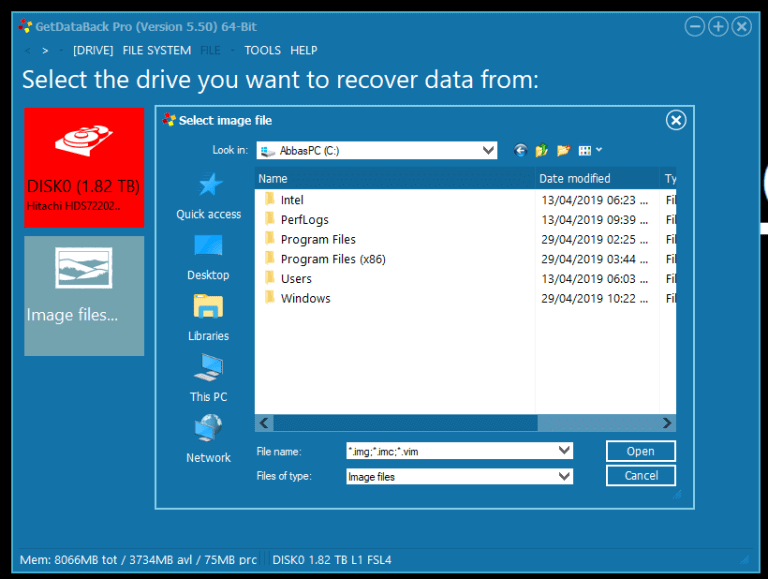
GetDataBack is a powerful data recovery tool developed by Runtime Software, available for various file systems including NTFS, FAT, exFAT, EXT, HFS+, and APFS. Users need to choose the specific variant of the program to recover files from a particular file system, such as GetDataBack Mac for APFS drives. A license code must be purchased to register the software, allowing data recovery from computer hard drives, external hard drives, USB drives, and other storage devices.
Free Alternative to GetDataBack Mac
Although GetDataBack is capable of handling common data loss situations, it falls short due to its non-free price tag and unfriendly user interface, making it difficult for inexperienced users to recover their data. Furthermore, the outdated Runtime website lacks a clear and step-by-step guide, making it hard to find useful information. These drawbacks prompt users to seek an alternative that is easy to use, rich in features, and powerful.
Qiling data recovery software is specialized for Windows & macOS file recovery on all storage devices. It has an intuitive user interface and advanced scan algorithm, making it a popular choice for users to undelete files, unformat HDD and flash drives, recover lost and RAW partitions, etc. The software also offers a free version that allows recovering several documents, photos, or videos completely for free.
How to Get Data Back Mac
Losing data on a Mac can be a hassle, but if the lost data is still in the trash bin, it's a simple fix. You can easily recover them using a Mac trash recovery solution. However, if you've already emptied the trash bin, things get complicated. In that case, taking your Mac to a data recovery service center can be an option, but it's not a cost-effective or time-efficient solution.
For a cost-effective and efficient solution, you can try Deep Data Recovery Free for Mac, a professional software that outperforms even the best GetDataBack software in retrieving deleted data on a Mac.
Deep Data Recovery can help you solve complex data troubles on Mac and other storage devices in only three steps.
Guide: How to Get Data Back Mac with Three Steps
Step 1. Launch Deep Data Recovery, select the desired file types, and click "Fast Scan" to initiate the recovery process.

Note: You can choose different search modes based on where and why the data was lost.
Step 2. Select the disk location where you lost data and files, then click the "Scan" button.

Step 3. Deep Data Recovery for Mac will immediately scan your selected disk volume and display the scanning results on the left pane.

Step 4. Select the file(s) you want to recover from the scan results and click the "Recover" button to restore them.
Download Deep Data Recovery for Mac or Windows to easily recover deleted or lost data, including files after a system restore, with a simple three-step process.
Related Articles
- 3 Steps to Clean Install macOS from USB Bootable Installer
- How-To | What to Do When My Mac Won't Boot Past Apple Logo
- MacOS Update Cannot Be Installed? See Here!
- MacBook Pro/Air Won't Turn on? 10 Fixes + Bootable Recovery Tips
- How to Recover Deleted Photos/Videos/Files from Phone Memory Card
If you've lost photos, videos, or deleted files from your phone's memory card, you can try using Deep Data Recovery software to recover them quickly. - How to Recover Deleted/Lost Photos from Memory Card
Want to know how to recover deleted photos from memory card on Mac or Windows 11/10/8/7? Here are the simple step-by-step guide for memory card photo recovery.
Products
Articles & Tutorials
- Data Recovery
- Data Backup
- File Recovery
- File Backup
- System Backup and Restore
- Disk and Partition Clone
- Technical articles
- Mobile articles
- Disk Master Help
- Windows Data Recovery Tutorials
- Windows Secure Delete Tutorials
- Windows Partition Management Tutorials
- Windows File Backup and Restore Tutorials
- Windows System Backup and Restore Tutorials
- Windows Disk Backup and Restore Tutorials
- Windows Clone Tutorials