Mac Cache Recovery: How to Recover Deleted Cache Files on Mac
Part2: Three Types of Cache Files on Mac
Part3: Be Careful with System Caches on Mac
Part4: How to Recover Deleted Cache Files on Mac
If you accidentally delete cache files on your Mac, don't worry, you can try to recover them by following the steps outlined in the provided guide. This will help you to possibly retrieve deleted cache files that contain important system files, libraries, scripts, or logs.
What's Cache on Mac?
Cached data is automatically generated on your Mac while you visit websites, open apps, or browse the internet, especially when viewing pictures or watching videos. This cache refers to the temporary files your Mac downloads and stores to save time in the future.
Mac caches typically consist of three types: browser cache, which stores web page data; operating system cache, which stores frequently accessed system files; and apps cache, which stores data from installed applications.
Three Types of Cache Files on Mac
On a Mac, having stored cache data can be a time-saver, as it holds a copy of your browsing history and other activity information, accelerating load times for the operating system, browser, and applications. However, having too many cache files can also have some drawbacks.
Clearing cache periodically or immediately is necessary due to its huge disk space consumption, outdated page viewing, and potential security risks on public computers.
Deep Data Recovery for Mac
- Recover lost or deleted files, documents, photos, audio, music, and emails with ease and effectiveness.
- To recover data from an emptied Trash bin, memory card, flash drive, digital camera, and camcorder, you can use data recovery software or take it to a professional data recovery service. The process typically involves connecting the device to a computer, running the recovery software, and following the on-screen instructions to scan for and recover deleted files.
- Data recovery software can be used to recover lost data in various situations, including sudden deletion, formatting, hard drive corruption, virus attacks, and system crashes. This software can help retrieve deleted files, even if they have been permanently deleted, and can also recover data from formatted or corrupted hard drives.
Be Careful with System Caches on Mac
Some cache files are necessary for a smooth browsing experience, while others are unnecessary and consume valuable RAM and storage space. Furthermore, system cache files can be particularly problematic if deleted improperly, potentially leading to serious booting issues.
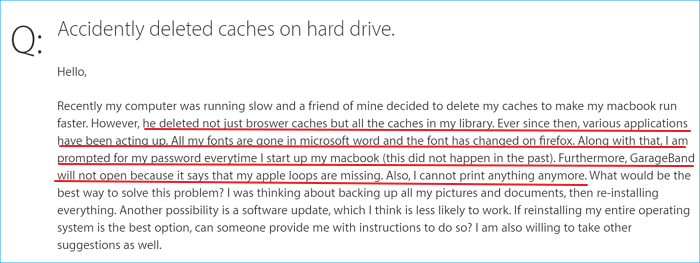
A user on Apple's forum inadvertently deleted caches on their Mac's hard drive, causing the system to malfunction.
How to Recover Deleted Cache Files on Mac
- Recover deleted browser cache files
- Recover deleted system file caches
Deleting necessary caches on Mac can be done incorrectly in two scenarios: clearing browser cache files, which contain history records, bookmarks, or passwords, and system files caches, which hold scripts, images, logs, temporary files, user account data, and startup disk information.
Browser caches on a Mac typically don't cause harm to the operating system itself, but can be problematic if accidentally deleted, requiring a full system recovery. On the other hand, system caches are often crucial for a normal startup and proper display of fonts, making it difficult to restore the system to a working state.
If you deleted cache files in browsers like Safari or Google Chrome, you can likely recover them from a synced iCloud backup or a recent Time Machine backup manually. Alternatively, you can use reliable third-party Mac data recovery software, such as Deep Data Recovery for Mac, which can automatically retrieve deleted files from your Mac's internal HDD or external devices like a camera SD card or a USB flash drive.
- Warning
- If you've deleted some caches on your Mac and are experiencing system corruption issues, prioritize backing up your important files and reinstalling your operating system. The method for recovering caches won't help restore your OS.
Guide: Recover deleted macOS caches folder, log files, library folders and browser history automatically
To recover deleted files on your Mac, download the trial version of Qiling Mac hard drive recovery software. After a complete scan, you can follow the correct path or locate the cache files you wrongly deleted.
Step 1. Launch Deep Data Recovery. Select file types and click "Fast Scan" to start the recovery process.

Note: You can choose different search modes based on where and why the data was lost.
Step 2. Select the location where your important data & files were deleted and click the "Scan" button.

Step 3. The software will conduct both a quick scan and a deep scan on the selected volume, working diligently to locate as many deleted files as possible.

Step 4. The scan results will be displayed in the left pane, allowing you to select the desired file(s) and click the "Recover" button to retrieve them.
Related Articles
- Mac Users' Guide - Fix Mac Black Screen of Death with 6 Solutions
- Fix Mac Not Recognizing Gopro With Quick Solutions
- Mac Hard Drive Recovery: Recover Files from Internal/External Hard Drive on macOS
- Does Updating macOS Delete Everything? No...but Yes!
- WhatsApp Not Receiving Messages: 8 Solutions
WhatsApp has become a popular social media platform, but it's not immune to technical issues. One common problem users face is not receiving messages, which can be frustrating, especially when important messages are missed. To resolve this issue, several solutions can be explored. - How to Fix PDF Blank Pages Problem [PDF Repair]
There may be several causes for PDF blank pages problems. We will learn the root reasons for this problem on this page and identify the most effective 5 fixes. We also covered one of the top PDF repair solutions to help you cure any PDF-related issues swiftly.
Products
Articles & Tutorials
- Data Recovery
- Data Backup
- File Recovery
- File Backup
- System Backup and Restore
- Disk and Partition Clone
- Technical articles
- Mobile articles
- Disk Master Help
- Windows Data Recovery Tutorials
- Windows Secure Delete Tutorials
- Windows Partition Management Tutorials
- Windows File Backup and Restore Tutorials
- Windows System Backup and Restore Tutorials
- Windows Disk Backup and Restore Tutorials
- Windows Clone Tutorials