How to Repair Windows 10 for Free with 6 Effective Ways
If your Windows 10 computer is not working well, failing to boot, or keeps crashing/freezing, you can try to repair it by running the built-in System File Checker (SFC) tool, checking for corrupted system files, and running a DISM scan to repair any corrupted system images. You can also try to reset Windows 10 to its default settings, or perform a clean install if the issue persists.
6Ways to Repair Windows 10 for Free
Try using SFC Scannow, Windows 10 Startup/Automatic repair, PC Reset, System Restore, etc. to fix Windows 10 problems for free.
| Workable Solutions | Step-by-step Troubleshooting |
|---|---|
| Repair with Startup Repair | Connect your prepared Windows 10 creation tool to your PC. Turn on your computer...Full steps |
| Repair Windows 10 Using SFC | Reboot your PC from the Windows installation media. On the Windows Setup window...Full steps |
| Repair Windows 10 with Repair Service | A secure way to repair Windows 10 without data loss is using manual Windows repair services...Full steps |
| Repair Windows 10 by Resetting PC | Boot into the BIOS/UEFI and set the first boot device as USB...Full steps |
| Repair with System Restore | Follow steps (1 – 6) in Method 1 to boot your computer from a prepared...Full steps |
| Reinstall Windows 10 to Repair | If you have tried all the solutions above and none of them can help...Full steps |
Recover Windows 10 Data Before You Repair Windows 10
To repair Windows 10, you may need to restore lost files and save them to an external hard drive to protect your data, and if you can boot into Windows 10, use Qiling hard drive data recovery software to recover documents, photos, videos, emails, and more.
If your PC fails to boot, you can use Deep Data Recovery Pro with Bootable Media to recover data without booting into Windows 10. This tool allows you to recover data by following a series of steps, including creating a bootable media, accessing the Deep Data Recovery Pro interface, selecting the drive to scan, and initiating the scanning process.
Step 1. Create a bootable disk
Before creating a bootable disk with Deep Data Recovery WinPE Edition, make sure to copy any important data from the USB to another device, as the process will erase the data on the USB. Then, you can proceed with creating the bootable disk on the empty USB.
Connect the USB drive to your PC, then launch Deep Data Recovery WinPE Edition. Select the USB drive and click "Create" to create a bootable disk.
Step 2. Boot from the bootable USB
Connect a bootable disk to a PC that won't boot, change the computer's boot sequence in BIOS, and restart the PC while pressing F2 to enter BIOS. This often resolves the issue.
To boot the PC from a device other than the hard drive, press F10 to save and exit the BIOS settings. This allows you to select booting from "Removable Devices" (such as a bootable USB disk) or "CD-ROM Drive" (such as a bootable CD/DVD) instead of the hard drive.
Step 3. Recover data from a hard drive that won't boot
When booting from a USB, you can run Deep Data Recovery from the WinPE bootable disk, then select the drive you want to scan to find all lost files.

Click "Scan" to start the scanning process.

After scanning, preview and recover the targeted files, and save them to another place to avoid data overwriting.

Method 1. Repair Windows 10 with Windows Automatic Startup Repair
Windows 10 won't load or crashes frequently, prompting you to take action. The first step is to utilize Windows Startup Repair, which is a built-in feature in Windows 10, 11, and 8 that can automatically diagnose and fix many common issues causing Windows to get stuck or freeze.
If Windows 11, 10, or 8 isn't running correctly, Startup Repair (formerly Automatic Repair) is your best option. Since your computer can't boot, you'll need to create a bootable USB to run Startup Repair. To do this, follow these steps:
Step 1. Connect your prepared Windows 10 media creation tool to your PC.
Step 2. Press the specific key (Esc/F1/F2/F8/F10) on your computer immediately after turning it on to enter the BIOS settings.
Step 3. To access the BIOS setup menu, the right arrow key is used to navigate to the "Boot" pane, and then the USB drive is moved to the top of the boot list.
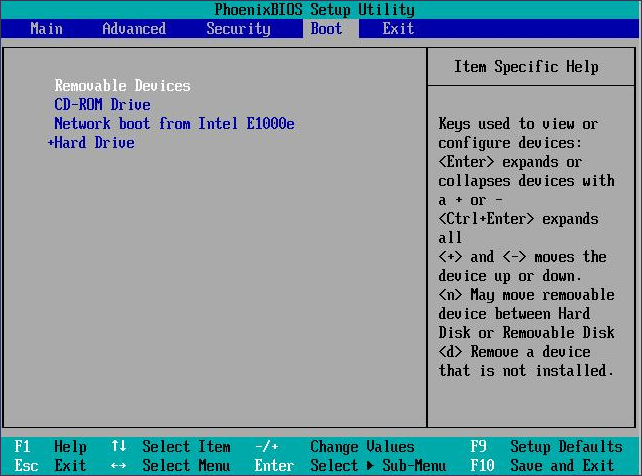
Step 4. Press F10 to save your settings and exit the BIOS.
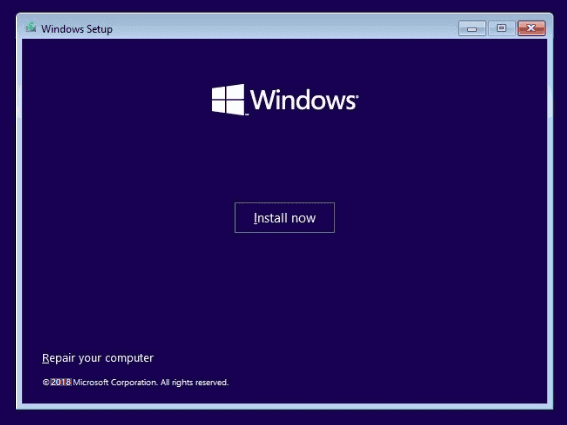
Step 5. Enter the Setup page. Set the language, time, and keyboard, then click "Next".
Step 6. Click "Repair your computer" at the bottom left.
Step 7. To troubleshoot Windows 10, go to the "Troubleshoot" menu, then select "Advanced Options", followed by "Startup Repair" and finally "Windows 10".
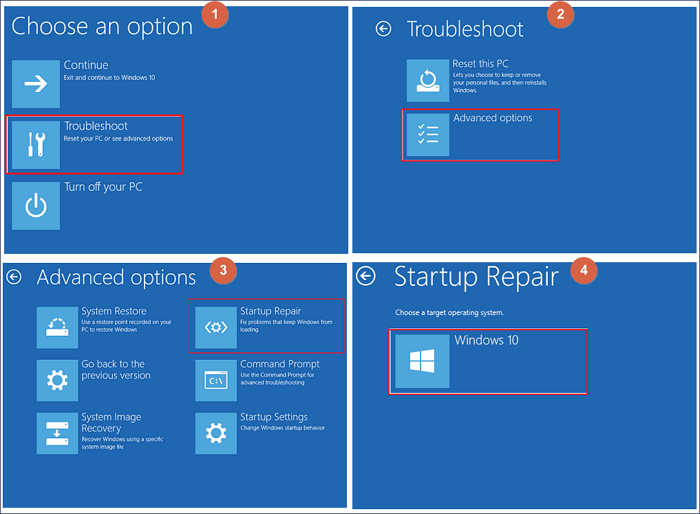
The Startup will scan your computer and repair any loading problems it detects, and once the process finishes, you can boot your Windows 10 computer to see if the issue is resolved. If the problem persists, you'll need to try another solution.
If you don't want to create a boot USB, you can turn your Windows 10 computer on and off three times to enter into the Windows recovery environment, then go to "Troubleshoot > Advanced Options > Startup Repair > Windows 10" to perform a Windows 10 repair.
Method 2. Repair Windows 10 with System File Checker & CHKDSK
If your Windows 10 PC stops working during boot or keeps crashing, some system files may be lost or corrupted. To repair Windows with the SFC tool, follow these steps: run the Command Prompt as an administrator, type "sfc /scannow" and press Enter, and then restart your PC and let the SFC tool run. This process may take some time, and you may be prompted to insert your Windows installation media.
Step 1. Reboot your PC from the Windows media creation media.
If you don't want to create an installation tool, you can boot into Safe Mode from a black screen to enter the WinRe to run the command below.
Step 2. On the Windows Setup window, choose "Next".
Step 3. To access the Command Prompt in Windows 10, go to "Repair your computer" from the Windows Recovery Environment, then select "Troubleshoot", followed by "Advanced options", and finally "Command Prompt".
Step 4. Type sfc /scannow and hit Enter.
Step 5. Type chkdsk /f /r /x C: and hit Enter.

If SFC can't retrieve good copies of files from the Windows 10 image due to corruption or errors, you can use the Windows DISM command-line utility to repair the Windows 10 install.wim image. Type the command `DISM /Online /Cleanup-Image /RestoreHealth` and hit enter to run it. This command will scan the Windows image for corruption and errors, and attempt to repair them. If the command fails, you can try running it with additional options, such as `DISM /Online /Cleanup-Image /RestoreHealth /Source:C:\RepairSource\Install.
DISM.exe /Online /Cleanup-image /Restorehealth
To resolve the issue, wait for the verification process to complete. Once it's done, restart your computer normally and see if it boots successfully into Windows 10.
Method 3. Repair Windows 10 with Windows Repair Services
To repair Windows 10 securely without data loss, manual Windows repair services can be used. Qiling's technical team can assist in resolving system startup errors, such as system failure, blue screen, black screen, and more.
Consult with Qiling data recovery experts for a one-on-one manual recovery service, which includes a free diagnosis, followed by a range of services such as manual recovery, data extraction, and more.
- Fix Windows boot issues, including BSOD
- Fix Windows error and configure Windows environment
- Restore the system when it fails to boot
- Optimize Windows computer to make it run quickly
Method 4. Reset Your PC to Repair Windows 10 for Free
To repair Windows 10, you can reset it from Boot. This process involves following a series of steps to restore your system to its original settings, effectively repairing any issues that may be causing problems. To do this, you'll need to access the Boot menu, select the Reset option, and follow the prompts to complete the process.
Step 1. Create a Windows 10 installation tool.
Step 2. To boot from a USB drive, enter the BIOS/UEFI settings, set the first boot device to USB, save the changes and exit. Then, insert the USB drive and restart the PC, which should now boot from the USB drive.
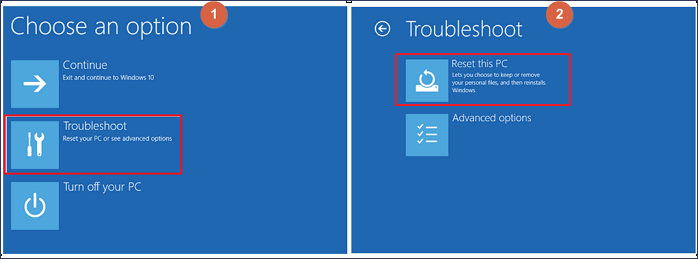
Step 3. The Windows 10 installation screen will appear as usual, but at the bottom left, look for the "Repair your PC" option.
Step 4. Here you can select "Troubleshoot > Reset This PC".
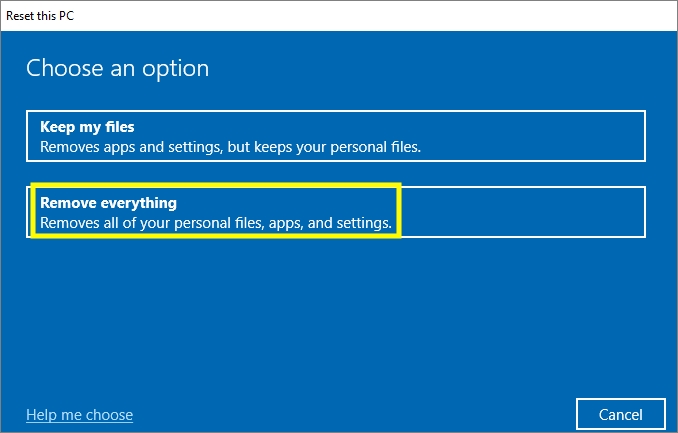
Step 5. Select the "Remove everything and reinstall Windows" option, and let the Windows Setup wizard complete the process.
After this, you can check your Windows 10 computer to see if it has run as a normal PC, with the latest updates and features.
Method 5. Perform a System Restore to Repair Windows 10
If your Windows computer keeps crashing or gets a blue screen of death, you can try repairing Windows 10 for free by performing a system restore. To do this, follow these steps: the steps outlined below.
Step 1. Follow steps 1-6 in Method 1 to boot your computer from a prepared USB flash drive and access the Windows Recovery Environment.
Step 2. Click "Troubleshoot > Advanced options > System Restore".
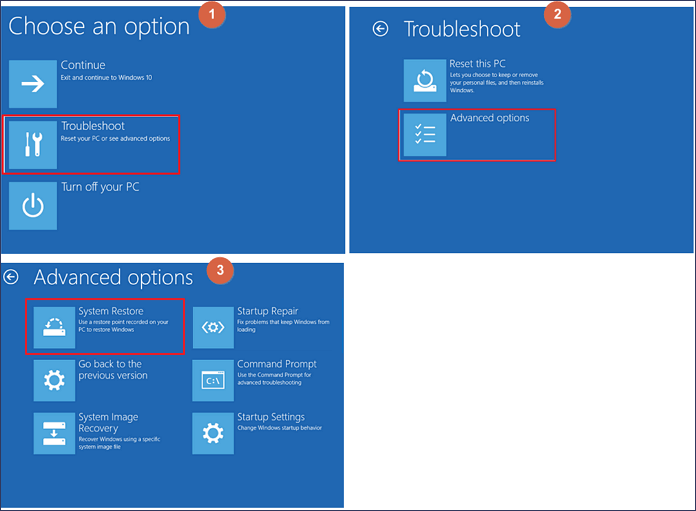
Step 3. To repair and restore Windows 10, follow the on-screen instructions provided by the Windows operating system. This process will guide you through the necessary steps to resolve any issues with your Windows installation.
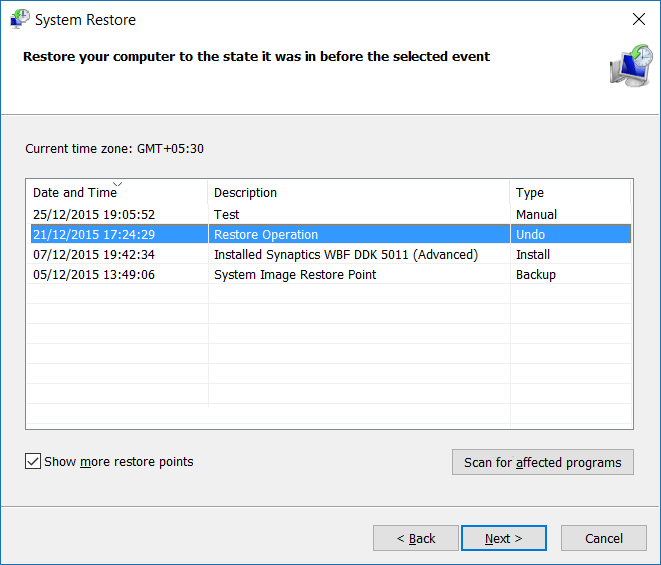
If your computer can boot normally, you can follow this guide to perform a system restore.
Method 6. Reinstall Windows 10 If Other Solutions Fail
If none of the solutions in this guide work, consider reinstalling Windows 10. You can either use a Windows installation media to reinstall the operating system or download the latest Windows 10 update to install Windows 10 fresh on your PC.
Follow this guide to fresh install Windows 10 >>
Conclusion
You can repair Windows 10 for free using various methods, including Windows 10 Startup Repair, SFC, Reset this PC, System Restore, and more. Once you've successfully repaired Windows 10 using these solutions, you can share your experience with others and let them know which method worked best for you. If you encounter data loss issues after repairing Windows 10, you can use Qiling data recovery software to easily recover your files.
Related Articles
- Recover Data from Formatted Transcend External Hard Disk/SD Card
- File Recovery Software to Restore Deleted Files on Dell Laptop
- Fix Unspecified Error When Copying File or Folder on Windows 10
- How to Fix Recuva Deep Scan Stuck or Frozen
- Top10 Best USB Repair Tool 2022 Update
Sometimes USB drives can get errors, but fortunately, there are several USB repair tools that can easily fix USB corruption. Qiling data recovery software can also help with USB data loss problems. Among the top 10 best USB repair tools, there are several options available to fix USB issues. - Top 10 Best Video Recovery Software [Free]
The best free video recovery software includes 10 top options that can be downloaded in full version, allowing users to choose the one that suits them best, with Qiling being a popular choice for recovering deleted videos with ease.
Products
Articles & Tutorials
- Data Recovery
- Data Backup
- File Recovery
- File Backup
- System Backup and Restore
- Disk and Partition Clone
- Technical articles
- Mobile articles
- Disk Master Help
- Windows Data Recovery Tutorials
- Windows Secure Delete Tutorials
- Windows Partition Management Tutorials
- Windows File Backup and Restore Tutorials
- Windows System Backup and Restore Tutorials
- Windows Disk Backup and Restore Tutorials
- Windows Clone Tutorials