Mac Video Repair | How to Repair Corrupt MOV, MP4 Files
You have a video file that is corrupted or damaged. This can happen due to various reasons such as a sudden power outage, a virus, or a software glitch. The file might become unplayable, and you might see an error message saying that the file is corrupted or damaged. In such cases, you can try to repair the video file using a video repair software.
Deleting files can sometimes cause unexpected corruption issues. To repair the video on your MacBook, try using a video repair tool like Video Repair or Stellar Repair Video. These tools can help identify and fix any corrupted data in the video file. If the issue persists, you can also try re-importing the video into your video editing software or using a different video player to see if the problem is specific to one program. Additionally, ensuring your MacBook's operating system and video editing software are up-to-date may also resolve the issue.
You can repair corrupted Mac videos with the best Mac video repair tool. Before doing so, it's helpful to understand the symptoms and causes of Mac file corruption, such as a video file becoming unresponsive, displaying error messages, or freezing. The causes can include a virus or malware infection, a faulty storage device, or a software glitch.
Symptoms and Causes of Mac Video File Corruption
A corrupted video file is a computer file that is no longer usable or operable due to damage or errors. You can identify a corrupted video file by looking out for signs such as inability to play the file, distorted or unclear video, audio sync issues, or the file not opening or crashing your media player.
Mac File Corruption Symptoms
- Unable to open video files
- Some of the video parts get missing
- It takes a long time to load or play this video
- The video is played in part and flashes away
- Different error messages pop up while opening or working
Mac Video Corruption Causes
- Sudden power off of your Mac
- Video header is damaged or broken
- Something goes wrong with your video player
- Improper operations when you are editing videos
Top Best Mac Video Repair Software
Now that you've learned about the symptoms and causes of video file corruption, it's time to explore the Mac video repair tools that can help you fix damaged video files. These tools can be a great help in repairing corrupted video files and restoring them to their original state.
Top 1. Qiling RepairVideo - Free Video Repair Tool
Qiling RepairVideo is a newly published online video repair tool that supports the repair of unlimited and multiple types of video files on various devices, including Windows and Mac computers, iPhones, and Android phones.
You can repair and make your video playable again as long as you have a browser.
Pros:
- Free
- Compatible with macOS, Windows systems, iSO, and Android systems.
- Easy to use
Cons:
- Currently, it only has an online edition.
Top 2. Stellar Video Repair Utility for Mac
You can also repair corrupt, broken, or unplayable videos using Stellar Repair for Video. It can fix video files that got corrupted during the shooting, transferring, editing, or conversion process.
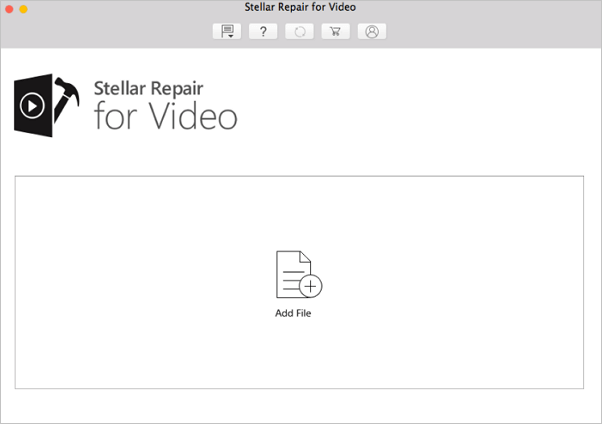
Pros:
- Fixes stuttering, flickering, blurry & other video problems
- Repairs severely corrupted video files by using sample files
- Previews repaired videos before saving
Cons:
- The free version of the video repair software does not allow users to save the repaired videos, but the paid version, which costs $49.99, offers this feature.
Top 3. Remo Repair MOV for Mac Users
If you are looking for easy-to-use software to repair a corrupted video, you can use Remo Repair MOV, a user-friendly video repair software that fixes issues with playback or audio lag, making it possible to recover and view your video again.
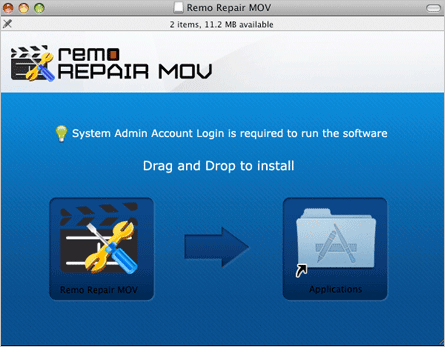
Pros:
- Repair corrupt, damaged, broken MOV files
- Descriptive yet straightforward user interface quickly fix MOV files
- Repair MOV files shot on any digital camera, drones, CCTV, and other devices with our reliable software solution. Our tool can fix corrupted or damaged MOV files, restoring them to their original format and making them playable again.
- Compatible with both Windows and Mac platforms
Cons:
- Only supports MOV files
- The paid version of the software allows users to preview repaired files, which is a key feature for those who need to verify the integrity of their data before saving it. This functionality is not available in the free version, and users must upgrade to the paid version ($69.97) to access this feature.
Top 4. Mac Video Repair Tool - Yodot MOV Repair
Yodot MOV Repair offers exceptional repair features to fix corrupt MOV, MP4, and M4V video files, ensuring a high success ratio and allowing quick repair of videos of any file size, with a preview option before saving.
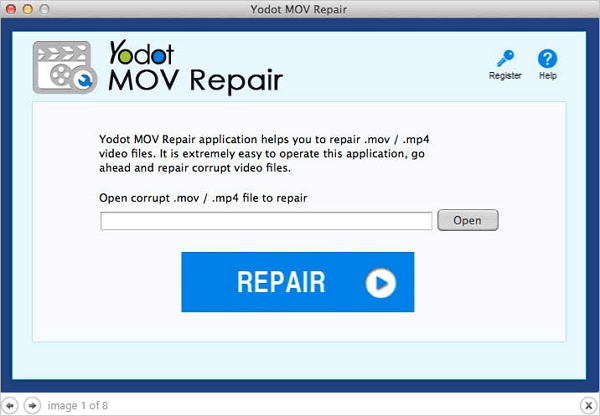
Pros:
- Easy-to-use
- Fixes audio issues
Cons:
- Limited file format support (Only MOV)
- No Advance repair for severely corrupt videos
- Expensive - $69.95 for the paid version
Top 5. Mac MKV File Repair Tool - Meteorite
Meteorite is a tool that can repair corrupted MKV files and make them playable, also allowing preview of Matroska files during download.
Pros:
- Free
- Compatible with Linux, Mac OS X, and Windows systems
Cons:
- You can only repair MKV files
- The old user interface for users
How to Repair Corrupted Mac Videos with the Best Video Repair Tool
Step 1. Open Qiling RepairVideo and Upload Problematic Video
To use Qiling RepairVideo, go to the repair.idiskhome.com page, click "Update Video" or drag and drop a corrupted, broken, or not playing video to the right area to upload.

Step 2. Enter a Valid Email Address and Start Repairing Video
Enter a valid email address and click "Start Repairing" to upload and repair the malfunctioning video.
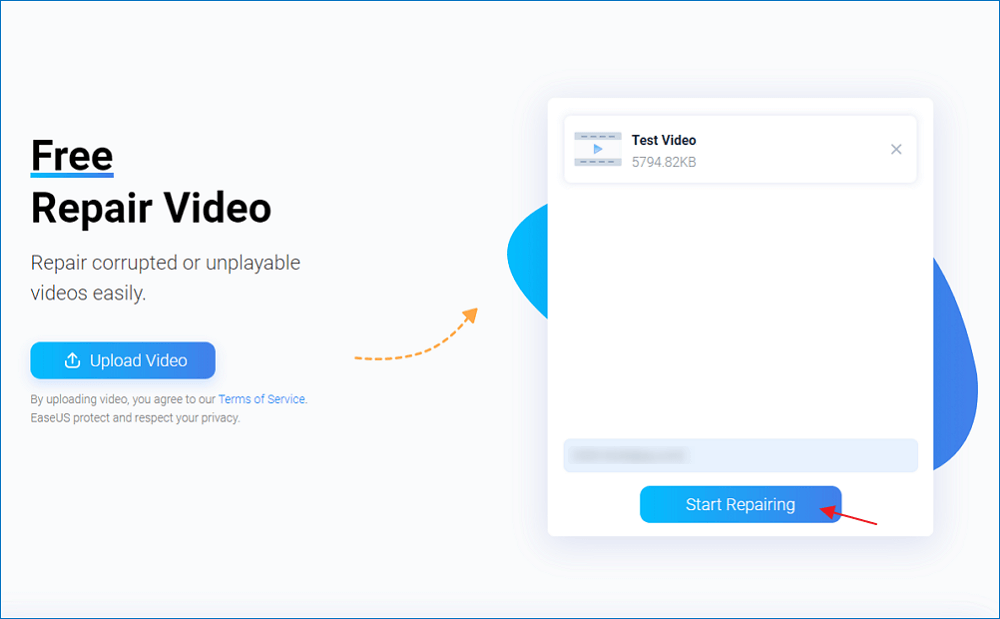
Step 3. Wait for the Automatic Uploading and Repairing Process to Finish
Qiling RepairVideo automatically uploads and repairs corrupted or broken videos for you, allowing you to leave the repairing page open and continue with other tasks.

Step 4. Enter Extraction Code and Download Repaired Video
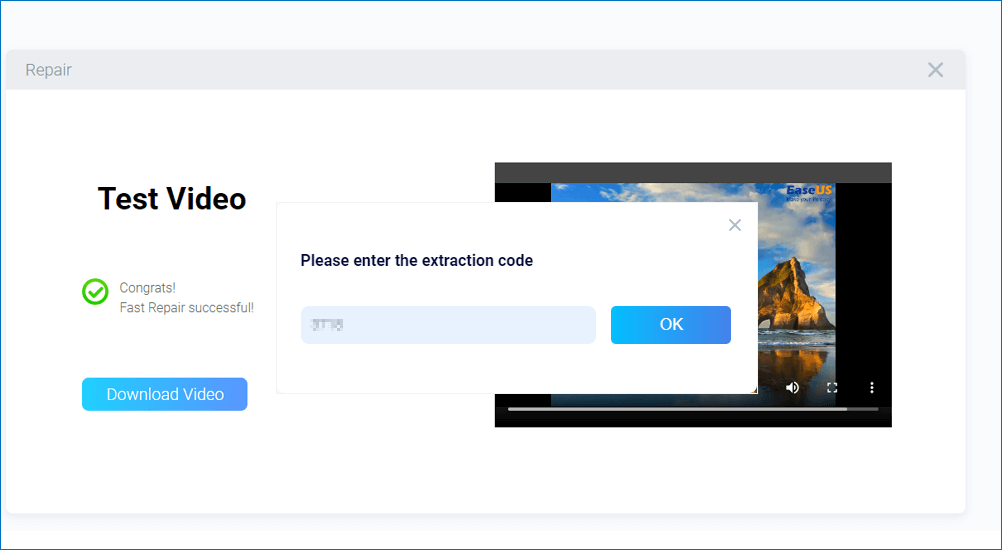
After the repairing process is completed, you can preview the video in the right pane and also receive an email with a video extraction code.
To repair and download a video, go to the Qiling RepairVideo page, click on "Download Video", enter the extraction code, and click "OK" to initiate the download of the repaired video.
Conclusion
If you're experiencing video corruption issues, you can easily repair these videos with the help of Mac video repair tools. There are five top-notch options available, with Qiling video repair software being a standout choice. This tool allows you to repair video files and restore lost video files from your Mac hard drive, external hard drive, or other devices.
Video Repair Frequently Asked Questions
1. Can VLC repair damaged video files?
When a video file is severely corrupt, VLC may not be able to repair it. In such cases, a dedicated repair tool is needed. For Mac users trying to repair MOV or MP4 videos, a specialized MP4 repair tool can help fix issues that VLC cannot, making it a useful option to have on hand.
2. Why is my video corrupted?
Corruption in video files can occur due to various reasons, including software or hardware issues, power failures, or file system errors. This can happen when a video file is being recorded, edited, or played back, and can result in a corrupted or unplayable file.
- A broken header
- Loss of internet connectivity
- Sudden power loss
- Wrong compression issues and more
3. What is the best video repair software?
Top 5 best video repair software for Mac:
- Deep Data Recovery for Mac
- Stellar Video Repair
- Remo Repair MOV
- Yodot MOV Repair
- Meteorite
Related Articles
- How to Recover Deleted Files with Mac Terminal & Alternative Ways
- Screenshots Management - How to Crop a Screenshot on Mac
- Foolproof Guidance: Get Old Versions of MacOS (2022)
- Multiple Choices - Fix macOS Can't Repair the Disk
- Fix Stuck at Windows Is Loading Files Loop
During the Windows setup process, users of Windows 7 or Windows Vista may get stuck at the “Windows is loading files” screen or experience a loop, preventing them from completing the setup. - Your PC Ran into a Problem and Needs to Restart in Windows 10/11
The blue screen error prompt 'Your PC ran into a problem and needs to restart' is a common error message. To resolve this issue, try one of the 11 standard fixes, which cover various problems that cause this error.
Products
Articles & Tutorials
- Data Recovery
- Data Backup
- File Recovery
- File Backup
- System Backup and Restore
- Disk and Partition Clone
- Technical articles
- Mobile articles
- Disk Master Help
- Windows Data Recovery Tutorials
- Windows Secure Delete Tutorials
- Windows Partition Management Tutorials
- Windows File Backup and Restore Tutorials
- Windows System Backup and Restore Tutorials
- Windows Disk Backup and Restore Tutorials
- Windows Clone Tutorials