4 Methods | Convert RAW to FAT32 for Micro SD Card/USB
Raw to FAT32 Conversion - Do it in quick steps:
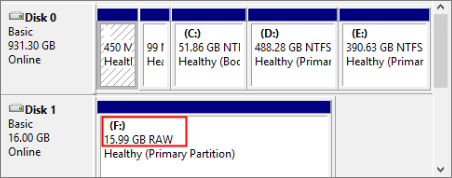
- Step 1.To recover data from a RAW SD card, USB, or external hard drive, follow the steps below. This process may also involve using a data recovery software or service, which can be an optional step.
- Step 2.Launch Qiling free partition manager and choose Format.
- Step 3.Configure the partition label and set the target file system to FAT32.
- Step 4. Click Apply to convert RAW to FAT32.
To fix a RAW device or convert RAW to FAT32 on an SD card, USB, or other storage devices, you can try the following methods. First, you can use the built-in Windows tool, Chkdsk, to scan and fix the errors on the device. If Chkdsk fails, you can use a third-party tool like Qiling Partition Recovery or MiniTool Partition Wizard to convert the RAW file system to FAT32. Additionally, you can try formatting the device using the built-in Windows format tool, but be aware that this will erase all data on the device.You need to format the disk Before using Drive, you need to format it. Do you want to format it? *: before you can use it."
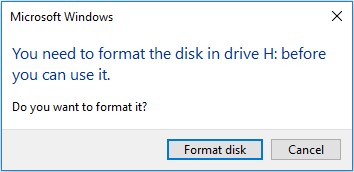
Don't rush to click the Format disk button, as it will cause data loss. Instead, follow the content below to find the best RAW to FAT32 converters that can fix RAW devices without losing any data.
How Do I Convert Raw to Fat32 without Losing Data
"Does anyone know how I convert raw to FAT32 without losing data on a USB drive? I have a 64GB SanDisk USB flash drive that saves about 20GB of files but it turns to RAW for no reason.
Is there a way that works to change the RAW file system to FAT32 on my USB and allows me to reuse those files again?"
A RAW file system, also known as RAW, indicates that a hard drive, SD card, USB, or external hard drive has no or an unknown file system, making it inaccessible and unable to open or access saved data.
How to Fix RAW Error? 4 RAW to FAT32 Converters Free Download
If a USB flash drive, SD card, or external hard drive shows as RAW, you won't be able to access the files on it. This can happen due to various reasons. Fortunately, there are ways to convert RAW to FAT32 or NTFS again, allowing you to access your files once more. In this context, you'll learn why storage devices become RAW and the methods to convert RAW to FAT32 or NTFS.
Why does your storage device become RAW?
When your storage device's file system is shown as RAW, it could be due to a corrupted file system, a faulty or failing hard drive, a virus or malware infection, or a power outage that interrupted the file system's formatting process. This can cause the device to become inaccessible and display as RAW in the file system.
- The device has not been formatted with a file system yet. This means that the device is in a raw, unorganized state, and no files or data can be accessed or written to it.
- The device's file system is not being recognized by the computer, which can be caused by a variety of factors such as a faulty USB cable, a corrupted file system, or an issue with the device's operating system. To resolve this issue, try using a different USB cable or port, checking the device's file system for errors, and ensuring the device's operating system is up-to-date.
- The file system of the device is missing or damaged
3 Tools to Convert RAW to FAT32
To fix a RAW USB, format or change the file system to a Windows-supported format like FAT32, NTFS, etc. This resolves the issue by allowing the device to be recognized and used by Windows.
4 tools that can help you execute the operation within only a few simple steps are available, allowing for a streamlined process.
- #1. The RAW to FAT32 Converter is a software that converts RAW file systems to FAT32, allowing users to access and use their SD cards, USB drives, and hard drives on a wider range of devices.
- #2. Convert RAW to FAT32 in Windows File Explorer - Beginners
- #3. Change the file system on a device from RAW to FAT32 in Disk Management.
- #4. Convert RAW SD/USB to FAT32 via DiskPart CMD.
- Notice:
- To avoid losing data, it's recommended to recover your files from the RAW file system device before converting it to FAT32 or NTFS. This ensures that your data is safely retrieved before the conversion process.
How to Recover Data from RAW SD Card, USB in Windows
To prevent data loss, it's essential to transfer all valuable files from the RAW device to a secure external storage device before converting the RAW file system to FAT32. This ensures that important data is preserved and can be accessed again after the conversion process.
If you don't need to perform RAW data recovery, you can skip the recovery process and directly convert the RAW file system to FAT32 using alternative methods.
To recover data from a RAW SD card, USB, external hard drive, or other storage devices, you'll need to use a reliable data recovery software.
Deep Data Recovery's Quick Scan and Deep Scan features can thoroughly scan and rescue a RAW drive, successfully finding all your precious files. This video guide demonstrates how to recover data from RAW SD cards or USB flash drives using Qiling data recovery tool, providing a step-by-step solution to fix your problem.
To recover files from a RAW device, follow these simple steps: simply download and install a reliable data recovery software, then connect the RAW device to your computer, and finally, follow the software's instructions to scan and recover your files with just three clicks.
Step 1. Launch Deep Data Recovery on your PC, and click "Fast Scan" to begin the process.
Launch Deep Data Recovery, allowing for quick filtering of scanned files by category, such as Pictures, Videos, Documents, and Audio.

Note: You can choose different search modes based on where and why the data was lost.
Step 2. Select and scan the RAW partition
If the RAW partition has a label, you can select it from the drive list and click "Scan" to search for lost files. If the RAW partition is unlabelled, it will be listed as "Lost Partition" and you can select it and click "Scan" to perform a full scan of the drive.

Step 3. Preview found data from the scan result
After the scan is completed, all available files in the RAW hard drive will be displayed, allowing you to view and find the files you want to recover. You can sort the scanned data by file format or search directly in the "Search files or folders" box.

Step 4. Recover data from RAW partition
To recover data from a RAW drive, select all files and click "Recover" to retrieve all the data. Then, select another internal or external hard drive to save the recovered data and click "OK" to initiate the RAW drive recovery process.
Qiling data recovery software supports various recovery scenarios, including OS crash, virus attacks, lost partitions, and RAW drive recovery, making it a reliable option. Additionally, manual data recovery services are available for complex situations.
Consult with Qiling data recovery experts for one-on-one manual RAW recovery service, which includes a free diagnosis followed by the following services:
- Repair damaged RAW drive without formatting
- Recover data from the RAW drive, including BitLocker encrypted drives
- Recover RAW partition, RAW USB, RAW flash drive, RAW external hard drive, and other RAW storage devices by using a reliable data recovery software. The software can scan the RAW device and recover lost data, including files, folders, and other digital content.
After extracting all your previous data from the RAW drive, you can proceed to the next tutorials to convert the RAW device to FAT32 without risking any data loss.
Method 1. Use Third-party RAW to FAT32 Converter for SD, USB, Hard Drive
Best for:All levels of Windows users.
Qiling Partition Master is a free partition software that can convert a RAW storage device to FAT32 or other file systems using its Check File System and Format features.
#1. Check and Fix RAW File System Error
After this, open File Explorer and check if your device is accessible again. If the device still displays as RAW, continue with the steps below.
#2. Format RAW to FAT32 on SD, USB
Step 1.Launch Qiling Partition Master, right-click the partition you intend to format and choose "Format".
Step 2. In the new window, enter the Partition label, choose the file system, set the cluster size, and click "Proceed".
Step 3. After clicking "OK", you will see a window prompting you to format the partition. Select the partition you want to format and choose the file system you want to use (FAT32, EXT2, EXT3, or EXT4) from the drop-down menu.
This tool converts RAW to FAT32, and also offers additional features for partitioning hard drives and optimizing computer performance.
Now, your SD card or other storage devices is no longer RAW. It's available for you to save the previous recovered data back on the drive again.
Method 2. Convert RAW to FAT32 in Windows File Explorer
Best for: Windows beginners, easiest.
For beginners, the error message "You need to format the disk... Do you want to format it" can be confusing. Some may click "Format disk" without understanding the consequences, formatting the RAW drive to a Windows-supported file system. However, formatting a RAW drive without properly preparing it can lead to data loss or corruption, making it essential to understand the implications of this action before proceeding.
If you clicked the Format button, complete the formatting. Deep Data Recovery with the data recovery steps presented can help.
If you clicked the Cancel button, we suggest you revert to the tutorial and let Qiling hard drive recovery software scan and find all your files first. Then, you can follow the steps here to convert RAW to FAT32 for your micro SD card, USB, etc., in Windows File Explorer.
Step 1.Connect the RAW device to your PC.
Step 2.To format a RAW USB or SD card, open File Explorer, locate the device, right-click on it, and select the "Format" option.
Step 3.Set the FAT32 file system as the target, select "Quick Format" and click "Start" to convert RAW to FAT32.
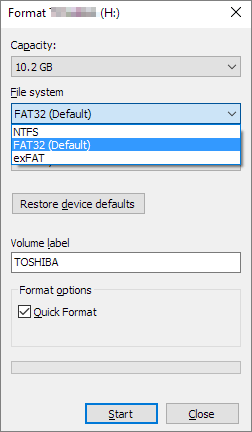
The drive has been reformatted with the FAT32 file system. You can now save the restored data back to your device.
Method 3. Change RAW File System on Device to FAT32 in Disk Management
Best for: Experienced users that uses Windows 10/8/7/XP, etc.
When your SD card, USB, or external hard drive becomes RAW, it can still be recognized by your computer, allowing you to format it to FAT32 using Disk Management.
Here are the steps to format RAW device to FAT32:
Step 1. Connect your RAW USB, SD card to PC.
Step 2. Right-click on "This PC" > Select "Manage" > Click "Disk Management".
Step 3. Right-click the RAW USB, SD card and choose "Format".
Step 4. Set the file system to FAT32, NTFS or exFAT based on your requirements, and then click "OK".
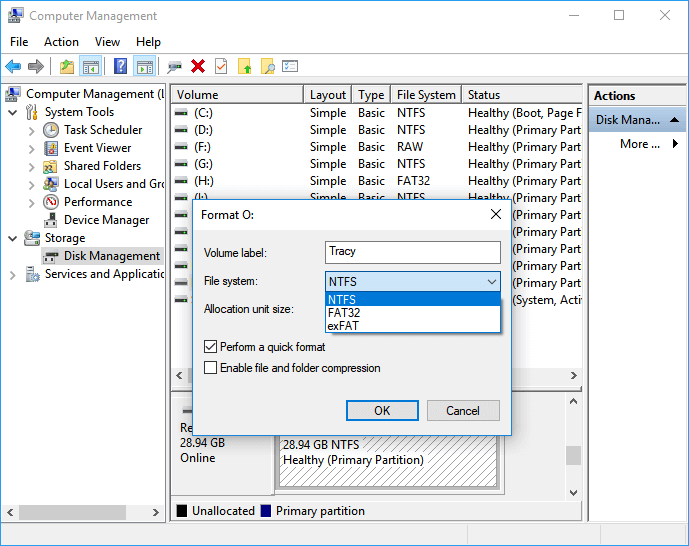
When the formatting completes, close Disk Management. Your device is no longer RAW and you can save data on the device again.
Method 4. Convert RAW SD/USB to FAT32 via DiskPart CMD
This tool is best suited for administrators and experienced Windows users who are familiar with DiskPart CMD commands. It can be challenging to use, especially for those who are not familiar with the commands.
For advanced users and administrators, converting RAW to FAT32 can be done using DiskPart CMD commands. This method may be preferred over other options.
The "convert" command will result in a notification saying "chkdsk is not available for RAW drives" when used.
Therefore, instead of using the "convert" command, you should apply the "format" command to convert RAW to FAT32 in DiskPart. Here are the steps to convert RAW to FAT32 using CMD:
In Command Prompt, you can also use the diskpart command to convert RAW to FAT32 by formatting:
Step 1. Connect RAW drives, USB, or SD card to your computer.
Step 2. Press Windows + R keys, type cmd and hit enter.
Open Command Prompt as an administrator.
Step 3. Type diskpart and hit Enter.
Step 4. Type the following commands and hit Enter each time:
- list volume.
- select volume X (Replace X with your RAW device.)
- format fs=fat32 quick
Step 5. Enter exit to quit DiskPart.
When the process is complete, close the window and check the file system of your SD card, USB, or external hard drive by right-clicking the device and selecting "Properties". It should now be FAT32.
The Bottom Line
This page explains what a RAW file system is and what to do if your Windows computer detects a RAW SD card or RAW USB flash drive. We also provide 4 reliable RAW to FAT32 converters to easily fix RAW devices.
To avoid losing important files, use a reliable data recovery software like Deep Data Recovery to scan and restore files from the RAW device.
To convert RAW to FAT32, you can use a reliable method such as formatting the drive using a computer or a dedicated formatting tool. This process will erase all data on the drive, so make sure to back up any important files before proceeding. Once formatted, the drive will be converted to FAT32, allowing you to use it with devices that support this file system.
RAW to FAT32 Conversion FAQ
If you have further questions about file system conversion, check the questions and answers below to see if you can find a quick solution.
1. How do I convert fat32 to ntfs?
To convert a FAT32 device to NTFS, you can either use the built-in Convert tool in Windows or a third-party software like Qiling Partition Master. The Convert tool is a built-in Windows utility that allows you to convert a FAT32 volume to NTFS, but it may not work on some systems or devices.
- Format FAT32 to NTFS manually
- Convert FAT32 to NTFS using Qiling partition manager software
For a step-by-step guide, you may refer to Convert FAT32 to NTFS for help.
2. Can exFAT be converted to FAT32?
To convert your exFAT device to FAT32, you can follow these steps. First, you'll need to format the device, which will erase all data on it.
- First, back up important data to another location.
- To convert an exFAT to FAT32, you can use the Qiling exFAT to FAT32 converter, Disk Management, or CMD for assistance.
- Convert exFAT32 to FAT32 by formatting.
3. If Windows was unable to complete the format, try restarting the computer and then running the format command again. If the issue persists, try running the format command in the Command Prompt with administrator privileges.
Windows may fail to complete the format process on your device due to various reasons, including a "RAW file system error", bad sectors, or a virus/malware infection. Additionally, if the device is locked or has other issues, it may also prevent the format process from completing.
To resolve the issue and complete the formatting on your device, you'll need to seek professional help. Check out 7+ Fixes for Windows was Unable to Complete the Format in 2020 for a solution.
Related Articles
- Full Guide on SATA Hard Drives
- Fixes for The Type of the File System Is RAW, CHKDSK Is Not Available for RAW Drives
- Zoom Meeting Disappeared for No Reason? Fix It and Recover Zoom Meetings Now
- [Error 5] Unable To Execute Files In The Temporary Directory
- How to Recover Deleted OneNote Files
This page introduces you how to recover deleted OneNote files via Notebook Recycle Bin or third-party recovery tool when Notebook Recycle Bin is unavailable. - Undo DiskPart Clean: Recover Data/Partition after DiskPart Clean
If DiskPart's clean command has deleted data and a partition on your Windows 10/8/7. You can undo the DiskPart clean and recover the deleted data and partition using one of three practical methods outlined on this page.
Products
Articles & Tutorials
- Data Recovery
- Data Backup
- File Recovery
- File Backup
- System Backup and Restore
- Disk and Partition Clone
- Technical articles
- Mobile articles
- Disk Master Help
- Windows Data Recovery Tutorials
- Windows Secure Delete Tutorials
- Windows Partition Management Tutorials
- Windows File Backup and Restore Tutorials
- Windows System Backup and Restore Tutorials
- Windows Disk Backup and Restore Tutorials
- Windows Clone Tutorials