How to Recover Permanently Deleted AOL Emails Older Than 7 Days
Quick access your deleted AOL email with the following methods:
| Workable Solutions | Step-by-step Troubleshooting |
|---|---|
| Fix 1. Recover from Trash Folder | Go to AOL.com > "envelope" > Sign in with your AOL account > Click "Trash"...Full steps |
| Fix 2. Recover from AOL Server | Contact the AOL email server administrator to roll back for email recovery...Full steps |
| Fix 3. Use Email Recovery Software | Run Qiling email recovery software > Scan local AOL email drive > Restore lost emails...Full steps |
Overview of Deleted AOL Email Recovery
Many users have accidentally deleted important AOL emails, leading to anxiety and depression. However, there are solutions available to recover deleted or permanently deleted AOL emails, allowing users to rescue their important information.
How to Recover Deleted AOL Emails from Trash Folder
If you accidentally deleted emails in AOL Mail, they may be recoverable from the Trash folder, which keeps deleted emails for up to seven days before they are permanently deleted.
1. To access AOL Mail, go to AOL.com, click on the "envelope" icon in the top left corner, and then sign in to your AOL account.
2. To view deleted emails, click on the "Trash" icon in the left panel, which will open the Trash folder and display all emails deleted in the last seven days.
3. To recover AOL emails, select the desired emails, click on the "Action" button above, and from the pull-down menu, choose "Inbox" under the "Move To" group of commands.
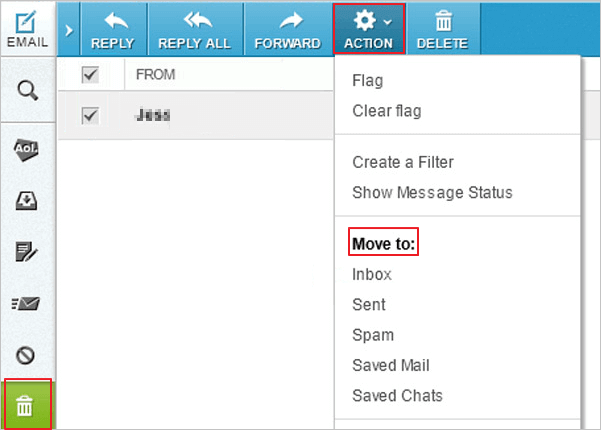
To recover deleted emails in AOL Mail, go to the Trash folder, select the email you want to recover, and click 'Restore' or 'Move to Inbox'. This will move the email back to your Inbox, where you can access it again.
How to Recover Deleted AOL Emails Older Than 7 Days
If you've deleted emails in AOL over seven days and later realize their importance, you can try to retrieve them, but the chances of success vary. Permanently deleted emails can be recovered if they're stored in a location where AOL still has access to them, allowing you to recover them, but this is not always the case. We'll explain two scenarios for recovering permanently deleted emails from AOL.
Recover Permanently Deleted Emails from AOL Server
If you use AOL Mail, your emails are stored on the AOL server, not on your computer. This means that if you delete an email online, you can contact the AOL server administrator to help recover the email. This is the only way to recover online deleted emails.
Recovering mail from a mailbox server is a paid service that can be expensive, and its success rate may be low for individual users. Therefore, this method is not very practical. We highly suggest trying the alternative method instead.
Recover Permanently Deleted Emails from AOL with Email Recovery Software
If you delete an email online, it's difficult to recover it. However, if you have AOL Mail connected to Outlook on your computer, the deleted email data is stored locally, and you can use a professional email data recovery program to restore the lost emails from AOL.
Deep Data Recovery is a software that allows you to recover permanently deleted emails from local PST or OST files, enabling you to restore deleted emails from AOL older than seven days.
Step 1. Launch Deep Data Recovery on your PC. Select the file types you want to recover and click "Fast Scan" to begin the recovery process.

Note: You can choose different search modes based on where and why the data was lost.
Step 2. To recover lost email files, select the drive or partition where the files were stored, and then click the "Scan" button.

Step 3. The software will start scanning immediately, and you should wait for the process to finish. To quickly locate the email files, click "Others" in the left panel and look for PST files or Outlook files in the file type list.

Step 4. To recover corrupted email files, select the desired files, click "Recover", and save them to a different location to avoid overwriting the original files.
Import PST/OST files into Outlook
After the email recovery is complete, you can import the recovered AOL emails into Outlook to use them again. To do this, you can follow either of the methods below.
1. To import emails from another email client into Outlook, start Outlook, go to "File" and select "Open & Export", then choose "Import/Export" and select "Import from another program or file", and finally choose "Open Outlook Data File".
2. To move emails, contacts, and other folders from a .pst file into your existing Outlook folders, navigate to the navigation pane and drag and drop the desired items from the .pst file into your Outlook folders.

Qiling offers an ultimate Exchange Recovery tool that quickly recovers and repairs corrupted Exchange Server mailboxes (EDB) files and contents, supporting Exchange Database of 2019, 2016, 2013, and 2010.
Related Articles
- Recover Hidden Files From External Hard Disk
- How to Delete a Page in Word 2019, 2016, 2013, 2010
- Remove Shortcut Virus from USB, Pen Drive, SD Card, Hard Drive
- 5 Free Excel Password Remover Online to Unprotect Excel Workbook
- How to Restore Desktop Background/Wallpaper in Windows 10/11
If your desktop wallpaper has disappeared or been lost on your Windows 10/8/7 laptop or computer. - A Complete Guide to Recover Deleted Files
If you're looking to recover deleted files on Windows 10, use this guide. It provides a comprehensive solution for recovering deleted files not only on Windows 10 but also on Windows 11, Mac, iPhone, Android, SD cards, USB flash drives, and even Google Drive.
Products
Articles & Tutorials
- Data Recovery
- Data Backup
- File Recovery
- File Backup
- System Backup and Restore
- Disk and Partition Clone
- Technical articles
- Mobile articles
- Disk Master Help
- Windows Data Recovery Tutorials
- Windows Secure Delete Tutorials
- Windows Partition Management Tutorials
- Windows File Backup and Restore Tutorials
- Windows System Backup and Restore Tutorials
- Windows Disk Backup and Restore Tutorials
- Windows Clone Tutorials