Recover Deleted Volume Windows 10/11
How can I recover deleted volume in Windows 10/11
You accidentally deleted the volume on your portable hard drive using Disk Management on Windows 10, resulting in the loss of all data, including family pictures, music videos, wedding videos, and important documents.
Unfortunately, the information provided does not contain enough details to determine the feasibility of recovering the deleted volume and files. However, in general, the recovery of deleted data from a FAT32 formatted hard drive is possible. This can be done using data recovery software, which can scan the drive for recoverable files. It is recommended to stop using the drive immediately to prevent any further data overwriting. If you need help with recovering your files, I can provide you with more specific guidance.
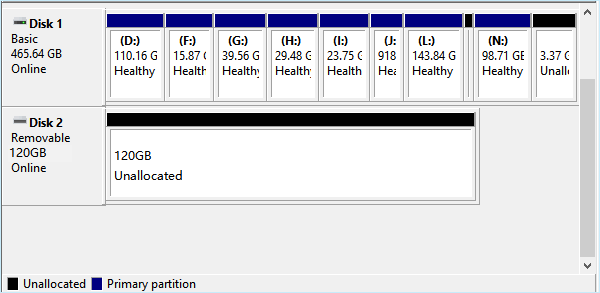
If you've accidentally deleted a volume or partition on a hard drive or portable external hard drive in Windows 10, don't worry - you can restore it. After deleting a volume or partition, the top concerns are usually what to do next and how to recover the deleted volume. Fortunately, you can recover deleted volumes or partitions on both internal and external hard drives in Windows 10.
You can use a partition recovery software to easily recover lost volume and files in Windows 10.
What to do after deleting volume or partition
After deleting a volume in Windows on a hard drive or external storage device, it's essential to take immediate action to prevent further data loss. To protect your data, you should immediately stop using the device to prevent any accidental overwrites. Next, you should consider using data recovery software to scan the deleted volume for recoverable files.
1. Stop using the hard drive or portable storage device
Immediately stop using a hard drive or portable device after losing or deleting a partition on it, and avoid saving data or creating a new partition to prevent overwriting the lost partition data.
2. Don't trust cmd free partition recovery tips
The cmd command is unable to recover a deleted or lost partition. Instead, it can only restore a deleted or lost drive letter, making a disappeared partition visible again.
3. Turn to professional partition recovery software or tool for help
You can try searching for a reliable partition recovery tool or software, such as Qiling Partition Recovery, which has a new UI design and improved features, to scan and preview the lost partition content before paying any money.
Tutorial: recover deleted volume in Windows 10/11
Recovering a deleted volume in Windows 10 is not difficult with the right tool. Qiling Partition Recovery can effectively recover all files together with the deleted volume, making it a reliable solution for this task.
As a wizard-The utility provides assistance to all levels of users, even those with little technical skills or volume recovery experience, to complete the recovery job. It can be installed on your PC to start the Windows 10 deleted volume recovery process.
A step-by-step guide to recover deleted volume
Connect the portable hard drive on which you lost volume to your Windows 10 PC in advance. Then, open File Explorer, right-click on the portable hard drive and select Properties.
Step 1. Run Qiling Partition Recovery on your PC.
To recover lost partitions, select the disk or device where the partitions were lost, then click "Scan" to proceed with the recovery process.
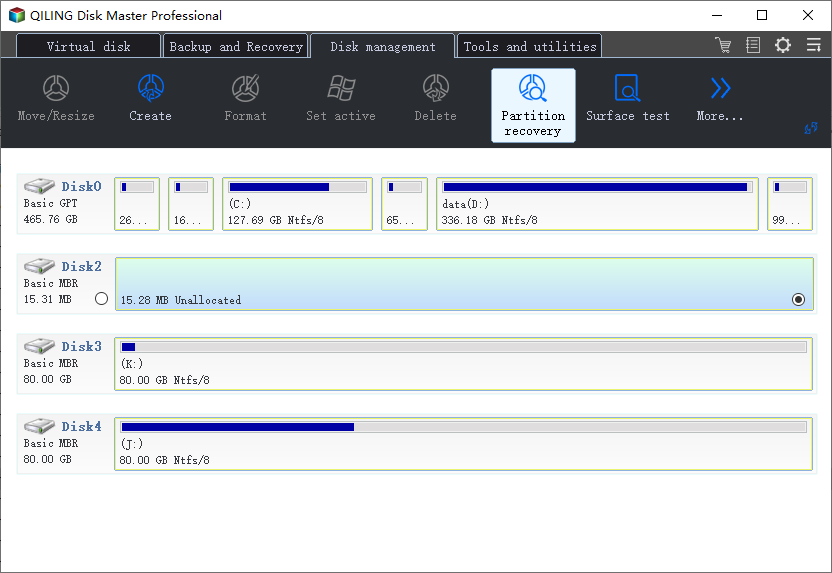
Step 2. Wait for the scanning process to complete.
The program will scan the selected disk and find the lost partition(s) by running a disk scanning process, which will search for any existing or deleted partitions on the disk. This process will attempt to locate and identify any partitions that may have been deleted, corrupted, or are no longer visible in the operating system.
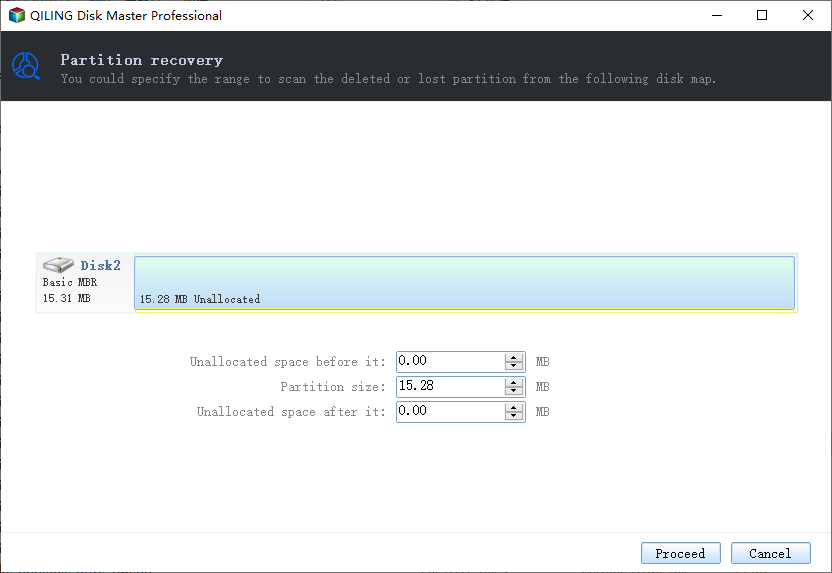
Step 3. Preview and restore the lost partition(s).
Double-click on the partition which is marked as "Lost" with "Good" recoverability.
Preview the lost partition, then click "Recover" to start the restoration process.
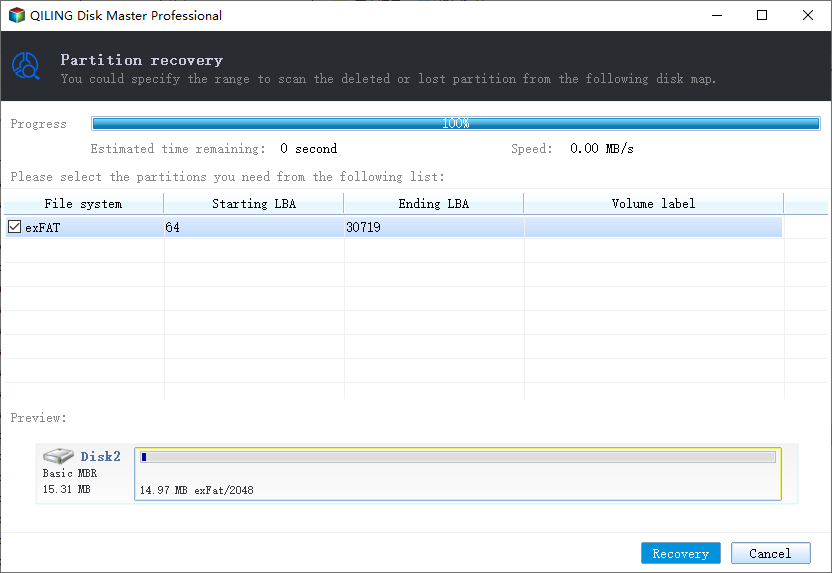
If you're experiencing issues with a partition and need to restore it, first back up any essential data from the partition to an external hard drive to avoid data loss. Once the data is safely backed up, you can proceed with the final operation to restore the lost partition, taking care to resolve any conflicts that may arise during the process.
Once the process is complete, you can access your drive using File Explorer to verify the recovered files and reuse them as needed.
Bonus tip for partition file recovery
If your lost files in the retrieved volume fail to show up, don't panic. Qiling data recovery software can help, as it also works to recover files from lost partitions.
Step 1. Select file types
Launch Deep Data Recovery. Select the desired file types and click "Fast Scan" to initiate the recovery process.

Note: You can choose different search modes based on where and why the data was lost.
Step 2. Select and scan the lost partition
To recover lost data, select "Lost Partition" and click "Scan" to search for all the lost data. If multiple lost partitions are found, you can identify them by their partition size.
Since the Windows system doesn't support the Linux file system, the Ext2 or Ext3 partition will be recognized as a lost partition with no drive letter. To recover data from an Ext2/Ext3 partition, follow these steps.

Step 3. Filter the scanned results
You can quickly filter scanned files into categories like Pictures, Videos, Documents, Audio, and Others. Alternatively, you can use the search box in the upper right corner to find a specific file by its name.

Step 4. Preview and recover data from the lost partition
Before recovering the data, you can preview the files to ensure they are the ones you need. Select all the files required and click "Recover" to restore them.
Tips to prevent partition loss and protect partition data
Here are some useful tips to protect your partition and data from loss:
1. Back up essential partition data in advance
If you regularly create disk partition backups, it can help prevent partition loss or data loss issues. Qiling Backup, a professional backup software, allows you to back up entire partition data in a few simple steps, effectively safeguarding your data.
Step 1. To initiate a disk/partition backup, click the "Disk/partition backup" button located on the "Backup and recovery" page. This will start the backup process.

Step 2. It is available to back up a whole disk or a certain partition. Choose the one you need.

Step 3. Select the destination where you want to save the backup.

Step 4. For disk/partition backup, you can choose to save the backup to either a local drive or a Network-Attached Storage (NAS) device.
Step 5. After clicking "Proceed", the backup process will start. Once completed, the task will be displayed at the left, allowing further management such as recovering the backup, creating incremental backups, and more.

2. Operation with caution on hard drive partition or external storage devices
Careful operations on hard drive partition and external storage devices can help prevent partition loss issues.
It's also helpful to use antivirus software to remove malware and protect your partition from virus infection, in addition to the previous points.
Related Articles
- How to Fix Deep Data Recovery Crashes, Stuck, Hangs and Freezes Up Error
- How to Fix Buffalo External Hard Drive Not Working/Recognized
- How to Enable/Disable Windows Boot Manager in Windows 11/10
- How to Delete Files That Won't Delete
Wanna know how to delete files that cannot be deleted? Here in the article, 3 ways for how to delete files won't delete are covered for your reference. - How to Delete Files Without Sending to Recycle Bin
Are you looking for ways to delete files without them ending up in the recycle bin? Look no further!
Products
Articles & Tutorials
- Data Recovery
- Data Backup
- File Recovery
- File Backup
- System Backup and Restore
- Disk and Partition Clone
- Technical articles
- Mobile articles
- Disk Master Help
- Windows Data Recovery Tutorials
- Windows Secure Delete Tutorials
- Windows Partition Management Tutorials
- Windows File Backup and Restore Tutorials
- Windows System Backup and Restore Tutorials
- Windows Disk Backup and Restore Tutorials
- Windows Clone Tutorials