Recover Files from a Dead/Crashed iMac with Qiling Data Recovery
| Workable Solutions | Step-by-step Troubleshooting |
|---|---|
| 1. Recover and transfer data | Buy Deep Data Recovery Pro, and...Full steps |
|
2. Repair and Boot Dead iMac |
1. Repair Mac hard drive by using disk utility...Full steps 2. Repair Mac startup drive by using FSCK...Full steps |
"I accidentally unplugged my iMac today while it was still running and without shutting it down. It was working perfectly fine until I did this even though it is five years old. Now it won't turn on, completely dead, no noise, light, fan. I am panicking as I can't remember the last time I backed up and have thousands of family photos and videos."
The iMac is an Apple computer designed for consumers and education markets, known for its distinctive and award-winning design. Its ease of use has made it a standout product, earning numerous awards each year.
The iMac, despite its prestige, is not immune to damage, and when it suddenly crashes while editing long articles or running crucial programs, it can be a nightmare for users, making it necessary to use a reliable Mac data recovery tool like Qiling Mac Data Recovery.
Content
What results in the iMac that won't startup
To recover and transfer data from a dead iMac, start by connecting an external hard drive or a USB drive to the iMac and turning it on. If the iMac boots up, use the built-in disk utility to create a bootable clone of the internal drive.
To repair a dead iMac and make it bootable, start by unplugging the power cord and pressing the power button to discharge any residual power. Next, remove the hard drive and any other peripherals, and use a Torx screwdriver to remove the logic board screws.
What results in the iMac that won't startup
- Antivirus software
- Non-compatible system with upgraded hardware
- System errors
- Hard disk bad sectors
- Junk files
- Disk fragmentation
When your iMac is damaged, transfer your data to a safe location first, then proceed with repairing the device.
Procedure 1: Recover and transfer data from dead iMac to A Safe Place
Qiling Data Recovery has a startup disk that can recover files from crashed iMac. If your iMac doesn't have a boot disk, you can use Qiling Data Recovery to create a startup disk and recover your files.
Step 1: Buy Deep Data Recovery Pro, and then contact customer service to get a boot disk download address.
Step 2: To make a bootable disk, you'll need an empty USB drive and to follow a software process.
Step 3: To recover data from a Mac, start by booting the computer and accessing the boot settings. Click the right and left buttons to change the booting order, then install and launch Qiling Mac data recovery software. This will allow you to access and recover your lost data.
How to use Qiling Data Recovery
Step 1. Launch Qiling file recovery software on your Windows computer. Select file types and click "Fast Scan" to start the recovery process.

Note: You can choose different search modes based on where and why the data was lost.
Step 2. Select the disk location where you lost data and click the "Scan" button.

Step 3. Deep Data Recovery for Mac scans the selected disk volume and displays the results on the left pane, allowing users to quickly identify the recoverable files.

Step 4. To recover your files, select them in the scan results and click the "Recover" button. This will restore them to their original state.
Procedure 2: How to Repair Dead iMac and Make it Bootable
The computer that won't boot also has some different treatment methods. We will recommend two repair methods to you.
1. Repair Mac hard drive by using disk utility
If your Mac's hard disk won't boot, you can try to restore it by launching Disk Utility through macOS Recovery mode.
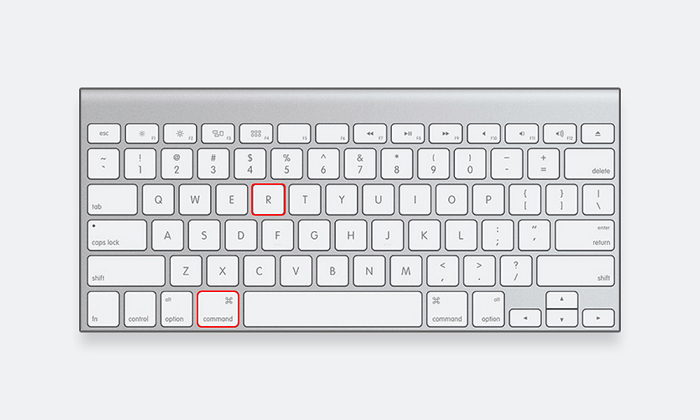
Step 1: To start your Mac in macOS Recovery mode, turn it on and immediately press and hold the Command+R keys. Release the keys when the Apple logo appears, and your Mac will start the recovery mode.
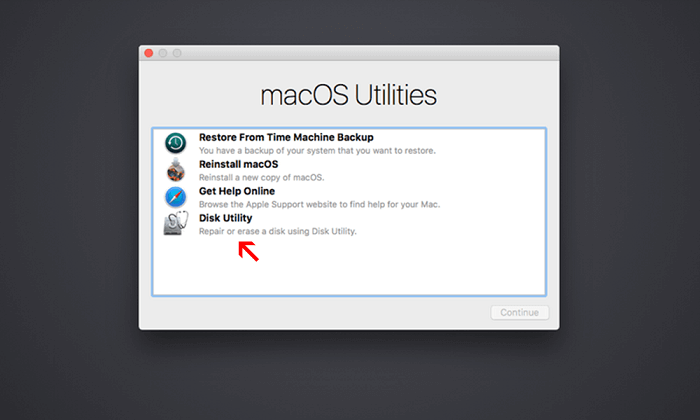
Step 2: To start the disk utility process, click on the primary macOS window and select Disk Utility, then click Continue.
Step 3: To run First Aid on your Macintosh HD, select it from the left pane and click the First Aid button in the top pane, then click Run.
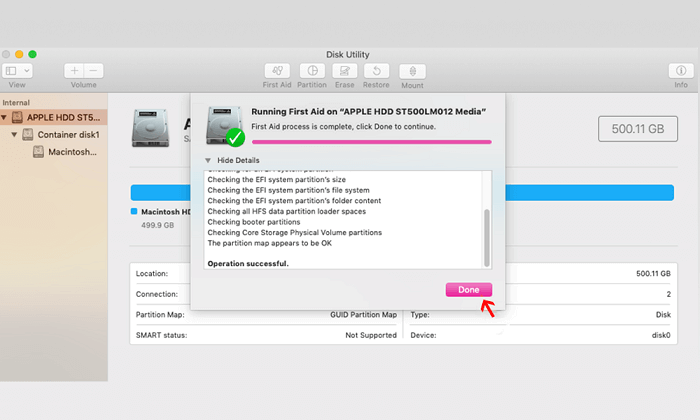
Tips: If Disk Utility can't repair a corrupt partition map, it may not be able to recover your data. To avoid losing your files, you should back them up before attempting to repair the disk. If the repair process doesn't go smoothly, you may need to erase the drive and start over with a new partition scheme. This will delete all data on the drive, so be sure to back up your files first.
2. Repair Mac startup drive by using FSCK command
If method 1 can't repair your disk, you can try running the FSCK command on your Mac. This command is used to check and repair file system inconsistencies and can potentially fix issues that method 1 couldn't resolve.
Step 1: To turn off the screen saver on a Mac, simply turn on your Mac, then press and hold the Command + S keys. Release the keys when text appears on a black background. This will disable the screen saver and prevent it from turning on again.
Step 2:In the command line, type `/sbin/fsck -fy` then press Return.
Tips: If the disk drive is healthy, it will show "The volume Macintosh appears to be OK". If FSCK repairs the broken hard drive, it displays "File system was modified. Then re-run FSCK command till the system shows "The volume Macintosh appears to be OK".
FAQ
1. How long do repair disk permissions take?
It takes about 20 minutes.
2. What does first aid do in disk utility?
Disk First Aid is a free software utility made by Apple Inc. that was bundled with all computers running the classic Mac OS, and it verifies and repairs a limited number of directory structure problems on any HFS or HFS Plus hard disk or volume.
3. How can I recover permanently deleted photos from Mac for free?
- To find the Recently Deleted album in iPhoto, open the application and look for it in the main window. It is located in the main window.
- Select and preview the photos you want to recover.
- Click Recover.
4. How can I find the lost files from the scan result?
Deep Data Recovery's scan page features data filtering and search capabilities, allowing users to search for files by size, type, or name.
5. How to force shut down the Mac program?
- You can choose the Apple logo on the top left corner of your screen by clicking on it. This will likely open the Apple menu, which may contain options such as System Preferences, About This Mac, and Restart or Shut Down.
- Select Force Close.
Related Articles
- Comprehensive Guide on How to Use a Flash Drive on Mac
- Get Deep Data Recovery for Mac Crack with License Code
- Apple Mail Recovery | Recover Deleted Emails Messaged on Mac
- Fix Mac Not Recognizing Gopro With Quick Solutions
- How to Migrate Windows 10 to an SSD without Data Loss
Upgrading to a Solid-State Drive (SSD) can significantly improve your Windows 10 experience. However, the process can be daunting, especially if you're not familiar with computer hardware. - [Solved] My Pictures Won't Load from My SD Card/Can't View Pictures on SD
Are you unable to load pictures from your SD card or view them? It's not the end of the world. The Deep Data Recovery software can help you recover your lost pictures.
Products
Articles & Tutorials
- Data Recovery
- Data Backup
- File Recovery
- File Backup
- System Backup and Restore
- Disk and Partition Clone
- Technical articles
- Mobile articles
- Disk Master Help
- Windows Data Recovery Tutorials
- Windows Secure Delete Tutorials
- Windows Partition Management Tutorials
- Windows File Backup and Restore Tutorials
- Windows System Backup and Restore Tutorials
- Windows Disk Backup and Restore Tutorials
- Windows Clone Tutorials