Restore Missing Fonts After Windows 10 Creator Update
| Workable Solutions | Step-by-step Troubleshooting |
|---|---|
| Fix 1. Restart Windows PC | Reboot PC and check out whether the fonts will show up or not...Full steps |
| Fix 2. Rebuild the font cache | Disable the font cache on the Services panel > rebuild Windows font cache...Full steps |
| Fix 3. Reinstall current fonts | Go to C:/Windows/Fonts > preview the not working font > reinstall the font...Full steps |
| Fix 4. Reinstall missing fonts | Download fonts installation files > apply and confirm the installation...Full steps |
Installed Fonts Are Missing After Windows 10 Creator update
You can try the following steps to resolve the issue: 1. Check if the fonts are installed by going to Control Panel > Fonts. If they're not there, reinstall them.
Try checking the font folder on your computer, it might be hidden. You can also try reinstalling the font software or checking if the font is corrupted. If none of these work, you might need to reinstall the font or purchase a new one. If you're using a word processor, you can also try checking the font options within the software. If you're still having trouble, you might want to consider seeking help from a computer expert.
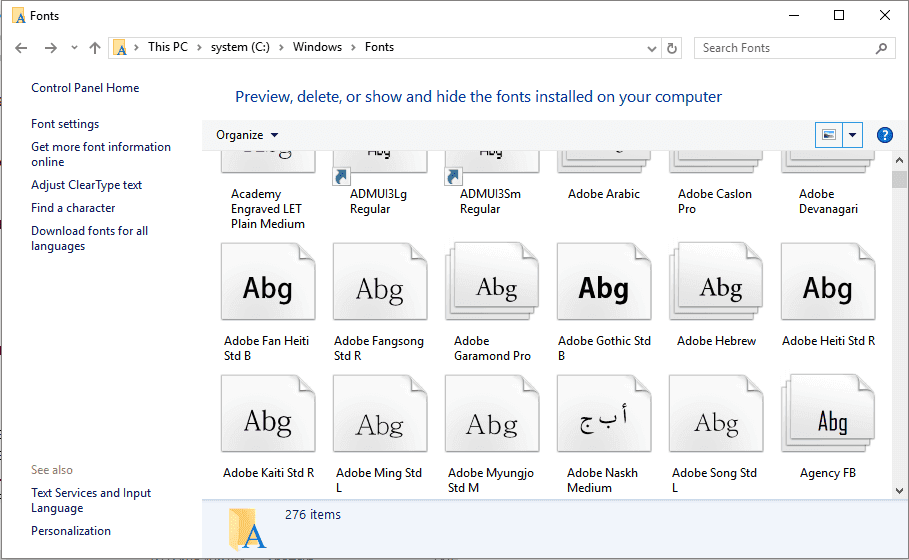
The missing fonts can be found in the "Fonts" folder in the Windows Control Panel. To access it, go to Start > Settings > Personalization > Fonts.
Upgrading Windows to a new version can sometimes result in fonts disappearing. Fortunately, there are quick fixes and solutions available to resolve this issue.
Follow to restore the missing fonts after Windows 10 Creator update immediately.
Quick Fix: Restart Windows PC
If you find that fonts are missing on your Windows PC, try rebooting the PC to see if the fonts reappear.
If fonts show up on your PC after rebooting Windows 10 Creator or Windows system, you can use them to edit documents again.
If no fonts show up, try the provided solutions in the following passages and get rid of this issue on your PC immediately. Firstly, ensure that your system is updated to the latest version, as outdated software can cause font display issues.
Solution 1. Disable or Rebuild Font Cache
When installed fonts stop working or go missing, it can be difficult to identify which ones are problematic. Typically, all font icons are displayed in the Font settings, making it difficult to distinguish between working and non-working fonts. This makes it challenging to pinpoint which font is missing or not functioning correctly.
Disabling or rebuilding the font cache can sometimes resolve issues with fonts not working on a PC. This can be done to potentially fix the problem.
# 1. Disable the Font Cache
Step 1: Right-click on the Windows icon and select Search.
- Type services.msc and click "OK".
-
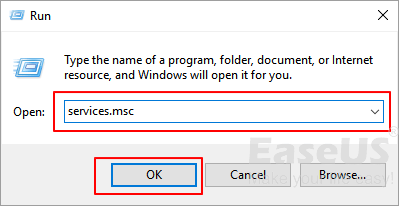
Step 2:On the Services panel, scroll down to locate Windows Font Cache Service.
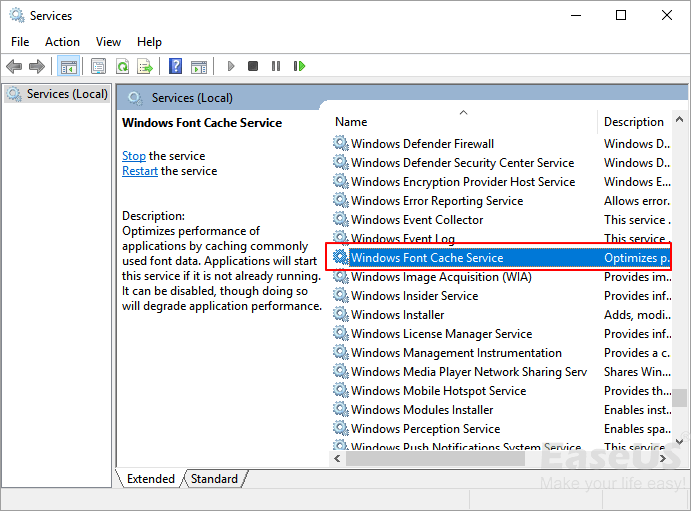
Step 3: Right-click on the Windows Cache Services and select "Properties".
- To disable a service, go to the General tab, change the Startup type from "Automatic" to "Disabled", and click "OK" to confirm.
-
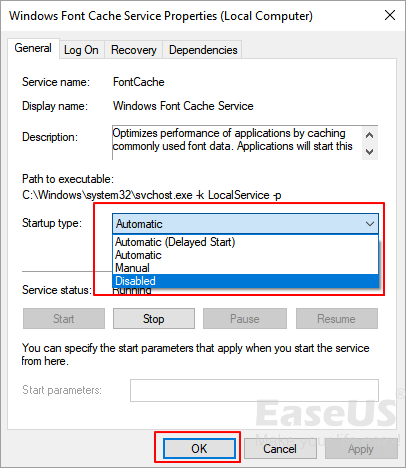
After updating the system, restart your PC to see if the missing fonts can work again. If not, try to rebuild the Font Cache.
# 2. Rebuild Windows Font Cache
Step 1:The new policy aims to improve the overall quality of life for citizens by providing them with access to essential services and resources. This includes healthcare, education, and economic opportunities, which are crucial for a community's well-being.
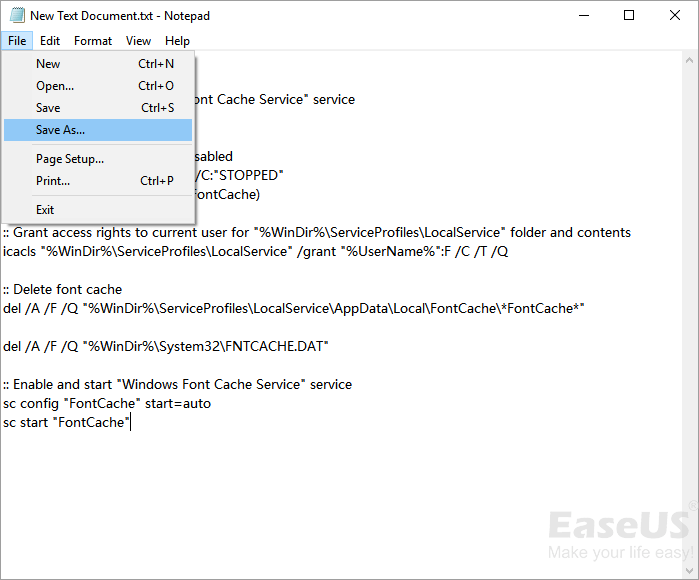
@echo off
:: Stop and disable "Windows Font Cache Service" service
:FontCache
sc stop "FontCache"
sc config "FontCache" start=disabled
sc query FontCache | findstr /I /C:"STOPPED"
if not %errorlevel%==0 (goto FontCache)
The command to grant access rights to the current user for the "%WinDir%\ServiceProfiles\LocalService" folder and its contents is: `icacls "%WinDir%\ServiceProfiles\LocalService" /inheritance:r /grant:r "%username%":R`. This command uses the `icacls` utility to set the inheritance to read-only and grant read access to the current user.
icacls "%WinDir%\ServiceProfiles\LocalService" /grant "%UserName%":F /C /T /Q
:: Delete font cache
del /A /F /Q "%WinDir%\ServiceProfiles\LocalService\AppData\Local\FontCache\*FontCache*"
del /A /F /Q "%WinDir%\System32\FNTCACHE.DAT"
:: Enable and start "Windows Font Cache Service" service
sc config "FontCache" start=auto
sc start "FontCache"
Step 2: Click on "File" and click "Save AS".
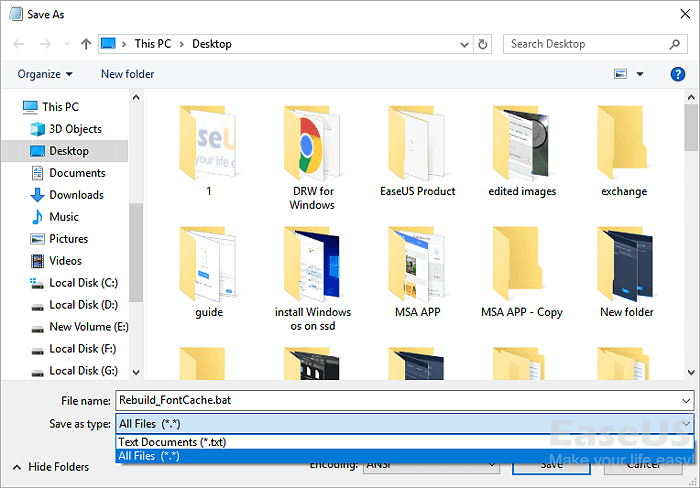
Step 3: Name the file as Rebuild_FontCache.bat and set the type as "All Files".
- Navigate to Desktop and click "Save".
-
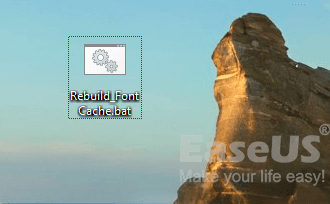
Step 4: double-click on Rebuild-FontCache.bat to run it.
- Once the process is complete, reboot the computer to save all changes made during the process.
-
Solution 2. Manually Reinstall Fonts On Windows 10 Creator
To reinstall Windows Fonts on Windows 10 Creator, you can follow these steps:
Method 1 - Reinstall Current Fonts
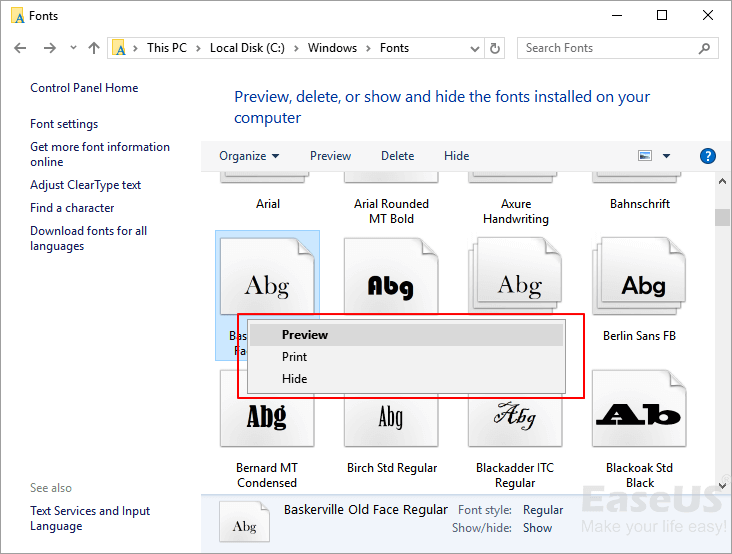
Step 1: Go to C:/Windows/Fonts on Windows PC.
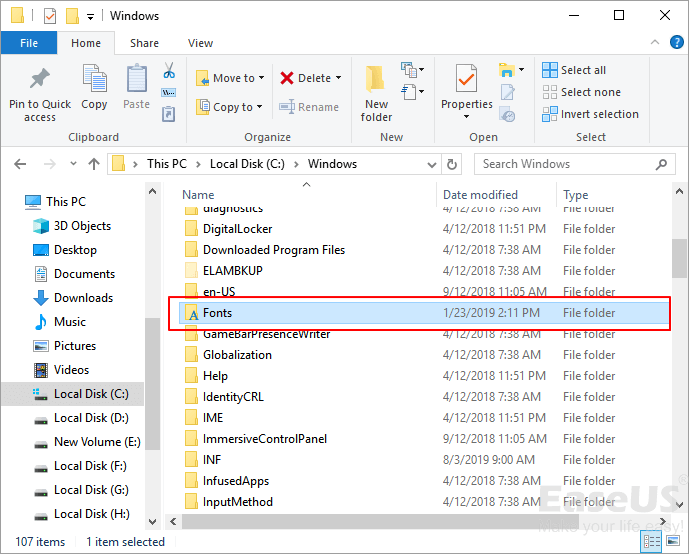
Step 2:To fix a font that's not working, check the font itself by right-clicking on it and selecting "Preview" to see if it's properly installed. If the font is not showing up as expected, try reinstalling it or checking for any font-related issues.
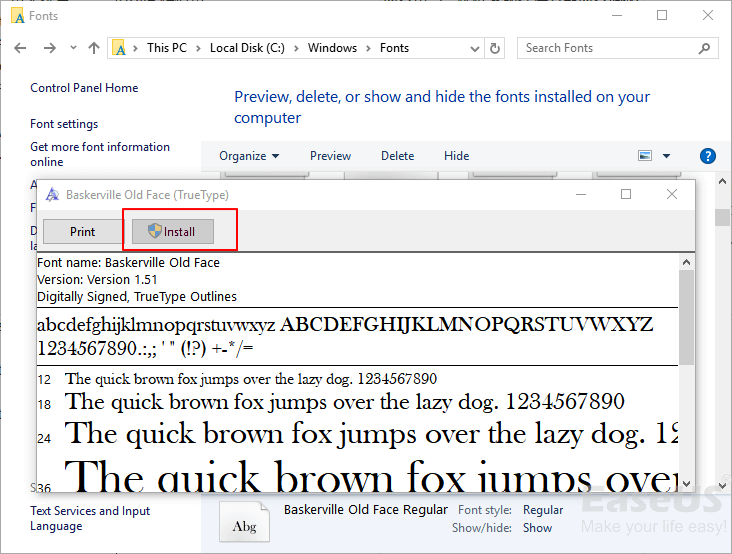
Step 3:To reinstall the font, click on the "Install" button located in the top right corner of the screen. This will manually reinstall the font.
Method 2 - Download or Copy to Reinstall Missing Fonts
If the font icons are missing, you can download or copy them from another PC, then continue with the below steps:
Step 1: Copy or download fonts installation files to C:\Windows\Fonts folder.
Step 2: Double click the fonts installation files to apply the installation.
Step 3: If fonts already exist, replace them and confirm to install.
To fix the issue, simply reboot your PC, allowing Windows to apply the changes, and you'll be able to use fonts again on your Windows 10 Creator PC.
Bonus Tip: Restore Lost Fonts Installation File and Data
If you've lost or deleted the Windows Fonts installation file along with other valuable data like Excel, Word, PowerPoint, etc. on your Windows PC. You can recover the deleted files using data recovery software or by checking the Recycle Bin.
Deep Data Recovery software can help restore up to 2GB of files for free, and is qualified to help with restoring single files lost due to deletion, formatting, and other issues.
You can download the software and follow these steps to restore your deleted files, including images, documents, videos, and emails, as well as the Windows Fonts installation file, immediately.
Step 1. Choose file types and click "Fast Scan" to start
Launch Deep Data Recovery, select the file types you want to recover, and click "Fast Scan" to initiate the recovery process.

Note: You can choose different search modes based on where and why the data was lost.
Step 2. Select a location and start scanning
Choose the partition where you lost data. Then, click "Scan".

Step 3. Filter and preview files
Use the file format filter on the left or upper right corner to search for the files you need, and then click the "Preview" button or double-click a file to view its content.

Step 4. Recover lost data or files
To recover lost data, select the file, check the box next to it, and click the "Recover" button to securely restore the data to a designated area.
After restoring the lost or deleted Windows Fonts installation file, you can go back to Method 2 to reinstall the missing fonts.
Related Articles
- 3 Ways to Recover Deleted or Lost Torrent Files
- How Fix Not Able to Launch Sticky Notes Error
- How to Open ISO File in Windows 10/11 Without Burning
- How to Retrieve Deleted Skype Messages and Chat History
- How to Recover Hidden Files and Folders by Virus
To recover files hidden by a virus, start by cleaning the drive using the Command Prompt (CMD) to remove any malicious programs and create a clean slate. Then, use a reliable data recovery tool to scan the drive and recover any previously hidden files. - 3 Ways for How to Retrieve Hidden Files in Flash Drive
If you're having trouble retrieving hidden files from a flash drive, this guide can help. By following its steps, you can learn how to recover hidden files from your flash drive.
Products
Articles & Tutorials
- Data Recovery
- Data Backup
- File Recovery
- File Backup
- System Backup and Restore
- Disk and Partition Clone
- Technical articles
- Mobile articles
- Disk Master Help
- Windows Data Recovery Tutorials
- Windows Secure Delete Tutorials
- Windows Partition Management Tutorials
- Windows File Backup and Restore Tutorials
- Windows System Backup and Restore Tutorials
- Windows Disk Backup and Restore Tutorials
- Windows Clone Tutorials