Fix 'Pictures Won't Load from SD Card' Error in 2025 (7+ Solutions)
Many people encounter issues with loading images from their SD card, but the root cause and troubleshooting methods are not well understood. This issue can occur with various image file types, including JPEG, JFIF, PNG, TIFF, GIF, and BMP. The problem can be frustrating, but it can be resolved by following a series of steps to troubleshoot and fix the issue, allowing users to load images from their SD card properly.
Complete Fixes for Pictures Won't Load from SD Card Error
- Fix 1-If you can view pictures from the SD card in another device, another card reader, or USB port, it means the issue lies with the camera and not the SD card. You can try resetting the camera or contacting the manufacturer for further assistance. If you cannot view pictures, it suggests that the SD card is damaged and may need to be replaced.
- Fix 1-2. Recover files from SD card
- Fix 2. Check image file format compatibility
- Fix 3. Change SD card drive letter
- Fix 4. Uninstall disk driver
- Fix 5. Run CHKDSK and fix unreadable SD card
- Fix 6. Format SD card
- Fix 7. Run antivirus
My pictures won't load from my SD card, help
You're not alone! Many users face this issue, but it's often due to a simple reason: the computer doesn't recognize the SD card.
If you're unable to view or load photos from your SD card on a camera, phone, or computer, the issue is likely with the SD card itself. To resolve this, start by copying the photos to a secure location to prevent any potential loss. Then, you can apply a practical method to repair the SD card and get your photos back.
To fix the picture won't load from SD card error and make the card viable for saving and loading pictures, files again, follow the tutorial guide. It will walk you through the steps to resolve the issue and ensure your SD card is functioning properly, allowing you to save and load pictures and files without any problems.
Why Pictures Won't Load from SD Card
The pictures won't load from SD card error can be caused by several factors, including issues with the SD card itself, such as corruption, formatting problems, or physical damage, as well as problems with the device's hardware or software, like a faulty camera, corrupted image files, or outdated operating system. To resolve the issue, you'll need to identify the root cause and take corrective action, which may involve checking the SD card for errors, updating the device's software, or using a different SD card reader.
- 1. Bad connection between SD card and computer
- 2. Image file format incompatibility
- 3. Something goes wrong with your SD card (corrupted or unreadable)
- 4. Virus attack
- 5. SD card driver is outdated
- 6. No drive letter is assigned to the SD card
If your pictures won't load from an SD card, try following these tutorials to fix the issue. By doing so, you should be able to successfully resolve the problem of SD card failing to load or won't load pictures with ease.
Part 1. Restore Pictures from SD Card That Won't Load Pictures
You don't have to worry if you can't view pictures on your SD card from a mobile phone, camera, or computer. Instead of rushing to fix the SD card, focus on preserving your pictures and files.
Qiling Data Recovery Wizard uses advanced algorithms to scan an SD card and recover all photos in just a few clicks.
This photo recovery software can restore and repair corrupted pictures, including half-greyed photos and corrupted JEPG, from various storage devices.
Connect your SD card to your computer and use recovery software to recover your pictures.
Step 1. Select file types and click "USB/SD Scan" to start.
- Download and install Deep Data Recovery on your Windows PC.
- To properly connect your SanDisk/Lexar/Transcend SD card to a computer, you should use a card reader. This is the recommended method by the manufacturers, and it ensures safe and efficient data transfer. Simply insert the SD card into the card reader, and then connect the card reader to the computer's USB port.
- Open Qiling SD card recovery software. Select file types and click "USB/SD Scan" to start the recovery process.

Note: You can choose different search modes based on where and why the data was lost.
Step 2. Select the SD card to scan
- Select your SD card and click "Scan".

Step 3. Check for scan results
- Wait for the scanning process to complete.
- Click "Filter" and select one or more file types to display, such as Pictures, Word, Excel, PDF, Videos, etc.
- Click "Preview" to check if they are the wanted files.

Step 4. Recover SD card data
- Choose desired files and click "Recover".
- To prevent overwriting of the original data, it is recommended to save the recovered files to a different location, such as a computer or an external hard drive, instead of the original SD card. This ensures that the original data remains intact and is not accidentally overwritten.
After using Deep Data Recovery to rescue all the pictures on the SD card, you can proceed with the tutorials in the next part to resolve the issue of the SD card not loading pictures.
Part 2. Fix Pictures Won't Load from SD Card Error
If you're experiencing issues with pictures not loading from an SD card or other removable storage devices, try removing the SD card from your camera or mobile phone and connecting it to your computer. From there, you can attempt to resolve the issue using one of the 7 fixes listed, which include checking the card's compatibility, ensuring the card is properly inserted, and using a card reader to transfer files.
- #1. Check and Change SD Card Connection
- #2. Check Image File Format Compatibility
- #3. Change SD Card Drive Letter
- #4. Uninstall Disk Driver
- #5. Run CHKDSK to Fix Unreadable SD Card
- #6. Format SD Card
- #7. Run AntiVirus
Note Before making any of the fixes mentioned above, please ensure that you have completed the steps outlined in Part 1 and have successfully restored all pictures from the SD card to avoid any potential data loss issues. (Note: I've condensed the original text into a single paragraph while maintaining the core message and tone.
Method 1. Check and Change SD Card Connection
To resolve the issue of an SD card not loading pictures or files, start by ensuring the SD card is properly connected to the PC. Reconnect the SD card to the PC using a secure and stable connection, and check if the issue persists.
Step 1. Unplug the SD card from your old device and reconnect it to your computer.
If the SD card doesn't show up on your PC, it's likely that the card reader is not functioning properly. In this case, you can try using a different USB port or a different computer to rule out any issues with your current setup. If the SD card still doesn't show up, it's possible that the card itself is damaged or corrupted, and you may need to try formatting it or seeking professional help.
Step 2. Change an SD card reader and reconnect it to your computer.
If the SD card is not showing up on your PC, try formatting it. You can do this by inserting the SD card into your PC, right-clicking on it in File Explorer, selecting "Format," and following the prompts. This will erase all data on the card, so make sure you've backed up any important files first.
Step 3. To resolve the issue, simply unplug the SD card from the current USB port and plug it into another available port on your computer. This often resolves connectivity problems and allows the SD card to be recognized by your computer.
If the card doesn't show up, ask yourself: "What am I thinking about right now? What is on my mind?" and then take note of the first thing that comes to mind.
Step 4. Unplug the SD card from the computer, and reconnect it to a different computer to troubleshoot the issue.
Check if the SD card shows up in the Windows File Explorer. If it does, proceed with Method 2. If it doesn't, proceed with Method 1.
If you're unable to see the USB drive in File Explorer, try the next method, which involves checking the drive's properties and permissions to resolve the issue.
Method 2. Check Image File Format Compatibility
If you can view and open the SD card after changing the SD card connection, you can check if the image file formats are not compatible with your device by trying to open various image file formats to see which ones work and which ones don't.
Step 1. Keep the SD card connected to your computer.
Step 2. Locate and open the SD card in Windows File Explorer.
Step 3. Check the image file format and see if your device supports the format.
PNG, JPG, JPEG, GIF, AVI, etc., are widely supported by Windows OS and mobile phones.
If your photos or pictures have a unique extension, it may cause image file format compatibility issues. To resolve this, you can change the image file formats to a supported format for your device.
Method 3. Change SD Card Drive Letter
If your Windows computer can't detect your SD card, try checking Disk Management to see if it has a drive letter. If it doesn't have a drive letter or the drive letter is marked as *, it may not be detected.
To load pictures from your SD card, you can change the drive letter to make your SD card appear in the list of available drives. This will allow you to select the SD card as the source location for your pictures.
Step 1. Right-click This PC/My Computer and select "Manage".
Step 2. Select Disk Management under Device Manager.
Step 3. Locate the SD card, right-click the partition on it, and select "Change Drive Letter and Path…".
Step 4. To assign a drive letter to your SD card, click the "Add" button in the pop-up window. This will allow you to select the drive letter you'd like to use for your SD card.
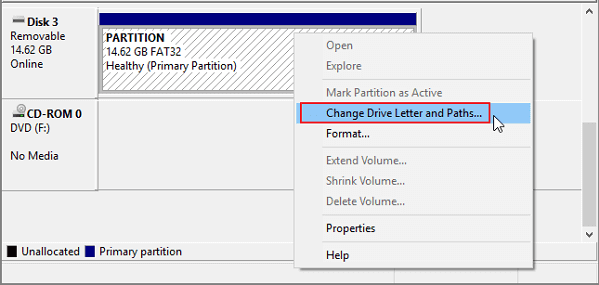
Step 5. Click "OK" to confirm and close Disk Management.
After this, you can retry to open the SD card to see if it loads your pictures or not.
Method 4. Uninstall Disk Driver
To resolve the issue of an SD card not loading pictures, it's possible that the SD card driver is outdated, leading to the problem. Uninstalling and reinstalling the SD card driver may resolve the issue.
Step 1. Connect the SD card to the PC
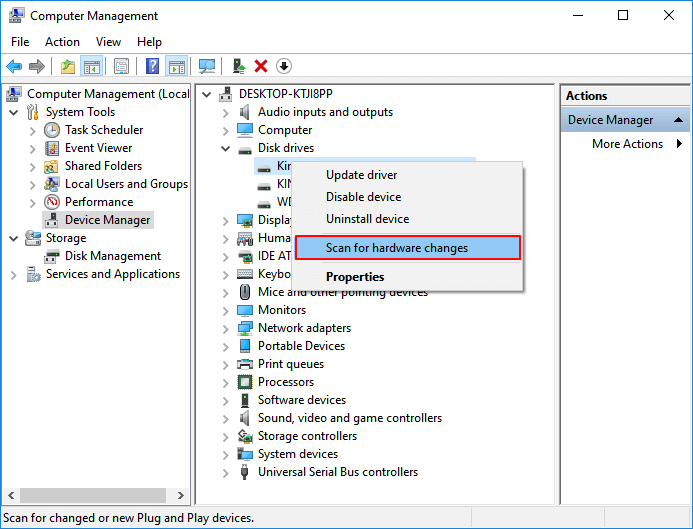
Step 2. To access the Disk drivers in the Device Manager, right-click on "This PC/My Computer" and select "Manage". Then, click on "Device Manager" and expand the section for "Disk drivers".
Step 3Find and right-click on the SD card, then choose "Uninstall".
Step 4. Then choose "Scan for hardware changes" to refresh the drivers.
Method 5. Run CHKDSK to Fix Unreadable SD Card
If the SD card contains bad sectors, internal errors, or a corrupted file system, devices like Windows computers or cameras may not be able to read it. To make the SD card readable again, you can run the CHKDSK command to fix the error.
- Warning
- If you're experiencing file system errors, running chkdsk may help fix them, but it could also result in total data loss. To be safe, perform data recovery first, then use the CMD method.
Step 1. To open the Command Prompt, press the Windows key + R keys to open the "Run" dialog box, type "cmd" and then press the Enter key. This will open the Command Prompt window.
Step 2. Right-click Command Prompt, and select "Run as Administrator".
Step 3. To run a full disk check on your SD card, type the command `chkdsk f: /f /r /x` in the Command Prompt, replacing `f` with the actual drive letter of your SD card. This command will run a thorough check on the disk, fixing any errors it finds, and then prompt you to confirm if you want to automatically fix any errors it finds.
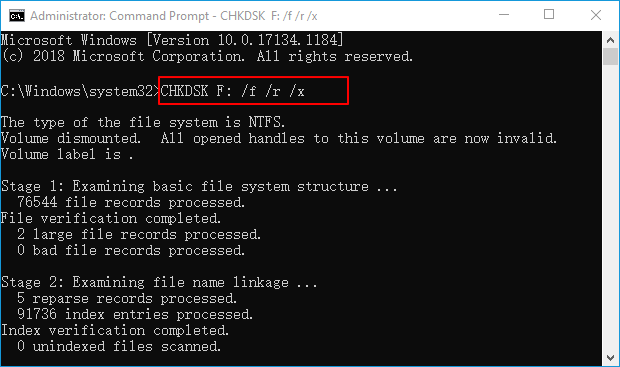
Step 4. Type exit to close the window when the prompt completes the command.
Method 6. Format SD Card
When a SD card becomes corrupted, Windows will detect it and prompt to format it, which can potentially fix the damaged card.
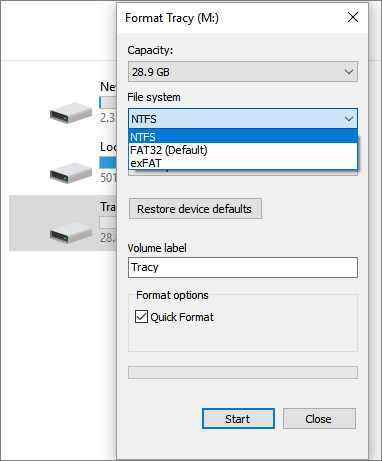
Formatting an SD card can resolve issues where it displays as RAW or contains an unsupported file system, even if it won't load pictures or files. To format an SD card using Windows File Explorer, you can follow these steps.
Step 1. Press the "Windows key + E" to open the Windows Explorer, which provides a visual interface for managing files and folders on your computer.
Step 2. Right-click on the connected SD card and select "Format".
Step 3. On the format window, select the desired file system, which is set to NTFS, or FAT32 for 32GB SD cards and exFAT for 64GB SD cards.
Step 4. Tick "Quick Format" and click "Start".
Method 7. Run AntiVirus
If your SD card is unable to load pictures due to a virus or malware, you should use antivirus software to resolve the issue.
Step 1. Download and install antivirus software on your computer.
Step 2. To protect your SD card from malware, you should connect it to your computer and run antivirus software on it. This will scan the card for any viruses or other malicious software and remove them if found.
Step 3. Select to clear the SD card.
Conclusion
After following the steps on this page, you'll be able to fix the issue of your SD card not loading pictures, and you'll be able to save the recovered pictures back to your SD card, allowing you to use them on your mobile phone or camera again, with the added convenience of being able to load them immediately when opening the SD card on your device.
Besides helping you fix the picture won't load from SD card error, we also suggest following some additional tips to protect your SD card photos.
- Back up SD card data regularly
- Connect and unplug SD card properly
- Update SD card driver timely
- Run antivirus software frequently
- If the file gets lost, turn to SD card recovery software like Deep Data Recovery for help.
Related Articles
- [Solved] Kernel Data Inpage Error Windows 10 (Blue Screen)
- How to Get Your Account Back on TikTok
- Windows 11 ISO Download Full Version 64 Bit or 32 Bit
- Fix I/O Device Error on External Hard Drive/USB Drive in Windows
- How to Recover Deleted/Lost Photos from Nikon Camera
The best Nikon photo recovery software for free download allows you to recover deleted photos from your Nikon camera with ease. Simply connect your Nikon camera's SD card to your computer, scan the lost pictures, and recover your photos on either a Mac or Windows PC. - How to Recover An Overwritten or Replaced Word Document
Have you accidentally overwritten a Word document with another file having the same name? we've got solutions to help you recover the overwritten or replaced Word documents in Windows 11/10 or Mac.
Products
Articles & Tutorials
- Data Recovery
- Data Backup
- File Recovery
- File Backup
- System Backup and Restore
- Disk and Partition Clone
- Technical articles
- Mobile articles
- Disk Master Help
- Windows Data Recovery Tutorials
- Windows Secure Delete Tutorials
- Windows Partition Management Tutorials
- Windows File Backup and Restore Tutorials
- Windows System Backup and Restore Tutorials
- Windows Disk Backup and Restore Tutorials
- Windows Clone Tutorials