Fix SanDisk SD Card Unable to Format/Won't Format Error [2022]
SanDisk SD cards are commonly used to expand storage and save more files, such as pictures, videos, and music. However, users may encounter issues with their SanDisk SD cards, with "SanDisk SD card unable to format" being a particularly concerning problem.
On this page, you will learn:
- 1. Why won't SanDisk SD card format?
- 2. How to Fix Sandisk Unable to format error?
To resolve the SanDisk won't format issue and format SanDisk successfully, follow the provided solutions. First, remove the SanDisk drive from your computer and reinsert it to ensure proper connection.
Causes of SanDisk SD Card Unable to Format Error
SanDisk SD cards are widely used on Android smartphones, digital cameras (DSLR), GoPro cameras, and other digital devices that support external storage. However, sometimes these devices may experience issues such as being unable to play music from a micro SD card, take pictures and save to an SDHC card, or display errors on a GoPro, indicating that the SD card needs to be formatted.
The SanDisk SD card is experiencing issues with formatting due to various reasons, including corruption, file system errors, or hardware problems. This can cause Windows to be unable to complete the format process, prompting an error message.
- SD card won't mount
- SD card unexpectedly removed
- SD card is damaged or corrupted due to bad sector
- SD card has an unsupported file system
- SD card is write-protected or read-only
- SD card is infected by virus or malware
- Windows cannot format SD card larger than 32GB to FAT32
If you're experiencing issues formatting your SanDisk SD card or other memory cards, follow the steps in the next two parts to resolve the "unable to format SanDisk SD card" error and successfully format your SD card to the desired file system.
Part 1. Recover Data from SanDisk SD Card (with) Unable to Format Error
Applies to: If your SanDisk SD card is unable to be formatted and you want to restore precious data from it, try using a data recovery software such as Deep Data Recovery or Recuva. These tools can scan the SD card and recover deleted or lost files, even if the card is no longer recognized by your computer.
Before attempting to fix a SanDisk SD card that won't format or is unable to format, it's essential to first ensure that any precious data stored on the card is safely backed up. Qiling data recovery software can be used to scan and recover data from inaccessible or not formatted SD cards, as long as the computer can recognize the memory card.
To recover data from your SanDisk SD card, download and install a software that can scan and restore everything on the card. The process is straightforward, taking only 3 steps:
Step 1. Select file types and click "Format Scan" to start
- Download and install Deep Data Recovery on your Windows PC.
- Use the proper way to connect your SanDisk/Lexar/Transcend SD card to the computer.
- Open Qiling SD card recovery software. Select file types and click "Format Scan" to start the recovery process.

Note: You can choose different search modes based on where and why the data was lost.
Step 1. Select the SD card to scan
- Select the SD card you want to scan and click "Scan" to proceed.

Step 2. Check for scan results
- Wait for the scanning process to complete.
- Click "Filter" and select one or multiple file types to display, such as Pictures, Word, Excel, PDF, Videos, and more.
- Click "Preview" to check if they are the wanted files.

Step 3. Recover SD card data
- Choose desired files and click "Recover".
- To avoid overwriting the original data, it's recommended to save the recovered files to a different location, such as a computer or an external hard drive. This will ensure that the recovered files are preserved and can be safely accessed later.
Consult with Qiling Data Recovery Experts for one-on-one manual recovery service. After a free diagnosis, we can offer various services, including the following.
- To repair a corrupted RAID structure, unbootable Windows OS, or a corrupted virtual disk file (.vmdk, .vhd, .vhdx, etc.), you can use a combination of tools and techniques. First, you'll need to boot from a live CD or USB drive to access the system without loading the corrupted OS.
- Recover/repair lost partition and re-partitioned drive
- Unformat hard drive and repair raw drive (BitLocker encrypted drive)
- Fix disks that become GPT protected partitions
Part 2. How to Fix 'SanDisk SD Card Unable to Formatted' Error (3+ Methods)
Applies to: The 'SanDisk SD card is unable to be formatted' error can be caused by a corrupted file system, bad sectors, write protection, or a virus infection. To fix this issue, you can try using a third-party formatting tool, such as SD Formatter, which is specifically designed for SD cards.
Here are three methods to fix the SD card not formatting issue in one paragraph:
If you're experiencing issues with formatting SanDisk memory cards or flash drives, you can try applying the methods to other brands as well. If the problem persists on your Android phone or camera, try removing the device and connecting it to your Windows PC. From there, you can attempt to fix the issue using the provided methods.
Method 1. Fix Corrupted File System & Bad Sectors on SanDisk Using CHKDSK Command
If Windows warns that Windows is unable to complete the format as the SanDisk SD card has a corrupted file system or bad sectors, you can try running the CHKDSK command to fix these issues.
NoteThe CHKDSK command will permanently remove all saved files while fixing device errors, so it's essential to use reliable file recovery software to recover all files before running CHKDSK.
Step 1. To open the Command Prompt on a PC, press the Windows key + R to open the "Run" dialog, type "cmd" and press the Enter key.
Step 2. Right-click Command Prompt, and select "Run as Administrator".
Step 3. To run a disk check on your SanDisk SD card, type the command `chkdsk f: /f /r /x` in the Command Prompt, replacing `f` with the actual drive letter of your SD card. This will initiate a thorough scan of the card's file system, looking for any errors or inconsistencies.
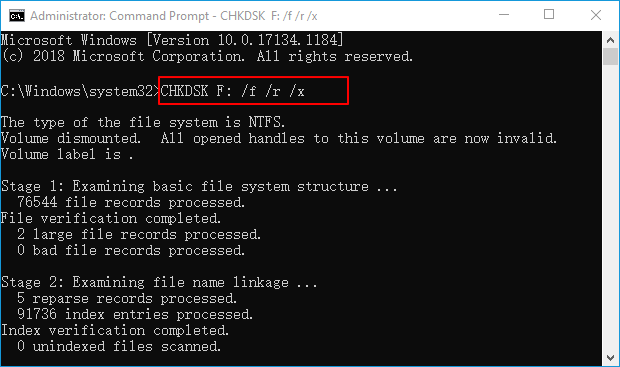
Step 4. Type exit to close the window when the prompt completes the command.
If you can access your SD card, go to Part 3 and choose a formatting tool to format it to NTFS or FAT32.
Method 2. Remove Write Protection from SanDisk SD Card
To remove write protection from a SanDisk SD card, you have two options: using the Diskpart Attribute Clear Readonly command or employing the Qiling write-protection removal tool. These methods can help you regain write access to your SD card.
Let's see how to remove the write protection that causes SanDisk unable to format issue now:
Option 1. Use DiskPart to Clear Read-Only from SanDisk SD Card
Step 1. Open DiskPart by typing "cmd" in Windows search, right-clicking Command Prompt, and selecting "Run as Administrator".
Step 2. Type diskpart and hit Enter.
Step 3. Here are the command lines to get the weather forecast for the next 5 days:
- list disk
- select disk *
- attributes disk clear readonly
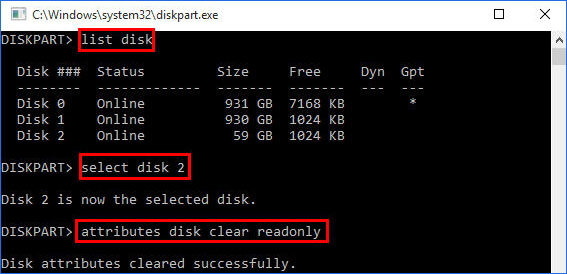
Step 4. Type exit to close the window.
You can format your SanDisk SD card to the desired file system, such as FAT32 or exFAT, after this step.
Option 2. Use Qiling Write Protection Removal Tool
If you're not tech-savvy, don't worry - there are graphical solutions to help you remove write-protection from hard drives, USB drives, and SD cards. You don't need to be a pro-computer user or familiar with command-lines to resolve this issue. There are alternative, user-friendly approaches available to assist you.
Qiling CleanGenius is a tool that helps fix issues on drives without requiring command-line knowledge.
Here is a one-paragraph guide on how to use this tool to get your issues sorted:
Step 1: DOWNLOAD and install Qiling CleanGenius (free) on your computer.
Step 2: Run Qiling CleanGenius on your PC, select Optimization and choose the Write Protection mode.
Step 3: Select the device that is write-protected and click Disable to remove the protection.
Option 3. To clean an SD card and create a new partition using Diskpart, follow these steps:
Step 1: On the PC, press the Windows and R keys at the same time to open the "Run" dialog box. Type "cmd" and press the Enter key. This will open the Command Prompt.
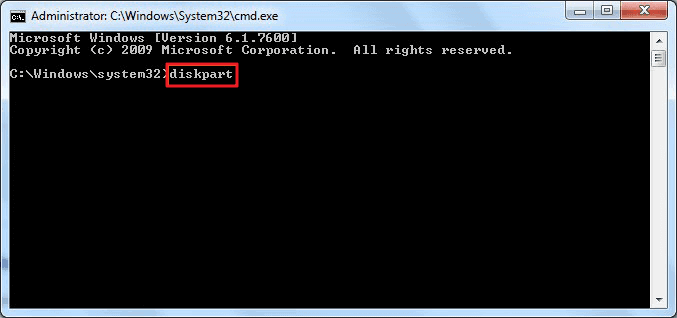
Step 2: Type diskpart to bring up DiskPart utility.
Step 3: Type list disk and hit Enter.
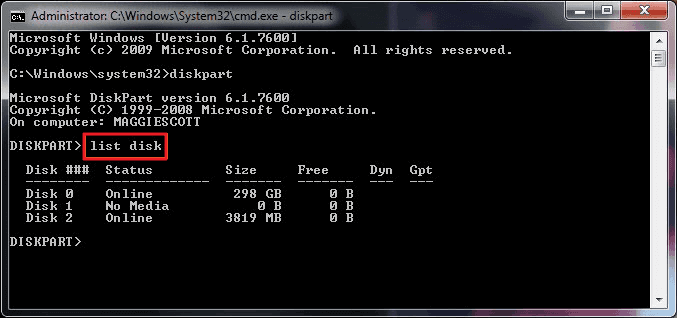
Step 4: To select the SD card, type select disk 2 and press Enter. (Replace 2 with the drive number of your SD card)
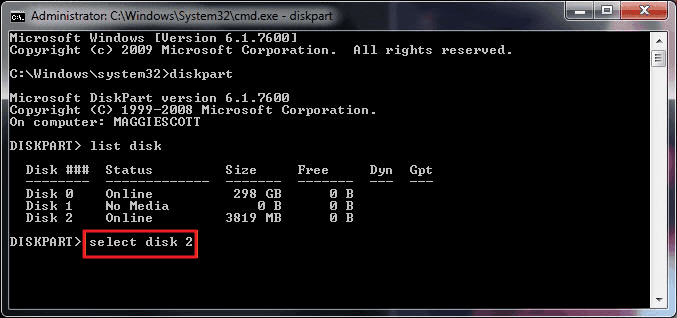
Step 5. Type clean and hit Enter.
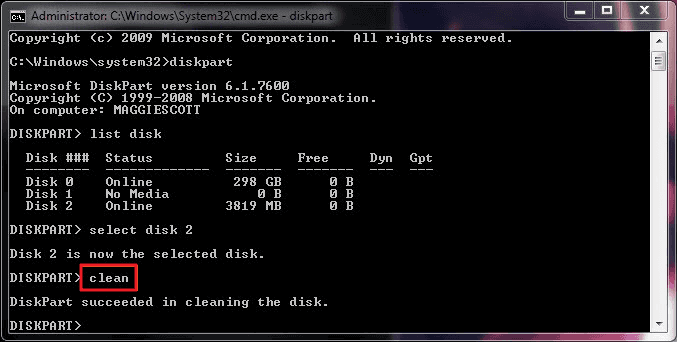
Step 6: Type create partition primary and hit Enter.
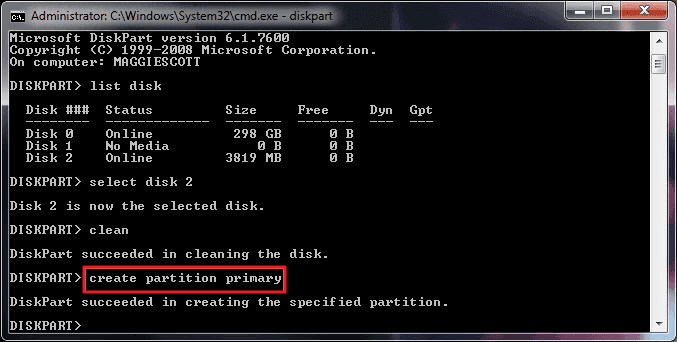
Step 7: Type format fs=ntfs or format fs=fat32 and press "Enter".
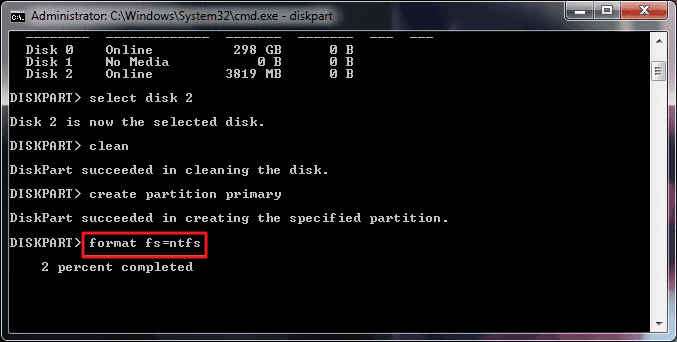
Step 8: After this, type exit to finish the process.
Method 3. Clear Virus that Cause SanDisk SD Card Unable to Format
If your SanDisk SD card is unable to format, it's likely due to a virus infection or malware, so running antivirus software is essential to clear the issue.
Step 1. Download and install antivirus software, like avast, avire, etc.
Step 2. To clear a virus from a SanDisk SD card or your computer, start by disconnecting the SD card from your device and scanning it with an anti-virus software. You can also use the SanDisk SecureAccess software to scan and clean the SD card.
Step 3. Exit the antivirus program once completes.
If you're familiar with Windows Defender, you can also use it to delete and remove viruses without needing antivirus tools.
Part 3. Format SanDisk SD Card after Fixing Unable to Format Error
Applies to: To format your SanDisk SD card after resolving the unable to format issue, follow these steps: insert the SD card into your computer or a card reader, open the Disk Management tool (Windows) or Disk Utility (Mac), select the SD card, and choose the format option. Ensure you select the correct file system (FAT32 or exFAT) and allocation unit size, then confirm the format.
If you're experiencing issues with formatting your SanDisk SD card, there are 3 easy ways to resolve the problem. You can use the built-in formatting tool on your computer, the SanDisk Memory Zone app, or the SanDisk SD card's built-in formatting feature to format your SD card.
- #1. Use Qiling SD Formatter
- #2. Use Windows File Explorer to Format
- #3. Format SD Card with Disk Management
You can reformat your SanDisk to the desired file system again by applying the appropriate formatting options to it.
#1. Use Qiling SD Card Formatter - Best Recommend
Qiling Partition Master is the best option if you're unable to format a SanDisk card to FAT32 due to its size, and also allows formatting of SD cards with unsupported file systems.
Download and apply it to format your SanDisk SD card now:
Step 1. To format your SD card, locate the card and right-click on the partition you want to format. From the context menu, select "Format" to erase all data and prepare the card for reuse.
Step 2. Set a new partition label, file system, and cluster size to the selected partition.
Step 3. Click the "Proceed" button to start formatting your SD card.
Step 4. Click "Yes" on the pop-up window to continue.
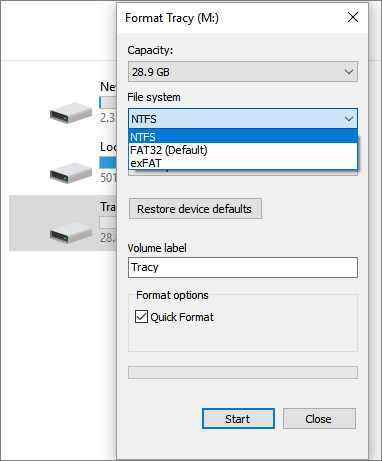
#2. Use Windows File Explorer to Format SanDisk SD Card
Step 1. Connect SanDisk SD card to PC. Right-click on the SD card and select "Format".
Step 2. On the format window, select a proper file system among NTFS, FAT32 or exFAT.
Step 3. Click "Start".
#3. Format SanDisk SD Card with Disk Management
Windows Disk Management gives you another chance to re-format the SanDisk SD card to a normal state again. Connect SanDisk SD card to your PC and let's start the formatting:
Step 1. To access Disk Management, right-click on "Computer" or "This PC" and select Management. From the resulting window, click on the Storage section and then select Disk Management.
Step 2. Right-click on the SD card partition and select "Format".
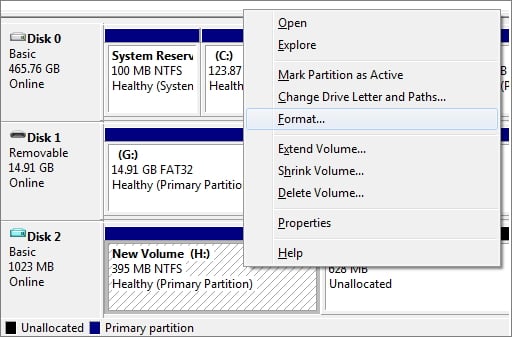
Step 3. On the format window, check the box of Perform a quick format, and select a file system and allocation unit size.
Step 4. Click "OK".
- Tip
- You may find that the "Format" option is grayed out in Disk Management, which means it's not currently available. You can refer to the provided text for further assistance.
- Disk Management Format Option Greyed Out for help.
Conclusion
The page explained why users are unable to format a SanDisk SD card and provided several fixes to resolve the issue.
If you have important data on the card, use a data recovery tool like Qiling to restore it before rewriting the card.
The issue of a SanDisk SD card being unresponsive and needing to be reformatted can be resolved by applying the listed fixes on the provided page. These fixes can also be used to resolve similar issues on other brands of SD memory cards or USB devices.
Related Articles
- 4 WD My Passport Repair Tools: Fix Cannot Access My Passport External Hard Drive
- Fix An External Hard Drive That's Not Working/Responding/Showing Up
- Unhide USB Files Using Windows, CMD, or Software
- Fix/Repair RAW SD Card in Proven Ways
- How to Undelete Partition in Windows 11/10/8/7
Restoring a deleted partition on Windows 11, 10, 8, 7, and XP is relatively easy. You can easily undelete a partition from your Windows PC hard drive. - 4 Methods To USB Drive Recovery [2023]
This page provides a guide on how to safely recover files from a USB flash drive on a Mac or Windows PC in 2023. Scroll below to find out how to retrieve your lost USB files.
Products
Articles & Tutorials
- Data Recovery
- Data Backup
- File Recovery
- File Backup
- System Backup and Restore
- Disk and Partition Clone
- Technical articles
- Mobile articles
- Disk Master Help
- Windows Data Recovery Tutorials
- Windows Secure Delete Tutorials
- Windows Partition Management Tutorials
- Windows File Backup and Restore Tutorials
- Windows System Backup and Restore Tutorials
- Windows Disk Backup and Restore Tutorials
- Windows Clone Tutorials