How to Install Windows 10 Without a Microsoft Account
Microsoft makes it challenging to install Windows without a Microsoft account, but it is possible if you know the right tricks. You are coming to the right page if you want to install Windows 10 without a Microsoft account. This post will tell you how to install Windows 10 without a Microsoft account.
This article by Qiling provides a solution for installing Windows 10 and Windows 11 without a Microsoft account, and can be applied to both operating systems. To install Windows 10 without a Microsoft account, follow the steps outlined in the article, which will guide you through the process with minimal hassle.
Can You Install Windows 10 Without Microsoft Account
Windows 10 cannot be installed without a Microsoft account, as the "Offline Account" option is no longer available. After installation, users are required to log in with a Microsoft account.
But have you ever been stuck on a question like, "Can I install Windows 10/11 without a Microsoft account?"
You can install Windows without a Microsoft account. You can choose to create a local account during the installation process. This will allow you to use Windows without being tied to a Microsoft account.
The Microsoft account mandate on home computers can be bypassed using new methods, as previously, the only way to avoid setting up a Microsoft account was to disable the Internet connection before being prompted to do so.
To install Windows 10 from a USB via BIOS, you'll need to create a bootable USB drive with the Windows 10 installation media. First, download the Windows 10 installation media from Microsoft's website and save it to a folder on your computer.
How to Install Windows 10 from USB from BIOS
This guide will walk you through the process of installing Windows 10 from a USB drive via the BIOS settings. It will cover everything you need to know to successfully install Windows 10 on your computer, including how to create a bootable USB drive, access the BIOS settings, and complete the installation process.
How to Setup Windows 10 Without a Microsoft Account
As explained earlier, many ways exist to set up Windows 10 without a Microsoft account. However, we have narrowed it down to 4 of the best and most probably practices. So, let's talk about each of them.
- Way 1. Using Auto Windows Installation Program - Qiling Disk Master
- Way 2. Disconnecting from the Internet
- Way 3. Creating a Dummy Account
- Way 4. Using OOBE\BYPASSNRO Command
Way 1. Using Auto Windows Installation Program - Qiling Disk Master
When installing Windows 10 or 11, you can use a professional installation program like Qiling Disk Master to help you bypass a Microsoft account during the setup process, making it the best and easiest option.
Qiling Disk Master is a tool that allows you to create a Windows To Go environment on a USB drive or external hard drive, enabling you to set up a PC without a Microsoft account and create a Windows 10 live USB.
This tool allows you to transfer your Windows 10 operating system to another computer, create a bootable USB drive for Windows, and even install Windows on a Mac without using Boot Camp.
We highly recommend Qiling Disk Master to you due to its numerous benefits. It offers a comprehensive solution for disk management, allowing you to resize partitions, clone disks, and migrate operating systems with ease.
- Create a Windows 10 installation USB drive without ISO
- Install Windows 11 on any PC
- Clone Windows 11/10/8/7 to a USB drive as portable Windows
- Play Windows games on Mac smoothly
- Copy installed Windows to USB
To create a Windows 10 bootable USB, use the Media Creation Tool to download the Windows 10 installation media, then follow the on-screen instructions to install Windows 10 step by step.
Way 2. Disconnecting from the Internet
If you don't want to use a Microsoft account to install Windows, you can skip the sign-in option by disconnecting from the internet during setup. This allows you to set up Windows without signing in with a Microsoft account.
Step 1. To disconnect your computer from the internet, remove the Ethernet cable or turn off Wi-Fi, ignoring any warnings or prompts. This will then open a new window asking, "Who's going to use this PC?"

Step 2. Enter your desired account name and click Next.
Step 3. Set the password and click Next.
A local user account on Windows will be created, allowing you to complete the setup and access your PC with the local account.
Way 3. Creating a Dummy Account
To create a local account, follow Microsoft's instructions and create a Microsoft account during installation. Then, switch it to a local user account by following these steps:
Step 1. To access settings related to your Microsoft account, follow these steps: after logging in with your Microsoft account, navigate to Settings > Accounts.
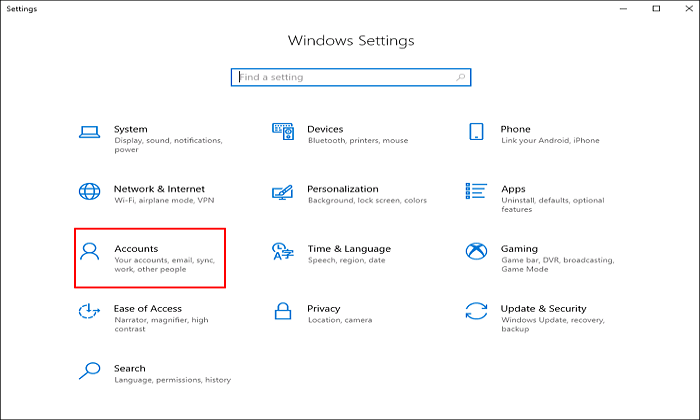
Step 2. On the left pane, click Your Info.

Step 3. After that, select Sign in with a local account instead.
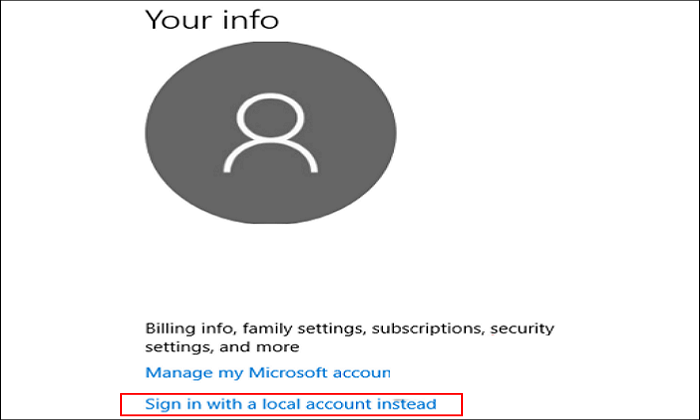
Switching to a local user account in Windows 10 is a straightforward process that guides you through the steps. Once you've created your local account, you can remove the fake Microsoft account from the system.
Way 4. Using OOBE\BYPASSNRO Command
To skip a Microsoft account for Windows 10 installation, you can use the oobe/bypassnro command. During the Windows 10 setup process, when the account sign-in window appears, follow a few steps to bypass Microsoft account creation. However, the specific steps are not provided in the given text.
Step 1. Press the Shift + F10 keys to launch the command prompt. This will open a command line interface where you can enter commands to perform various tasks.
Step 2. Type the following command.
oobe\bypassnro
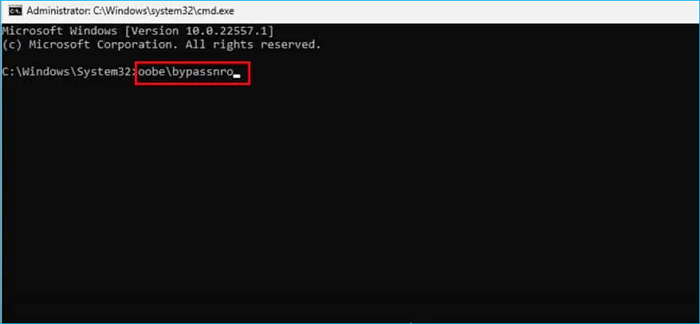
Step 3. Once the reboot is finished, ignore the notice and click Next.
Step 4. After adding the new user account, you must repeat the steps for adding the area, keyboard layout, etc. However, the system will not show the account sign-in window this time.
You can now complete the Windows 10 setup without any hassle.
To install Windows 10 without using a Microsoft account, follow the steps in the video provided. This video will guide you through the process of installing Windows 10 without requiring a Microsoft account.
The Bottom Line
You can install Windows 10 without a Microsoft account using four different methods. Alternatively, you can use Qiling Disk Master to bypass the Microsoft account requirement during setup. This way, you can quickly and easily set up Windows 10 without needing to use a Microsoft account.
Qiling Disk Master is a powerful tool for Windows and Mac users looking to create a bootable USB drive, install Windows without a Microsoft account, and more.
FAQs
1. What happens if you remove Microsoft account from Windows 10?
If you want to remove a Microsoft account, you'll lose access to all associated services, including OneDrive, Office, Xbox, and this forum, as well as any stored data.
2. Why do I need a Microsoft account to setup Windows 10?
Windows users can share their theme and preferences across multiple devices, but to back up or sync data using OneDrive, a Microsoft account is required. Additionally, this account can be used to sign into Windows, Microsoft 365, the Microsoft Store, and Xbox Live.
3. Does Windows 10 force you to use a Microsoft account?
One of the main issues with Windows 10 is that you're required to use a Microsoft account to log in, which necessitates an Internet connection. However, despite this seeming requirement, you are actually not obligated to use a Microsoft account, and can instead opt for a local account.
Related Articles
- How to Play Windows PC Games on Linux
- Windows 11 Download - How to Get the Windows 11 22H2 ISO File
- How to Install Two Operating Systems on One Computer | 4 Parts🔥
- How to Run Windows 10 From SD Card?|Step-by-Step Guide
If you want to run Windows 10 or 11 from SD card on a notebook or tablet computer, you can first use Qiling Disk Master software to move Windows 10 or 11 onto SD card, and then boot from it successfully. - [Tutorial] Create a Windows 11 Bootable USB
Windows To Go Creator can help you make a bootable USB from Windows 11 ISO file. After that, you can boot Windows 11 from it anywhere and anytime.
Products
Articles & Tutorials
- Data Recovery
- Data Backup
- File Recovery
- File Backup
- System Backup and Restore
- Disk and Partition Clone
- Technical articles
- Mobile articles
- Disk Master Help
- Windows Data Recovery Tutorials
- Windows Secure Delete Tutorials
- Windows Partition Management Tutorials
- Windows File Backup and Restore Tutorials
- Windows System Backup and Restore Tutorials
- Windows Disk Backup and Restore Tutorials
- Windows Clone Tutorials