Full Backup Definition | All You Need to Know in 2023
Data loss and information being lost in the shuffle is a common issue in today's world, often caused by hardware failure, accidental deletion, virus attacks, or other unforeseen reasons.
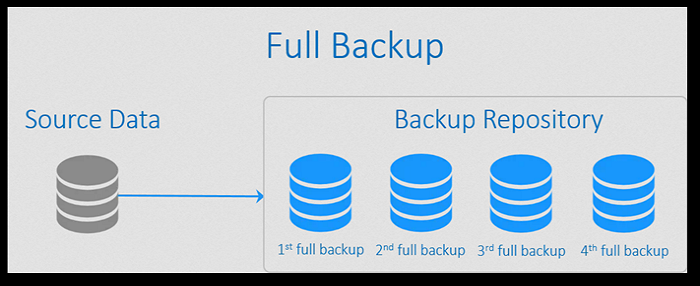
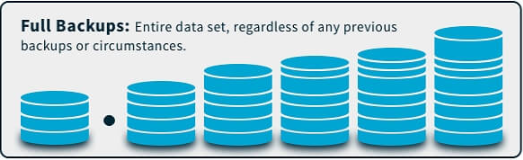
A full backup is a complete copy of all data on a device or system, including files, folders, and operating system. It provides a snapshot of the entire system at a specific point in time, allowing users to restore their data in case of data loss or system failure. In other words, a full backup is a comprehensive copy of everything, including system files, applications, and user data. It's like taking a picture of the entire system, so you can go back to that point if needed.
Today's computers are more vulnerable to data loss than previous generations, making it crucial for users to have a reliable backup system in place to protect against failing hardware, hackers, viruses, and other malicious problems.
To understand the nature of full backup, you can think of it as a complete copy of your data, including all files, folders, and settings. This type of backup is often used as a starting point for other backup strategies, such as incremental or differential backups, which only save changes made since the last full backup. However, a full backup can be time-consuming and may take up a lot of storage space, especially if you have a large amount of data. As an alternative, you can consider using a backup solution that offers continuous or incremental backups, which can be more efficient and save storage space.
What Is Full Backup
Computer users have two main backup options: full and incremental. A full backup saves all files, including the operating system and settings, allowing for a seamless restore to another computer or hard drive with no noticeable difference.
A full backup is a type of backup that creates a complete copy of a computer's hard drive, including all files, operating system, settings, preferences, and other data.
There are some drawbacks to using a full backup, including the large amount of storage space required (often double the size of the original data), the time-consuming nature of the process for large datasets, and the potential for data redundancy if backups are not properly managed. However, these drawbacks can be mitigated with proper scheduling and by combining full backups with incremental or differential backups, and many users find the comprehensive protection of full backups to outweigh the drawbacks.
Advantages
- Quickly restore all your files, including settings.
- Having a single backup each time makes management easier since you're not having to sift through multiple versions of the same file.
- To replace an older version, delete the outdated file and create a new backup file with the latest version. This ensures that the most current data is retained and the older version is removed, keeping the system up-to-date.
- File search and find can be very easy in a full backup, which makes it convenient to locate specific files or documents.
Disadvantages
- Takes up a lot of storage, almost double what you have.
- Creating a backup of a large dataset can be a time-consuming process, especially on older hard drives or when dealing with data exceeding 100GB.
- The risk of data loss is immense as well.
- Can create file redundancy and irrelevancy.
How Does Full Backup Work
The process of creating a full backup requires extensive and continuous backing up. Some organizations back up data daily, Monday through Friday, and reset on Mondays, while others do it three days a week.
- A 100% backup was performed on Monday.
- Additional 10% on Wednesday to save the new changes and files.
- To maintain consistency, an extra backup is performed on Fridays to keep newer files in sync.
- A 100% backup again next Monday.
To ensure thorough safety, some organizations set up a backup on Monday, then delete it on Tuesday and set up a new backup entirely, repeating this process until the end of the week, allowing them to keep track of separate files.
In addition to Windows backup utilities, third-party software like Qiling Backup offers a convenient file backup option and system image creation. With Qiling Backup, users can create full or credential backups and even migrate their OS to an external HDD/SSD.
Follow these steps to back up your files with Qiling Backup:
Step 1. Click the "File backup" button to start backup.

Step 2. Local and network files will be listed on the left, allowing you to expand directories and select the files to be backed up.

Step 3. Select the destination where you want to save the backup by following the on-screen guide.

Step 4. To encrypt the backup with a password, click on "Options" in the "Backup Options" section, where you can customize and explore various other options to tailor the backup task to your specific needs.

Set the backup schedule and choose to start back up at a certain event in "Backup Scheme".

Step 5. You can store the backup to local drive, Qiling's cloud service, and NAS.

Step 6. Qiling Backup allows users to back up data to both third-party cloud storage services and the company's own cloud storage service.
To back up data to a third-party cloud drive, select Local Drive, scroll down to add a Cloud Device, add and log in to your account.
Step 7. After clicking "Proceed" to start the backup task, it will be displayed as a card on the backup list panel once completed. To further manage the backup task, click the "Advance" button on the task card.

Three Types of Backup: Full, Incremental, and Differential
There are three types of backup: full, incremental, and differential. Each type allows users to back up their files or computers in a way that suits their needs, with each type functioning differently or in conjunction with the others based on user preference.
Full Backup: A full backup is a complete backup of your computer saved in a single file on an external drive, ensuring all your files are protected in case of a failure, data corruption, or data hijacking.
Incremental Backup: Incremental backup is the process of creating a backup of data that has changed since the last backup. Windows 10 incremental backup is a feature that allows you to create a backup at a specified time of the day of the changes that have taken place since the last backup.
Differential Backup: Differential backup is a data backup method that can back up files, folders, and hard drives. It starts with a full backup and then copies all data and files that have changed since the last full backup, making it dependent on the full backup. For those who are unsure about the difference between differential and incremental backups, we recommend reading the article "differential backup vs. incremental backup" to understand the distinction.
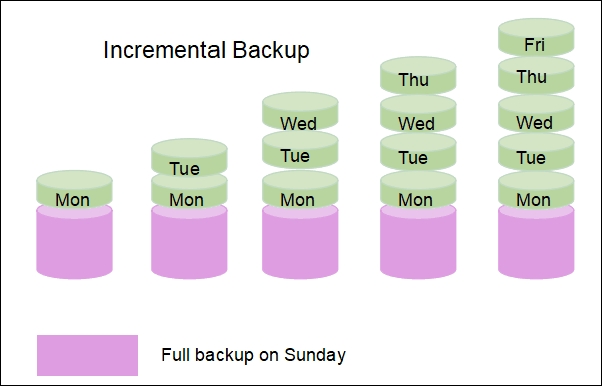
Full, differential, and incremental backups differ in terms of storage space, restoration speed, media requirement, and duplicity ratio. Full backups store the entire dataset, requiring the most storage space and media, but restoring is fastest.
| Backup Type | Storage Space | Restoration Speed | Media Requirement | Duplicity Ratio/File Redundancy |
|---|---|---|---|---|
| Full Backup | High | Slow | Most Recent | Very High |
| Differential Backup | Medium to High | Quick | Most recent full and differential backup files | High |
| Incremental Backup | Low | Quickest | Most recent full and entire series of incremental backups before | Low |
The table highlights the pros and cons of each backup type, illustrating that each has its own advantages and disadvantages.
Full Backup vs. System Image: Which Is Better for you
A full backup backs up the entire system, while a system image backs up only the drive with the operating system, typically the C drive. Both have their pros and cons.
Backup frequency can vary greatly depending on individual or organizational needs. While home computer users may not require frequent backups, some businesses may need to backup their data as often as twice a day.
A system image is a complete backup of the operating system, including all installed applications, settings, and drivers. It's essentially a snapshot of the entire system, capturing everything from the boot sector to the last installed program.
System Image: A system image backup is a compressed copy of a hard drive's data, typically stored on an external drive formatted as NTFS or FAT32. This backup type saves an exact copy of the Windows drive, including all necessary drivers and program files, allowing for a seamless restoration of the operating system and data when needed. By restoring the system image, you can recover your C Drive data, system preferences, and software, making it a convenient and efficient way to recover your computer to its previous state.
- Programs currently installed in Windows.
- System settings and files.
- system driver.
- System Preferences and Browser Settings.
Now that we know system image only secures the operating system, let's compare it to a full backup. A system image is essentially a snapshot of the operating system, which can be restored to a previous state in case of a problem.
| Features | Full Backup | System Image |
|---|---|---|
| Backup Content | Full/Heavy | Differential/Subjective/Usually Light |
| Speed | High | Very High |
| Storage Space | Very High | Moderate/Depends |
| Flexibility | Moderate | Very High |
The size of a system image depends on the computer, as consumer computers rarely take up 100GB or more unless they have games or heavy software on the C Drive, making the storage space required either very low, moderate, or very high.
Full backup requires a significant amount of free space, equal to or greater than the original data size, which can limit flexibility in data storage and management.
If you have enough storage, a full backup is always the best option. Otherwise, a differential or incremental backup might be more suitable, depending on your specific needs and requirements. The frequency of backups also plays a role, with full backups being more secure but also taking up more space. Ultimately, the choice between full, differential, or incremental backups depends on your unique situation and priorities.
Final Verdict
The choice of backup type depends on your specific requirements, with options including incremental, differential, system image, or full backup. However, if time and resources permit, a full backup is generally recommended as it provides the most comprehensive protection.
Related Articles
- Ultimate Guide on Network and Sharing Center [Updated 2022]
- What Is Boot Partition? [Specifically Explained]
- Macintosh HD vs. Macintosh HD Data: What Are the Differences
- What Is Schedule Backup? How to Set to Protect Your Data?
- Does SSD Need the Power to Retain Data? Answers Are Here!
You plan to keep all backups on an SSD drive, but do you know how long an SSD can hold data? SSDs don't need power to retain data, but they have drawbacks, such as being fast but built differently from HDDs. If you have data loss problems, consider Qiling data recovery software. - What Is Error 0x80070570 and How to Fix It
Error 0x80070570: The file or directory is corrupted or unreadable may occur when you delete a corrupt file on your computer. Error 0x80070570 also appears on external hard drive. Learn what is 0x80070570 and how to fix it.
Products
Articles & Tutorials
- Data Recovery
- Data Backup
- File Recovery
- File Backup
- System Backup and Restore
- Disk and Partition Clone
- Technical articles
- Mobile articles
- Disk Master Help
- Windows Data Recovery Tutorials
- Windows Secure Delete Tutorials
- Windows Partition Management Tutorials
- Windows File Backup and Restore Tutorials
- Windows System Backup and Restore Tutorials
- Windows Disk Backup and Restore Tutorials
- Windows Clone Tutorials