How to Find Windows 11/10 Product Key (5 Proven Ways)
- 1. Find Windows 11/10 Product Key with Software (Recommended)
- 2. Find My Windows 11/10 Product Key in Registry
- 3. Find Windows 11/10 Product Key Using CMD
- 4. View Windows 11/10 Product Key from the COA Sticker
- 5. Restore Windows 11/10 Product Key from Microsoft Store
How Can I Get Windows 11/10 Product Key
You can find your Windows product key in a few different ways. One way is to check the packaging that came with your Windows installation media, such as a USB drive or CD/DVD. The product key should be printed on a sticker. If you don't have the packaging, you can also check your email for a confirmation email from Microsoft that should contain your product key.
Finding your Windows 11/10 product key may appear like a big issue while you clone Windows 11/10 to another computer or install your Windows 11/10 on a new computer. Here we provide you with five methods to find Windows 11/10 product key. Follow the methods if you want to get your Windows product key or license.
Tip 1. Find Windows 11/10 Product Key with Qiling Key Finder
Supports Windows XP, 7, 8, 8.1, 10, 11
To find your Windows 11/10 product key, we recommend using the new "Product Key" feature in Qiling Key Finder. This new function allows you to extract your Windows 11/10 product key, and you can also use the software to download other features, such as viewing Adobe keys and finding Office product keys.
Follow the steps below to find the Windows product key:
Step 1. Click "Windows" tab under the Registry Key.
Step 2. To check the Windows product key, look for the key on the right side of the window. You can either click on "Copy" to copy the key and paste it somewhere, or select one of the other two options available.
"Save" - Save to local as a PDF file.
"Print" - Click to print key file.
You can find the product key for Windows 11/10 using the Command Prompt (CMD), Windows registry, or a third-party tool like Qiling Key Finder. However, CMD has limitations on license types, and the registry method involves cumbersome steps. If you want the most straightforward approach, using Qiling Key Finder is likely your best option.
Tip 2. How to Find My Windows 11/10 Product Key in Registry
Supports all versions of Windows that you haven't formatted your computer
To recover your Windows product key from the registry, you can follow these steps: First, open the Registry Editor by searching for "regedit" in the Start menu. Then, navigate to the "HKEY_LOCAL_MACHINE" key in the left-hand menu and select the "SOFTWARE" key. Next, select the "Microsoft" key, followed by the "Windows" key, and finally the "CurrentVersion" key. In the right-hand panel, look for the "DigitalProductKey" value and double-click on it to view its contents.
Step 1. To create a new text document on your desktop, right-click anywhere on the desktop, choose "New," and then select "Text Document" from the context menu.
Step 2. Copy and paste the code below into Notepad.
Set WshShell = CreateObject("WScript.Shell")
MsgBox ConvertToKey(WshShell.RegRead("HKLM\SOFTWARE\Microsoft\Windows NT\CurrentVersion\DigitalProductId"))
Function ConvertToKey(Key)
Const KeyOffset = 52
i = 28
Chars = "BCDFGHJKMPQRTVWXY2346789"
Do
Cur = 0
x = 14
Do
Cur = Cur * 256
Cur = Key(x + KeyOffset) + Cur
Key(x + KeyOffset) = (Cur \ 24) And 255
Cur = Cur Mod 24
x = x -1
Loop While x >= 0
i = i -1
KeyOutput = Mid(Chars, Cur + 1, 1) & KeyOutput
If (((29 - i) Mod 6) = 0) And (i <> -1) Then
i = i -1
KeyOutput = "-" & KeyOutput
End If
Loop While i >= 0
ConvertToKey = KeyOutput
End Function
Step 3. To save the product key, click on the "File" menu and select "Save As". Then, set the file name to "productkey.vbs".
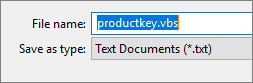
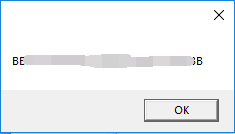
Step 4. Close Notepad and double-click the .vbs file. Wait a few seconds, and you will be presented with a popup displaying your product key.
Tip 3. How to Find your Product Key in Windows 11/10 via CMD
Supports newer PCs running Windows 8 or Windows 11/10
To view the Windows 11/10 product key, using CMD is a useful method, but it's only available for OEM licenses. Before trying this method, you need to determine the type of license you have, as it's essential to know if you have an OEM license or not. Once you've confirmed, you can proceed with using the command line to retrieve your Windows product key.
Here is the tip about Windows license type:
- Tip
- Retail KeyYou will receive the product key when you purchase a Windows 11/10 license from a Microsoft Store or retail Store.
OEM KeyComputer manufacturers, also known as OEMs, have agreements with Microsoft to pre-install a licensed copy of Windows on their computers. This means that when you buy a new computer, it usually comes with a version of Windows that has already been activated, so you don't need to activate it yourself. - Volume licensing (MAK/KMS): Enterprise purchases Windows license in bulk under the Volume Licensing Program, which offers two types of keys: MAK (Multiple Activation Key) and KMS (Key Management Service).
To find your Windows 11/10 product key, start by typing "slui 3" in the Windows search bar and pressing Enter. This will open the Windows Activation page, where you can click on the "Update product key" button.
Step 1. Open CMD and right-click it to run as administrator.
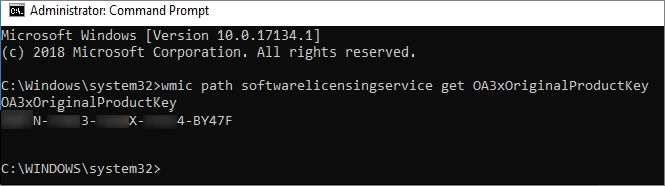
Step 2. To get the product key, open the Command Prompt, copy and paste the command line, and then press Enter. The product key will then appear.
"wmic path softwarelicensingservice get OA3xOriginalProductKey"
Tip 4. View Windows 11/10 Product Key from the COA Sticker
Supports older PCs running Windows XP, Vista and 7
The product key for older PCs that came with Windows XP, Vista, and 7 can usually be found on the Certificate of Authenticity sticker, which is typically located on the underside of laptops or on the top, sides, or bottom of a desktop tower.
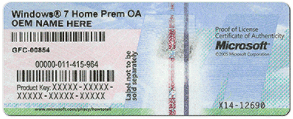
Tip 5. Restore Windows 11/10 Product Key from Microsoft Store
Supports Microsoft offers a free upgrade to Windows 11 for all eligible Windows 10 devices purchased from the Microsoft Store. This means that if you bought a Windows 10 device from the Microsoft Store, you can upgrade to Windows 11 for free.
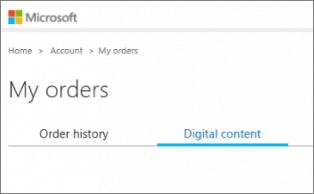
If you purchase a Windows 11/10 license from the Microsoft Store, your product key is stored on your Microsoft account. To access your key, follow the steps.
- To access the Microsoft Store, log in to the website and navigate to the "Downloads" section, then select "Product Keys". From there, you can access your subscription and digital content.
Microsoft sends the product key in the confirmation email, which may be in the inbox or junk mail folder. If it's been deleted, try checking the junk mail folder or contact Microsoft for another way to obtain the product key.
Conclusion
Finding the Windows product key is a straightforward process that works for all Windows versions, including Windows XP, 7, 8, 8.1, and Windows 11/10. If you're not familiar with the product key, a recommended method is to use the first approach, which is suitable for all Windows versions.
Related Articles
- How to Recover Lost Adobe Product Key in 3 Ways
- How to Read and Find Lost WiFi Password (PC/Mac/iOS/Android)
- Where Can I Find My Windows Product Key Remotely?
- Quick Ways to Check Autodesk Inventor Serial Number and Product Key
- How to Fix Active Partition Not Found in Windows [Full Guide]
Are you receiving Active Partition Not Found when you start your Windows PC? Did you recently change one of the storage devices on your PC? Then follow this easy guide where we explain how to fix the problem that delivers active partition not found error. - What Is an Active Partition in 2024, Everything You Need to Know
Learn what an active partition is, when Windows needs one, and how to set or fix an active partition safely.
Products
Articles & Tutorials
- Data Recovery
- Data Backup
- File Recovery
- File Backup
- System Backup and Restore
- Disk and Partition Clone
- Technical articles
- Mobile articles
- Disk Master Help
- Windows Data Recovery Tutorials
- Windows Secure Delete Tutorials
- Windows Partition Management Tutorials
- Windows File Backup and Restore Tutorials
- Windows System Backup and Restore Tutorials
- Windows Disk Backup and Restore Tutorials
- Windows Clone Tutorials