How to Read and Find Lost WiFi Password (PC/Mac/iOS/Android)
Forgetting the WiFi password can be a hassle when hosting guests, as they often ask for it before even asking for a drink. The problem is that most devices obscure the password characters with asterisks, making it difficult to recall the password.
You can easily read and find a lost WiFi password without needing much technical expertise, as long as you can access the router or at least one device connected to the network. The process is straightforward on Windows, Mac, iOS, and Android, allowing you to quickly recover your WiFi password.
I forgot My WiFi Password But My Phone is Connected?
How to Read and Find Lost WiFi Password on Windows?
How to Retrieve WiFi Password on Mac?
See WiFi Password on Router
I forgot My WiFi Password But My Phone is Connected?
Forgetting your WiFi password can be frustrating, especially when your phone is already connected to the network. Fortunately, you can easily retrieve your WiFi password on your phone, even if you've forgotten it. To do this, follow these steps: go to your phone's settings, scroll down to the WiFi section, and look for the network you're currently connected to.
To find the lost WiFi password on your smartphone, go to your phone's settings, then select "Connections" or "Wireless & Networks" (depending on your phone's model), and finally, choose "Wi-Fi". From there, you can tap on the three dots or the gear icon next to the connected WiFi network, and select "Forget network" or "Forget this network".
For Android 10 Phones:
- Go to Settings.
- Open Connections.
- Tap on the connected WiFi connection.
- Tap on the QR Code option at the bottom left corner to proceed.
- Capture a screenshot of the QR Code.
- Use a QR code scanner app to read the code from the screenshot.
You will find the WiFi password.
For iPhone:
- Go to Settings.
- Open Apple ID.
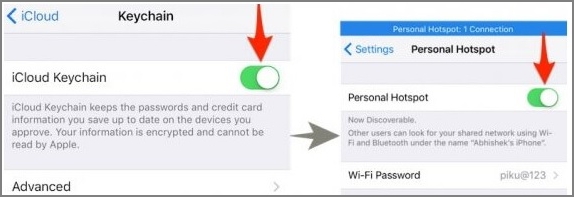
- Click on iCloud and turn on Keychain.
- To turn on the Personal Hotspot, go to Settings, then tap on Personal Hotspot, and toggle the switch to the right, which should say "On".
- Connect your Mac to the personal hotspot of your iPhone.
- Open Spotlight search on your Mac, then search for Keychain Access.
- To retrieve your lost WiFi password, search and open the WiFi network, then click on the "Show Password" option to view it.
How to Read and Find Lost WiFi Password on Windows?
Here are the two ideal ways to find your WiFi password on Windows:
1. Using Qiling WiFi Password Reader
If you've forgotten your WiFi code and need to share it with someone or connect another device, there are several ways to retrieve it. Qiling WiFi Password Reader is a convenient option that allows you to quickly find and view your lost WiFi password.
The software provides the ability to read saved web usernames and passwords, as well as offer a support system and key reading capabilities for various software and systems, including Windows, Microsoft Office, Exchange Server, SQL Server, Autodesk, and Adobe.
Step 1. Launch Qiling Key Finder on your laptop, and click on the "WLAN" option from the left-hand menu.
Step 2. To find your WiFi account password, look for the network name, and the password should be displayed next to it.
You can directly click "Copy" to copy the WiFi password and then join your wireless network immediately.
Or, you can also, click "Print" or "Save" to back up all your WiFi networks and passwords.
2. Check Network & Internet Settings
For PC administrators, there are no restrictions, and they can easily find the WiFi password in Network & Internet settings.
Here's how you can do it:
1. To access the network settings on your computer, start by opening the Start menu, then select the "Settings" option. Once in Settings, navigate to the "Network & Internet" section.
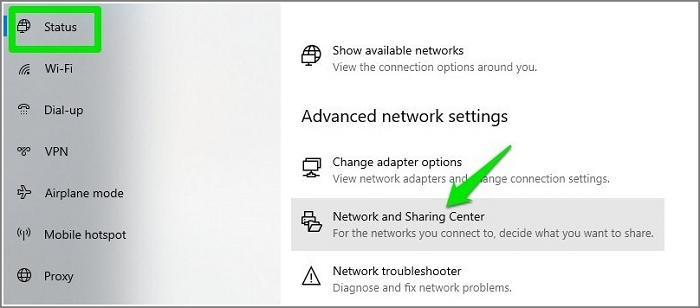
2. Click on the "Status" section and scroll down to open the "Network and Sharing Center".
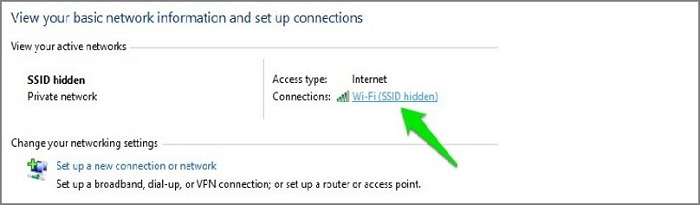
3. Now choose the WiFi name from the active network section.
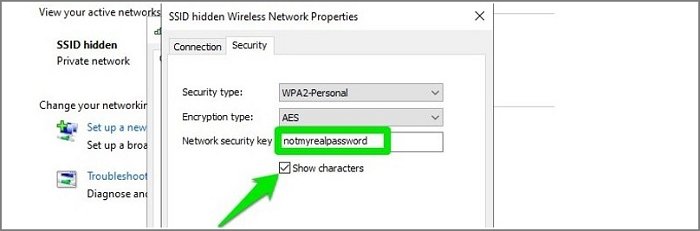
4. Once you see the WiFi Status window, open Wireless Properties.
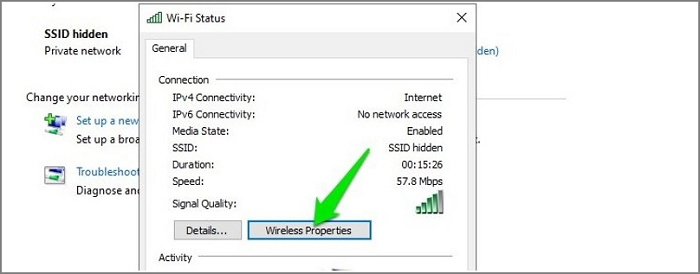
To get your WiFi password, go to the Security tab, tick the checkbox next to Show Characters, and your WiFi password will be displayed.
How to Retrieve WiFi Password on Mac?
Keychain Access is an app on macOS that stores passwords, but to view your WiFi password, you need to remember your administrator password.
Follow these steps:
Step 1: To begin, open the Keychain app and launch it from Spotlight Search.
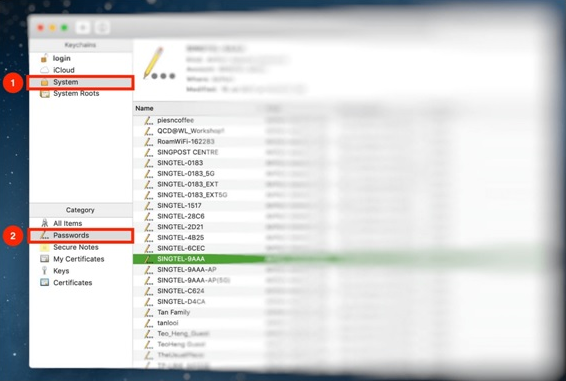
Step 2: Once you have opened the application, go to System and click on Passwords. Find the name of the network that you want to access and click on it to open it.
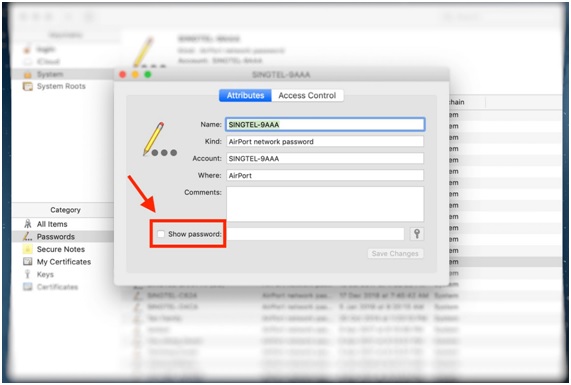
Step 3: Click to show the password of the network.
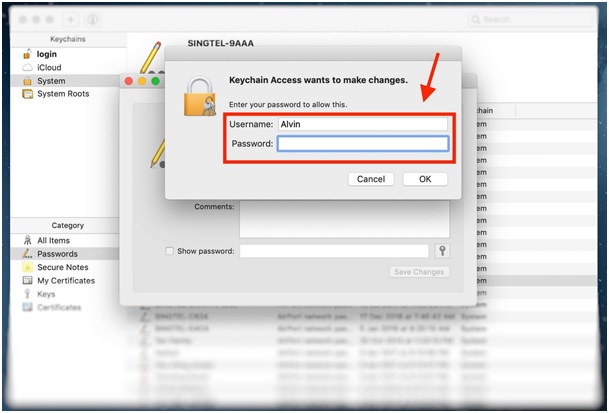
Step 4: You will be asked about authentication. Just fill in the details to authenticate.
If you don't know the Username, you can check it by clicking on the Apple icon available on the top left corner of the screen.
Step 5: View and show the password.
The password will be available in the box beside the "Show Password" button.
See WiFi Password on Router
You can read and find lost WiFi passwords on your router through various methods.
From Router Web-interface
Step 1: Copy the router IP address from settings and paste it into your web browser.
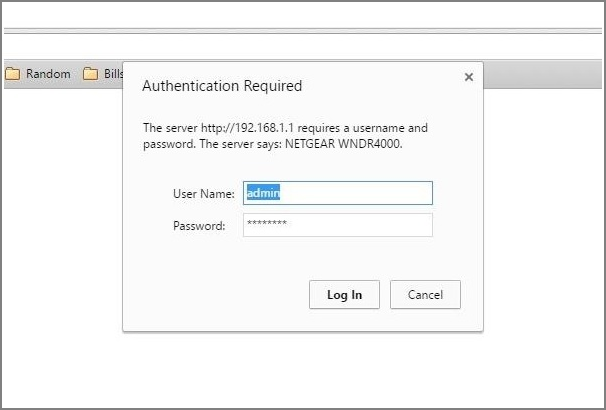
Step 2: Once you have entered the router's IP address, you will be prompted to enter the username and password. The default login information can usually be found on a sticker on the bottom or side of the router.
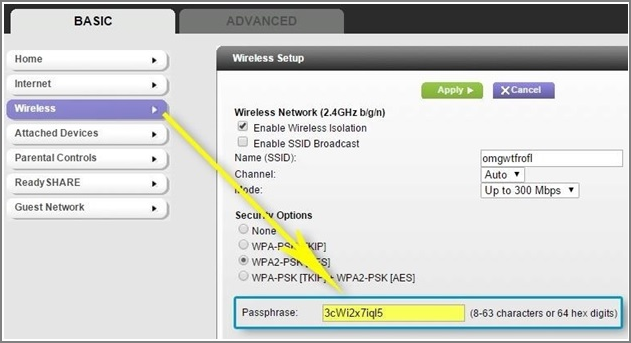
Step 3: Once logged in, you will find the "Wireless" or "WiFi" option in the side menu, click on it to view or change the current password.
Reset Your Router
If you can't find your WiFi password, you can reset your router. This will reset all network settings, including the password. To do this, find the reset button on your router, press and hold it for 5-10 seconds, and then reset your router. After resetting, you can use the default password to connect to your network.
Final Words
To find lost WiFi passwords, users can use methods such as checking the WiFi settings on their device, looking for a password note or sticker, or using a WiFi password recovery tool. However, for system administrators who need to manage multiple devices and connections, using a tool like Qiling WiFi Password Reader is recommended.
Related Articles
- [Easy to Follow] How to Find CorelDRAW Serial Number?
- How to Find A Chrome Account and Password
- What to Do When You Forgot Thunderbird Password
- Quick Ways to Check Autodesk Inventor Serial Number and Product Key
- What Is Volume Shadow Copy and How to Use It Correctly on Windows 11/10
Learn what Volume Shadow Copy is, how it works in Windows, and how it helps create snapshots, backups, and previous versions of files. - WD Easystore VS My Passport: Which One to Pick?🔥
WD Easystore VS My Passport: which is better and which one to choose? If you don't have an idea, you've come to the right page. This article will tell you the difference between WD Easystore and My Passport. After reading, you can pick the right one.
Products
Articles & Tutorials
- Data Recovery
- Data Backup
- File Recovery
- File Backup
- System Backup and Restore
- Disk and Partition Clone
- Technical articles
- Mobile articles
- Disk Master Help
- Windows Data Recovery Tutorials
- Windows Secure Delete Tutorials
- Windows Partition Management Tutorials
- Windows File Backup and Restore Tutorials
- Windows System Backup and Restore Tutorials
- Windows Disk Backup and Restore Tutorials
- Windows Clone Tutorials