Mac Spotlight Shortcut You Should Use [Full Guide]
Spotlight Search is a built-in feature in macOS that allows users to search for files, folders, apps, and more with ease. While many are familiar with Spotlight, they may not be using it to its full potential. This article provides an in-depth look at Spotlight Search, including how to create a custom shortcut to access it and personalize it to meet individual needs. By exploring these features, users can get the most out of Spotlight Search and streamline their workflow on Mac.
What Is Spotlight Shortcut on Mac?
Spotlight Search is a handy tool that lets you quickly access and open various types of files on your Mac, including documents, apps, photos, notes, reminders, and more, making it easy to find what you need without any hassle.

Spotlight Search can be accessed using the Command + Space shortcut key and can be used to search for documents by name or content, launch apps by typing abbreviations, and even perform complex calculations without opening the Calculator app.
How to Set a Custom Shortcut to Open Spotlight?
To give a new key combination to open Spotlight Search, go to System Preferences, then Keyboard, and click on the "Shortcuts" tab. Select "Spotlight" from the left menu, and then click on the "+" button below the "Search" field. Type in the new key combination you want to use, and click "Add". This will replace the default Command and Spacebar key combination. Now, whenever you press your new key combination, Spotlight Search will open.
Step 1. To start, click on the Apple icon in the top menu to open the Apple Menu and select System Preferences from the menu.
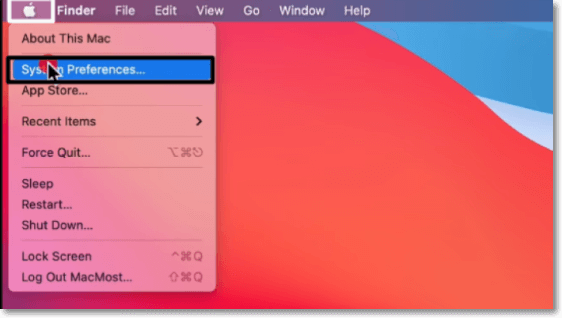
Step 2. To access the Keyboard settings, click on System Preferences and then select Keyboard.
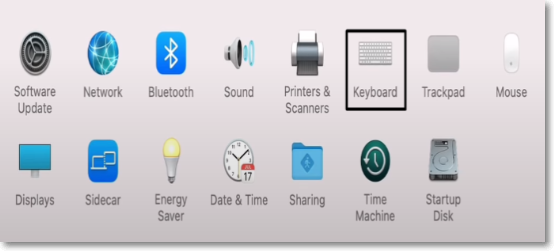
Step 3. In the Keyboard settings, navigate to the Shortcuts section by choosing Shortcuts from the top.

Step 4. To access Spotlight, select it from the list of available utilities on the left-hand side of the window.
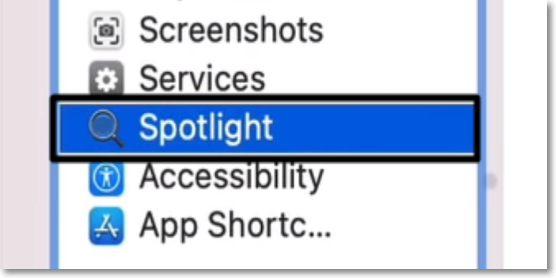
Step 5. To assign a new key combination for Spotlight Search, select the Show Spotlight Search option and click on the key combination next to it to assign a new one.

Step 6. On the next screen, you'll see a virtual keyboard where you need to type in the new shortcut using the keys you'd like to use to open Spotlight Search. Hold all the keys together for a few seconds, then release them.
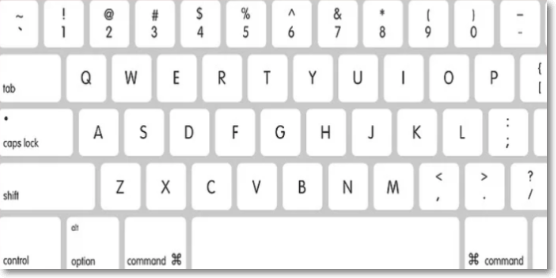
To set a custom shortcut to open the Spotlight Search on Mac, follow these steps: go to System Preferences, then Keyboard, and click on the "Shortcuts" tab. In the "Services" section, select "Spotlight" from the list, and then click on the "+" button to add a new shortcut. In the "Create a shortcut" window, select the keys you want to use as your shortcut, and then click "Add".
How to Customize Spotlight Shortcut Search?
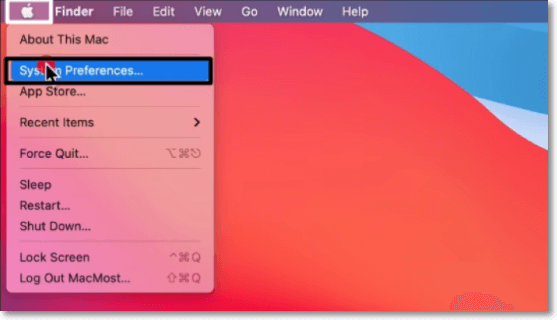
To customize Spotlight Search on your Mac, first, click on the Apple logo and select System Preferences. Then, click on Spotlight and select the "Search Results" tab. From there, you can choose which types of files and folders to include in search results, such as documents, emails, and apps. Additionally, you can select specific folders or apps to search within. This should help ensure that Spotlight Search shows the correct items in your search results.
Step 1. To open System Preferences, click on the Apple menu and select System Preferences.
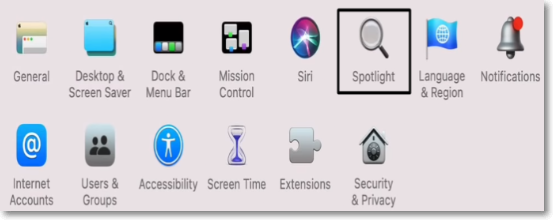
Step 2. To access Spotlight, click on "Spotlight" in the System Preferences window, then navigate to the Search Results section.
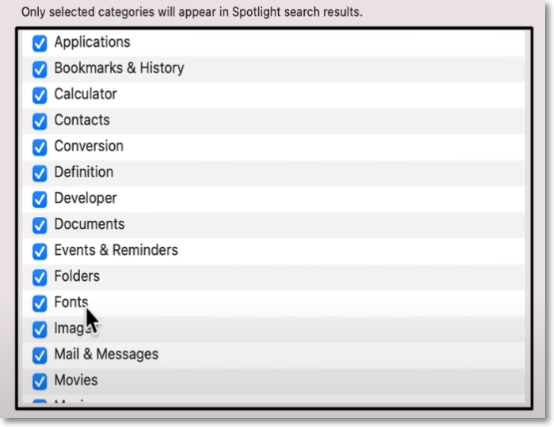
Step 3. To customize Spotlight search results, select the categories you want to appear. For example, you can uncheck Events & Reminders and Developer if you don't want them to show up in search results.
Conclusion
Spotlight Search is one of the most useful features on Mac. It saves a lot of our time by eliminating the process of manually searching for the required file on the Mac. Here in this article, we discussed everything about the Spotlight Search function. We shared all the basic and practical information about Spotlight Search. So, we hope this guide helps you use the Spotlight Search feature on Mac more effectively.
FAQs About Mac Spotlight Shortcut
1. How Do I Open Spotlight Search?
To open Spotlight Search on a Mac, press and hold the Command key and the Spacebar key simultaneously.
2. What If Mac Spotlight Doesn't Work?
If Spotlight Search isn't working on your Mac, you can try rebuilding the Spotlight index by going to System Preferences, then clicking on Spotlight, and finally clicking on the "Privacy" tab to rebuild the index.
3. How Do I Fix Windows Spotlight Not Working?
To resolve the Windows Spotlight not working issue, delete Spotlight files by going to Settings, then Personalization, and finally Lock screen. Click on the Background drop-down menu and select the "Get fun facts, quotes, and more on your lock screen" option. Click on the "Get started" button and then click on the "Change" button next to "Background".
Step 1. To open the Run dialog, press the Windows key + R on your keyboard.
Step 2. Type the following command in the Run dialog box and press Enter:
%USERPROFILE%/AppData\Local\Packages\Microsoft.Windows.ContentDeliveryManager_cw5n1h2txyewy\LocalState\Assets
Step 3. To troubleshoot the issue, first, select all the files in the folder and delete them. Then, restart the PC and check if the issue is resolved. This should resolve the problem.
Related Articles
- Windows Recovery Environment [How to Access with Video]
- Solved: How to Activate Protection System in Windows? - Qiling
- How to Boot from USB on Different OSs [Step-by-Step Guide]
- What Is Hyper-V Snapshot [Full Explanation]
- Function Keys Not Working in Windows? Try These 6 Fixes
If function keys stop working in Windows, try these six practical troubleshooting methods. - Games Keep Crashing on Windows 10/11 - 13 Quick Fixes
Fix games that keep crashing on Windows 10 or 11. Check drivers, overheating, game files, system resources, and compatibility issues.
Products
Articles & Tutorials
- Data Recovery
- Data Backup
- File Recovery
- File Backup
- System Backup and Restore
- Disk and Partition Clone
- Technical articles
- Mobile articles
- Disk Master Help
- Windows Data Recovery Tutorials
- Windows Secure Delete Tutorials
- Windows Partition Management Tutorials
- Windows File Backup and Restore Tutorials
- Windows System Backup and Restore Tutorials
- Windows Disk Backup and Restore Tutorials
- Windows Clone Tutorials