How to Recover Files after Reinstalling Windows 11/10/8/7
If you've recently reinstalled Windows 11, 10, 8, or 7 and are looking to recover files, you can use the following table to guide you through the process in three ways.
| Workable Solutions | Step-by-step Troubleshooting |
|---|---|
| Fix 1. Recover Files After Windows Reinstall with Recovery Software |
The first recommended method is to apply a hard drive recovery software - Deep Data Recovery. If you are not a veteran, this tool is your best choice...Full steps |
| Fix 2. Recover Files with Windows Backup File History | If you have no backup available, a data recovery tool is recommended. If you have backed up your files via Windows File History, recover from backup...Full steps |
| Fix 3. Perform System Restore to Restore Lost Files | In addition to data recovery software and backup files, you can also recover files after reinstalling by performing system restore. This will restore your OS...Full steps |
Reinstalled Windows 10 and Lost Everything
If you lost your data after reinstalling Windows, you are not alone. If you are unable to access the Windows.old folder, you can try using data recovery software to scan your computer for lost files. You can also check the Recycle Bin and any backup locations to see if your files are still there. To prevent this from happening again, it is a good idea to regularly back up your important files to an external hard drive or cloud storage service.
Reinstalling a new Windows OS from scratch offers several benefits, including removing viruses and malware, regaining control over installed programs, and fixing system-related issues on your computer. This process also provides a fresh start to speed up your computer. In addition to these advantages, there are specific situations where reinstalling Windows is necessary, such as when you need to start anew.
Reasons for Reinstalling Windows OS:
- Windows system files are deleted or corrupted
- Windows registry has been corrupted
- Hardware failure causes a Windows system crash
- Fail to remove the virus/spyware
- A sudden blue or black screen of death (BSOD)
- Windows system upgrades or updates
- Other unknown reasons which cause Windows system unbootable
Windows Reset vs. Reinstall vs. Clean Install: Will it Keep My Files?
Microsoft recommends a three-step approach to reinstalling Windows 10: first, try a "Reset Windows 10" to restore the operating system to its default settings without deleting files; if needed, use "Reinstall Windows 10 using installation media" to reinstall Windows while keeping files and personal data; and as a last resort, perform a "Clean install of Windows 10 using installation media" which will erase all data and apps. Each option has varying impacts on apps, files, and personal data, and the likelihood of recovering data after reinstalling Windows.
| Reinstall Type | Reinstall options you can choose | What happens to data, files and folders |
|---|---|---|
| Reset Windows 10 | Keep my files | Preserved |
| Reset Windows 10 | Remove everything | Deleted |
| Reinstall Windows 10 using installation media | Keep Everything (Default) | Preserved |
| Reinstall Windows 10 using installation media | Keep Personal Data | Preserved |
| Reinstall Windows 10 using installation media | Keep Nothing | Deleted |
| Clean install Windows 10 using installation media |
N/A (This option deletes and recreates all disk partitions) |
Deleted |
Before reinstalling Windows 10, save personal data and files to an external hard drive, USB thumb drive, SD card, or cloud location like OneDrive to avoid losing them. Alternatively, choose the correct reinstall options to preserve data or remove all during the reinstallation process.
How to Recover Files After Reinstalling Windows 11/10/8/7
After reinstalling Windows 11/10/8/7, Windows data and files may not be deleted permanently, and lost files can still be recovered using reliable methods. Three practical ways to recover files include using Windows data recovery software, restoring from Windows File History Backup, and performing System Restore, which can help retrieve deleted files and data.
Method 1. Recover Files After Windows Reinstall with Qiling Data Recovery
The first recommended method is to apply a hard drive recovery software, specifically Deep Data Recovery, which is a user-friendly tool that helps recover lost data in just a few clicks, making it a great choice for those who are not experienced in data recovery.
- Recover everything you want.This software supports various types of data recovery, including deleted data recovery, formatted file recovery, lost partition recovery, OS crash recovery, and RAW partition recovery, among others.
- Flexible Scanning Modes. The tool provides two scanning options: Quick Scan and Advanced Scan, allowing users to choose the level of detail they need to find specific information.
- Preview Before Recovery.Deep Data Recovery allows users to preview lost files before the actual recovery to ensure the file contents are alright.
To recover as many files as possible after reinstalling Windows, download and apply the software immediately.
Step 1. Select file types and click "Fast Scan" to start
Launch Deep Data Recovery, select the desired file types, and click "Fast Scan" to initiate the recovery process.

Note: You can choose different search modes based on where and why the data was lost.
Step 2. Select and scan the lost partition
To recover lost data, select "Lost Partition" and click "Scan" to search for all the lost data, which can be identified by its partition size if there are multiple lost partitions.
Since Windows doesn't support the Linux file system, an Ext2 or Ext3 partition will be recognized as a lost partition with no drive letter. To recover data from this partition, follow these steps.

Step 3. Filter the scanned results
You can quickly filter scanned files by category, such as Pictures, Videos, Documents, Audio, and Others, or search for a specific file by typing its name in the upper right search box.

Step 4. Preview and recover data from the lost partition
Before recovering files, you can preview them to ensure they are the correct data. Select all the desired files and click "Recover" to restore them.
Method 2. Recover Files with Windows Backup File History
If you have no backup available, using a data recovery tool is recommended. However, if you have backed up your lost files via Windows File History, you can recover the lost files from the backup location. To do this, go to the Start menu, type 'File History' in the search bar, and select the relevant result. Then, follow the prompts to access your backed-up files and restore them to their original location.
Step 1. Open "Settings" and select "Update & Security".
Step 2. Find the "Backup" option to locate your backup.
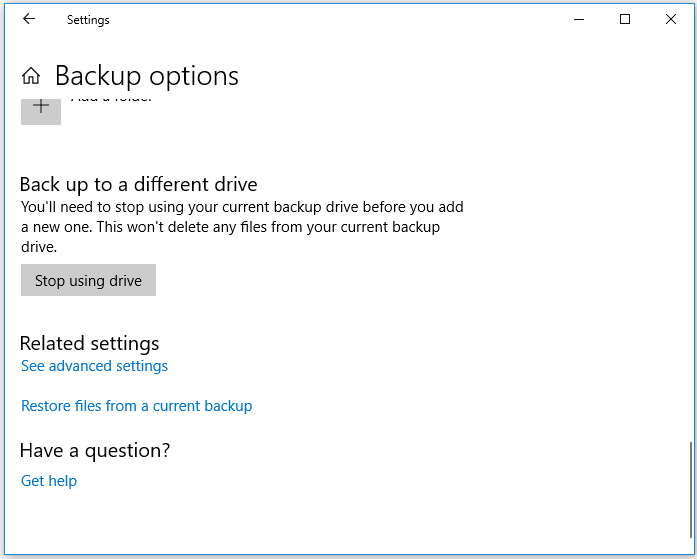
Step 3. Under "Back up using File History", choose "More options".
Step 4. Scroll down to the "Related settings" section, choose "Restore files from a current backup".
Step 5.To find the file you need, look for the file you need, then use the arrows to see all its versions.
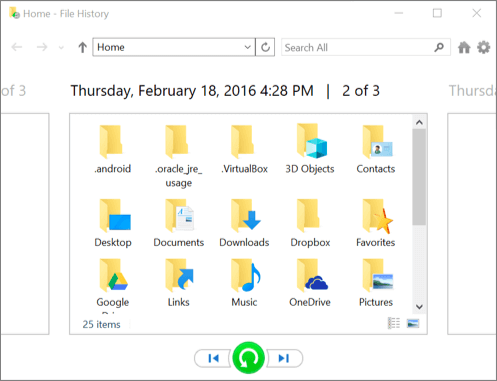
Step 6. When you find the version you want, select "Restore" to save it in its original location.
To save the backup in a different location, right-click on the "Restore" option and select "Restore to", then choose a new location.
Method 3. Perform System Restore to Restore Lost Files
You can create a system restore point to recover lost files after reinstalling Windows, but it will also revert your OS to its previous state.
If you're not getting the expected result, try the first two methods. If you're willing to reinstall Windows 11/10/8/7, you can follow the steps below and give it a try.
Step 1. To bring up the Run box in Windows, press the "Windows + R" keys simultaneously. This will open the Run dialog box, where you can type a command or application name to run it.
Step 2. Type rstrui.exe in the empty box and hit Enter. This will open System Restore.
Step 3. Select "Choose a different restore point" and click "Next".
Step 4. Click "Scan for affected programs".
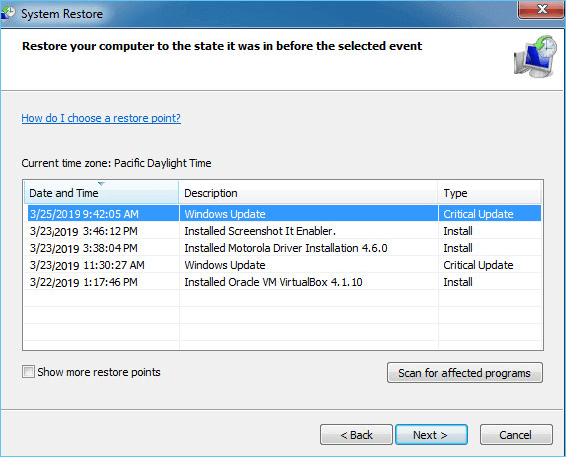
Step 5. If none of your data drives are affected, click "Next" to finish the process.
If your data drive is impacted, back up your saved data to an external hard drive beforehand. Then, follow the on-screen instructions to complete the process.
How to Reinstall or Clean Install Windows OS Without Data Loss
To ensure you can reinstall Windows 10, Windows 8, or earlier versions without data loss, here are some useful tips for you.
# 1. Back up Files in Advance
Windows reinstallation will inevitably cause data loss on your computer hard drive. It's crucial to back up your important files before proceeding with the reinstallation process to avoid losing vital data.
- When reinstalling Windows on a working PC, you can use disk cloning software to create a copy of your disk or partition, which is faster than manually copying and pasting.
- If you're trying to reinstall Windows on a non-bootable PC, don't worry. You can use the Windows backup software to create bootable media and back up your files before the installation.
# 2. Migrate Windows Without Reinstalling OS
When reinstalling Windows 10/8/7, you will lose all apps, settings, and files unless you migrate the OS, which allows you to keep them.
The Bottom Line
If you've lost files after reinstalling Windows 11/10/8/7, you can recover them using Windows data recovery software, File History, or System Restore. If you don't have a backup or system restore point, Deep Data Recovery can be your last resort to retrieve the lost files.
To avoid complete data loss during a Windows reinstall, make sure to back up your essential files beforehand and perform data recovery as soon as possible if data loss occurs.
FAQs About Recover Files After Reinstalling Windows 10/11
You can recover files after reinstalling Windows 11/10/8/7 by following the steps outlined in the article. Additionally, we've summarized the answers to frequently asked questions that you may find helpful.
1. How do I reinstall old Windows and keep files?
There are two things that you should do to keep files on your computer while reinstalling Windows 10:
- First, create a backup of your files in advance.
You can either manually copy or use advanced Windows backup software to fully back up your data to an external hard drive in advance.
While installing Windows, make sure to select the option "Keep all my files" instead of "Remove files and clean the drive".
2. Do you lose file when reinstalling Windows?
Windows reinstallation involves replacing the old system drive with new Windows files, which means files saved on the desktop, Documents, Music, Image, and other folders, as well as files stored in the C: drive, will be deleted.
When reinstalling Windows, even with the "Keep all my files" option selected, you'll still risk losing some files. To avoid this, it's essential to back up all your valuable files to an external hard drive before the process. Refer to the guide on Backup Computer to USB Flash Drive for assistance with this step.
3. Is it possible to recover data after Windows 10 reset?
Windows 10 reset will give users the option to keep their files or not, and if they choose to keep them, most data on the non-system partition will be preserved.
The system C drive will be reformatted, which means all saved files on it will be deleted. However, if no new files have been saved on the drive since the last backup, the files can still be recovered from the previous backup.
To recover lost data, you can use Qiling data recovery software to fully scan and restore all lost data, or use File History Backup to recover specific files, or perform System Restore to restore the system to a previous point in time.
For a Windows 11 reinstall that used the keep-files option, finding files after a keep-files reinstall checks account and old-file paths before scanning.
Related Articles
- Why Does My Computer Keep Crashing? Top 8 Reasons Are Here!
- HD Video Repair Utility Free Download for Windows and Mac: MP4 MOV Full Repair
- Fix Word The Add-In Template is Not Valid
- Get Your Answer: Does Formatting A Laptop Remove Viruses?
- Windows 11 Keeps Crashing - All Methods to Fix
Fix Windows 11 keeps crashing with practical troubleshooting tips for drivers, system files, updates, hardware, and startup problems. - Overall Solutions: How to Ungroup the Taskbar In Windows 11
Wondering how to ungroup a taskbar? Find out everything about Windows 11 Ungroup Taskbar here!
Products
Articles & Tutorials
- Data Recovery
- Data Backup
- File Recovery
- File Backup
- System Backup and Restore
- Disk and Partition Clone
- Technical articles
- Mobile articles
- Disk Master Help
- Windows Data Recovery Tutorials
- Windows Secure Delete Tutorials
- Windows Partition Management Tutorials
- Windows File Backup and Restore Tutorials
- Windows System Backup and Restore Tutorials
- Windows Disk Backup and Restore Tutorials
- Windows Clone Tutorials