Get Your Answer: Does Formatting A Laptop Remove Viruses?
Information about computer viruses, disk formatting, and the relationship between the two will be discussed here. Reading this post from start to finish can help solve the puzzle of losing data files damaged by viruses. For those who have already been affected, it's essential to start with virus file recovery first. The rest of the content will cover computer viruses, disk formatting, and how they relate to each other.
How to Recover Viruses Infected Files
Hearing the word "virus" can be unsettling, as it's inevitable to encounter them while browsing the internet, downloading files from unofficial websites, or even opening unknown emails. The damage caused by viruses goes beyond slowing down your operating system or draining computer resources - they can also hide or delete important files, or encrypt them, making them unreadable, even if you try to open them.
How to Recover Folders Turned into .exe
The .exe virus can infect a USB flash drive or computer, hiding original folders and duplicating them, then creating an executable file with the same name as the original folders.

To recover lost and invisible documents, pictures, or video files, consider using Deep Data Recovery. This software is designed to work on both Windows and macOS, and can scan virus-infected data files to make them visible again on your computer screen. Once you've recovered your files, you can format your laptop and clean the viruses at your convenience. Simply download the software, let it run, and you'll be able to access your recovered files whenever you need them.
Step 1. Select file types and click "Format Scan" to start
To recover a virus file, run Qiling virus file recovery software on your Windows PC, select the desired file types, and click "Format Scan" to initiate the recovery process.

Note: You can choose different search modes based on where and why the data was lost.
Step 2. Select the virus infected drive to scan
To scan for lost or hidden files, select the disk attacked by the virus.
- If the issue is with a hard drive (HDD) where files were hidden or deleted by a virus, it's recommended to install the software on a separate volume or an external USB drive to prevent overwriting of existing data.
- If the infected device is an external hard drive, flash drive, or memory card, it's not necessary to install the software on the local drive of the computer.

Step 3. Check all scanned results
Deep Data Recovery will immediately start a scan process to find deleted or hidden files on the virus-infected hard drive. To quickly locate wanted files, you can use the Filter or type grouping feature to display only pictures, videos, documents, emails, etc.

Step 4. Preview and recover deleted/hidden files
After the scanning process is complete, you can preview the recovered files. Select the desired files and click the "Recover" button to restore them. It's essential to save the recovered files to a different, secure location on your computer or storage device, rather than the original location where they were lost.
What Is A Computer Virus?
A computer virus is a type of malware that can harm a computer by damaging programs, deleting files, disrupting system performance, and stealing data, similar to a biological virus that makes you sick. It's designed to duplicate and spread from device to device, causing frequent crashes and sapping computer memory.

What Is Formatting?
Wikipedia gives a very elaborate description on disk formatting.
Disk formatting is the process of preparing a data storage device, such as a hard disk drive, solid-state drive, or USB flash drive, for initial use. This involves three main parts: low-level formatting, which prepares the physical storage space; partitioning, which divides the space into logical sections; and high-level formatting, which prepares the file system and makes the device ready for use.
For average computer users, high-level formatting is the process of setting up a blank file system on a disk partition or logical volume, and installing the boot sector for PCs, which is a quick operation that can optionally scan the entire logical drive or partition. This is the formatting process usually referred to when clearing a computer virus.
Can Viruses Really Survive Formatting?
Formatting a hard drive will delete all data, including viruses, that were previously written on it, effectively initializing the device as a new one.
How to Format C Drive with OS on It?
You cannot use the quick format on the C drive as on other non-system drives, but we can show you a special method...
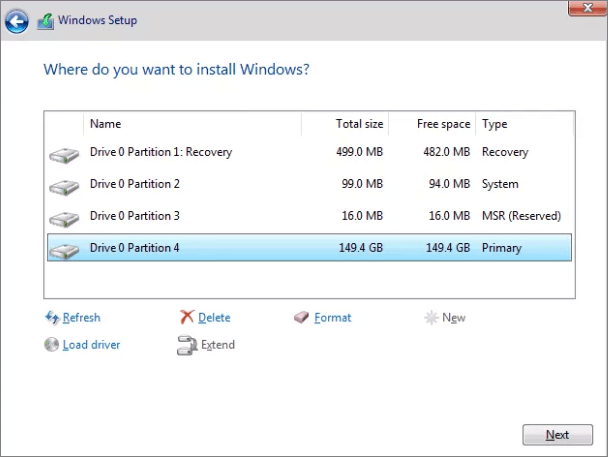
While formatting a computer can remove data and a virus, it's not a permanent solution. The most reasonable way to get rid of a computer virus is still unclear, but two key facts are worth noting.
1. Big concern with data
To completely remove a virus from a laptop or computer's internal hard disk/SSD, or from external devices like USB flash drives, SD cards, or removable hard drives, run an anti-virus program first to clear the virus and potentially save important files. Then, as a final step, format the device to completely kill any remaining viruses that may have hidden in folders. This two-step process ensures a thorough removal of the virus.
See how to format a flash drive
Even the antivirus program may not be able to recover your data, but you can still retrieve infected files using the Deep Data Recovery tool.
2. No worries about data
Formatting a drive can be a straightforward way to remove a virus, and it is often recommended over relying solely on antivirus software. When you format a drive, you can skip the antivirus step and directly clean the virus from the disk. Some people suggest wiping a hard drive partition to remove the virus, but wiping is essentially the same as formatting and does not make a difference in virus removal. However, data erased by formatting can be recovered using data recovery software, whereas wiping makes data irrecoverable.
How to Protect Your Computer from Infecting Viruses
- Use antivirus protection and a firewall
- Get antispyware software
- Always keep your antivirus protection and antispyware software up-to-date
- Update your operating system regularly
- Increase your browser security settings
- Avoid questionable websites
- Only download software from sites you trust.
- Be cautious when downloading free software and file-sharing apps, as some may contain malware or unwanted extras. Evaluate them carefully before installing.
- Don't open messages from unknown senders
- Immediately delete messages you suspect to be spam
To stay safe online, keep in mind that being cautious with your computer and internet usage is key. By being mindful of potential threats and taking steps to protect yourself, you can enjoy a safe and virus-free browsing experience, much like being in a clean and comfortable home.
Related Articles
- Top 6 Best Data Recovery Services
- How to Recover Deleted Call Recordings on Android [2022 Guide]
- Download Windows 7 Disc Images (ISO Files) [Ultimate and Professional Edition]
- 10 Best Data Recovery Software for Windows 7 Free Download Full Version
- [Solved] Apricorn USB 3.0 External Hard Drive Not Recognized
Is your Apricorn USB 3.0 external hard drive not recognized in Windows 11/10/8/7? This page covers 7+ fixes for you to try and fix Apricorn USB 3.0 not recognized issue and make it detected again without losing any data. - Free Download the USB Data Recovery Software Full Version
Download Qiling USB data recovery software full version to easily retrieve lost files from a USB flash drive and other storage devices like SD cards or digital cameras.
Products
Articles & Tutorials
- Data Recovery
- Data Backup
- File Recovery
- File Backup
- System Backup and Restore
- Disk and Partition Clone
- Technical articles
- Mobile articles
- Disk Master Help
- Windows Data Recovery Tutorials
- Windows Secure Delete Tutorials
- Windows Partition Management Tutorials
- Windows File Backup and Restore Tutorials
- Windows System Backup and Restore Tutorials
- Windows Disk Backup and Restore Tutorials
- Windows Clone Tutorials