[8 Solutions] Fix Shift Key not Working on Mac, MacBook
Why Is the Shift Key not Working on Mac
The Shift keys not working on a Mac keyboard can be due to various reasons, making it a valid question to wonder about.
Why your Shift key cannot work correctly on your Mac?
- The Shift key on a MacBook may not work due to the accumulation of dust and dirt underneath the keys.
- On macOS Ventura, sometimes the USB accessories can be disabled, causing issues with the Shift key and potentially the entire USB keyboard.
- Temporary glitches in the device and third-party software problems can also lead to this problem, causing the device to freeze or shut down unexpectedly.
- The laptop's keyboard and trackpad are malfunctioning, and the Shift keys are also not functioning properly.
If your Shift keys on a Mac or MacBook are not working, there are several solutions to try. You can try restarting your Mac, checking for software updates, or using the Command + Shift + Esc keys to simulate the Shift key function. Additionally, you can try resetting the NVRAM or PRAM, or even using an external keyboard to see if the issue is hardware-related.
| Workable Solutions | Step-by-step Troubleshooting |
|---|---|
| Fix 1. Clean Your Keyboard | Cleaning the Mac keyboard is one of the most straightforward solutions for fixing the...Full steps |
| Fix 2. Restart Your Mac | For starters, you can go to the Apple icon present on the left-top part of the screen...Full steps |
| Fix 3. Show Keyboard Viewer on Mac | Go to System Preferences and click on the Accessibility option. Choose the Keyboard...Full steps |
| Fix 4. Reset SMC and NVRAM |
Shut down the system. Turn it on. Now, press the Command, Option, P, and R keys and...Full steps |
| Other solutions | Go to Finder and click on Go from the menu items. From the drop-down, choose...Full steps |
How to Fix Shift Key not Working on Mac, MacBook [8 Solutions]
Fix 1. Clean Your Keyboard to Fix Shift Key not Working
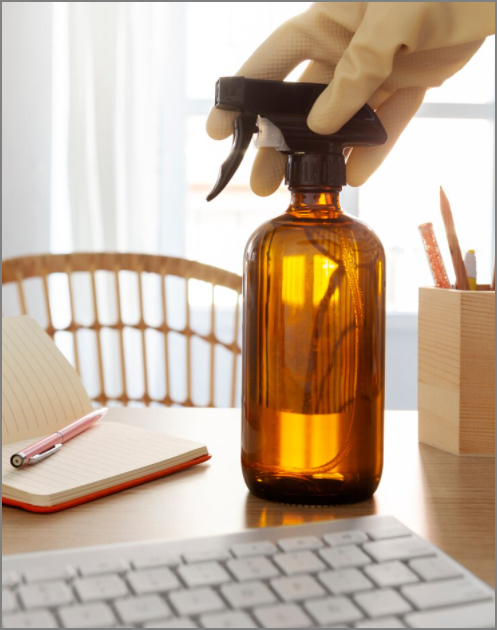
Cleaning the Mac keyboard is one of the most straightforward solutions for fixing the Shift key not working on a Mac or MacBook. Dust, dirt, and grime can collect underneath the keyboard, interfering with the keys, including the Shift key, not working properly. Cleaning the keyboard can resolve the issue.
To clean your Mac keyboard, hold the device at a 75-degree angle and use compressed air in a left-right motion to spray the entire keyboard. Alternatively, if you're experiencing issues with specific keys, you can target those areas with the compressed air for a more focused clean.
You can clean the space between keyboard keys by vacuuming or using disinfecting wipes. Alternatively, dip a soft cloth in a detergent-water mixture to gently wipe the keys.
Fix 2. Restart Your Mac and Check the Shift Key Again
If the Shift keys on your Mac aren't working, a simple solution is to restart the system and check if they're functioning properly. There are several ways to restart your Mac, and doing so can resolve the issue.
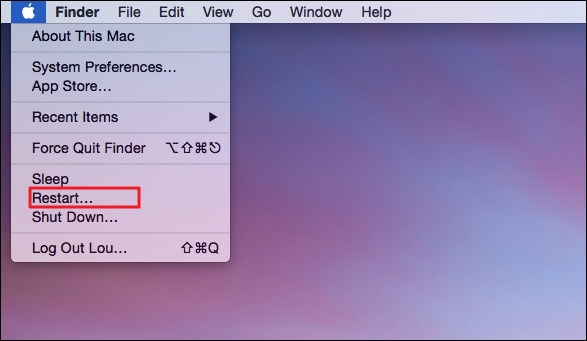
Method 1. To restart your Apple device, click the Apple icon in the top left corner of the screen, select Restart from the drop-down menu, and your device will shut down and restart within a few seconds.
Method 2. To shut down your computer, press the Control key and tap the eject button. A pop-up window will appear with the message "Are you sure you want to shut down your computer now?" Press the Restart button to confirm.
Method 3. To manually restart a Mac, press and hold the Power button until the system shuts down, then wait a few seconds for it to turn back on.
Note: Click the link to fix Mac won't restart after update.
Fix 3. Show Keyboard Viewer on Mac to Fix Shift Key Issue
The Accessibility Keyboard on macOS Ventura or earlier versions allows you to use the onscreen keyboard to see if keys pressed get highlighted on the screen, which can help determine if the Shift key is functional.
To check if the shift keys are working, open the Keyboard viewer and click on the "Show all keyboard layouts" button. This will display a graphical representation of the keyboard layout.
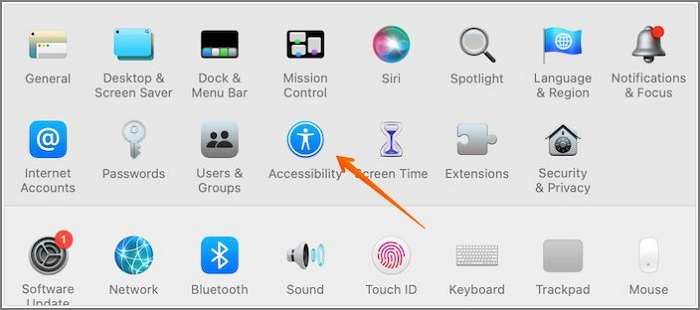
Step 1. Go to System Preferences and click on the Accessibility option.
Step 2. To access the Keyboard option, select it from the left-hand sidebar. Then, proceed to the Viewer tab located on the right-hand sidebar.
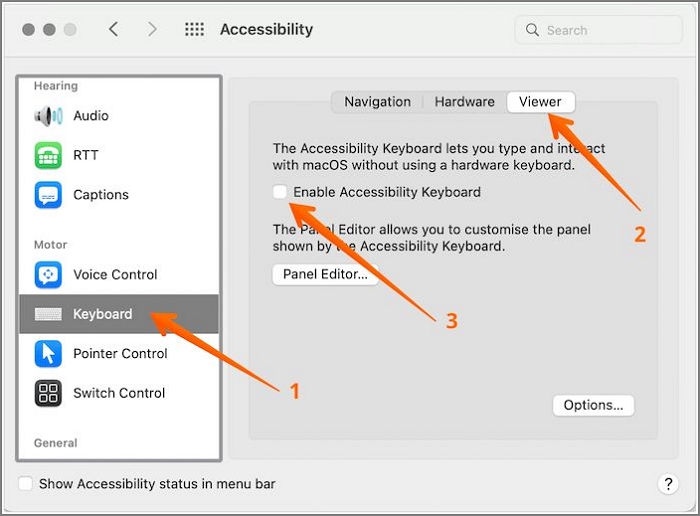
Step 3. To turn on the virtual keyboard on a Mac, navigate to System Preferences, then Accessibility, and select Enable Accessibility Keyboard. This will display a virtual keyboard on the screen.
Step 4. Press the Shift keys one at a time and check if the Accessibility Keyboard highlights them. This will test if the keyboard is functioning correctly and highlighting the keys as intended.
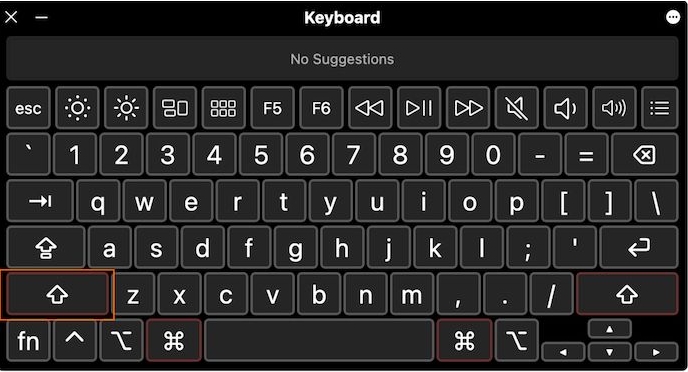
Note: If the Shift key is stuck, you can click on the corresponding key within the Accessibility Keyboard to unstuck it.
Fix 4. Reset SMC and NVRAM on Mac and Check the Shift Key
If you're experiencing issues with the Shift key not working on your Mac or MacBook, you can try resetting the NVRAM and SMC to resolve the problem. NVRAM stores peripheral data, and resetting it may fix the issue.
On the other hand, SMC involves settings such as a keyboard, backlight, etc. That makes it crucial when keys stop working. You can try to reset SMC on MacBook Pro or Mac too.
To reset NVRAM:
Step 1. Shut down the system.
Step 2. Turn it on.
Step 3. To restart your Mac in Recovery Mode, press the Command, Option, P, and R keys and hold them immediately after the startup sound plays, and then release them. This will boot your Mac into a special mode where you can access the Recovery Mode menu.
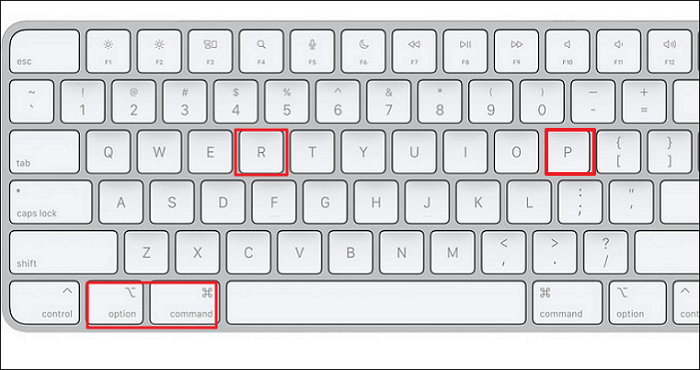
Step 4. You need to hold the keys till the system restarts.
Step 5. The sound of a startup sequence is often accompanied by a visual countdown, and after the fourth time, the sound is released. The visual countdown is a common feature in many operating systems and software, and it serves as a signal that the system is preparing to start up.
To reset SMC:
Step 1. Shut down the system.
Step 2. To shut down your Mac, press the power button and the Shift, Command, and Option keys at the same time. This will initiate a shutdown sequence.

Step 3. Hold all these keys for at least ten seconds.
Step 4. Release these keys.
Step 5. Now, tap the power button to turn on the system.
Note: Different versions of Mac and MacBook might have different steps.
Fix 5. Delete the Keyboard Preference File to Fix Shift Keys Problem
To fix the Shift key not working on Mac and MacBook, deleting the keyboard preference file can be an easy solution. To do this, restart your Mac in Recovery Mode, then open the Terminal app, type "rm ~/Library/Preferences/com.apple.HIToolbox.
Step 1. Go to Finder and click on Go from the menu items. Then click on Applications and select Terminal.
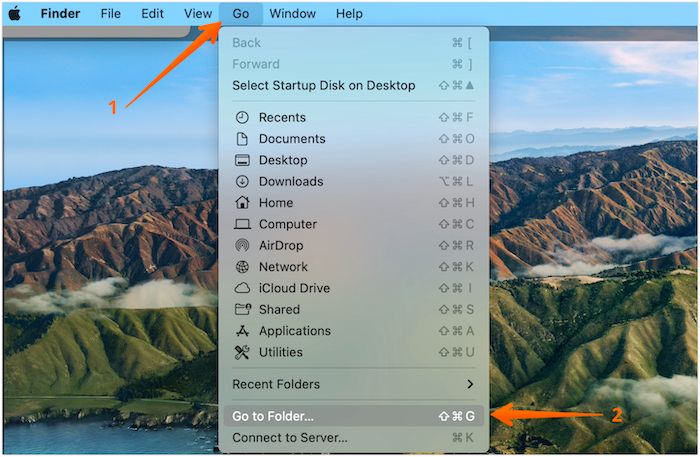
Step 2. From the drop-down, choose Go to Folder. Type /Library/Preferences in the box and press enter.
Step 3. Here, you need to find com.apple.keyboardtype.plist.
Step 4. Once you find it, delete it. Now, restart the system.
If the Shift keys are not working after the system starts again, you can try pressing the Shift keys repeatedly to see if they will work. If not, you can try pressing the Ctrl key and Shift key at the same time to see if it will work. If it still doesn't work, you can try restarting the system in safe mode and see if the Shift keys are working in safe mode.
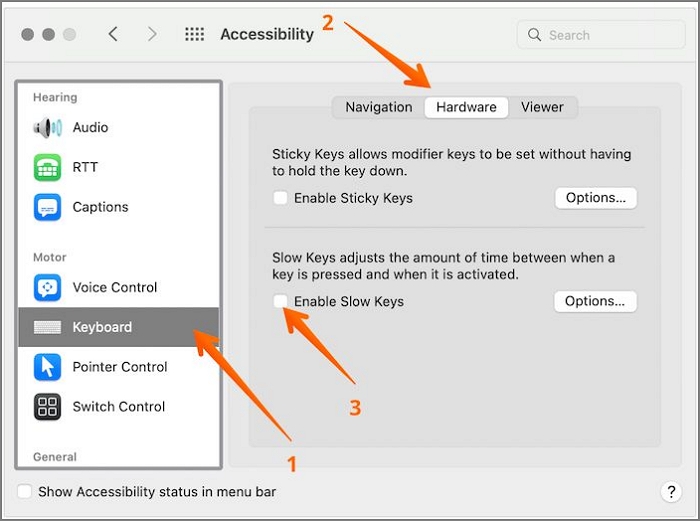
Fix 6. Adjust the Keyboard Settings to Enable Shift Key
The Shift Keys may not be working on your Mac due to improper keyboard settings, which can be resolved by adjusting the settings to ensure proper functionality.
For that, you can follow these steps:
Step 1. Visit the Apple menu. Select "System Preferences".
Step 2. Go to the Accessibility pane.
Step 3. Click on Pointer Control from the left-hand side settings
Step 4. To disable Mouse Keys, go to the Alternative Control Methods pane on the right-hand side and toggle off the Enable Mouse Keys option.
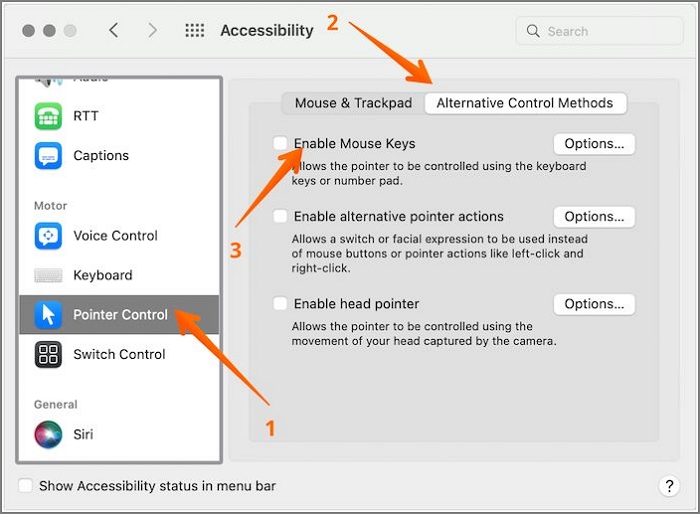
Step 5. To disable Enable Slow Keys, click on the Keyboard option and choose the Hardware pane from the right-hand settings. From there, disable the Enable Slow Keys feature.
Fix 7. Reconnect Your Magic Keyboard and Use Shift Key Again
The Magic Keyboard is the standard keyboard for various Apple devices, utilizing a scissor mechanism to enhance key stability and reduce key travel distance.
To reconnect the Magic keyboard, check out these steps:
Step 1. First, disconnect the keyboard from the system.
Step 2. Now, go to the Apple menu. Select System Preferences.
Step 3. Click on the Bluetooth option.
Step 4. Wait for the device to appear in the list.
Step 5. Now, tap on Connect.
That will set up the Magic keyboard once again. Now, you need to check whether the Shift keys are working.
Fix 8. Contact Apple Support to Fix Shift Key not Working
If the previous solutions didn't work, consider replacing the keyboard or repairing it if possible. If that still doesn't resolve the issue, it's time to seek professional help from a technician or a computer repair service. They can diagnose the problem and provide a more accurate solution. You've done your best, and now it's time to let the experts take over.
If you're experiencing issues with your Apple keyboard, you can contact Apple support for assistance. If your system or model is eligible for the Keyboard Service Program, you may be able to get a free keyboard replacement. Otherwise, you'll need to pay for the replacement yourself.
Recover Mac Delete Shortcut Deleted Files on Mac with Software
If you're using the move to Trash shortcut on Mac, you can now delete files with ease using the Command + Shift + Delete keys. However, if you accidentally delete important files or data, you can recover them using data recovery software like Deep Data Recovery for Mac.
This software is a powerful tool that can help you manage and analyze large amounts of data, identify trends and patterns, and make informed decisions. It can also help you automate repetitive tasks, streamline processes, and improve overall efficiency.
- Users choose this data recovery software due to various reasons such as system crashes, malware attacks, and formatting issues caused by macOS Ventura upgrade failures.
- The tool can recover a wide range of data types, including music files, videos, emails, documents, photos, and more.
- You can use the software on various Mac-based devices, including SSD, HDD, Time machine backup drive, Fusion Drive, and more, making it a versatile solution for different storage needs.
Deep Data Recovery for Mac is a reliable tool that can retrieve lost data, regardless of the type of loss, with over a decade of industry experience, and offers support for any issues that may arise.
To use Deep Data Recovery for Mac, follow these steps:
Step 1. Select the location and scan
Launch Deep Data Recovery software, click "Fast Scan" to initiate the recovery process.

Note: You can choose different search modes based on where and why the data was lost.
Then, choose the disk where you lost data, click "Scan" to start scanning.

Step 2. Filter and preview lost files
After the scan, use the file format filter on the left or upper right corner to find the deleted files you need, allowing you to quickly locate specific types of files.

Step 3. Recover lost data or files
You can double-Click a file to preview its content, or select multiple files to recover them at once, and then click "Recover" to restore the lost data to a local or cloud drive.
Summary
The Shift key on a Mac may stop working due to various reasons, such as dust, dirt, or broken keys accumulating. However, there are multiple solutions that can help fix the issue, and trying them out may resolve the problem.
Emptying the Trash on a Mac requires careful consideration to avoid accidental deletion of important data, which can cause significant stress. However, if data loss does occur, the Deep Data Recovery for Mac software offers a reliable solution to recover lost data, making it an excellent tool to have in case of an emergency.
Deep Data Recovery for Mac is available for download and can help recover lost files quickly.
Fix Shift Key Not Working on Mac FAQs
If your Shift key is not working on your Mac, there are several solutions you can try. However, to fully understand the issue, it's recommended to read through the accompanying questions and answers for more information.
How to reset NVRAM to fix the Shift key not working problem?
To reset NVRAM/PRAM on your Mac, shut down the computer, locate the power button and the command (also known as the Eject) button on the computer, press and hold both buttons for 10 seconds, then release the buttons and press the power button to turn it back on. This will reset the NVRAM/PRAM and may resolve the issue with the Shift key not working.
- 1. Turn off your Mac.
- 2. Press the power button on your Mac, followed immediately by pressing the Command + Option + P + R keys.
- 3. Release the keys when you see the Apple logo.
What Should I do if my Shift key is not working on Mac?
If your Shift key isn't working on a Mac, you can try various solutions. These include cleaning the keyboard, repairing it, booting in safe mode, adjusting keyboard settings, resetting NVRAM and SMC, and more.
How do I reset my keyboard settings on my MacBook Pro?
To reset the keyboard settings on a MacBook Pro, go to System Preferences, then select Keyboard, and click on Restore Defaults. This will reset the keyboard settings to their original factory settings.
Why are both shift keys on Mac not working?
Sometimes, stuck programs or processes may lead to both shift keys on Mac not working. A simple solution is to restart the system.
Related Articles
- 4 Ways to Fix Windows System Backup Failed in Preparing the Backup Image
- Windows 10 Creators Green Screen of Death Fix
- How to Repair Damaged SD Card in Android
- [Fixed] Unable to Reset Your PC. A Required Drive Partition Is Missing
- How to Fix 0x4005(16389) Error | Windows Update Failed
If you're trying to upgrade your MS Office, you might run into this error code 0x4005(16389). This post has demonstrated the top 6 ways to fix this error. Go through each steps carefully to get rid of this error. - Genshin Impact File Location| Where's the Game Data?
Find the Genshin Impact file location on PC and learn how to change the game directory, move files, or locate screenshots and installation data.
Products
Articles & Tutorials
- Data Recovery
- Data Backup
- File Recovery
- File Backup
- System Backup and Restore
- Disk and Partition Clone
- Technical articles
- Mobile articles
- Disk Master Help
- Windows Data Recovery Tutorials
- Windows Secure Delete Tutorials
- Windows Partition Management Tutorials
- Windows File Backup and Restore Tutorials
- Windows System Backup and Restore Tutorials
- Windows Disk Backup and Restore Tutorials
- Windows Clone Tutorials