Fix 'Restoring Your Previous Version of Windows' Stuck/Loop in Windows 10
About Windows 10 'Restoring Your Previous Version of Windows' Stuck or Loop Issue
Users may encounter a stuck or loop error with the 'Restoring your previous version of Windows' screen after a failed Windows 10 upgrade or other system issues. This can cause a restore loop that prevents the system from booting normally.
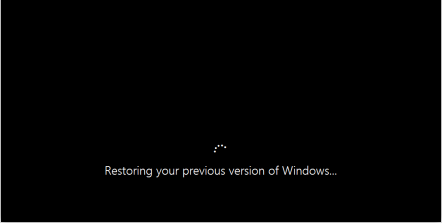
Unfortunately, it's not possible to downgrade Windows 10 to an earlier version like Windows 8.1, 8, or 7 simply by using a system restore point. To resolve the issue, you'll need to explore alternative solutions.
How to Fix Windows 10 'Restoring Your Previous Version of Windows' Stuck or Loop Issue
If you're updating your computer to the latest Windows 10 and get stuck on 'Restoring your previous version of Windows', please be patient as this process can take some time.
If your Windows 10 is stuck at the 'Restoring your previous version of Windows' error, try these methods to fix it. You can attempt to repair your Windows 10 by running the System Restore tool, checking for corrupted system files with the SFC tool, or running a System File Checker scan. If these methods don't work, you can also try booting in Safe Mode, disabling unnecessary startup programs, or resetting Windows 10 to its default settings.
Fix 1. Be Patient and Wait for the Restoring Process to Complete (Recommended)
Many users found that the issue of Windows 10 getting stuck at restoring the previous version of Windows was resolved on its own after waiting for 3-4 hours, with the computer restarting itself.
The problem often gets fixed on its own, so we recommend being patient and leaving your laptop/PC running overnight, as you might find a solution the next morning.
If it doesn't work on your PC, continue to the tips provided below.
Backing up and protecting important data is crucial, especially when dealing with the 'Restoring your previous version of Windows' error, which can potentially cause data loss. To avoid this, make sure to backup your files and data regularly, and consider using cloud storage or an external hard drive to keep your information safe.
If Fix 1 doesn't work, you can try Fix 2, 3, and 4, but first back up your data to avoid loss. These fixes may result in data loss, so it's best to back up your data before attempting them.
Qiling, a Windows backup software, allows you to create a full backup of your computer data, even when it's stuck on the 'Restoring your previous version of Windows' error, with just a few simple clicks. You can use Qiling to back up your computer data partitions out of the stuck PC with ease.
Download and install Qiling Backup on a different healthy computer with the same OS as yours. Create a bootable disk with the software on the healthy computer, then connect it to your stuck PC along with an external hard drive. Reset your PC to boot from the bootable disk and access the Qiling Backup main interface. From there, follow the steps to back up your computer files to the external storage device.
Step 1. To start a file backup, click the "File backup" button on the "Backup and recovery" page.

Step 2. Local files and network files will be listed on the left, and you can expand directories to select the files to be backed up.

Step 3. Follow the on-screen guide to select the destination where you want to save the backup.

Step 4. To encrypt the backup with a password, click on "Options" and select the "Backup Options" section. This will allow you to customize the backup task and explore other available options.

Set the backup schedule and choose to start back up at a certain event in "Backup Scheme".

Step 5. You can store backups to a local drive, Qiling's cloud service, or a NAS (Network-Attached Storage) device.

Step 6. Click "Proceed" to start the backup process. Once completed, the task will be displayed as a card on the left panel, where you can right-click to further manage it.

After backing up your computer data, you can proceed with Fix 2, 3, or 4 to resolve the 'Restoring your previous version of Windows' stuck loop on your PC.
Fix 2. Reset Your Windows 10 PC in WinRE (Windows Recovery Environment)
The only problem with resetting your PC is that you may lose important files and saved data on your PC. To fix the Windows 10 stuck at 'restoring your previous version of Windows' issue, you may need to backup your data beforehand.
Here are the detailed tips for resetting your PC and fixing this issue:
Step 1.To create a Windows 10 installation media, download the Windows 10 media creation tool and use it to create a bootable USB drive or CD/DVD. This will allow you to install Windows 10 on a computer.
Step 2. To start your computer from the Windows 10 installation media, boot or start your computer from the media. This can be done by inserting the installation media (such as a USB drive or CD/DVD) into your computer, and then following the on-screen instructions to boot from it.
Step 3. In the Install Windows page, tap "Repair your computer" to enter the Windows Recovery Environment.
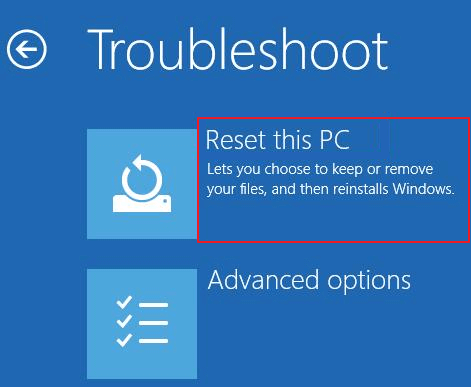
Step 4. To resolve the issue of Windows 10 getting stuck on 'Restoring your previous version of Windows' during the Reset this PC process, click on the "Reset this PC" option. This will initiate the process again, and you should be able to complete the reset.
Fix 3. Perform a System Restore or Startup Repair
Step 1.To create a Windows 10 installation media, download the Windows 10 media creation tool and use it to create a USB drive or CD/DVD with the necessary files to install Windows 10. This will allow you to install Windows 10 on a computer that does not have an operating system installed, or to upgrade an existing installation to the latest version of Windows 10.
Step 2. Boot or start your computer from the Windows 10 installation media.
Step 2. In the Install Windows page, tap Repair your computer to start the Windows Recovery Environment.
Step 3. In the Windows Recovery Environment, on the Choose an option screen, click "Troubleshoot".
Step 4. To resolve the issue, click on the "Advanced Options" and then select either "System Restore" or "Startup Repair".
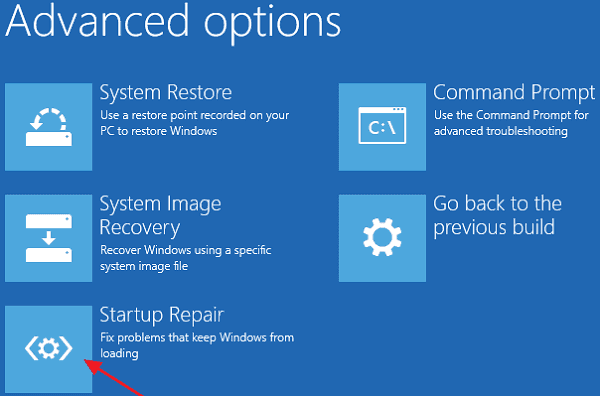
Then follow the on-screen instructions to complete the System Restore or Startup Repair process.
Fix 4. Clean Install Windows 10 with ISO Image (Most Effective Method)
If none of the methods in this guide are helpful, you can try to reinstall Windows 10 with an ISO image file, which can help resolve almost all Windows system update errors or problems by performing a clean install.
Step 1. Download the Windows 10 media creation tool, which allows you to download a Windows 10 ISO image file and burn it to a bootable DVD or USB flash drive.
Step 2. To fix Windows 10 stuck at 'Restoring your previous version of Windows' loop, try a clean install of Windows 10 on your PC. This has helped most users resolve the issue.
Related Articles
- Solved: Can't Start Windows 10, No Access to Boot Menu or Can't Repair Windows 10
- Clean C Drive without Formatting in Windows 10/8/7 [Tested & Worked]
- Fix MacBook Pro Shuts Down Randomly Error and Restore All Lost Data
- Fix 99% or 100% High CPU Usage Issue in Windows 10 Fall Creators
- How to Fix DRIVER_IRQL_NOT_LESS_OR_EQUAL Error | 10 Ways on Windows 11/10
The DRIVER_IRQL_NOT_LESS_OR_EQUAL error, which appears on a Blue screen with the stop code 0x000000D1, typically occurs when a system's built-in drivers, such as network adapters, incorrectly use a memory address while executing their task. - How to Fix Dynamic Mirror Showing Failed [Three Working Solutions]
This guide is designed to help users understand and resolve the dynamic mirror showing failed error. The error typically occurs due to various reasons, including corrupted system files, disk errors, or misconfigured settings.
Products
Articles & Tutorials
- Data Recovery
- Data Backup
- File Recovery
- File Backup
- System Backup and Restore
- Disk and Partition Clone
- Technical articles
- Mobile articles
- Disk Master Help
- Windows Data Recovery Tutorials
- Windows Secure Delete Tutorials
- Windows Partition Management Tutorials
- Windows File Backup and Restore Tutorials
- Windows System Backup and Restore Tutorials
- Windows Disk Backup and Restore Tutorials
- Windows Clone Tutorials