Windows Command Line Cheat Sheet (Online Table and PDF)
The Windows command line is a powerful tool that can be used for a variety of tasks, from basic file and directory management to advanced scripting and automation. To access it, you can open the Windows command prompt, and this article will guide you through the process. Additionally, a Windows command line cheat sheet is provided to help you get started with using this tool.
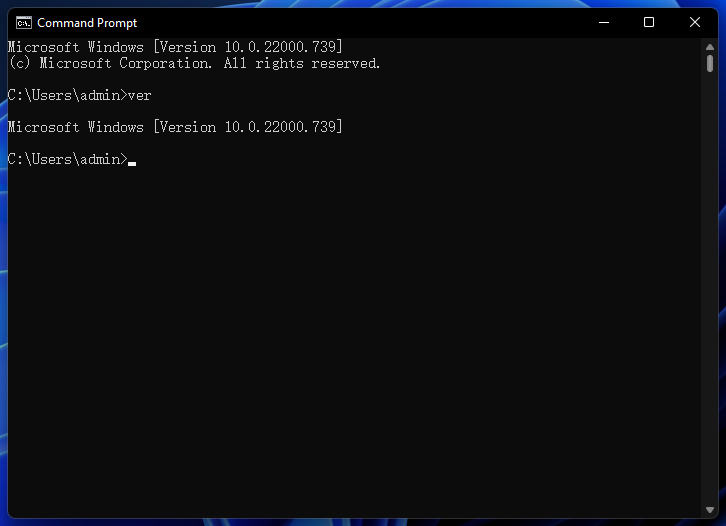
What is Windows command line?
The Windows command line, also known as the command prompt, is a text-based interface where you can execute commands and control your computer. It allows you to perform various tasks, such as launching programs and accessing system settings, and is relatively easy to use with practice.
How do I open a command line in Windows?
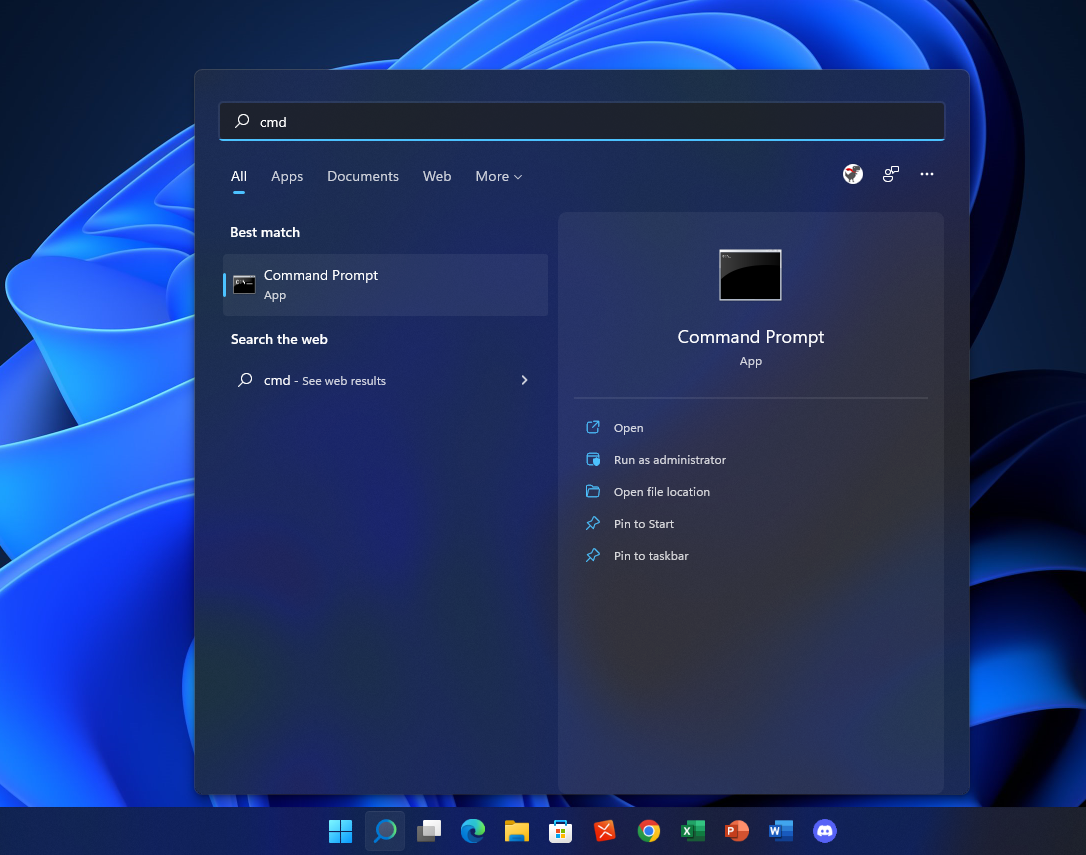
To open the command line in Windows, simply open the Start menu by clicking the Start button or pressing the Windows key, then type "cmd" into the search box and press Enter to open the Windows Command Prompt, from which you can execute any desired commands.
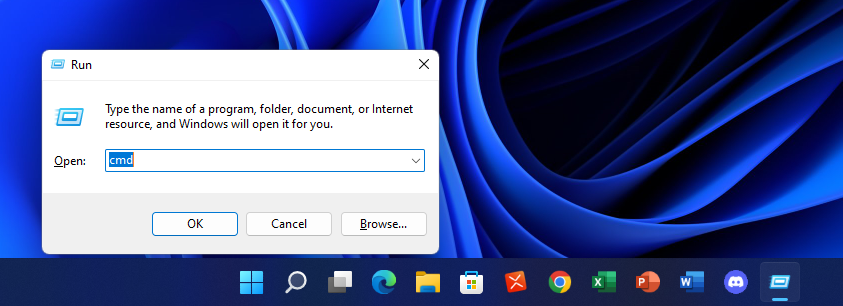
To open the Command Prompt in Windows, you can press the "Windows key + R" on your keyboard, which will open the "Run" dialog box. Then, type "cmd" into the box and press Enter. This will open the Command Prompt.
Now that you know how to open command prompt in Windows, you can use it to run various commands to perform tasks on your computer.
Windows Command Line Cheat Sheet
If you're new to the Windows command line, you may feel overwhelmed by the numerous commands and options. However, our Windows command line cheat sheet provides a handy reference guide to the most commonly used commands, making it easy to get started. You can print it out or keep it open on your desktop for quick access, or view the online sheet below to start making the most of the command line.
| Command | What does it do? |
Files & Folders Commands |
|
| assoc | Fix file associations. |
| attrib | Change file attributes. |
| cd (or chdir) | Change current working directory. |
| comp | Perform a comparison of multiple files. |
| compact | Compress files on an NTFS partition. |
| del (or erase) | Delete files. |
| dir | List files and subfolders. |
| expand | Expand compressed files. |
| fc | File compare. |
| find | Filter a string in files. |
| findstr | Search for patterns of text in files. |
| md (or mkdir) | Create a directory or subdirectory. |
| move | Move files from one directory to another. |
| openfiles | Display the current open files list or disconnect opened files/folders. |
| Send a text file to a printer. | |
| rd (or rmdir) | Delete a directory. |
| ren (or rename) | Rename a file or directory. |
| replace | Replace existing or add new files to a directory. |
| robocopy | Copy file data from one location to another. |
| tree | Display tree structure of a directory. |
| type | Display the contents of a text file. |
| xcopy | Copy files and directories. |
Disk & Partition Commands |
|
| active | Mark the partition with focus as active. |
| chkdsk | Check disk. |
| chkntfs | Display or modify automatic disk checking when the computer is started. |
| clean | Remove all partitions or volume formatting from the disk with focus. |
| convert | Convert a disk from one disk type to another. |
| create | Create partition or volume. |
| defrag | Locates and consolidates fragmented files on local volumes. |
| delete | Delete a partition or a volume. |
| detail | Display information about the selected disk. |
| diskcomp | Compare the contents of two floppy disks. |
| diskcopy | Copy content of the disk. |
| diskpart | Manage computer disks and drives. |
| diskperf | Start or stop disk performance counters for Performance Monitor. |
| extend | Extend a partition or a volume. |
| format | Format a disk to accept Windows files. |
| freedisk | Check whether the specified amount of disk space is available before continuing an installation. |
| fsutil | Perform tasks related to FAT and NTFS file systems. |
| gpt | Assign gpt attribute(s) to a partition. |
| label | Create, change, or delete the volume label of a disk. |
| list | Display a list of disks. |
| recover | Recover readable information from a bad or defective disk. |
| vol | Display the disk volume label and serial number. |
Network Commands |
|
| arp | Display and modify entries in the ARP cache. |
| bitsadmin | Create, download or upload jobs and monitor their progress. |
| dnscmd | Manage DNS servers. |
| ftp | Connect to and use FTP. |
| getmac | Return the MAC address. |
| ipconfig | IP configuration. |
| ipxroute | Display and modify information about the routing tables used by the IPX protocol. |
| irftp | Sends files over an infrared link. |
| jetpack | Compact a WINS or DHCP database. |
| netsh | Network Shell utility. |
| netstat | Display network statistics. |
| net use | Connect/disconnect a computer to/from a shared resource |
| ping | Send ICMP echo requests to test network connectivity to a target host. |
| tracert | Trace the route taken by packets to reach a network destination. |
System Information & Configuration Commands |
|
| date | Display or set the system date. |
| driverquery | Display device driver status and properties. |
| hostname | Display the computer hostname. |
| powercfg | Power configuration. |
| shutdown | Turn off computer. |
| systeminfo | Display computer system information. |
| time | Display or set the system time. |
| ver | Display Windows system version number. |
Command Line Setup Commands |
|
| cls | Clear the command prompt window. |
| cmd | Start a new instance of the command interpreter. |
| color | Change the foreground and background colors in the Command Prompt window. |
| exit | Quit and close the command prompt. |
| help | Display a list of the available commands. |
| prompt | Change the Cmd.exe command prompt. |
| title | Set the Cmd.exe window title. |
Conclusion
The Windows command line can be a valuable tool for any user, offering a range of functionalities that can enhance the overall Windows experience. For those looking to learn more about using commands, a Windows command line cheat sheet is a useful resource, providing a concise guide for both beginners and experienced users.
Related Articles
- What Is NVMe: One of the Fastest SSD Data Storage [2022 All You Need to Know]
- TOP 10 FREE PHOTO EDITORS LIKE PHOTOSHOP
- What Is Spindump Mac and How to Utilize It? [Complete Guide]
- EFS (Encrypting File System): Good Helper to Protect Confidential Data
- How to Factory Reset Lenovo Laptop without Novo Button [2024 Full Guide]
If your Lenovo laptop needs a refresh or you want to erase all data, resetting it is a good option. This post will guide you through the process of factory resetting your Lenovo laptop without using the Novo button, in three simple ways. - How to Factory Reset Lenovo Laptop Without Password [with 4 Practical Ways]
Factory resetting a Lenovo laptop without a password can be done in four practical ways, but be aware that this process will completely eliminate all files and folders, returning the PC to its original configuration.
Products
Articles & Tutorials
- Data Recovery
- Data Backup
- File Recovery
- File Backup
- System Backup and Restore
- Disk and Partition Clone
- Technical articles
- Mobile articles
- Disk Master Help
- Windows Data Recovery Tutorials
- Windows Secure Delete Tutorials
- Windows Partition Management Tutorials
- Windows File Backup and Restore Tutorials
- Windows System Backup and Restore Tutorials
- Windows Disk Backup and Restore Tutorials
- Windows Clone Tutorials