File History vs. Backup and Restore | Which Is Better?
Windows File History is a convenient in-built option in Windows, while Backup and Restore (Windows 7) has been a key essential for creating backups since Windows 7's release.
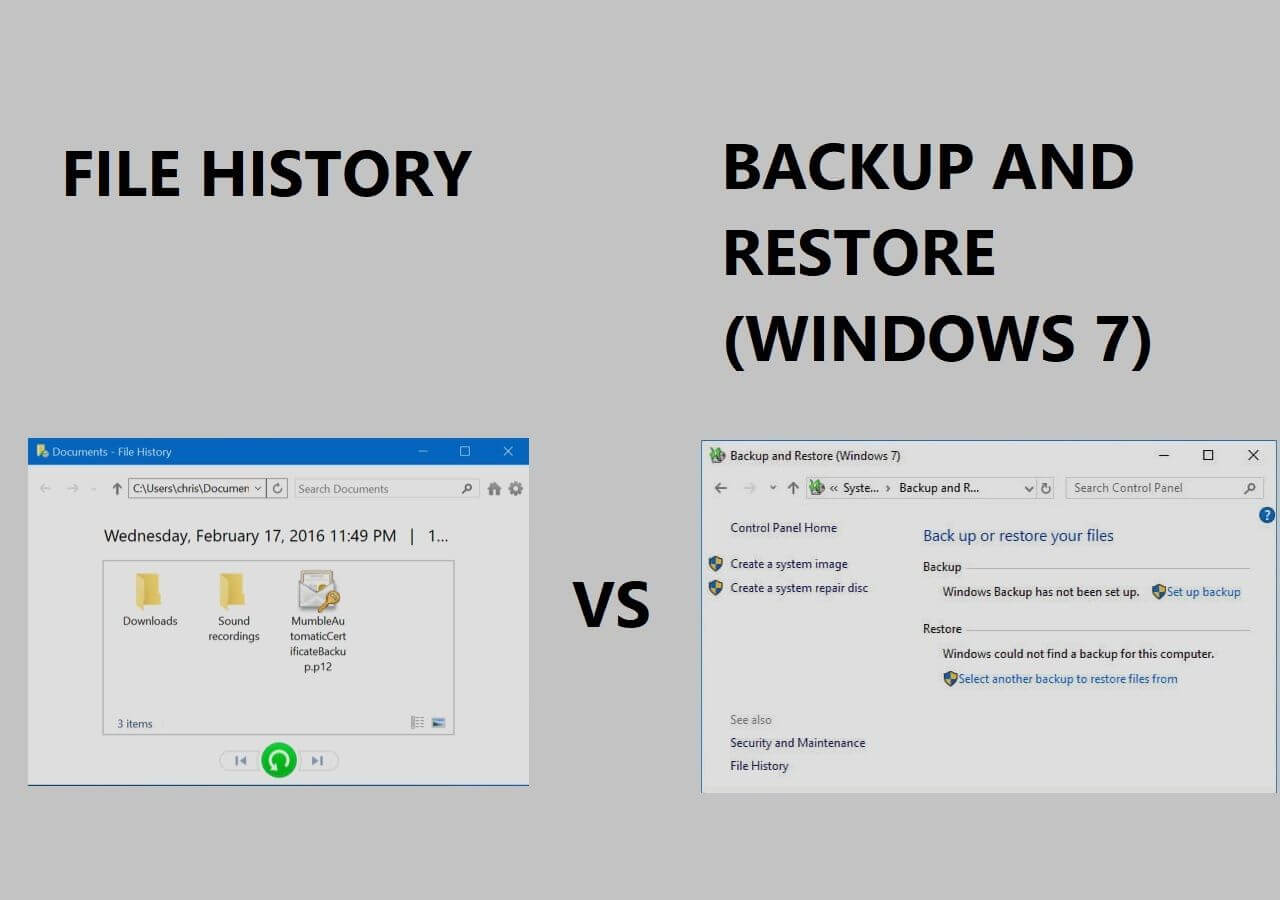
Windows has two built-in backup features: File History and Backup and Restore. While both features aim to protect user data, they serve different purposes and have distinct characteristics. File History focuses on backing up user files, such as documents, pictures, and videos, to an external drive or network location, allowing users to easily restore individual files or folders. On the other hand, Backup and Restore is a more comprehensive feature that creates a system image and archives user data, including system files, applications, and settings, to a single backup file, enabling users to restore their entire system to a previous state in case of a disaster. The primary difference between the two lies in their scope and functionality, with File History being more flexible and user-friendly for everyday file backup needs, and Backup and Restore being more robust and suitable for system-wide backups.
Are you experiencing issues with Qiling Disk Master for backup and recovery? If so, start a live chat with a Qiling Expert to get a tailored backup solution that meets your specific needs.
- Unable to back up
- Backup process stuck
- Recovery failed
File History: A Complete Review
File History is a built-in Windows feature; you can automatically back up specific folders, such as the "Documents" folder, without having to manually configure the setting, just like in Windows 7.
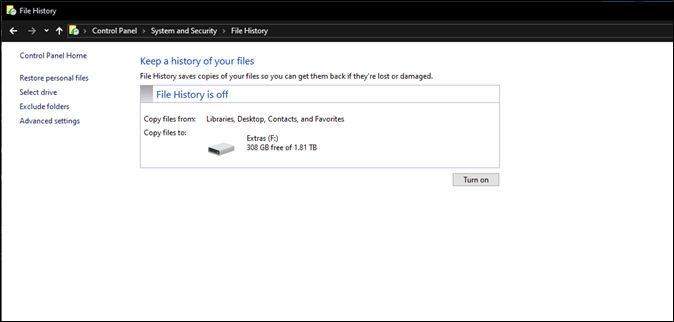
The setting can be found in the Control Panel under the System and Security category, where it typically creates a history of key files in your PC through a backup method that only records changes to key files.
- Desktop
- Documents
- Downloads
- OneDrive
- Pictures
- Saved Games
- Videos and Camera Roll
File History can recover deleted files from the Desktop, Documents, Pictures, and other folders, including libraries like Favorites, Links, Music, Searches, and more, making it a popular method for recovering lost files.
Backing up data is a crucial practice for individuals and businesses alike. It allows them to ensure that they can recover files if they ever lose them, which is especially important for those who rely on digital storage. However, there are a few simple drawbacks to this method, including the need for additional storage space, the potential for data corruption during the backup process, and the time required to complete the backup process.
- Inability to create scheduled backups;
- The issue of being unable to restore user files in drives other than the C: drive is a common problem that can occur due to various reasons. This issue can be caused by the Windows operating system not being able to access or read the files from the other drives, or it might be due to the user account not having the necessary permissions to access the files.
- And Windows 11 has nerfed its support.
That's why it may not be a viable option for a lot of people anymore and it may even cause them issues if they are too reliant on this.
📚Features:
- Available on Windows 11, 10, 8, and 7
- Creates a list of deleted files
- User-configured file history
- Includes and Excludes folders on user's demand
👍Pros
- Ideal to recover accidentally deleted files
- Trace lost/missing files and recover them
- Comparatively easy to use
- Data versioning made easy
- No installation needed
👎Cons
- Windows 11 version is nerfed
- Not exactly inclusive of personal data
- Might not recover files deleted from long ago
🎨How To Use File History
To set up File History on any Windows version, you simply need to connect an external drive, go to Settings, and select "Update & Security" followed by "Backup". From there, you can choose the drive and configure the backup settings as desired. This allows Windows to automatically back up your files to the external drive, making it easy to recover them if needed.
Step 1: Open Control Panel on your PC.
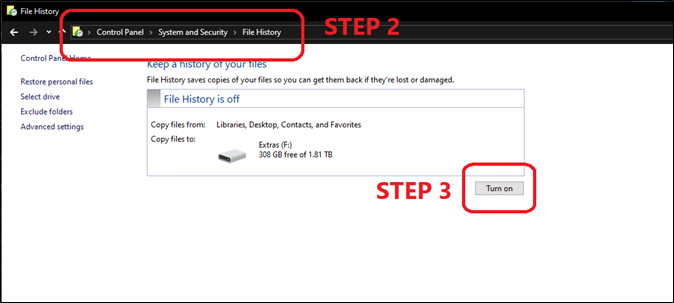
Step 2: To access File History, navigate to System and Security, and then click on File History.
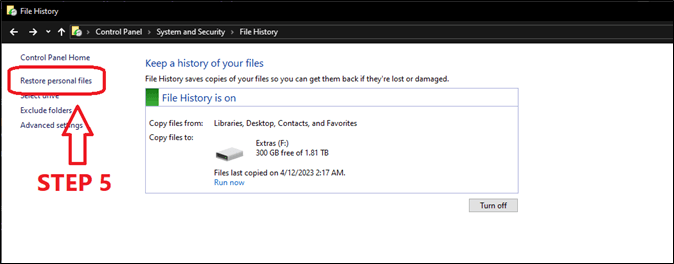
Step 3: Tap on Turn On button to toggle file history on.
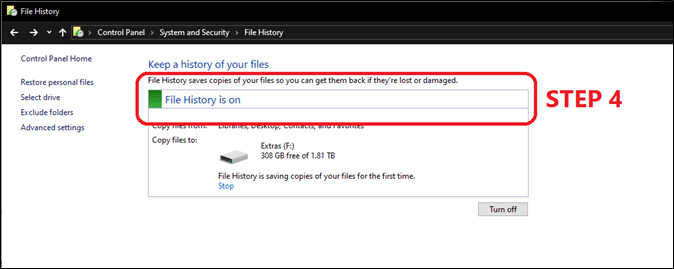
Step 4: Wait for File History is On to pop up.
Step 5: Then find and tap on Restore personal files.
Step 6: Select the folder (A) and tap on the restore button (B) to start restoring files.
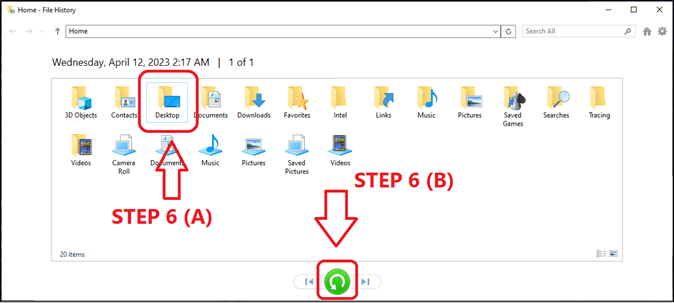
Once this process is complete, it will restore files to your Desktop. However, if you only need to restore specific files, you can double-click the folder before initiating the restore process, allowing you to make selections and restore only the files you require.
Are you experiencing issues with Qiling Disk Master for backup and recovery? If so, starting a live chat with a Qiling Expert can help tailor a professional backup solution specific to your needs.
- Unable to back up
- Backup process stuck
- Recovery failed
Backup and Restore (Windows 7): A Complete Review
Backup and Restore (Windows 7) is a built-in backup feature in Windows that allows users to create backups of their files, folders, and system settings. It was introduced in Windows 7 and has been available in subsequent Windows versions. The feature is convenient for users who want to easily back up their data and settings.
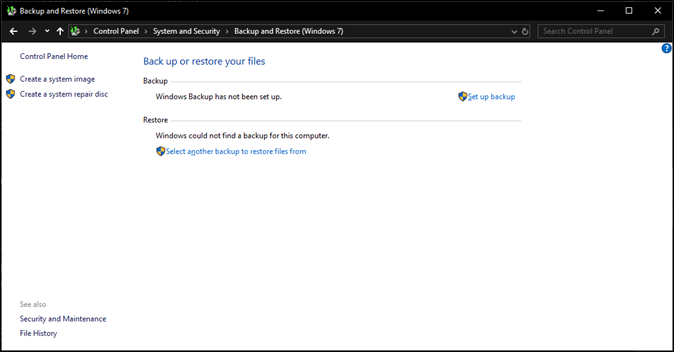
Although Windows Backup has evolved over the years, it still utilizes the same underlying technology as Windows 7, which is why it's often referred to as Windows (7) Backup. Despite this, the tool remains available in modern Windows versions, including Windows 10 and 11, and continues to provide a straightforward process for creating backups.
The feature, formerly called Backup and Restore Center, was renamed and added Windows 7 as an option next to it after Windows 8 was released.
📚 Features:
- Creates a system image
- Creates a system repair disk
- Sets up selective backup
- Restores specific files
- Schedules backup
👍 Pros
- No installation needed
- Very easy to configure
- Handy recovery of specific files
- Ideal for system recovery
👎 Cons
- Removes all restore points when disabled
- Restoring system doesn't remove viruses or malware
- Reinstalls/uninstalls any Windows updates when restored
🎨 How To Use Backup And Restore
Setting up backup and restore is relatively straightforward, but the process differs depending on whether you're creating a backup or restoring one. To keep things simple, let's focus on the basics. When setting up backup, you'll need to follow a series of steps to ensure that your data is safely stored.
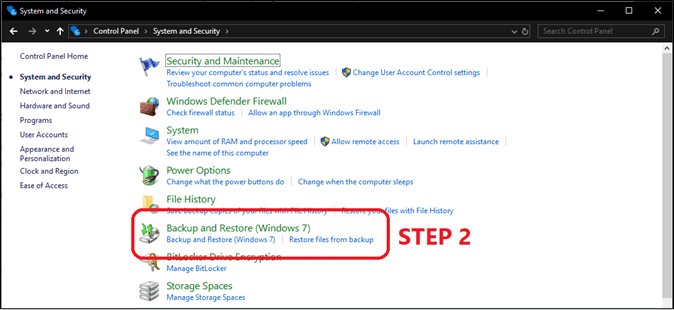
Step 1: Head into Control Panel and then System and Security.
Step 2: Click on Backup and Restore (Windows 7) option.
Step 3: Under the backup options, click on Set up backup.

Step 4: Select a backup drive from the list of drives and tap next.

Step 5: Click on Let Windows choose to create an important-files-only backup.
Step 6: Click on "Let me choose" to pick folders that you wish to backup.

Step 7: Select the folders or drives you wish to backup.
Step 8: To configure the backup schedule and save settings, go to the backup settings and adjust the frequency and time of the backups as needed. This can include setting a specific date and time for backups to occur, or selecting a recurring schedule such as daily, weekly, or monthly.
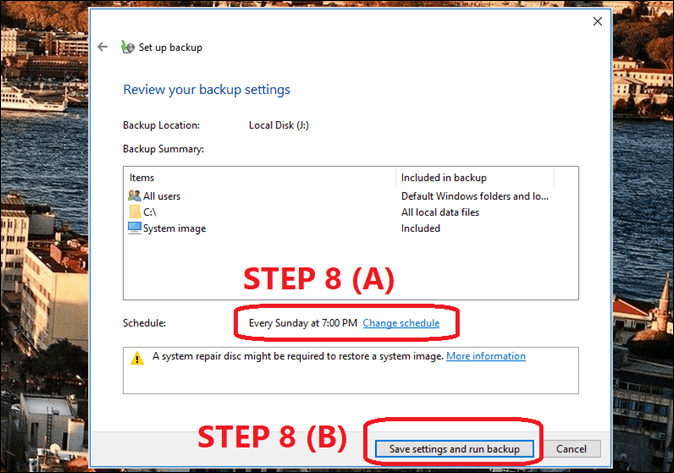
The backup will be placed within a few seconds or a few minutes, depending on the amount of data being backed up.
Are you experiencing issues with Qiling Disk Master for backup and recovery? If so, starting a live chat with a Qiling Expert can help tailor a professional backup solution specific to your needs.
- Unable to back up
- Backup process stuck
- Recovery failed
File History vs. Backup and Restore - Which One to Choose
Both Backup and Restore (Windows 7) and File History have their advantages and disadvantages. While Backup and Restore is quick, it can be time-consuming and limited in its ability to restore specific data, making it less effective in severe cases of lost files. On the other hand, File History is more extensive, but its process can take time. Ultimately, the choice between the two depends on your specific needs and priorities.
To compare the two, let's create a table to visualize the differences. This will help us understand which one is better suited for your needs.
| Backup Option | File History | Backup and Restore (Windows 7) |
|---|---|---|
| Backup Type |
A file history feature that only tracks changes to default folders like Documents, Downloads, Desktop, etc. and does not include incremental backups. |
Incremental and differential backup as it depends on user configuration and preference. |
| Backup Location |
The software can automatically back up files to external drives, but it does not support internal, cloud, or network-based storage options. |
User-The system is configured to support various storage options, allowing users to utilize cloud, internal, and external storage solutions. |
| Recovery Type |
This software only restores lost or deleted files and does not allow the restoration of system files. |
The system can easily restore to a previously working state by using a system restore point set/scheduled by the user. |
Backup and Restore (Windows 7) is more likely to help restore Windows, while File History helps recover recently lost files, making Backup and Restore a better option.
Qiling Disk Master: An All-in-One Backup and Recovery Tool
Windows has File History and Backup and Restore (Windows 7) options, but those built-in tools are not sufficient, and third-party alternatives like Qiling Disk Master offer more comprehensive and reliable backup solutions.
Qiling Disk Master is the ultimate backup solution that meets all your needs, offering a complete and reliable way to protect your personal or professional data. With its impressive features, it stands out as the go-to tool for anyone looking for a hassle-free backup experience.
- Creates disk, partition, system, cloud, or specific file backup
- Restore system image/backup to unfamiliar hardware
- Easy scheduling for backups
- Offers 250GB of free cloud storage
In order to get a better backup option, you should download and install a specific tool. This will provide you with a more reliable backup solution than the previous options we discussed.
Wrapping Up
Prior to Windows 7, the operating system was criticized for its inadequate backup and restore capabilities. However, with the introduction of Backup and Restore in Windows 7, many users began relying on this feature to create backups of both system files and personal data.
Qiling Disk Master offers a more comprehensive backup solution compared to File History and Backup and Restore (Windows 7). Its simplicity makes it accessible to any PC user, providing a better overall experience than the combined features of the other two options.
FAQs on File History vs. Backup and Restore
1. What is the difference between WD backup and Windows File History?
Windows File History is a basic backup and recovery option built into Windows, but it's limited to local backups, whereas WD Backup is specifically designed for Western Digital drives and may not work with other hardware.
2. Is file history a good backup?
File History is a useful backup option for recovering files from immediate locations like the desktop, documents, and system folders. However, it's not the best tool for creating personal backups, which is why many people don't use it.
3. Does file history only backup changed files?
File History is designed to back up files from the desktop, documents, and system folders, creating a regular backup of all files in these folders, allowing for quick recovery in case of file loss or deletion.
4. Should I have file history on or off?
You should have File History on as it can help you restore the files you may accidentally delete, relying on it to recover files on your desktops or documents.
Related Articles
- Windows 10 Sync Center Not Working - How to Fix?
- How to Backup GTA V Files on Steam (2024 New Guide)
- Quick Solutions | Windows Defender Missing Windows 11
- How to Backup Computer to SanDisk Extreme Portable SSD [Windows & Mac]
- Total AV VS Avast: Which Is the Right One for You?🔥
The choice between Total AV and Avast can be tricky, as both are highly effective antivirus tools with slight differences in malware detection and elimination. This comparison aims to help you make an informed decision between the two. - Unable to Copy Files to External Hard Drive on Windows 11[SOLVED]
If you're unable to copy files to an external hard drive on Windows 11, this guide provides step-by-step solutions to resolve the problem. Try the suggested methods to fix the error, or back up your files using a reliable backup tool from Qiling.
Products
Articles & Tutorials
- Data Recovery
- Data Backup
- File Recovery
- File Backup
- System Backup and Restore
- Disk and Partition Clone
- Technical articles
- Mobile articles
- Disk Master Help
- Windows Data Recovery Tutorials
- Windows Secure Delete Tutorials
- Windows Partition Management Tutorials
- Windows File Backup and Restore Tutorials
- Windows System Backup and Restore Tutorials
- Windows Disk Backup and Restore Tutorials
- Windows Clone Tutorials