How to Backup Valheim Saves in 2023
Valheim is a game inspired by Nordic mythology and Viking culture, where players explore and engage in RPG elements in a huge open world, making their own adventures, crafting weapons, finding food, battling bosses, and exploring the world's borders, creating their own Nordic epic.
In Valheim, you'll face various dangers, including the frost dragon and the meadow god Eiktyr, which can put your character in a desperate situation. However, a far more terrifying threat is losing your world and character data after relogging into the game. To prevent this, we'll show you ways to backup your Valheim saves, which you can read about in the detailed guide below.
Here are more posts for you to get more game information:
Why is Backup Valheim Saves so Important
Many games, including Valheim, can experience the frustrating issue of lost progress. To avoid this, it's essential to back up your game saves in advance, as several key factors contribute to this problem.
- Computer Failure: When viruses infect a computer, hardware malfunctions, or system errors occur, game saves can become corrupted and fail to load properly.
- Game Bugs: Bugs appear after the game is updated, causing data to crash.
Valheim saves are stored locally and can be lost due to hardware failure, corruption, or accidental deletion. Backing them up ensures you can recover your progress if something goes wrong.
— Richard Svensson (@dvoidis) February 12, 2021
- Add Mods: Adding mods to Valheim can increase playability but may cause game code confusion, potentially affecting save loads if game data isn't backed up in advance.
Where is Valheim Saves Location
To back up Valheim's world and characters, you'll need to find the game's save location. This can be done by following one of the methods below.
Valheim Local Saves Location
Valheim currently only supports Windows and Linux operating systems.
In Windows, the file location of Valheim is - C:\Users\Username\AppData\LocalLow\IronGate\Valheim\
Here are simple steps for you to navigate to the right saves location of Valheim. To find the save location, press the Windows key + R, type in %localappdata%, and press Enter.
Step 1. Open the Windows File Explorer
Step 2. Put the address we offered above into the search box
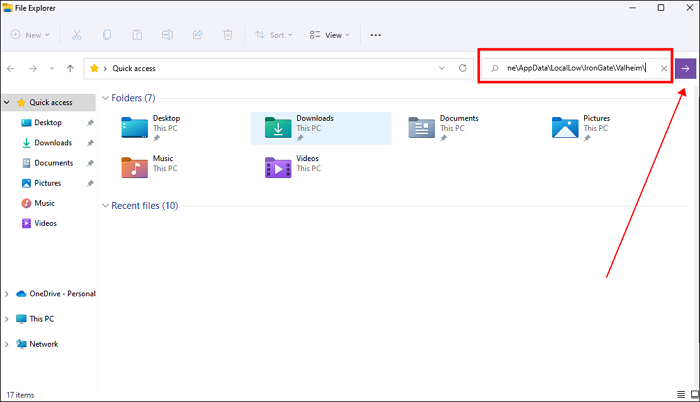
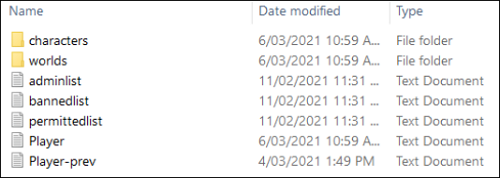
Step 3. To access the Valheim save files, navigate to the Valheim folder, where you'll find subfolders for Characters, Screenshots, and Worlds. These are the files you're looking for.
For Linux, the Valheim saves location is $HOME/.config/unity3d/IronGate/Valheim.
You can copy this address and navigate to the Valheim folder, where you can find the game's files and settings.
How to Find the Hiding AppData Folder
If you're unable to locate the AppData folder while navigating to the Valheim folder, it's likely because the AppData folder is hidden, a common occurrence in Windows where hidden folders are not displayed by default. To access the AppData folder, you can simply type the path in the address bar or press Win + E to open File Explorer, then navigate to the location, or alternatively, you can unhide the folder by following these steps:
Follow the simple steps here to find the hiding AppData folder now.
Step 1. Open the Windows File Explorer
Step 2. Hit View> Show> Hidden items
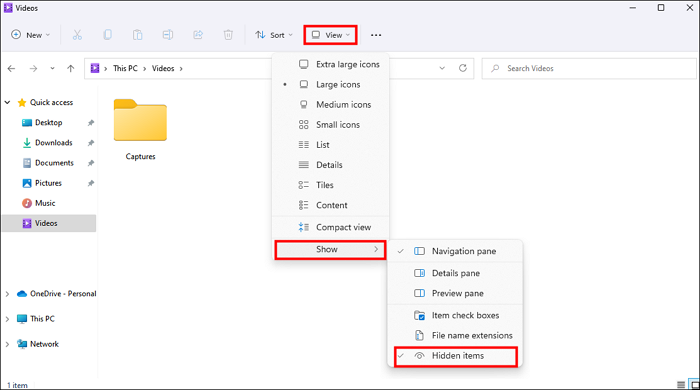
Step 3. Now you can navigate to the AppData folder
Valheim Cloud Saves Location
The June 20, 2022, patch for Valheim fixes the Steam Cloud storage issue, saving current Cloud saves in the Steam userdata folder to prevent game progress loss.
The specific location for Valheim Steam Cloud saves is C:\Program Files (x86)\Steam\Userdata.
- Tip
- When Cloud saving is enabled in Steam, files will be moved to the cloud, but a local copy is kept. However, the dedicated server will only be saved locally, allowing the game to be started without Steam.
Best Way to Backup Valheim Saves
It is very simple to back up Valheim saves.
To back up your Valheim files, navigate to the local file location of the game, where you'll find folders like characters, worlds, and screenshots. You can simply copy and paste these folders to a different location on your computer as a backup, which is a straightforward and problem-free way to ensure your progress and data are safe.
We recommend using professional backup software Qiling Disk Master Pro for higher-quality security of your game data.
Qiling Disk Master Pro is a helpful tool for backing up PC game saves, such as Valheim, which frequently changes saves data after each game end. It allows users to set a backup cycle and automatically backs up Valheim saves at regular intervals.
Qiling Disk Master Pro allows for incremental and differential backups, enabling automatic backups of game data whenever it changes, eliminating the need for manual copying and pasting. It also provides 250 GB of cloud storage to store and restore game progress across devices.
Now let's follow the tutorial below to backup Valheim saves now!
Step 1. Click "Select backup contents" to initiate a backup.

Step 2. There are four data backup categories: File, Disk, OS, and Mail, which can be accessed by clicking on the "File" option.

Step 3. Local and network files will be displayed on the left side, allowing you to extend the directory to select which files to back up.

Step 4. To store the backup, select the location where you want to save it, following the on-screen instructions.

To encrypt the backup with a password, set up a backup schedule, and customize other options, click on "Options" in the "Backup Options" and "Backup Scheme" sections. This allows for various personalizations of the backup process.

Step 5. You can save the backup to a local disk, Qiling's online service, or a NAS.

Step 6. Qiling Disk Master allows users to backup data to a third-party cloud drive and its own cloud drive.
To back up data to a third-party cloud drive, select Local Drive, scroll down to add Cloud Device, add your account, and log in.
Step 7. To start the backup process, click "Proceed". Once the backup is complete, it will be displayed as a card on the left side of the panel. To manage the backup job further, right-click on it.
Conclusion
Valheim offers a captivating adventure world, but to craft a compelling story, it's essential to know how to back up Valheim saves. This can be achieved by navigating to the saves location and using Ctrl+C/V to copy and paste files, or by utilizing a more advanced backup software like Qiling Disk Master Pro for a more professional approach.
FAQs
1. Where are Valheim saves saved?
For Windows users, you can find the Valheim saves in
C:\Users\[Username]\AppData\LocalLow\IronGate\Valheim
For Linux users, you can find the Valheim saves in
$HOME/.config/unity3d/IronGate/Valheim
2. Are Valheim saves on cloud?
If you enable the Steam Cloud save function, your Valheim saves will be stored on the Steam Cloud. You can find your Valheim cloud saves location by navigating to Program Files (x86)\Steam\userdata.
Related Articles
- Cloud Backup vs. Local Backup - Which One Is Better? Or Both?
- Windows 10 Backup Keeps Failing? Solutions to Fix It Quickly
- TOP 2 SanDisk SSD Backup Software for Windows 11/10/8/7
- Everything About S Mode in Windows 11
- Azure File Backup: How to Backup Files in Azure & Find Best Alternative
- Windows Backup Did Not Complete Successfully - How to Fix?
- Backup Outlook Calendar to a New Computer Easily [2024]
Learn how to back up Outlook Calendar to a new computer. Use Outlook export or backup software to protect appointments, meetings, and calendar data.
Products
Articles & Tutorials
- Data Recovery
- Data Backup
- File Recovery
- File Backup
- System Backup and Restore
- Disk and Partition Clone
- Technical articles
- Mobile articles
- Disk Master Help
- Windows Data Recovery Tutorials
- Windows Secure Delete Tutorials
- Windows Partition Management Tutorials
- Windows File Backup and Restore Tutorials
- Windows System Backup and Restore Tutorials
- Windows Disk Backup and Restore Tutorials
- Windows Clone Tutorials