Best Free SSD Cloning Software of 2026: Top 6 Picks
Upgrading from an old HDD to a fast SSD is one of the best ways to boost your computer's performance. But reinstalling Windows and all your applications from scratch takes hours. That's why millions of users search for free SSD cloning software—tools that copy your entire system to a new drive in one go.
In this guide, we review the top 6 free SSD cloning tools available in 2026. We compare their features, ease of use, and compatibility to help you find the best one for cloning an HDD to an SSD, migrating Windows to an NVMe drive, or replacing a failing disk.
PAGE CONTENT
- What to Look for in Free SSD Cloning Software
- Top 6 Free SSD Cloning Software in 2026
- How to Clone HDD to SSD with Free Cloning Software
- Free SSD Cloning Software Comparison Table
- FAQs About Free SSD Cloning
What to Look for in Free SSD Cloning Software
Not all free cloning tools are created equal. Before choosing one, make sure it offers these essential features:
- System / OS Clone: The ability to migrate the Windows system partition to a new SSD so it boots directly after swapping drives.
- Large-to-Small Clone: Support for cloning a larger HDD to a smaller SSD when the used data fits.
- SSD Alignment (4K): Automatic 4K partition alignment to ensure maximum SSD performance and lifespan.
- NVMe / M.2 Support: Compatibility with modern NVMe and M.2 SSDs, not just older SATA drives.
- Sector-by-Sector Clone: Option to copy every byte, useful for recovering data from a failing drive.
- Bootable Media: The ability to create a WinPE bootable USB to clone a disk even when Windows cannot start.
- Ease of Use: A clear, wizard-based interface so beginners can clone a drive without technical knowledge.
Top 6 Free SSD Cloning Software in 2026
1. Qiling Disk Copy — Best Overall Free SSD Cloning Software
Qiling Disk Copy is our top pick for free SSD cloning software. It combines a beginner-friendly interface with powerful cloning features that rival paid tools. Whether you are upgrading to a SATA SSD or an NVMe M.2 drive, Qiling Disk Copy handles it all with a simple three-step wizard.
- One-click system clone (OS migration without reinstalling)
- Disk clone and partition clone
- Automatic 4K SSD alignment
- Supports SATA, NVMe, and M.2 SSDs
- Sector-by-sector clone for failing drives
- WinPE bootable media creator
- Large-to-small cloning support
Qiling Disk Copy is the best free SSD cloning software for most users because it is fast, reliable, and requires no technical expertise. The cloned SSD boots immediately after you replace the old drive.
2. Clonezilla — Best Free Open-Source Cloning Tool
Clonezilla is a free and open-source disk cloning and imaging tool widely used by IT technicians. It supports a huge range of file systems and can clone entire disks or individual partitions. However, it uses a text-based interface (no GUI), which makes it challenging for beginners.
- Free and open source
- Supports many file systems (NTFS, FAT32, ext4, etc.)
- Multicast cloning for deploying to many PCs
- Image compression to save space
- Text-based interface (steep learning curve)
Clonezilla is an excellent free option for advanced users and techs who are comfortable with command-line or text interfaces. Casual users may find it overwhelming.
3. Rescuezilla — Best Free GUI Clonezilla Alternative
Rescuezilla is essentially Clonezilla with a graphical user interface. It is fully compatible with Clonezilla image formats but offers a much simpler point-and-click experience. It runs from a bootable USB, so you can clone a disk without installing anything on your system.
- Free and open source
- GUI-based (easier than Clonezilla)
- Compatible with Clonezilla images
- Runs from bootable media (no installation)
- No Windows-installed version
Rescuezilla is a great choice if you want the power of Clonezilla with a friendlier interface, but you need to create a bootable USB to use it.
4. AOMEI Backupper Standard — Best Free Backup & Cloning Suite
AOMEI Backupper Standard is the free version of AOMEI's backup software. It includes basic disk and system cloning features alongside full backup and restore capabilities. The free version has some limitations, such as no dynamic disk cloning and no command-line support.
- Free for home use
- System backup, disk backup, and cloning
- Simple and intuitive interface
- Supports SSD alignment
- Some features locked in the free version
AOMEI Backupper Standard is a good all-in-one free option if you want both backup and cloning in one tool.
To compare backup tasks and disk-clone workflows by product, see AOMEI Backupper vs Qiling Disk Master.
5. Hasleo Disk Clone — Best Free Lightweight Cloning Tool
Hasleo Disk Clone is a free, lightweight tool focused entirely on disk and partition cloning. It supports system clone, disk clone, and partition clone, with SSD alignment and the ability to clone larger drives to smaller ones.
- 100% free
- Lightweight and fast
- System, disk, and partition clone
- Supports large-to-small cloning
- Limited advanced features
Hasleo Disk Clone is a solid free choice if you only need cloning and do not need backup or advanced features.
6. Samsung Data Migration — Best Free for Samsung SSD Owners
Samsung Data Migration is Samsung's free cloning tool designed exclusively for Samsung SSDs. It is simple and works well for migrating Windows to a new Samsung SSD. However, it only works with Samsung SSDs as the destination drive.
- Free for Samsung SSD owners
- Very simple interface
- Optimized for Samsung SSDs
- Only works with Samsung SSDs
- Limited to system migration
If you bought a Samsung SSD, Samsung Data Migration is a convenient free option. For non-Samsung drives, choose one of the other tools above.
How to Clone HDD to SSD with Free Cloning Software
Using Qiling Disk Copy as an example, here is how to clone an HDD to an SSD for free:
Step 1. Connect the new SSD to your PC via SATA or a USB-to-SATA adapter. Download, install, and launch Qiling Disk Copy.

Step 2. Click "Clone" and select the source disk (your old HDD). Click "Next".
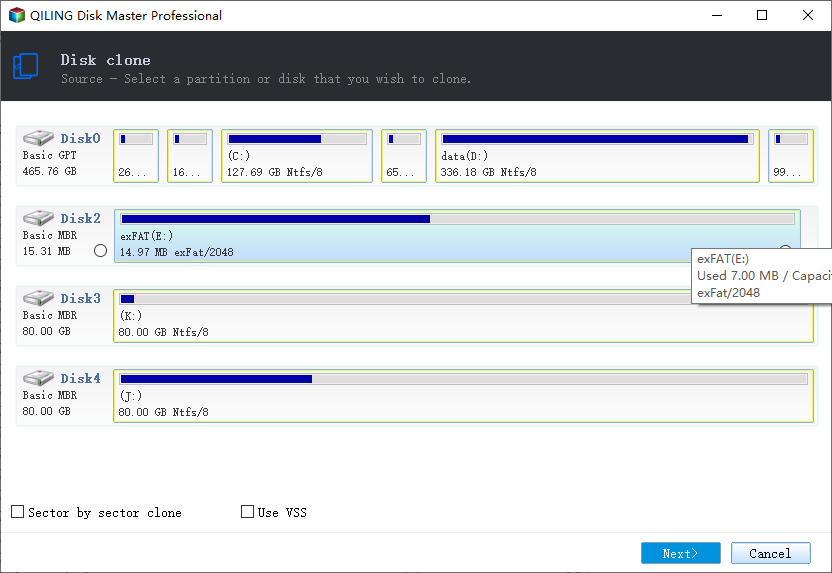
Step 3. Select the destination disk (your new SSD). Click "Next".
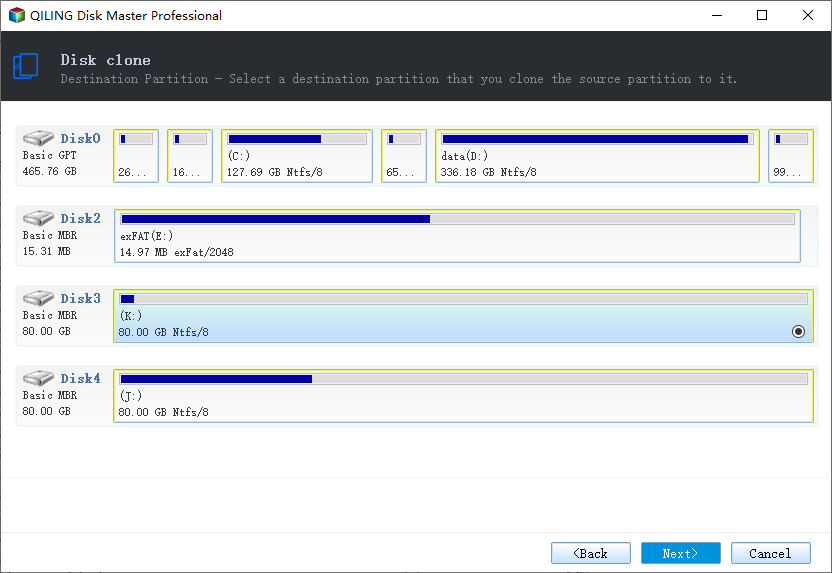
Step 4. Check "Optimize for SSD" to enable 4K alignment. Click "Proceed" to start cloning.
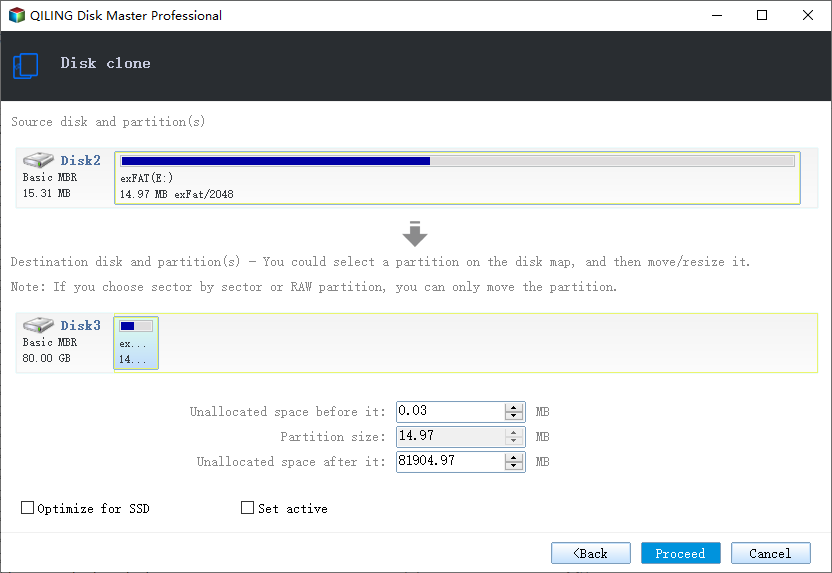
Step 5. When cloning finishes, shut down your PC, replace the HDD with the SSD (or set the SSD as the first boot device in BIOS), and boot from the cloned SSD.
Free SSD Cloning Software Comparison Table
| Software | Free | GUI | System Clone | 4K Alignment | NVMe Support | Best For |
|---|---|---|---|---|---|---|
| Qiling Disk Copy | Yes | Yes | Yes | Yes | Yes | All users |
| Clonezilla | Yes | No | Yes | Yes | Yes | Advanced users |
| Rescuezilla | Yes | Yes | Yes | Yes | Yes | GUI Clonezilla fans |
| AOMEI Backupper | Yes (limited) | Yes | Yes | Yes | Yes | Backup + cloning |
| Hasleo Disk Clone | Yes | Yes | Yes | Yes | Yes | Simple cloning |
| Samsung Data Migration | Yes | Yes | Yes | Yes | Yes | Samsung SSD only |
FAQs About Free SSD Cloning
What is the best free SSD cloning software?
Qiling Disk Copy is the best free SSD cloning software for most users in 2026. It offers one-click system cloning, 4K SSD alignment, NVMe support, and a simple interface—all in a free trial that covers the full cloning workflow.
Is free SSD cloning software safe?
Yes, reputable free cloning tools like Qiling Disk Copy, Clonezilla, and AOMEI Backupper are safe to use. Always download from the official website to avoid modified installers.
Can I clone a larger HDD to a smaller SSD for free?
Yes, as long as the used space on the HDD fits on the SSD. Qiling Disk Copy, AOMEI Backupper, and Hasleo Disk Clone all support large-to-small cloning by copying only the used data.
Will my cloned SSD be bootable?
Yes, if you use a tool that supports system cloning and boot configuration. Qiling Disk Copy automatically handles the EFI system partition and boot records, so the cloned SSD boots directly.
Do I need to reinstall Windows after cloning to SSD?
No. A proper system clone copies the entire Windows installation, applications, and settings to the SSD. You can boot from the SSD immediately without reinstalling anything.
Conclusion
Choosing the right free SSD cloning software depends on your needs and technical comfort. For most users upgrading from HDD to SSD or migrating Windows to an NVMe drive, Qiling Disk Copy offers the best combination of ease of use, features, and reliability. Advanced users may prefer Clonezilla or Rescuezilla, while Samsung SSD owners can use Samsung Data Migration.
Download Qiling Disk Copy today and upgrade to a faster SSD in minutes—no Windows reinstall required.
Compare free tools, trial limits, and verification steps in How to Choose Free Hard-Drive Cloning Software for Windows.
Related Articles
- Best Macrium Reflect Alternative for Free Disk Cloning (2026)
- Best Acronis True Image Alternative for Backup & Cloning (2026)
- How to Clone HDD to SSD in Windows 11 Without Reinstalling
- How to Clone SSD to Larger SSD in Windows 10/11
- How to Clone Windows 10 OS to New SSD (Step-by-Step)
Clone your Windows 10 system to a new SSD without reinstalling. Step-by-step guide using Qiling Disk Copy with SSD alignment for fast boot. - How to Clone a Failing Hard Drive in Windows 10 Without Data Loss
Learn how to clone a failing or dying hard drive to a new HDD or SSD, rescue your data, and avoid permanent data loss with sector-by-sector cloning.
Products
Articles & Tutorials
- Data Recovery
- Data Backup
- File Recovery
- File Backup
- System Backup and Restore
- Disk and Partition Clone
- Technical articles
- Mobile articles
- Disk Master Help
- Windows Data Recovery Tutorials
- Windows Secure Delete Tutorials
- Windows Partition Management Tutorials
- Windows File Backup and Restore Tutorials
- Windows System Backup and Restore Tutorials
- Windows Disk Backup and Restore Tutorials
- Windows Clone Tutorials