How to Fix Windows Was Unable to Complete the Format in Windows 11
If you're trying to format a USB flash drive or SD card, but get an error message saying "Windows was unable to complete the format," don't worry - we've got quick fixes to help you resolve the issue in minutes. Before attempting any of these methods, however, make sure to recover any important data from the inaccessible disks. By following these steps, you should be able to successfully format your device and get it back to working order.
What Is "Windows Was Unable to Complete the Format" Error Message?
The "Windows Was Unable to Complete the Format" error in Windows 11 can be caused by five possible reasons. These include issues that may arise from a faulty or corrupted storage device, a problem with the Windows installation, a malfunctioning disk controller, a power outage during the formatting process, or a virus or malware infection that has compromised the system. Understanding the underlying cause of the error is essential to prevent it from occurring in the first place.
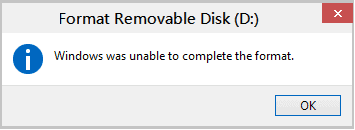
The Drive is Write Protected
To format a write-protected drive, you need to remove the write protection first. If you try to copy something to the drive and see the message "The disk is write-protected," it means the drive is write-protected, and Windows won't be able to complete the format. You can remove the write protection by checking the drive's physical properties, such as the USB port or the drive itself, for a switch or a lock that might be preventing the drive from being written to.
The Drive is Empty
This issue can occur if the hard drive has no partition and is empty, but still has a drive letter, making Windows unable to complete the format due to its partition-based approach.
The Drive is Physically Damaged
Physical damage to storage devices can make them inaccessible, prompting Windows to require formatting. However, damaged spots can often be repaired by a professional repair center, although the cost can be high.
The Drive Has Bad Sectors
Files stored on hard drives typically occupy multiple sectors, so if one sector becomes damaged and cannot be written or read, it's considered a bad sector. This can impact both format and data recovery operations.
The Drive Suffers From Virus and Malware Infection
The final reason for the error "Windows was unable to format the drive" is that the drive may be infected with a virus or malware, which can cause it to malfunction and prevent formatting.
Now that you understand the reasons behind the "Windows Was Unable to Complete the Format" error in Windows 11, it's time to move on to the effective solutions to resolve this issue.
How to Solve the Problem of "Windows 11 Was Unable to Complete the Format"?
Besides using the Windows 11 explorer, you can also use Windows disk management or command prompt to quickly format a drive. Alternatively, a third-party partition manager tool can help you achieve this in just a few minutes.
To fix the "Windows 11 Was Unable to Complete the Format" issue in Windows 11 PC, you can try the following methods. First, check if the storage device is properly connected and recognized by the system.
Fix 1: Format in Windows 11 Using Disk Management
If a RAW file system error is causing issues with formatting, you can fix it using Disk Management. Sometimes, storage devices become RAW, prompting Windows 11 to warn that it cannot complete the format. In such cases, using Windows Disk Management can complete the entire formatting process.
To complete the formatting, follow these steps in Disk Management:
Step 1: Connect the removable device to the Windows 11 PC that you want to format.
Step 2: Right-click on "This PC," tap on the "Manage" option and choose "Disk Management."
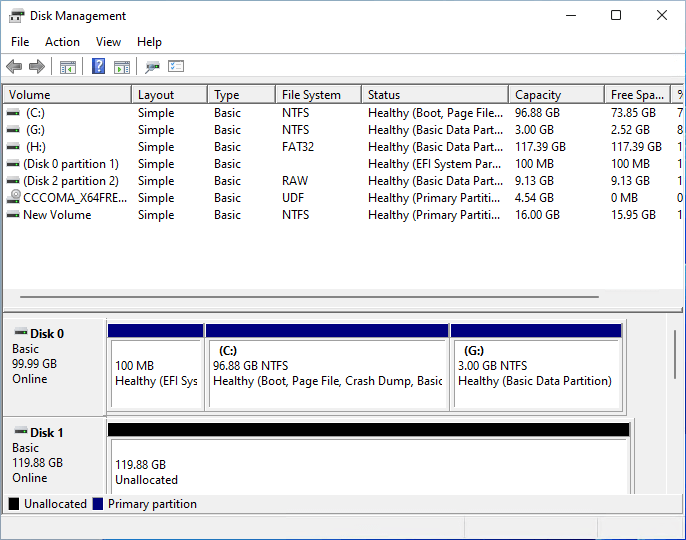
Step 3: Find and right-click on your USB flash drive or external hard drive and select the "Format" option
Step 4: To format a storage device, such as an SD card, USB drive, or hard drive, set the file system to either FAT32 or NTFS. Then, select the "Quick Format" option and confirm by tapping the "OK" button.
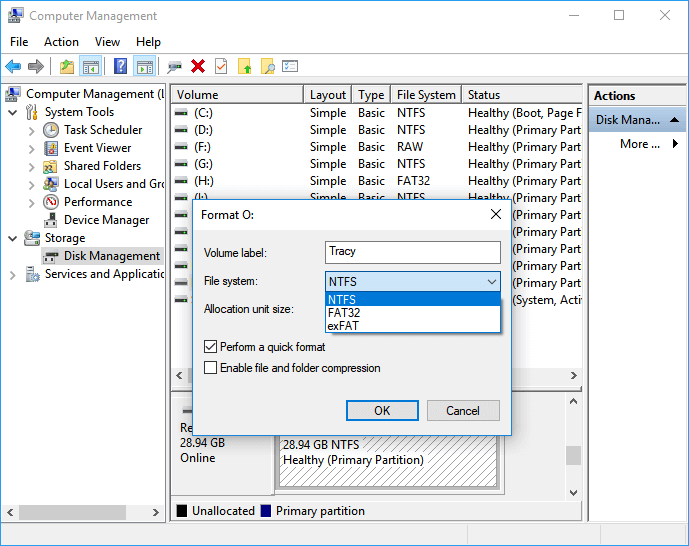
If this method didn't fix the issue, try solving it with the next method!
Fix 2: Format with Qiling Partition Master
To fix the "Windows 11 Was Unable to Complete the Format" issue, you can use a professional partition manager tool like Qiling Partition Master. This tool allows you to safely and easily manage your partitions, including resizing, moving, and deleting them, which can help resolve formatting issues with Windows 11. With Qiling Partition Master, you can ensure that your partitions are properly aligned and formatted, making it easier to install or upgrade Windows 11. This tool is highly advanced and can help you resolve complex partition-related issues with ease.
If your storage device is showing a file system error, such as being displayed as RAW in Disk Management, you can use Qiling Partition Master Tool to easily format it to a Windows-supported file system like FAT32, NTFS, or exFAT without much hassle. The tool can help you format your drive and make it usable again.
Step 1. Launch Qiling Partition Master, select the partition on your external hard drive, USB, or SD card that you want to format, and choose the "Format" option.

Step 2. Assign a new partition label, file system (NTFS/FAT32/EXT2/EXT3), and cluster size to the selected partition, then click "Proceed".

Fix 3: Format Using Windows Command Prompt
If you're encountering the "Windows 11 Was Unable to Complete the Format" issue likely due to a file system or bad sector issue, you can try formatting the drive using the Windows Command Prompt as an alternative solution.
When you're unable to format an SD card or USB flash drive using Windows Explorer, using the Diskpart formatting command can help you complete the formatting process.
Step 1: Right-click on the Windows icon, type "command prompt" in Search, right-click on "Command Prompt," and choose "Run as administrator."
Step 2: Enter "diskpart" in Command Prompt and hit the "Enter" key.
Step 3: Hit the "Enter" key each time when you type the below-stated command lines in Diskpart to format the hard drive quickly.
- list disk
- select disk 2 (Replace 2 with your disk number)
- list volume
- You can't perform that action on this computer. Please try a different computer.
- To format a storage device to NTFS file system quickly, use the command `format fs=ntfs quick` in Command Prompt or PowerShell. Replace "NTFS" with "FAT32" or other file systems if needed. This command will format the device and make it ready for use with minimal effort.
Step 4: To format a USB drive, open Command Prompt as an administrator, type "diskpart" and hit Enter. In the Diskpart window, type "list disk" and hit Enter to see a list of available drives.
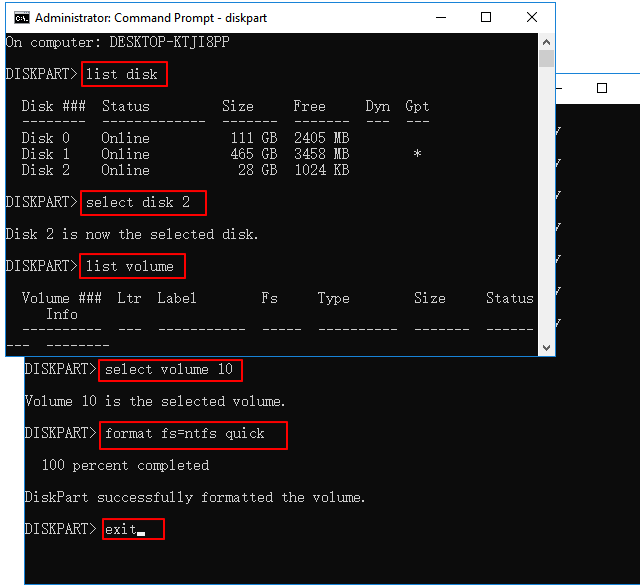
You have successfully formatted the drive using Command Prompt.
Conclusion
The issue of "Windows 11 Was Unable to Complete the Format" can be resolved using various solutions. Each fix has its own efficiency and effectiveness. For a more high-tech tool with a range of features, Qiling Partition Master is a viable option.
Qiling Partition Master is a tool that helps fix the "Windows 11 Was Unable to Complete the Format" error with ease, offering a handful of features and affordable prices.
Related Articles
- How to Format 128GB USB Flash Drive to FAT32
- 3 Best Windows 11 Disk Format Tool/Utility Free Download
- How to Install Windows 10 on GPT Partition in 2021
- How to Corrupt A Flash Drive on Purpose
- CHKDSK Not Working in Windows 11/10/8/7? Fix It Now!
- Format USB Drive to NTFS in Windows 10 (All 4 Ways)
- Where is the Save File Location for Hogwarts Legacy Cracked by Empress?
Are you wondering about where is the save file location for Hogwarts Legacy cracked by Empress? You can get your answer by reading this post. Also, you will learn how to back up this game with data backup software.
Products
Articles & Tutorials
- Data Recovery
- Data Backup
- File Recovery
- File Backup
- System Backup and Restore
- Disk and Partition Clone
- Technical articles
- Mobile articles
- Disk Master Help
- Windows Data Recovery Tutorials
- Windows Secure Delete Tutorials
- Windows Partition Management Tutorials
- Windows File Backup and Restore Tutorials
- Windows System Backup and Restore Tutorials
- Windows Disk Backup and Restore Tutorials
- Windows Clone Tutorials