How to Extend C Drive in Windows 7/8/10
PAGE CONTENT:
- 1. Why do you need to increase C drive space
- 2. How to extend C drive in Windows 7 with or without any software
- 3. Why can't you extend C drive in Disk Management or DiskPart
Why Do You Need to Increase C Drive Space
If your computer is displaying an error message that the C drive is out of space on Windows 7 or Windows 8/10, you'll need to either delete files or add more space to extend your system C drive.
You need to increase C drive space because it's often the primary drive where your operating system, programs, and user data are stored. As a result, it tends to fill up quickly with files, apps, and system updates, leading to performance issues, errors, and even crashes. To avoid these problems, it's essential to free up space on your C drive by deleting unnecessary files, uninstalling unused programs, and considering upgrading to a larger storage drive or external hard drive to store your files and data, thereby keeping your C drive tidy and running smoothly.
- To free up space in the C drive, you can consider deleting temporary files, uninstalling unused programs, and checking for disk errors. You can also try compressing files, deleting system logs, and disabling unnecessary startup programs.
- C drive gets full or is low disk space.
- C drive is partitioned too small.
- Hard drive space is not properly allocated.
- The computer may be experiencing performance issues or freezing due to programs installed on the C drive, which can cause it to slow down or get stuck.

How to Extend C Drive in Windows 7 With or Without Software
To expand the system C drive without losing any data, you can add space to the system drive by deleting unnecessary files, uninstalling unused programs, or using a disk cleanup tool. Alternatively, you can also consider moving the page file and temp files to a different drive, or using a cloud storage service to free up space. Additionally, you can also consider upgrading your computer's storage capacity by adding an external hard drive or solid-state drive (SSD) and then moving your system to the new drive. This way, you can keep your data intact and still have a larger system drive.
Here, you have three free access and a reliable solution to reach your goal.
- Method 1. Extend C Drive in Windows 7 with Free Partition Manager Software
- Method 2. Extend C Drive with Disk Management
- Method 3. Extend System C Drive with DiskPart
- Method 4. Increase C Drive without Unallocated Space
You can walk through the solutions to increase the size of the C drive in a Windows 7/8/10 32-bit and 64-bit system, and then choose a satisfying way to do so easily.
Method 1. Extend C Drive in Windows 7 with Free Partition Manager Software
To increase the C drive in Windows 7/8/10, select the unallocated space adjacent or non-adjacent to the C drive, right-click on it, and select "Merge" to merge the unallocated space with the C drive, which will increase the size of the C drive. This method is free and the easiest way to increase the C drive.
For Windows beginners, neither Disk Management nor DiskPart are suitable options to extend the C drive. Instead, we recommend using a free partition manager software, such as Qiling Partition Master Free Edition, to achieve this task.
Qiling's free partition manager breaks Windows rules and offers flexible partition extension and movement. It simplifies the process of adding unallocated space to the target C drive without causing data loss, making it a convenient tool for users.
What is improved in the third-party freeware?
The unallocated space can be placed on either side of the selected volume you're going to extend.
You can also merge partitions without losing data, in addition to resizing by involving unallocated space.
Guide: How to extend C drive with Qiling Partition Master
Step 1: Free up unallocated space for C drive.
If there is no unallocated space on the system disk, select a partition next to the C: drive and choose "Resize/Move".
To free up space on your system drive, drag the left panel of the partition to shrink and leave unallocated space behind the system C: drive, then click "Proceed".
Step 2: Increase C drive space.
1. Click on C: drive and select "Resize/Move".

2. To add space to the C: drive, drag the system partition end into the unallocated space, then click "Proceed" to initiate the process.

Method 2. Extend C Drive with Disk Management
To increase the C drive space in Windows 7 without any software, follow these steps: Delete unnecessary files and free up space by emptying the Recycle Bin and deleting temporary files. Then, shrink the size of the Windows 7 system files by running the built-in Disk Cleanup tool, and finally, use the Disk Management utility to shrink the C drive and add the freed space to the C drive.
Windows Disk Management is a built-in, free utility that requires no computer skills. Despite its simplicity, there are some essential facts to know about this utility.
To extend the C system volume, there must be contiguous unallocated space next to it, otherwise the "Extend Volume" option will be grayed out.
Unallocated space must be placed on the right side of the C drive. Adding non-adjacent unallocated space to the system C drive is not allowed unless a neighboring drive is deleted, which will result in total data loss.
Guide: How to extend C drive with Windows Disk Management
While adding unallocated space to your C drive is applicable to all ages, we still recommend exercising caution. To do so safely, follow these steps:
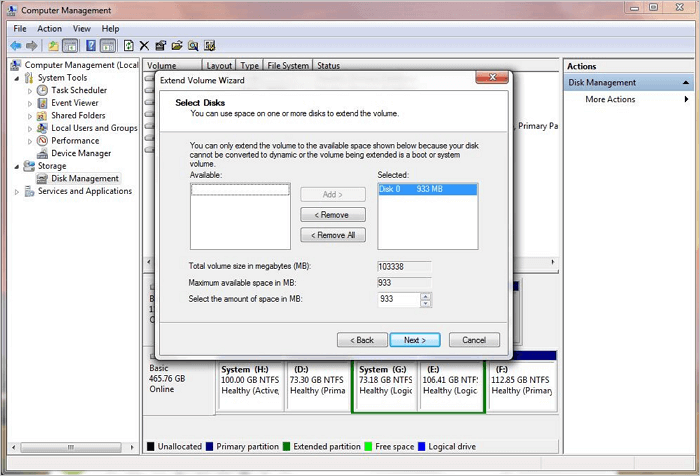
Step 1. Right-click on "My Computer/This PC", click "Manage", then select "Disk Management".
Step 2. Right-click on the C drive and choose "Extend Volume".
Step 3. Agree with the default settings to merge the full size of the empty chunk to the C drive. Click "Next".
Method 3. Extend System C Drive with DiskPart
To increase the size of the C drive space in Windows 7 without using any software, follow a complex process that may be challenging for beginners.
Windows Command Prompt works similarly to Disk Management, requiring two basic conditions to extend the C drive: 1) unallocated space, and 2) unallocated space adjacent to the C drive.
This method is designed for inexperienced users, but it's still not recommended for those who are not careful, as a small mistake can cause data loss on the entire hard drive.
Guide: How to Extend System C Drive with DiskPart CMD
Follow each step very carefully and let's start with the Diskpart command lines.
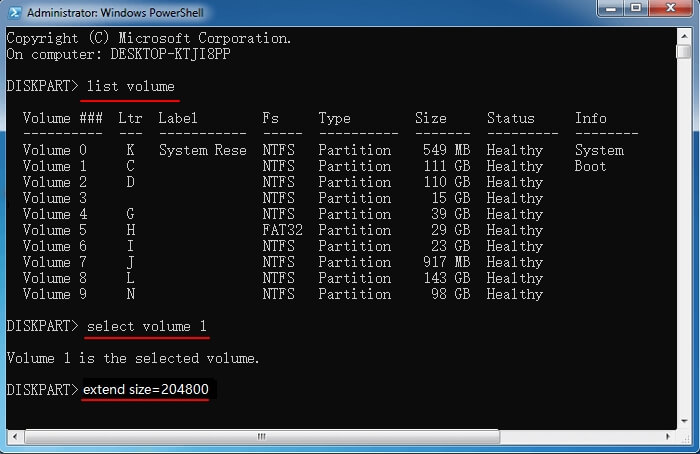
Step 1. Press Windows + X keys and choose "Command Prompt (Admin)".
Step 2. Type diskpart and hit Enter.
Step 3. Type list volume and hit Enter.
Step 4. To select a volume (such as the C drive), type `select volume X` and press Enter, replacing X with the corresponding drive number. For example, if your system's C drive is Volume 1, you would type `select volume 1` and press Enter.
Step 5. Type extend size =number and hit Enter. (Replace the number with the size in MB that you want to add to your C drive.)
Method 4. Increase C Drive without Unallocated Space
If you're running Windows 7 on a hard drive disk and want to add space to your C drive without having unallocated space, this solution is a reliable and efficient way to do so.
If there is no unallocated space on your computer hard drive, things might be a bit complicated. You have three options to try:
#1. Delete an adjacent partition next to the C drive.
#2. Shrink volume and leave unallocated space behind C drive.
Allocate free space from other partition to C drive, which is the most recommended solution to increase the C drive space.
To avoid data loss, it's recommended to move space from another drive, such as D drive, to the C drive instead.
To resize a partition, you'll need to download and upgrade Qiling Partition Master to the Pro Edition, which offers a Resize/Move feature that allows you to allocate free space from other volumes to a target partition without affecting saved data.
Extended Reading: Why Can't I Extend My C Drive
To resolve the issue of the C drive not having sufficient space, you can consider freeing up space by deleting unnecessary files, uninstalling unused programs, and transferring files to an external drive or cloud storage. Alternatively, you can also use disk cleanup tools or upgrade your storage capacity by adding an external hard drive or solid-state drive. These methods can help you reclaim space on your C drive and prevent running out of storage capacity.
Many Windows 7/8/10 users have reported issues with extending the C drive, with some unable to increase its space in Disk Management or DiskPart.
The two reasons why you can't extend the C drive are that it's usually set as the system drive in most Windows systems, and it's often where the operating system and critical system files are stored, making it difficult to extend. Additionally, the C drive is often the drive where the operating system is installed, and extending it might interfere with the system's ability to function properly. As a result, it's generally not recommended to extend the C drive.
There is no unallocated space on the system disk.
The unallocated space is not adjacent to the C drive. It is located separately, not directly behind it.
The unallocated space belongs to the extended partition, not on the primary volume.
If you encounter issues such as a full disk, missing or corrupted system files, or a system drive that's too small to extend, you won't be able to extend a volume on your computer. For instance, you'll get an error message saying "There is not enough usable space for this operation" when there's no unallocated space next to the system drive partition, making it impossible to extend the volume in DiskPart.
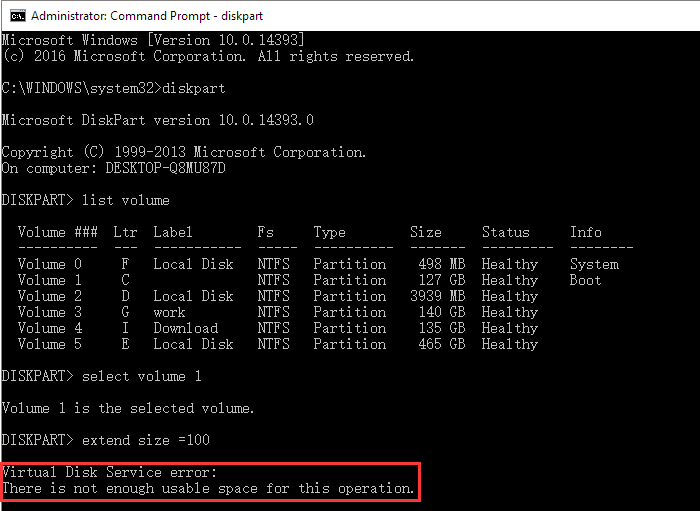
To fix the issue, revert to the solutions presented in Method 4, and you'll successfully get an extended C drive with sufficient space with the help of Qiling Partition Master.
The Bottom Line
Disk partitioning is a way to divide a hard drive into separate chunks, each with its own disk space, separating the operating system and installed programs from individual files, making it a relatively secure way to keep data safe from a computer crash or system reinstallation.
Your computer's hard drive partition may become full or the C drive may run low on disk space due to various reasons, such as excessive file storage on Windows 7/8/10. To resolve this issue, the best solution is to extend your C drive or reallocate space among your computer's partitions.
To increase the size of a partition, such as the C drive, you can use one of four reliable methods, which can be performed on your own. These methods include using the built-in Disk Management utility, third-party software like Qiling Partition Master, or taking your computer to a professional for assistance. By following these methods, you can safely extend the size of your target partition, such as the C drive, and make the most of your available storage space.
For a free and easy way to manage partitions, Qiling Partition Master is the best choice.
To keep your computer at peak performance, you can extend C and other drives using the methods shown above. By doing so, you can free up space, improve loading times, and ensure a smoother user experience.
People Also Ask about Extending C Drive Space in Windows 7
In Windows 7, you can extend a partition by deleting a partition on a non-system drive and then using the freed space. You can also extend a partition by deleting a partition on the same drive as the partition you want to extend.
1. How do I add c drive space to my hard drive windows 7?
We don't recommend moving C drive space to other hard drives on your computer because Windows saves system caches and temporary files there, making it prone to becoming full. It's best to leave a significant amount of free space (at least 50GB) on your system drive.
You can try asking yourself questions like "What are my goals and priorities?" or "What are the most important things I need to do today?
To resolve the issue, first, shrink the C drive, then use Qiling Partition Master's Resize/Move feature to extend the target drive.
2. How to get more disk space?
There are three ways to get more space on your hard disk:
#1. Extend drive with unallocated space.
Free up disk space by deleting unnecessary junk files, backing up large files to an external drive, and uninstalling unused programs.
#3. Clone and upgrade disk to a larger one.
3. How to check hard disk space Windows 7?
Two ways to check hard drive space in Windows 7:
To check the hard drive space on your computer, click on "My Computer" to open File Explorer, and then check the available space on each hard drive.
#2. Right-To check the whole disk space and each volume size in Windows 7, click on "My Computer", then select "Manage", and finally click on "Disk Management".
Related Articles
- How to Convert Simple Volume to Primary Partition
- How to Clone IDE to SATA HDD/SSD (2 Ways)
- Clone Hard Drive to Larger Drive Without Reinstalling Windows and Programs
- How to Partition Hard Drive (including C drive) in Windows 11/10 Without Formatting
- Android Deleted Files and Photos Keep Coming Back (Get 4 Easy Fixes)
- Can I Format the System Partition? How to Fix System Partition is Not Allowed to Be Formatted
- [Backup Guide] To Solve Windows 10 Backup Starts then Stops
When you periodically back up selected folders onto an external hard drive using File History on Windows 10, you will click
Products
Articles & Tutorials
- Data Recovery
- Data Backup
- File Recovery
- File Backup
- System Backup and Restore
- Disk and Partition Clone
- Technical articles
- Mobile articles
- Disk Master Help
- Windows Data Recovery Tutorials
- Windows Secure Delete Tutorials
- Windows Partition Management Tutorials
- Windows File Backup and Restore Tutorials
- Windows System Backup and Restore Tutorials
- Windows Disk Backup and Restore Tutorials
- Windows Clone Tutorials