FIXED: Windows Server Backup Stuck on Reading Data
Windows Server has many great features, just like its Windows counterpart. So, what happens if it runs into a problem?
Windows Server is a robust platform that offers a wide range of features to help administrators manage and maintain their systems. However, despite its many benefits, users may still encounter issues that require troubleshooting and research to resolve, often leading them to seek answers online.

One such instance is when Windows Server backup is stuck on reading dataMany people experience this problem, and fortunately, there are a few solutions. Let's get started.
Windows Server backup is a toolkit that allows users to perform basic backup tasks, such as setting up a backup, choosing storage, and setting backup frequency.
The Windows Server Backup tool allows users to schedule automatic backups or perform manual backups at any time. However, some users experience an issue where the backup process gets stuck on "reading data," preventing the backup from completing.
This issue not only wastes time but also causes further headaches, including lost time and potentially harming viable backups. Let's dive into finding some solutions to resolve it.
Possible Reasons Why Windows Server Backup (WSB) Stuck on Reading Data
Windows Server Backup (WSB) may not work due to various reasons, ranging from minor, specific issues to major hardware or software problems.
The issue could be caused by a few things, such as the operating system itself being lacking or acting up, but it's not impossible to deal with. The first step is to diagnose or understand what's causing the problem, which might involve troubleshooting a few potential issues.
- Bad internet connection
- Ran out storage
- Issues on Microsoft's end
- Bad settings or configuration
In some cases, issues with Windows Server may be caused by hardware problems, but common reasons include outdated drivers, corrupted system files, and incorrect registry entries, which can be resolved by updating drivers, running system file checks, and verifying registry entries.
Windows Server Backup may fail to work properly due to issues with other services, such as data upload or download problems, causing the backup upload to get stuck on reading data.
4 Ways to Fix Windows Server Backup Stuck on Reading Data
Here are four simple fixes to help you get past the stuck Windows Server Backup:
- Fix 1. Perform Backup as Administrator
- Fix 2. Restart Windows Server Backup
- Fix 3. Disable SQL Server VSS Writer Service
- Fix 4. Restart Your Server
Fix 1. Perform Backup as Administrator
The first fix you'll try is to fun the backup as administrator. In this, you will try to do the same backup trick, except you'll run the program as an administrator. So, something like this:
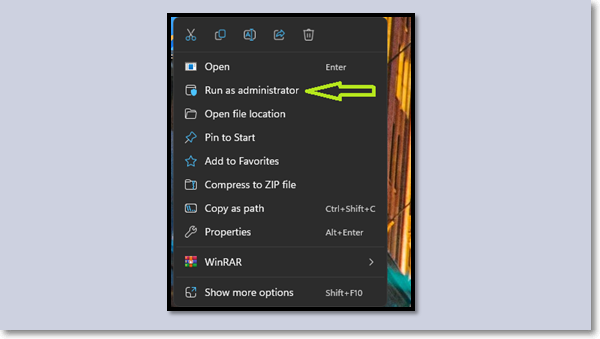
To troubleshoot the issue, you can try running the System File Checker (SFC) tool as an administrator. This will scan and replace any corrupted system files with a fresh copy. To do this, follow these steps:
"wbadmin start backup [-backupTarget:{"
This command will ensure that your backup runs without any issues and doesn't cause any disruptions in the middle. It will run the backup in the background and prevent any potential problems that could occur during the process.
Fix 2. Restart Windows Server Backup
To resolve the issue where Windows Server Backup is stuck, you need to restart it by shutting it off and then turning it on again in administrator mode. This will resolve the setup being stuck and allow Windows Server Backup to function properly.
Here are the key services you need to restart after a Windows update:
- Windows Search
- Volume Shadow Copy
- COM+ System Application Service
Restarting the backup and these services will surely make a difference and get your backup up and running again. If you don't want to use it anymore, you can simply stop Windows Server Backup.
Fix 3. Disable SQL Server VSS Writer Service
Disabling the SQL Server VSS Writer Service can resolve the delay issue, allowing the backup to continue smoothly.
Fix 4. Restart Your Server
This process involves shutting down all systems and turning them back on, requiring a complete power cycle to ensure everything is fully powered down and then back up again. This ensures that all systems, including the computer and server, are completely shut down and then restarted, which is different from a simple reboot that only restarts the operating system. This process is necessary to complete the upgrade or maintenance task.
Step 1. Turn off your server
Step 2. Unplug it for 10-15 seconds
Step 3. Plug it back up
Step 4. Turn it back on
Step 5. Turn the backup on again
Step 6. Done
The command `sudo systemctl restart` will restart your server, resolving any underlying issues that may have been causing problems. This will cause a total restart of your server, stopping any issues from continuing to affect it.
How to Make Windows Server Backup Smoother
To avoid backup issues, consider using a professional tool instead of relying on Windows Server backup, which is known to be buggy and full of problems. This can help ensure a smooth and reliable backup process.
You can use Qiling Backup Enterprise for server-related backups, which is a convenient and hassle-free option.
Here are a few reasons why you might prefer this tool over the in-built options:
- It keeps backing up simple
- It makes recovery a lot more efficient
- With a cloud-based backup system, businesses can quickly recover from data loss or system failures, reducing downtime and minimizing the impact on productivity and revenue. This is particularly important for companies that rely heavily on data-driven operations or have a large customer base, where any prolonged disruption can have significant consequences.
- Smart solution for both Windows PCs and servers, making it accessible to both users and allowing them to make the most of its features.
- Centralized backup point for easier recovery from any device
- Restoring images to unfamiliar or newer hardware
- Clone your hard drive as a backup quickly
- Setup your automatic backup for Windows Server
- Offers a free trial
The Windows Server Backup tool is a must-have for any enterprise or server-related backup solution, as it ensures smooth backing up and avoids the hassles that come with in-built or default options. With its ability to handle complex backup and restore operations, it serves as a notable helper in Windows Server backup and restore.
To back up a disk using Qiling Backup Enterprise, simply launch the software, select the disk you want to back up, and choose the backup destination. Then, specify the backup settings, such as the compression level and encryption options.
Step 1. Start by clicking the Disk/partition backup button.

Step 2. You can use the software to back up a whole disk or a certain partition, depending on your needs.

Step 3. Select the destination where you want to save the backup.

Step 4. For disk/partition backup, you can save the backup to a local drive or a NAS.

Step 5. Click "Backup options" on the bottom-left corner of the interface.
Step 6. You can customize your backup scheme by clicking "Schedule: Off". Here you can see "Schedule", "Backup cleanup" and "Advanced Settings". Click "New" under the "Schedule" catalog to start a new backup schedule.

Step 7. When all settings are complete, click "Proceed" to initiate the disk backup process.
Once the backup process is finished, your task will be displayed on the left side. You can manage your backup further by selecting any task, which will allow you to recover it, create incremental backups, and more.

The Bottom Line
If your Windows Server Backup is stuck on reading data, there are several reasons why this might be happening, including issues with the backup configuration, disk space problems, or corrupted backup files. However, troubleshooting this issue can be complex and time-consuming, which is why it's often recommended to explore alternative backup solutions that are more reliable and efficient.
A professional tool like Qiling Backup Enterprise is ideal for this situation, offering not only advanced capabilities but also ease of use and peace of mind, setting it apart from default backup options.
FAQ on Windows Server Backup
Here are some frequently asked questions that might help clarify things:
1. How do I force a Windows Server backup to stop?
To stop a server backup, go to the Dashboard, find the server in the Device tab, click on "Stop backup for the server", and confirm the action.
2. How do I speed up Windows Server backup?
To ensure a smooth backup process, first verify that your internet connection is stable and working properly. This is especially crucial if you're backing up to a cloud or another network-attached storage (NAS) server, as a slow internet connection can cause the backup to run slowly. If you're backing up to a local device, ensure that it is properly connected to your computer or network.
To speed up your backup, use the methods mentioned in the article, or consider using a third-party tool like Qiling Backup Enterprise for faster backup and recovery.
3. How do I restart the Windows backup service?
To restart the Backup Service Controller on your Windows server, open the Command Prompt by pressing Windows + R, typing CMD, and pressing enter. Then, type net restart "backup service controller" and press enter. This will restart the Backup Service Controller from scratch.
Related Articles
- Open Source Backup Software for Windows Server 2003(2022 New List)
- How to Stop Windows Server Backup (WSB) in 2 Ways
- Windows Server 2012 Backup to NAS: A Simple and Efficient Way
- How to Back Up Windows Server 2019 Files in 2 Ways [Proven Solutions]
- How Much Space Does a Windows 10 Backup Take | Find Your Answer Here!
To prevent data loss or malicious tampering, frequent backups are essential. However, users often wonder how much space a Windows 10 backup occupies. This article aims to provide a detailed answer to this question. - How to Backup and Restore 7 Days to Die Save [3 Effective Ways]
7 Days to Die is a popular survival video game and requires regular backups of game saves to safeguard your progress. Here are 3 effective ways how to back up 7 Days To Die to save in 2023 with detailed steps for each method.
Products
Articles & Tutorials
- Data Recovery
- Data Backup
- File Recovery
- File Backup
- System Backup and Restore
- Disk and Partition Clone
- Technical articles
- Mobile articles
- Disk Master Help
- Windows Data Recovery Tutorials
- Windows Secure Delete Tutorials
- Windows Partition Management Tutorials
- Windows File Backup and Restore Tutorials
- Windows System Backup and Restore Tutorials
- Windows Disk Backup and Restore Tutorials
- Windows Clone Tutorials