How to Clone Samsung SSD to Another SSD on Windows 11/10/8/7
Samsung, a top SSD and laptop manufacturer, offers Samsung SSD cloning software to transfer data from an existing SSD to a new one, helping users upgrade their computer's performance.
This article will guide you on how to clone a Samsung SSD to another SSD, such as a Samsung 850 EVO, Samsung T9 portable SSD, or a non-Samsung SSD, without losing data or reinstalling Windows.
| Method | Description | Effectiveness | Difficulty |
| 1️⃣Using Qiling Disk Copy🔥 | Clone a Samsung SSD to another from a different hard drive manufacturer with ease using Qiling Disk Copy. | High👍 | ⭐ |
| 2️⃣Using Samsung Data Migration Software | Clone a Samsung SSD to a Samsung hard drive only. | Medium | ⭐ |
Download Qiling disk clone software here
What to Prepare to Successfully Clone an SSD to Another
To have a smooth and successful cloning process, it's essential to make some preparations beforehand. These include understanding the cloning process, selecting suitable cloning software, preparing the necessary equipment and materials, and ensuring a suitable environment for the cloning process. Additionally, it's crucial to have a clear plan and timeline for the cloning process, as well as a contingency plan in case of unexpected issues. By taking these steps, you can increase the chances of a successful cloning process.
- Get a new SSD. To save data and install an operating system, it's recommended to purchase an SSD with a capacity of 500-1TB.
- Download reliable SSD cloning software. The best SSD cloning software can help you clone a hard drive, as Windows doesn't have a preinstalled cloning setting. A disk cloning tool is necessary to transfer the contents of your old drive to a new one, including the operating system, programs, and data. This process is useful for upgrading to a faster SSD, replacing a faulty drive, or simply creating a backup of your system.
- Initialize the new SSD (Optional). Most external hard drives require initialization before they can be recognized by the computer, but some tools allow you to skip this step. We can discuss those tools later.
- Back up data on the old SSD. To avoid data loss risk during the cloning process, it's recommended to use a free and multi-functional backup tool, Qiling Disk Master, to create a backup of data on your old SSD.
- Prepare a connection cable. When cloning your old hard drive to a new SSD, you'll need a connector like a USB-to-SATA cable to physically connect the SSD to your computer. This allows the cloning process to take place.
2 Ways to Clone a Samsung SSD to Another Without Data Loss
When cloning an SSD, major manufacturers like Seagate and Samsung often provide their own cloning tools. However, most SSDs lack built-in cloning features, making it necessary to explore alternative methods. Fortunately, there are ways to clone a Samsung SSD to a larger or smaller one, and this guide will walk you through two such methods. Let's dive into the details.
Way 1. Using Professional SSD Cloning Software
When cloning a hard drive, especially an HDD or SSD, it's essential to use a professional disk cloning utility. These tools offer advanced functionalities and fewer limitations, making them a better choice than other methods. Qiling Disk Copy is a suitable option that can meet your needs.
It is a practical, easy-to-use disk cloning software for Windows PCs and SSDs from various manufacturers. It allows for the cloning of hard drives with different sizes and enables the transfer of data from one hard drive to another, including the transfer of the C drive to a new SSD, cloning an SSD with a single laptop slot, and transferring Windows from an HDD to an SSD without losing any data.
- Clone a hard disk with bad sectors
- Clone a drive with multiple partitions
- Resize disk partition amid cloning
- Create a WinPE bootable disk
- Transfer OS from SSD to new SSD
The Qiling disk cloning tool is a versatile solution for various disk-related tasks, including cloning, upgrading, replacing, or migrating data on a drive. It can be downloaded to your computer for easy disk cloning.
- Important
- Qiling Disk Copy can recognize the new SSD even if you don't initialize it.
Here is how to use Qiling Disk Copy to help you clone/upgrade a hard drive. Qiling Disk Copy allows you to create an exact copy of a hard drive, including the operating system, programs, and data, which can be used to upgrade or replace a failing drive.
Prior Notice:
- The "Sector by sector copy" feature requires the destination disk to be at least as large as the source disk. If you want to clone a larger disk to a smaller one, leave this feature unchecked.
- Warning: all data on the destination disk will be completely erased, so take care.
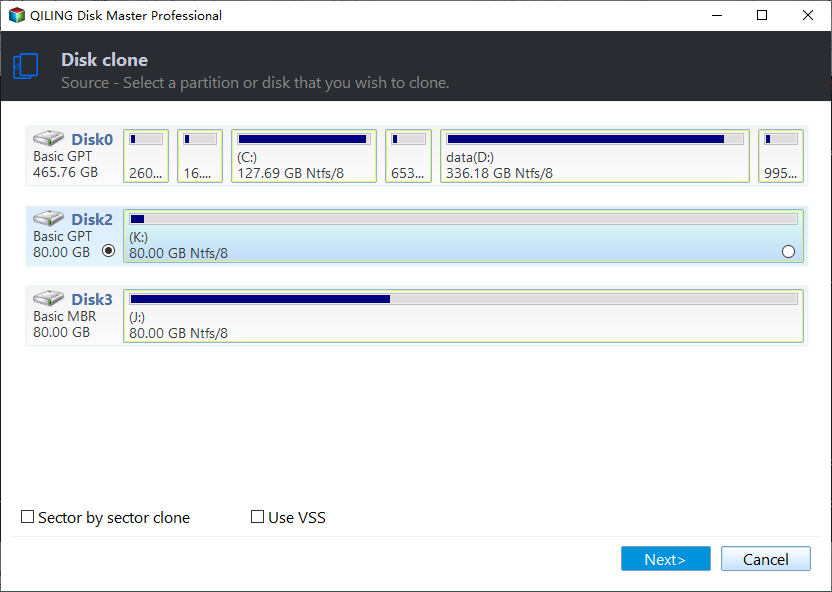
Step 1. To begin cloning an entire disk to another, select the disk you want to copy as the source disk under "Disk Mode" and proceed by clicking "Next".
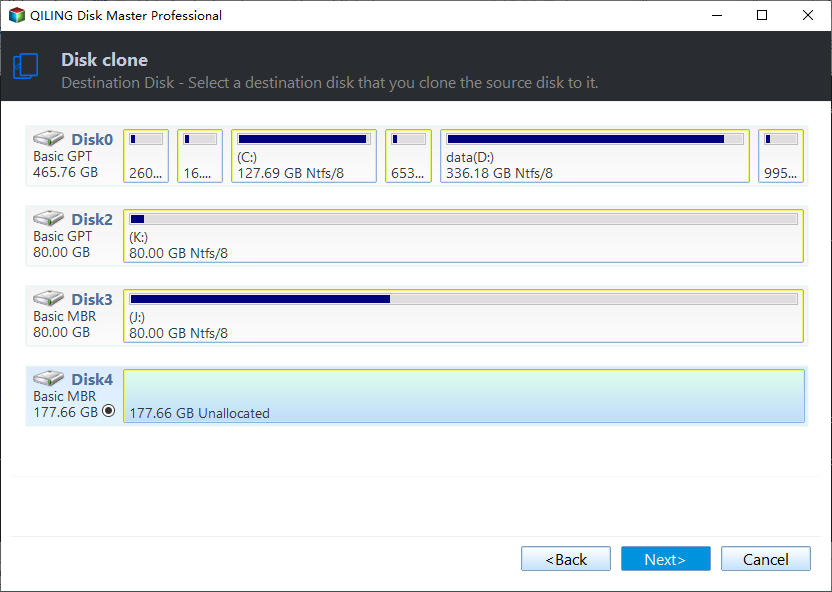
Step 2. Choose the other disk as the destination disk.
Step 3. Check the disk layout of the two disks. You can manage the destination disk's layout by dragging, editing its position or size.
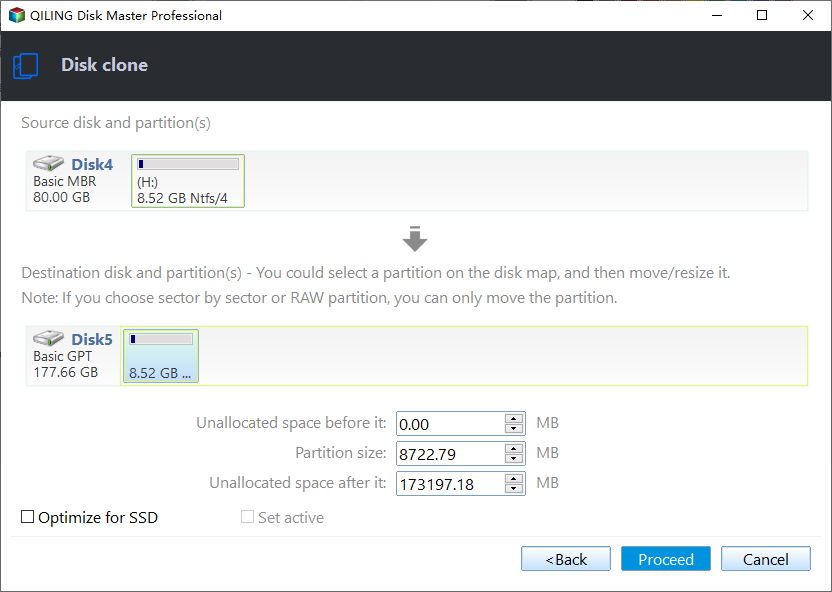
To get the best performance out of your SSD, you should check the "Check the option if the target is SSD" option. This will optimize your SSD's performance.
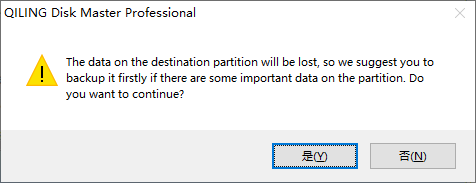
Step 4. Click "Proceed" to officially execute the task.
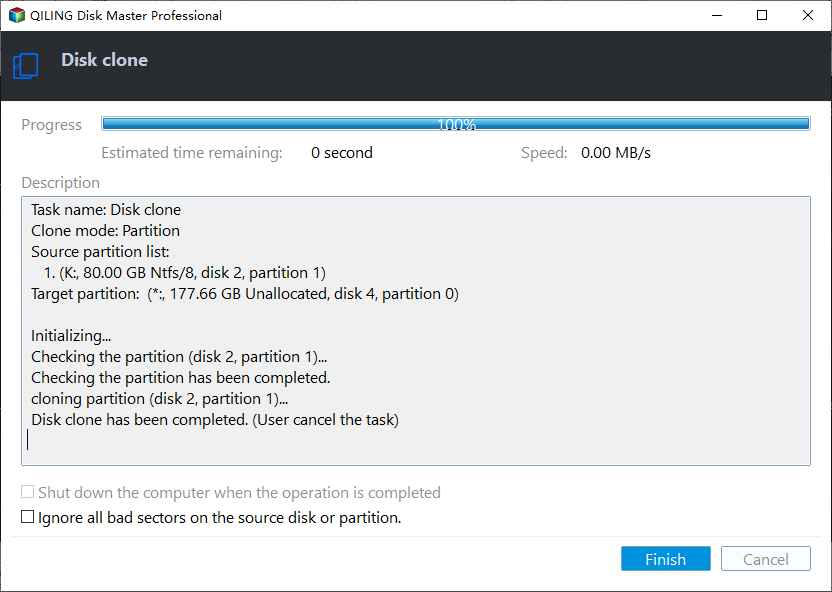
A message appears, warning that data will be lost, and you're prompted to confirm by clicking "OK".
Way 2. Using Samsung Data Migration Software
You can use Samsung Data Migration Software to clone a Samsung SSD to a larger one or migrate data from one Samsung hard drive to another, utilizing the tool's functionality.
Samsung Data Migration tool allows you to clone a Samsung SSD to another Samsung SSD, but not to a non-Samsung one. This tool can be used to clone a Samsung SSD to another Samsung SSD by following the provided instructions.
Step 1. Download the data migration software from Samsung's website.
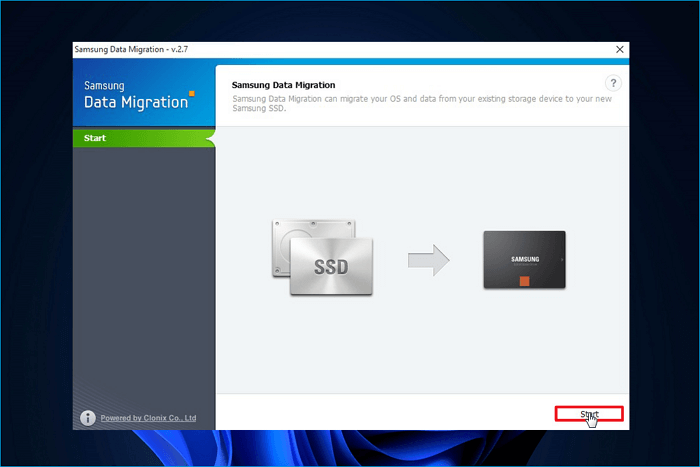
Step 2. Connect your new Samsung SSD to your Windows PC via a SATA-to-USB cable, then click Start in the bottom right corner.
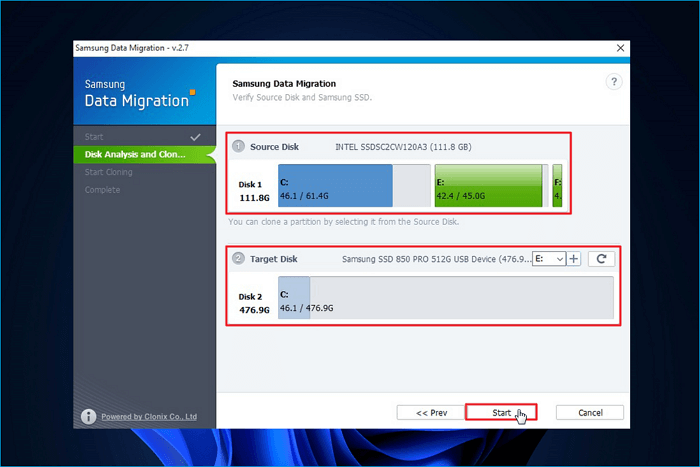
Step 3. Confirm the source and target disk. Then, click Start.
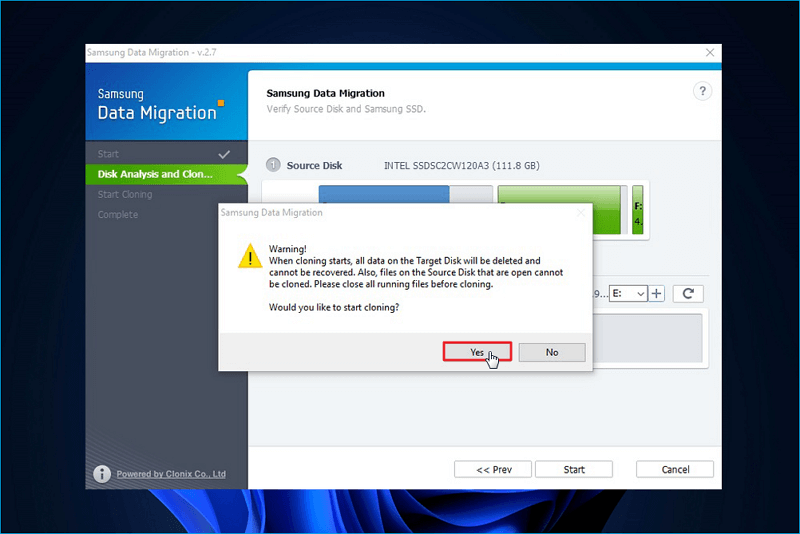
Step 4. To clone an SSD, click on the "Clone" button in the Samsung Data Migration software. This will give you a warning message. Click Yes to continue, and the SSD cloning process will begin.
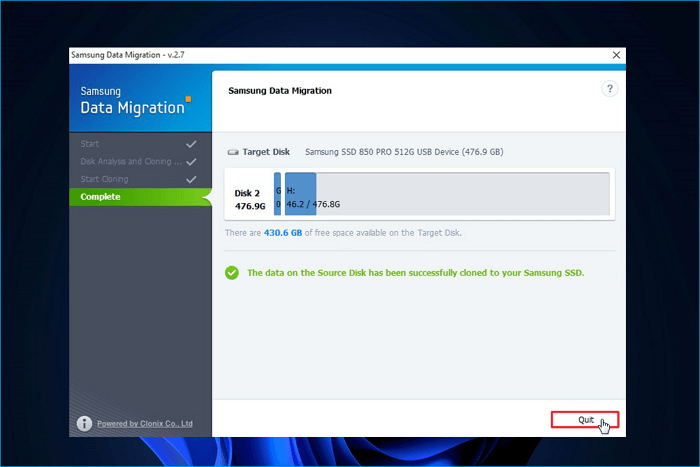
Step 5. Once the process is complete, a green message will appear. To exit the tool, simply click on "Quit".
If you find this information helpful, please share it on your social media platform. This way, others who may benefit from it can easily find and access it.
How Much SSD Storage Do You Need to Change an SSD
When cloning a Samsung SSD to another SSD, it's essential to consider the overall performance, including read or write speed, form factor, and interface types, as well as the required storage capacity. Choosing the right SSD is also crucial, with many options available on the market, such as popular models listed for reference.
| Brand | Form Factor | Interface | Capacity |
Speed (read/write) |
Warranty |
| Samsung T9 | M.2 | NVMe | 1/2/4 TB | up to 2,000 MB/s | 5 years |
| WD Black SN770 | M.2 | NVMe | 250/500GB, 1/2TB | up to 4000/2000MB/s | 5 years |
| Lexar NM790 | M.2 | NVMe PCIe | 512GB, 1/2/4TB | up to 7400/6500MB/s | 5 years |
| Kingston KC3000 | M.2 | NVMe PCIe | 512GB, 1/2/4TB | up to 7000MB/s | 5 years |
| Seagate FireCuda 530 | M.2 | NVMe PCIe | 500GB, 1/2/4TB | up to 7300/6900MB/s | 5 years |
M.2 SSDs offer faster read and write speeds, making them a good choice if you want to upgrade your computer's storage for improved performance.
When choosing a new SSD, consider the amount of storage capacity you need. For heavy users like gamers and content creators, a 1TB SSD is recommended, while general users may be fine with a 500GB SSD for storing data and future OS updates.
To Wrap Things Up
You can clone a Samsung SSD to another SSD using either Qiling disk cloning software or Samsung Data Migration Software. The Samsung Data Migration tool is a practical utility specifically designed for migrating data from an HDD or SSD to another Samsung SSD, but it has some limitations.
Qiling Disk Copy is a cloning software that is a better alternative to Samsung Data Migration Software, offering more features at an affordable price with fewer limitations, allowing you to clone disk partitions and work with various operating systems and drives, making it a reliable option.
FAQs on Clone Samsung SSD to Another SSD
1. Will Samsung Data Migration work with other SSDs?
Samsung Data Migration software is only compatible with Samsung solid-state drives (SSDs), and cannot be used to clone a Samsung hard drive to a non-Samsung SSD. A third-party cloning program, such as Qiling Disk Copy, is needed for this purpose.
2. Does Samsung have cloning software?
Samsung offers a software called Samsung Data Migration that helps transfer data from one Samsung hard drive to another.
3. How do I clone a hard drive to a larger Samsung SSD?
You can use software like Qiling Disk Copy, Clonezilla, or Samsung Data Migration Software to clone a hard drive to a Samsung SSD. If both drives are Samsung, you can use Samsung's cloning tool to migrate data or an operating system from a Samsung HDD to a Samsung SSD.
This page was helpful. Your support is truly important to us!
Qiling Disk Copy
Qiling Disk Copy is a user-friendly tool that makes it easy to clone and migrate existing hard drive or solid state drive (HDD/SSD) systems to a new disk or SSD, requiring minimal configuration.
For cloning one SSD to another in Windows 10, read How to Clone an SSD to Another SSD in Windows 10.
Related Articles
- How to Upgrade Lenovo IdeaPad Gaming 3 SSD (2024 Guideline)🥇
- How to Make New SSD C Drive on Windows Laptop/PC🔥
Clone the current system drive to a larger SSD, then set the new SSD as the boot drive and confirm the extra space is available. - How to Replace HDD with SSD on Desktop (Without Reinstalling OS)🔥
Replacing a desktop hard drive with an SSD can be done with the help of cloning software, such as Qiling Disk Copy, making the process straightforward and efficient. - Samsung Data Migration Not Detecting SSD [Fixed]
Samsung Data Migration fails to detect certain Samsung SSDs, but there are simple methods to fix the issue. 1. Check for BIOS updates. 2. Ensure the SSD is not in RAID mode. - Super Easy | How to Install Windows After Replacing Hard Drive🔥
This is a detailed tutorial on how to install Windows after replacing hard drive. In this article, you will get how to install Windows after changing a laptop hard drive.
Products
Articles & Tutorials
- Data Recovery
- Data Backup
- File Recovery
- File Backup
- System Backup and Restore
- Disk and Partition Clone
- Technical articles
- Mobile articles
- Disk Master Help
- Windows Data Recovery Tutorials
- Windows Secure Delete Tutorials
- Windows Partition Management Tutorials
- Windows File Backup and Restore Tutorials
- Windows System Backup and Restore Tutorials
- Windows Disk Backup and Restore Tutorials
- Windows Clone Tutorials